
Setting up your NAS involves creating user accounts with strong passwords and assigning appropriate access levels like read-only or full control. You’ll want to set up shared folders with permissions that match each user’s needs, ensuring data is protected from unauthorized access. Regularly reviewing and updating permissions keeps everything secure. Paying attention to security features like encryption and logs helps prevent threats. If you want a clear, step-by-step guide, this overview covers all the essentials for a smooth setup.
Key Takeaways
- Create individual user accounts with strong passwords to control access and track activity effectively.
- Set specific permissions (Read, Write, Full Control) for each share to ensure appropriate data security.
- Use role-based access control to limit user permissions based on their needs and responsibilities.
- Regularly review and update user accounts and permissions to maintain security.
- Enable encryption and monitor access logs to prevent unauthorized access and ensure data protection.
As an affiliate, we earn on qualifying purchases.
What Is NAS and Why It Matters for Your Data
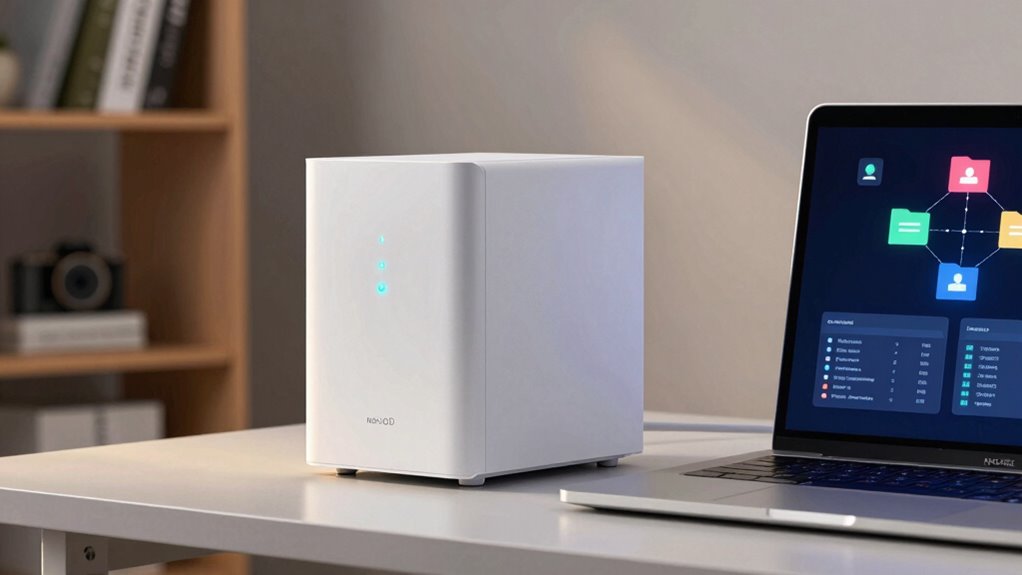
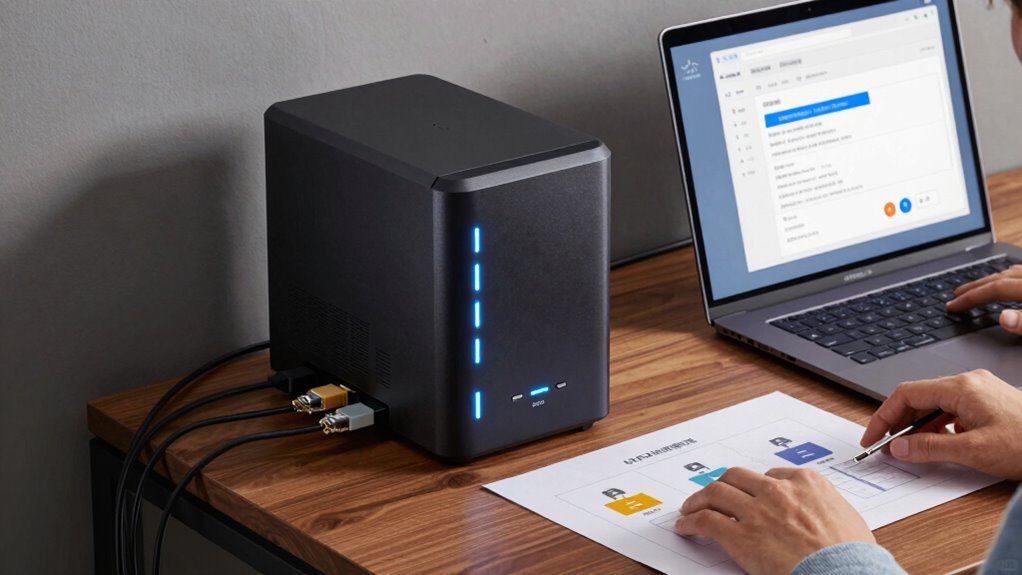
Have you ever wondered how to keep your data organized, accessible, and secure without relying solely on external drives? Network Attached Storage (NAS) makes this possible by centralizing your data on a dedicated device connected to your network. It offers seamless cloud integration, allowing you to sync files with cloud services for added redundancy and remote access. Hardware considerations are essential; you need a NAS with enough storage capacity and processing power to handle your needs. A good device supports multiple drive bays, reliable data transfer speeds, and energy efficiency. By choosing the right hardware and leveraging cloud integration, you guarantee your data remains protected, accessible from anywhere, and easy to manage. Additionally, selecting a NAS with sufficient processing power can enhance performance during data-intensive tasks like media streaming or backups, ensuring smooth operation in both personal and professional environments. NAS is critical for simplifying data management in both personal and professional environments, especially when considering data redundancy and protection against hardware failures.
network attached storage encryption device
As an affiliate, we earn on qualifying purchases.
As an affiliate, we earn on qualifying purchases.
How to Create User Accounts on Your NAS Safely
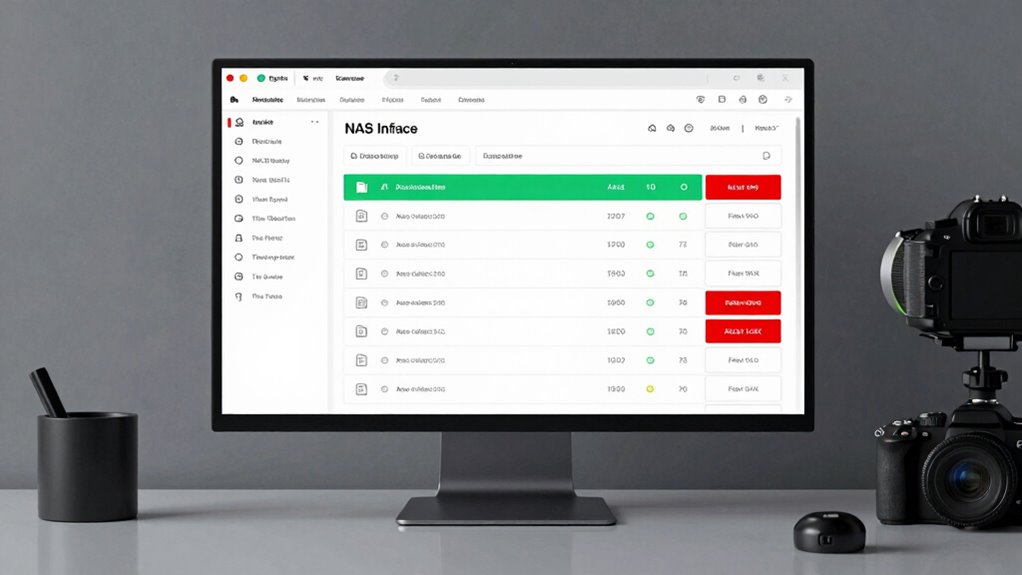
Creating user accounts on your NAS is a crucial step in securing your data and managing access efficiently. When setting up accounts, make certain you choose strong, unique passwords and enable password encryption to protect login credentials from unauthorized access. Incorporate multi-factor authentication (MFA) whenever possible, adding an extra layer of security beyond just a password. This prevents unauthorized users even if passwords are compromised. Always assign permissions carefully, limiting users to only the data they need. Regularly review and update user accounts and security settings to keep your system protected. Be aware of local heritage and cultural aspects when managing user groups in diverse environments to foster inclusivity and security. Additionally, understanding cultural significance can help tailor access and permissions that respect cultural sensitivities. By implementing user consent management practices, you can ensure users are informed about how their data and access are handled, further strengthening your security measures. By following these practices, you reduce vulnerabilities and guarantee your NAS remains a secure, reliable storage solution for your data.
As an affiliate, we earn on qualifying purchases.
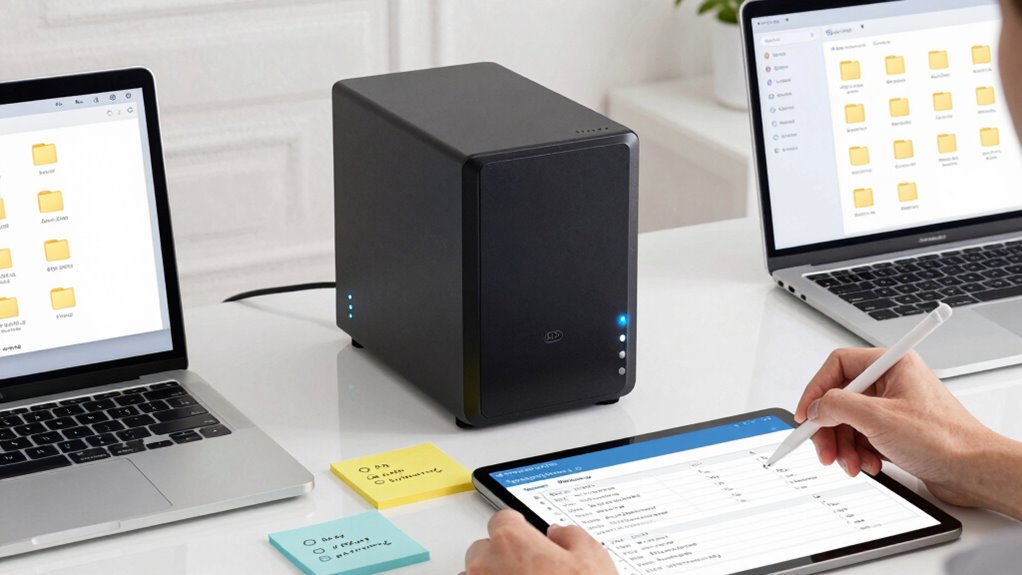
Sharing files on your NAS requires careful setup to guarantee your data stays secure while remaining accessible to authorized users. Start by creating shared folders with clear access permissions, ensuring only trusted users can view or modify files. Enable cloud integration for seamless remote access, but always use secure connections like VPNs or encrypted links. Incorporate robust backup strategies, such as scheduled backups to external drives or cloud services, to protect against data loss. Consider setting up versioning within your backup system to recover previous file states if needed. Keep your NAS firmware up to date and monitor access logs regularly for suspicious activity. By combining secure shared folder configurations with these backup strategies and cloud integrations, you assure your data is both accessible and protected.
multi-factor authentication for NAS
As an affiliate, we earn on qualifying purchases.
As an affiliate, we earn on qualifying purchases.
Understanding NAS Permissions and How They Control Access
Understanding NAS permissions is key to controlling who can access your files and what they can do with them. You’ll need to take into account user access levels, share permission types, and effective management strategies to keep your data secure. Getting these right ensures your NAS stays safe while remaining easy to use. Additionally, implementing accessibility features can make it easier for all users, including those with special needs, to interact with your NAS efficiently. Being aware of security considerations related to permissions can further enhance your system’s overall protection. Utilizing the appropriate esthetics such as well-organized shares and clear permission settings can improve user experience and reduce accidental access issues. Incorporating natural landscaping elements can also help integrate your NAS setup seamlessly into your outdoor environment. Understanding basic user management practices can help prevent unauthorized access and simplify system administration.
User Access Levels
Have you ever wondered how a NAS device keeps your files secure while still allowing access to the right people? It all comes down to user access levels, which control what each person can see or do. By setting different permissions, you guarantee users only access what they need, whether for remote access or local use. User authentication verifies identities before granting access, adding an extra security layer. Here’s a quick overview:
| Access Level | Description |
|---|---|
| Guest | Limited, read-only access for temporary users |
| Read/Write | Full access to view and modify files |
| Read-Only | View files but cannot change them |
| Admin | Complete control over shares and user permissions |
| Custom | Tailored permissions based on specific needs |
Understanding user permissions is essential for managing who can access what on your NAS device. Proper requirements traceability ensures that permissions are aligned with security policies and compliance standards, such as FedRAMP. Additionally, implementing sound security practices helps prevent unauthorized access and data breaches. Maintaining a clear security framework is vital for ongoing protection and compliance.
Share Permission Types
Ever wonder how NAS devices decide which users can access specific files or folders? It all comes down to share permission types, which are part of user access control. These permission types determine what level of access each user or group has to shared folders. Typically, you’ll encounter three main types: Read, which allows users to view and open files; Write, which adds the ability to modify or delete files; and Full Control, which grants complete access, including changing permissions. Understanding these share permission types helps you control who can see, edit, or manage your data. Proper user access control guarantees your files stay secure while allowing appropriate sharing. Additionally, access control mechanisms can influence how permissions are applied and enforced across different devices and networks. By setting the right share permission types, you can balance accessibility and security effectively. Knowing how user roles affect permissions further enhances your ability to safeguard your data while enabling collaboration. Recognizing the importance of permission inheritance can also help manage complex permission structures more efficiently.
Permission Management Strategies
Knowing the different share permission types gives you a good foundation, but managing access effectively requires a strategic approach. You should implement clear permission policies to prevent unauthorized access and consider encryption protocols to secure data in transit and at rest. You can also leverage privacy policies to inform users about data protection measures, increasing trust and compliance. Regularly reviewing permissions ensures only the right users have access, reducing security risks. Backup strategies are also crucial—by maintaining encrypted backups, you protect against data loss and ransomware attacks. Use a layered permission model, combining share permissions with user and group controls, to fine-tune access. Automate permission audits and backups to save time and minimize human error. Additionally, understanding network security basics helps you implement more effective safeguards. Incorporating permission best practices can further enhance your NAS security strategy. Ultimately, a well-planned permission management strategy keeps your NAS secure, accessible to authorized users, and resilient against threats.
Best Practices for Setting Permissions to Protect Your Data
To keep your data secure, assign unique user accounts for each person who needs access. Limit their permissions to only what’s necessary for their role, preventing unnecessary access. This approach also helps track user activity and troubleshoot issues more effectively. User activity monitoring can further enhance your ability to identify and respond to potential security concerns. Additionally, implementing permissions management ensures that access levels are appropriately assigned and maintained. Performance upgrades can further enhance overall data handling efficiency and security.
Use Unique User Accounts
Using unique user accounts for each individual is a fundamental step in safeguarding your data. This approach guarantees that user authentication is specific and traceable, making it easier to monitor activity and identify potential security issues. By assigning each person their own account, you prevent one user’s actions from affecting others’ data. It’s essential to enforce strong password policies—requiring complex, regularly updated passwords—to further protect accounts from unauthorized access. Unique accounts also simplify managing permissions, allowing you to tailor access rights precisely and revoke them if needed. This setup minimizes the risk of accidental or intentional data breaches, ensuring that only authorized users can access sensitive information. Overall, individual accounts create a solid foundation for a secure, manageable NAS environment.
Limit Access Rights
Once you’ve set up individual user accounts, the next step is to control what each user can access. Implement role-based access to assign specific permissions based on job needs, limiting users to only what they require. This reduces the risk of accidental or intentional data exposure. Additionally, enforce password complexity rules to strengthen security, making it harder for unauthorized users to gain access. Regularly review permissions and adjust them as roles change or when users no longer need access. Keep permissions granular—avoid giving full control unless necessary. By carefully managing access rights through role-based policies and strong passwords, you guarantee your data remains protected against internal and external threats. This approach minimizes vulnerabilities and maintains a secure, efficient NAS environment.
Troubleshooting Common NAS Access and Permission Issues
When you encounter issues accessing your NAS or experiencing permission errors, it’s important to methodically identify the root cause. Start by checking network connectivity and ensuring your device is connected to the network. Verify user permissions and share settings, especially if media streaming or network redundancy features aren’t working smoothly. Sometimes, permissions may be misconfigured, preventing access or causing errors. Use this quick reference:
| Issue | Possible Cause | Solution |
|---|---|---|
| Cannot access shared folder | Incorrect user permissions or share setup | Review and update permissions |
| Media streaming fails | Bandwidth issues or permission restrictions | Check network speed and user rights |
| Slow NAS response | Network redundancy misconfiguration | Verify redundancy setup |
| Permission errors on files | File-level permissions conflict | Adjust permissions at file level |
| Connection drops | Network instability or router issues | Restart router and check connections |
Maintaining and Updating User Access and Shares Over Time
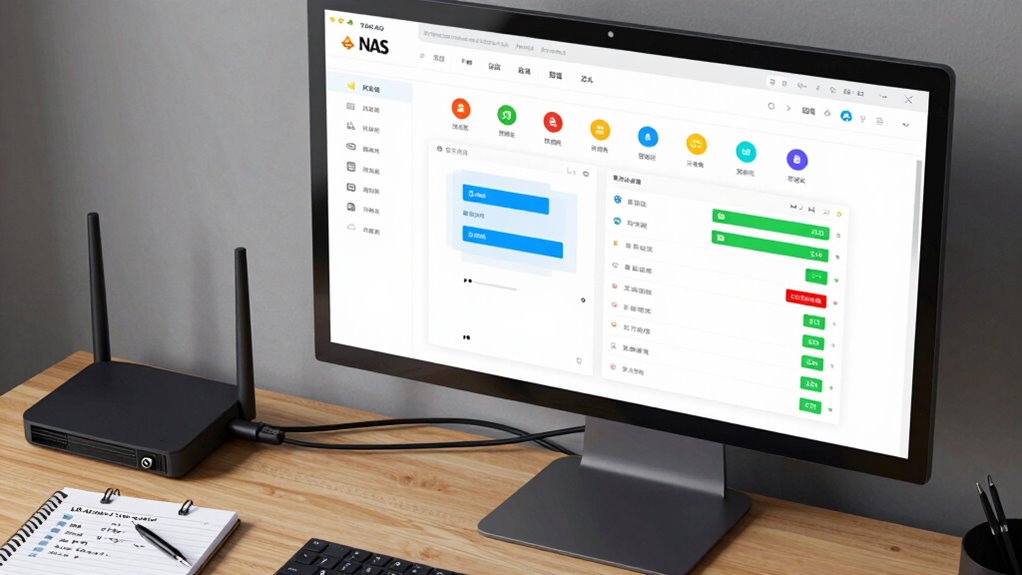
Regularly maintaining and updating user access and share settings is essential to keep your NAS secure and functioning smoothly as your needs evolve. Conducting regular access audits helps you identify outdated permissions and unauthorized access, guaranteeing your data stays protected. As your team grows or roles change, you should update permissions promptly to reflect new responsibilities or restrictions. Keep an eye on shared folder requirements and adjust access levels accordingly. Periodic permission updates prevent potential security gaps caused by lingering permissions from former users or incorrect settings. Document changes to maintain a clear record of who has access to what over time. This proactive approach helps you stay ahead of potential issues and ensures your NAS environment remains secure, efficient, and aligned with your evolving data management needs.
Security Tips and Regular Maintenance for Your NAS
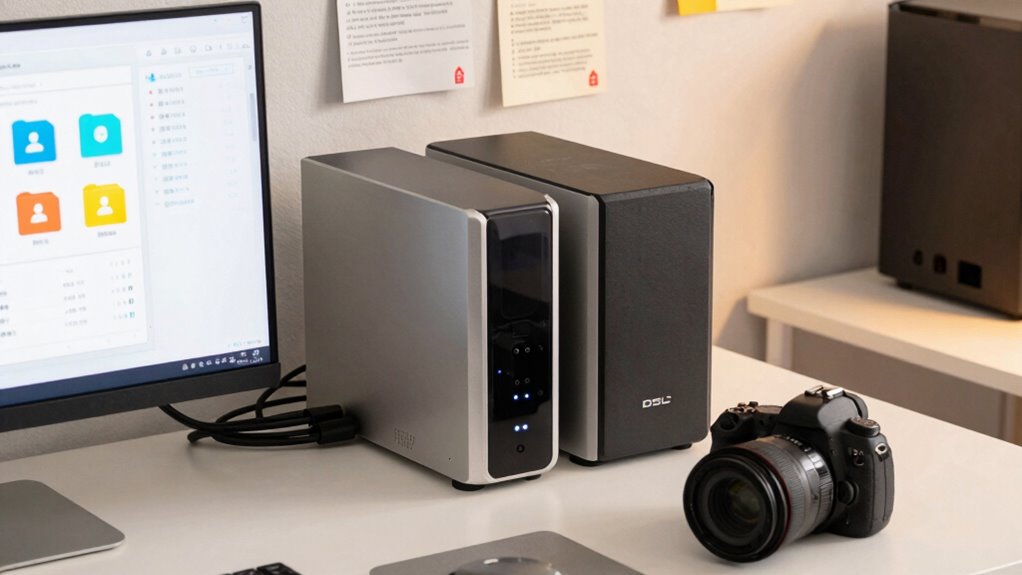
To keep your NAS secure and running smoothly, implementing consistent security practices and maintenance routines is vital. Regularly update firmware to patch vulnerabilities and enable encryption protocols like SSL/TLS for data in transit. Use strong, unique passwords and limit user access based on needs. Backup strategies are essential; schedule frequent backups to external drives or cloud services to prevent data loss.
| Security Tip | Maintenance Routine |
|---|---|
| Enable encryption protocols | Regular firmware updates |
| Use strong passwords | Check disk health & logs |
| Limit user access | Test backups periodically |
| Implement backup strategies | Remove unused shares/files |
These steps keep your data safe and your NAS dependable.
Frequently Asked Questions
How Do I Recover Lost or Forgotten NAS Login Credentials?
If you’ve lost or forgotten your NAS login credentials, start with a password reset. Check your NAS device’s manual or admin interface for the reset button or instructions. Many devices allow credential recovery through email or security questions. If that doesn’t work, you might need to perform a factory reset, but be aware it could erase data. Always back up your data regularly to prevent data loss during credential recovery.
Can I Set Different Permissions for Mobile vs. Desktop Access?
You can definitely set different permissions for mobile versus desktop access, and it’s quite common to do so. When configuring your NAS, you assign specific mobile permissions to control what users can do on their smartphones or tablets, while desktop access permissions can be more extensive. This setup helps you manage data security and user access efficiently, ensuring each device type has appropriate rights without compromising your network’s safety.
What Are the Best Practices for Backing up NAS Data?
To back up your NAS data effectively, prioritize data redundancy by using multiple backup methods, like cloud storage and external drives. Schedule regular backups to guarantee your data stays current and protected. Automate backup scheduling to minimize human error and maintain consistency. This way, you safeguard your data from hardware failures, accidental deletion, or other issues, giving you peace of mind knowing your information is reliably stored and recoverable.
How Do I Upgrade NAS Firmware Without Risking Data Loss?
To upgrade your NAS firmware safely, first verify firmware stability by checking for official updates. Before proceeding, perform thorough backup precautions by backing up all critical data to an external device or cloud. Follow the manufacturer’s instructions carefully during the upgrade process, and avoid interruptions. This approach minimizes risks of data loss, ensuring your NAS remains secure and functional after the firmware update.
Is It Possible to Restrict Internet Access for Specific NAS Users?
Yes, you can restrict internet access for specific NAS users by configuring user permissions. Most NAS devices allow you to set internet restrictions through their admin interface. You’ll want to create user accounts with limited permissions and disable or control their internet access. By adjusting these settings, you guarantee only authorized users can access the internet, maintaining security and controlling bandwidth effectively.
Conclusion
By mastering NAS setup basics—creating user accounts, setting up shared folders, and managing permissions—you’ll keep your data secure and accessible. Regular maintenance and security practices are essential; did you know that 60% of data breaches involve misconfigured permissions? Staying proactive ensures your NAS remains a reliable storage solution, protecting your information from unauthorized access. Keep these best practices in mind, and you’ll confidently manage your network storage for years to come.