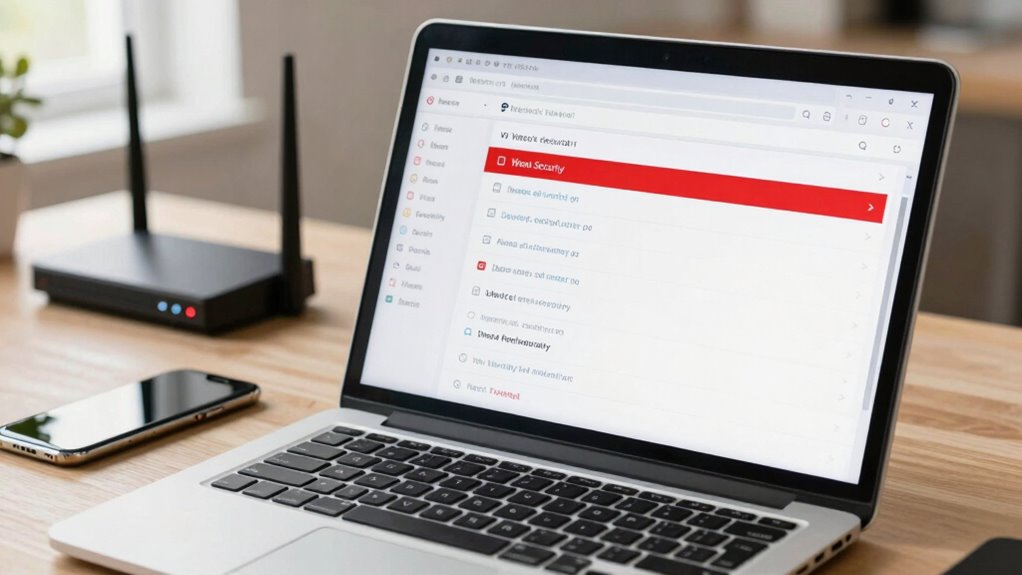

Your device shows a “Weak Security” warning on Wi-Fi because your network uses old or insecure encryption protocols like WEP or WPA, which are vulnerable to hacking. This usually happens if your router hasn’t been updated or still has default passwords. To fix this, upgrade your security to WPA3 or WPA2 with AES, update your firmware, and change passwords regularly. Keep going to discover how to fully protect your network and guarantee your data stays safe.
Key Takeaways
- Devices display “Weak Security” when connected to networks using outdated or insecure encryption protocols like WEP or WPA.
- Using default or easily guessable passwords increases the risk, prompting devices to flag the security as weak.
- Outdated router firmware or unsupported security standards can cause devices to detect and report weak security.
- Ensuring your Wi-Fi uses modern protocols like WPA3 or WPA2 with AES can resolve the warning.
- Regularly updating device firmware and changing passwords enhances Wi-Fi security and removes the “Weak Security” alert.

TP-Link AX1800 WiFi 6 Router (Archer AX21 V5) – Dual Band Wireless Internet, Gigabit, Easy Mesh, Works with Alexa – A Certified for Humans Device, Free Expert Support
DUAL-BAND WIFI 6 ROUTER: Wi-Fi 6(802.11ax) technology achieves faster speeds, greater capacity and reduced network congestion compared to…
As an affiliate, we earn on qualifying purchases.
As an affiliate, we earn on qualifying purchases.
What Does the “Weak Security” Warning Mean on Your Wi-Fi?
Have you ever seen the “Weak Security” warning pop up on your Wi-Fi network? This alert indicates your network uses outdated or insecure encryption protocols, leaving it vulnerable to attacks. Modern Wi-Fi security relies on robust encryption protocols like WPA3, which protect data from prying eyes. If your network still uses older protocols like WEP or WPA, it’s more susceptible to network vulnerabilities, making it easier for hackers to intercept information or access your devices. The warning aims to alert you that your Wi-Fi security isn’t strong enough, exposing your network to potential threats. Recognizing this helps you understand the importance of updating your security settings to use the latest encryption protocols, which are designed to prevent unauthorized access, strengthening your defenses against cyber threats.

Yale Security Wi-Fi and Bluetooth Upgrade Kit for First Gen Assure Locks and Levers, Not Compatible with Yale Assure Lock 2 (YRD4XX), AYR202-CBA-KIT
Upgrade your first generation Yale Assure Lock or Lever to work with the Yale Access App so you…
As an affiliate, we earn on qualifying purchases.
As an affiliate, we earn on qualifying purchases.
How to Check Your Wi-Fi Security Settings on Any Device
Checking your Wi-Fi security settings across different devices is straightforward, and it’s an essential step to make sure your network remains protected. Start by accessing your device’s Wi-Fi settings—on smartphones, tablets, or computers. Look for information about your current connection, including security protocols like WPA2 or WPA3. You can also check your router’s admin panel for detailed security options. While doing this, consider wireless interference and signal strength, as poor signals can cause connection issues that might mimic security warnings. Ensuring your device is connected to the correct network and that your security settings are up to date helps prevent vulnerabilities. Regularly reviewing these settings keeps your network safer and reduces the chances of receiving security alerts. Exploring cultural activities in your area can also help you stay informed about local events and community safety initiatives. Additionally, understanding common Wi-Fi security protocols can help you identify the most secure options for your network. Familiarizing yourself with network vulnerabilities can remind you that even in technical setups, unexpected issues may occur, so staying vigilant is always beneficial. Being aware of nail biology and hygiene may seem unrelated, but just as maintaining strong, healthy nails requires proper care, keeping your Wi-Fi secure involves regular checks and updates to prevent weaknesses.

AVID POWER 630W 5.3 Amp Wood Router Tool with Fixed Base Compact Router for Woodworking, 35,000 RPM, 1/4” collet & 5 Trim Bits, Straight & Roller Guide, 2 Wrenches and Carbon Brushes
Strong Motor, Power for Your Woodworks: With 630W 5.3 Amp motor, this trim router provides sufficient power &…
As an affiliate, we earn on qualifying purchases.
As an affiliate, we earn on qualifying purchases.
Common Causes of Weak Wi-Fi Security Alerts
You might see a “Weak Security” alert if your Wi-Fi uses outdated encryption protocols or default passwords that are easy for others to guess. Weak network passwords also make it simple for unauthorized users to access your network. Ensuring you update your security settings can help protect your device and data. Being aware of privacy policies and how cookies are managed can also influence your overall online security. Additionally, incorporating eco-friendly natural pools and other sustainable backyard features can promote a safer environment and reduce chemical exposure. Regularly reviewing your network’s security features, such as encryption protocols, can further strengthen your Wi-Fi protection. Implementing consistent exfoliation practices, similar to skincare routines involving glycolic acid, can help keep your network free of unwanted buildup or vulnerabilities.
Outdated Encryption Protocols
Outdated encryption protocols are a common culprit behind weak Wi-Fi security alerts. When your router uses old encryption methods, it leaves your network vulnerable to security vulnerabilities that hackers can exploit. Devices recognize these outdated protocols and alert you to potential risks. A lack of color accuracy in your network’s security settings can also compromise overall protection. You should look out for protocols like WEP or early versions of WPA, which are no longer secure. Upgrading to newer standards like WPA3 substantially improves your network’s security. Other signs include deprecated security protocols, which are increasingly incompatible with modern devices, and the increased risk of unauthorized access. Ensuring your firmware is up-to-date can help mitigate these issues and enhance your network’s overall security best practices. Additionally, regularly reviewing your network’s security settings can help prevent vulnerabilities caused by outdated configurations.
Default Router Passwords
Have you ever considered how default router passwords can undermine your Wi-Fi security? Default passwords are often easy to guess or found online, making it simple for hackers to access your network. This vulnerability increases the risk of unauthorized users exploiting router vulnerabilities, such as changing settings or intercepting data. Manufacturers often set common default passwords, which many users neglect to change after installation. Leaving these default credentials in place leaves your network exposed to potential attacks. To improve security, always change your default router password to a strong, unique one immediately after setup. Doing so closes the door on attackers who rely on default credentials, considerably reducing your risk of a security breach and helping your Wi-Fi network stay protected. Additionally, understanding flavorful appetizers can help you enjoy secure and delicious gatherings without worries.
Weak Network Passwords
Weak network passwords are a common reason why your Wi-Fi security might be flagged as vulnerable. Simple or easily guessable passwords, like “password” or “123456,” compromise your network’s safety. To improve security, focus on increasing password complexity by combining uppercase and lowercase letters, numbers, and symbols. Additionally, consider network segmentation—creating separate networks for devices like smart gadgets and guest users—to limit potential breaches. Remember, weak passwords often result from:
- Using default or common passwords
- Failing to update passwords regularly
- Not enabling WPA3 or strong encryption standards
- Understanding Wi-Fi security helps you recognize the importance of using strong encryption standards like WPA3 to protect your network.

Personalized Wifi Sign – Scan and Connect, QR Code Scanner, Password Display, What’s the Code, Guest Wifi Access, Rental Home Sign, Valentines Day
FULLY CUSTOMIZED PRODUCT – The customization options for our personalized signs are endless! You have the flexibility to…
As an affiliate, we earn on qualifying purchases.
As an affiliate, we earn on qualifying purchases.
Why Using Outdated Security Protocols Risks Your Data
When you use security protocols that are no longer current, your data becomes vulnerable to hackers who know how to exploit their weaknesses. Outdated protocols, like WEP or early WPA versions, lack strong encryption, making it easier for attackers to intercept your information. Additionally, using old security standards can cause wireless interference and reduce signal strength, leading to unstable connections. Hackers can exploit these issues to access your network and steal sensitive data. To understand the risks better, consider this table:
| Security Protocol | Vulnerability Level | Impact on Signal |
|---|---|---|
| WEP | High | Causes interference |
| WPA | Moderate | Slight signal loss |
| WPA2 | Low | Stable connection |
| WPA3 | Minimal | Optimal signal |
| No Security | Very High | No signal integrity |
Implementing up-to-date security standards not only safeguards your information but also ensures a more reliable and efficient connection. Staying current with security protocols is essential to prevent potential security breaches and maintain network stability. Regularly updating your network equipment can also help address security vulnerabilities that arise from outdated firmware or hardware limitations. Being aware of wireless interference issues caused by outdated or incompatible protocols can further improve your network’s performance.
Understanding WPA2 and WPA3 to Protect Your Network
WPA2 has been the standard for securing Wi-Fi networks, but WPA3 offers stronger encryption and better protections against attacks. Upgrading your devices helps guarantee your network stays safe as encryption strength improves. Moving to WPA3 can seem complex, but it’s an essential step in maintaining your security. Additionally, understanding the differences in security levels, such as the improved protections offered by electric power generation with bike generators, can help you appreciate how advancements in technology contribute to safer, more reliable connectivity. As technology evolves, staying informed about wireless security protocols ensures you can better defend your network against emerging threats. Recognizing the importance of cryptography in these protocols highlights how fundamental security measures are evolving to meet new challenges. Being aware of encryption methods used in these protocols helps you understand how your data remains protected during transmission. Understanding how power capacity impacts the effectiveness of security devices can further enhance your network’s resilience against attacks.
WPA2 vs. WPA3
Understanding the differences between WPA2 and WPA3 is key to keeping your wireless network secure. WPA3 offers improved security features and stronger wireless encryption compared to WPA2, which has been standard for years. It enhances protection against hacking attempts and makes your network more resilient.
Key improvements include:
- Enhanced handshake process for better password protection
- Forward secrecy to prevent data from being decrypted if a device is compromised
- Simplified security setup for easier device connections
WPA3 also updates network protocols to better defend against attacks and improve privacy. If your devices support WPA3, upgrading provides a significant boost in security. Ensuring your Wi-Fi uses the latest protocols helps prevent vulnerabilities and keeps your network safe.
Encryption Strength Differences
Although both WPA2 and WPA3 use advanced encryption methods, WPA3 offers considerably stronger protection for your wireless data. WPA3 improves security protocols by employing more robust encryption algorithms, making it harder for attackers to crack your connection. While WPA2 relies on AES encryption, WPA3 introduces Simultaneous Authentication of Equals (SAE), which enhances password security. The table below highlights key encryption strength differences:
| Feature | WPA2 | WPA3 |
|---|---|---|
| Encryption algorithms | AES | Enhanced AES & SAE |
| Security protocols | WPA2 | WPA3 |
| Resistance to attacks | Moderate | Tougher resistance |
Choosing WPA3 ensures your network benefits from the latest security enhancements, providing better encryption strength.
Transitioning To New Standards
Upgrading your Wi-Fi security standards is a vital step to safeguard your network against evolving threats. Moving from WPA2 to WPA3 improves security, but device compatibility can be a concern. To facilitate a smooth changeover:
- Check if your devices support WPA3; older devices may need firmware updates or replacements.
- Perform firmware updates on your router and compatible devices to enable the latest security features.
- Consider a gradual upgrade, prioritizing devices that handle sensitive data first.
Understanding the differences between WPA2 and WPA3 helps you decide when to upgrade. While WPA3 offers stronger protection, confirming your device ecosystem is compatible is key. Regular firmware updates keep your devices aligned with new standards, reducing vulnerabilities.
How to Upgrade Your Wi-Fi Security Settings
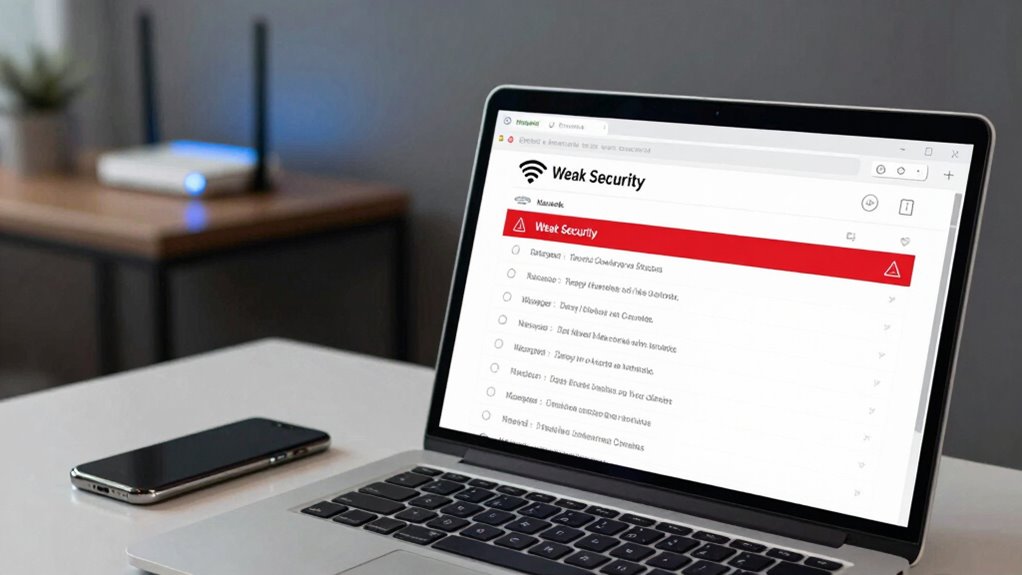
Are you seeing “Weak Security” warnings on your Wi-Fi network? To address this, start by accessing your router’s admin settings—usually through a web browser. Look for the wireless or Wi-Fi security section. Here, you can perform Wi Fi upgrades by selecting the latest security protocol, such as WPA3. If WPA3 isn’t available, choose WPA2 with AES encryption for better protection. Avoid outdated options like WEP or WPA, which are vulnerable. Save your settings and restart your router if needed. These security enhancements greatly improve your network’s defenses against unauthorized access. Regularly updating your firmware and security settings ensures ongoing protection. Upgrading your Wi-Fi security is an essential step in safeguarding your data and devices from potential threats.
Best Practices to Secure Your Home and Office Wi-Fi
Once you’ve updated your Wi-Fi security settings, it’s equally important to adopt best practices to keep your network safe. To improve security, consider proper router placement to minimize wireless interference and signal degradation. Keep your router in a central, elevated spot away from thick walls, metal objects, and other electronic devices that can cause interference. Additionally, regularly update your router’s firmware to patch vulnerabilities. Use strong, unique passwords for your Wi-Fi network, avoiding common or default ones. Finally, enable network encryption like WPA3 or WPA2 to protect data. These steps help maintain a secure network environment and prevent unauthorized access, ensuring your devices stay protected without compromising performance.
How to Find and Remove Vulnerable Devices From Your Network
To keep your network secure, start by identifying any unknown devices connected to it. Next, review and update each device’s security settings to guarantee they meet best practices. Finally, remove any unauthorized or suspicious devices to prevent potential vulnerabilities.
Identify Unknown Devices
If you notice unfamiliar devices connected to your Wi-Fi network, it’s essential to identify and remove them promptly. Effective device identification relies on network monitoring tools that show all connected devices. To spot suspicious activity, look for unfamiliar device names, IP addresses, or MAC addresses.
You can:
- Use your router’s admin panel to view connected devices
- Deploy network monitoring apps for real-time device tracking
- Cross-check device details against known devices in your household
Check Device Security Settings
After identifying unfamiliar devices on your network, the next step is to check their security settings to determine if they’re vulnerable. Start by reviewing each device’s security audit logs and settings. Confirm they support current encryption standards and have updated firmware. If a device shows poor device compatibility or outdated security, it could be a weak link.
| Device Type | Current Security Status | Recommended Action |
|---|---|---|
| Smartphone | Outdated encryption | Update OS and security patches |
| IoT Device | Weak passwords | Change default passwords |
| Laptop | Unsupported protocols | Upgrade or replace device |
Regular security audits help protect your network from vulnerabilities.
Remove Unauthorized Access
Wondering how to prevent unauthorized devices from accessing your Wi-Fi? You need to perform regular network monitoring to spot any unfamiliar devices. First, log into your router’s admin panel and check the list of connected devices. Look for devices you don’t recognize. To remove unauthorized access:
- Change your Wi-Fi password to a strong, unique one.
- Enable MAC address filtering to restrict access to approved devices.
- Update your router’s firmware to patch security vulnerabilities.
What to Do if Your Router Doesn’t Support Modern Security Standards
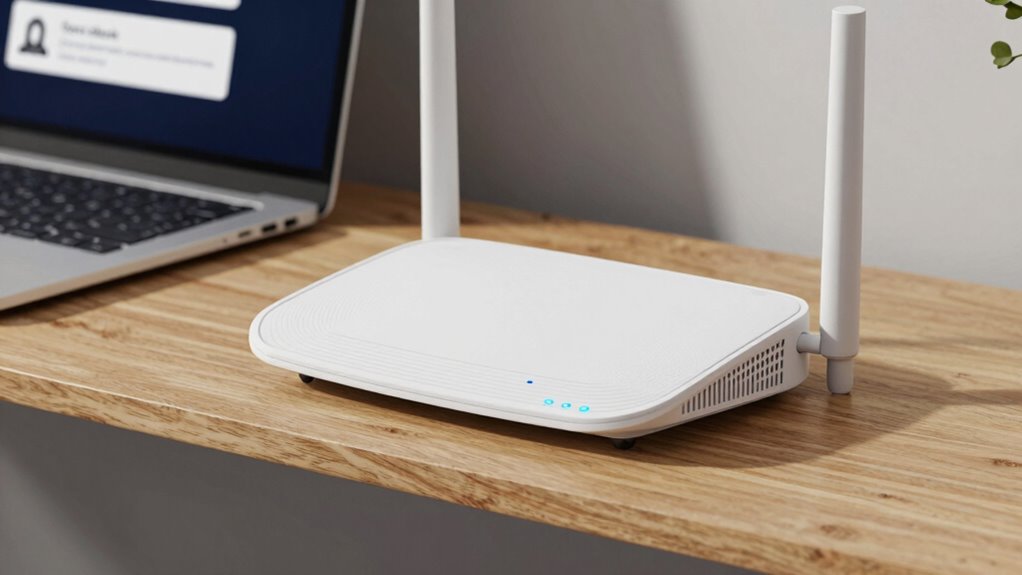
When your router doesn’t support modern security standards like WPA3, it’s essential to take proactive steps to protect your network. Upgrade to a newer router that supports WPA3 or at least WPA2, as these standards offer stronger encryption. If upgrading isn’t an option, consider placing your current router in a central location to minimize wireless interference and maximize signal strength. Avoid physical obstructions and sources of interference like microwaves or cordless phones. Use a Wi-Fi analyzer to identify interference issues and optimize channel settings. Here’s a quick overview:
| Action | Benefit | Notes |
|---|---|---|
| Upgrade router | Better security, future-proofing | Check compatibility with your ISP |
| Central placement | Improved signal strength | Avoid walls and metal objects |
| Change Wi-Fi channel | Reduce interference | Use analyzer tools |
| Limit connected devices | Reduce network congestion | Manage bandwidth use |
| Use wired connections | Maximize security and stability | For sensitive tasks |
Why Keeping Your Wi-Fi Security Up to Date Matters for Your Data Safety
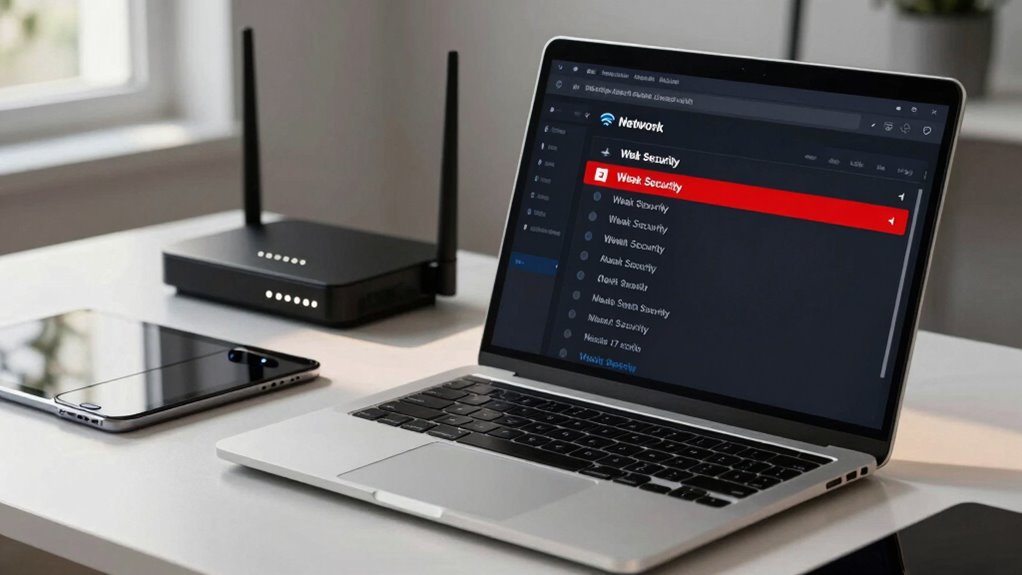
Have you ever considered how vulnerable your personal data might be if your Wi-Fi security isn’t up to date? Outdated security can expose you to encryption vulnerabilities, making it easier for hackers to intercept your data. Regularly updating your security settings helps protect sensitive information like passwords, financial details, and personal messages. Good password management is essential; weak or reused passwords increase risks. To stay safe, focus on:
- Using strong, unique passwords for your Wi-Fi network
- Keeping your router firmware and security protocols current
- Enabling encryption standards like WPA3 whenever possible
Frequently Asked Questions
Can I Still Connect to a Wi-Fi Network With Weak Security?
Yes, you can still connect to a Wi-Fi network with weak security, but it’s risky. Weak security often means outdated network encryption, which makes your data vulnerable. If the password strength isn’t strong, it’s easier for others to access your network. To stay safe, try to connect only to networks with current encryption standards and strong passwords, or ask the network owner to upgrade to better security protocols.
How Often Should I Update My Wi-Fi Security Settings?
You should update your Wi-Fi security settings regularly, ideally every few months, to stay protected. Keep encryption protocols current—preferably WPA3—and guarantee your password strength remains high, with complex, unique passwords. By updating your settings often, you minimize vulnerabilities, strengthen encryption protocols, and improve password strength. This proactive approach helps safeguard your network from potential threats, keeping your data secure and your connection reliable.
Are Free Wi-Fi Networks More Vulnerable to Security Threats?
Yes, free Wi-Fi networks are more vulnerable to security threats because they often lack strong encryption protocols, making it easier for hackers to intercept data. These networks can have significant network vulnerabilities, putting your personal information at risk. When using free Wi-Fi, avoid accessing sensitive accounts or conducting financial transactions. Use a VPN to encrypt your data and protect yourself from potential threats on unsecured networks.
What Are the Signs My Wi-Fi Has Been Hacked?
You might notice unusual activity, like unfamiliar devices connected to your Wi-Fi or sudden slowdowns, indicating your network has been hacked. Check your network encryption settings—if they’re outdated or weak, it increases vulnerability. Use hacker detection tools to scan for intrusions, and change your Wi-Fi password regularly. Strengthening your network encryption and monitoring for suspicious activity helps protect your network from unauthorized access.
How Do I Know if My Device Supports WPA3?
You can check if your device supports WPA3 by exploring its compatibility with modern security protocols. Head to your device’s network settings or user manual—these reveal if WPA3 is supported. Many newer smartphones, laptops, and routers now include device compatibility with WPA3, providing stronger security. If your device supports WPA3, you’ll get better protection against threats, and you should enable it for peak Wi-Fi security.
Conclusion
So, next time your Wi-Fi warns you about “weak security,” remember it’s just trying to keep you from becoming the latest hacker’s favorite snack. Take a moment, upgrade your protocols, and banish those vulnerable devices. After all, nothing says “I care about my data” like fussing over your Wi-Fi security—because who needs peace of mind when you can have the thrill of a potential data breach? Stay secure, or at least pretend to!