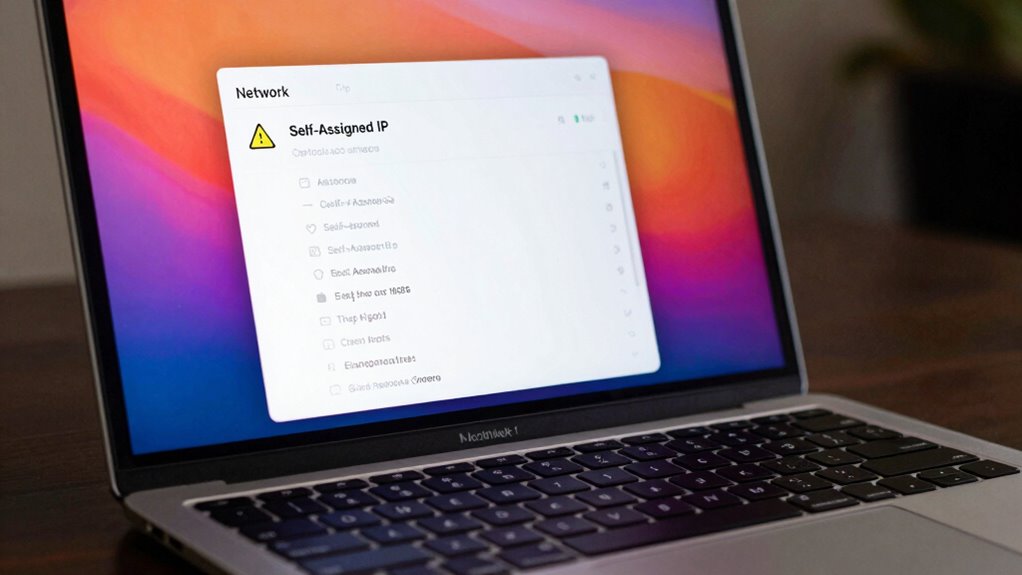

The “Self-Assigned IP” error on your Mac happens when it can’t get a proper IP address from the network, often due to router issues, IP conflicts, or incorrect network settings. This prevents your device from connecting properly to the internet or other devices. Restarting your router, renewing the DHCP lease, or assigning a static IP can often fix it. To understand more about causes and solutions, keep exploring how to troubleshoot and prevent this common problem.

Get the latest gadgets delivered free — and shop member deals
- Fast, free delivery on millions of items
- Access to Prime Big Deal Days deals on October 6–7
- Prime Video, Amazon Music and more included
Key Takeaways
- The error occurs when your Mac cannot obtain a valid IP address from the router, often due to network conflicts or router issues.
- Self-assigned IPs prevent proper communication, causing internet connectivity problems and network instability.
- Common causes include DHCP misconfiguration, IP address conflicts, or router firmware problems.
- Quick fixes involve renewing the DHCP lease, restarting the router, or updating router firmware.
- Preventative measures include keeping firmware updated, enabling strong security, and assigning static IPs for critical devices.
Mac Wi-Fi router troubleshooting kit
As an affiliate, we earn on qualifying purchases.
As an affiliate, we earn on qualifying purchases.
What Causes the Self-Assigned IP Error on Your Mac?
Have you ever noticed your Mac displaying a “Self-Assigned IP” error when trying to connect to Wi-Fi? This usually happens during network troubleshooting when your Mac can’t obtain a valid IP address from the router. IP address conflicts often cause this error, where two devices on the same network compete for the same IP. Your Mac then assigns itself a temporary IP to stay connected, but this limits internet access. Other causes include router issues, incorrect network settings, or DHCP server problems. When your Mac can’t communicate properly with the network, it results in the Self-Assigned IP error. Understanding these common causes helps you identify and fix the root problem quickly, restoring your Wi-Fi connection without unnecessary frustration. Additionally, network configuration plays a crucial role, as improper settings can lead to such connectivity issues. Ensuring your network settings are properly configured can prevent IP address conflicts and improve overall connectivity stability. Problems with router firmware can also contribute to this issue, making it important to keep your router’s software up to date. Sometimes, DHCP settings may need to be refreshed or reset to resolve these errors effectively.
As an affiliate, we earn on qualifying purchases.
How Does a Self-Assigned IP Affect Your Wi-Fi Connection?
When your Mac assigns itself a self-created IP address, it directly impacts your Wi-Fi connection by preventing proper communication with the network. This misconfiguration disrupts the IP address assignment process, making it impossible for your device to connect reliably. As a result, your Mac can’t exchange data with other devices or access the internet. This also raises concerns about network security, as an incorrect IP address configuration can expose vulnerabilities or cause your device to behave unpredictably on the network. Without a valid IP address, your Mac struggles to authenticate and communicate effectively, leading to connection failures. Additionally, understanding how growth mindsets can influence problem-solving approaches may help in troubleshooting such technical issues more effectively. Recognizing the importance of network stability can also guide you in maintaining consistent connectivity. Ensuring your network settings are correctly configured can help prevent self-assigned IP errors from recurring.
Static IP address configuration for Mac
As an affiliate, we earn on qualifying purchases.
As an affiliate, we earn on qualifying purchases.
Quick Fixes for Self-Assigned IP Errors
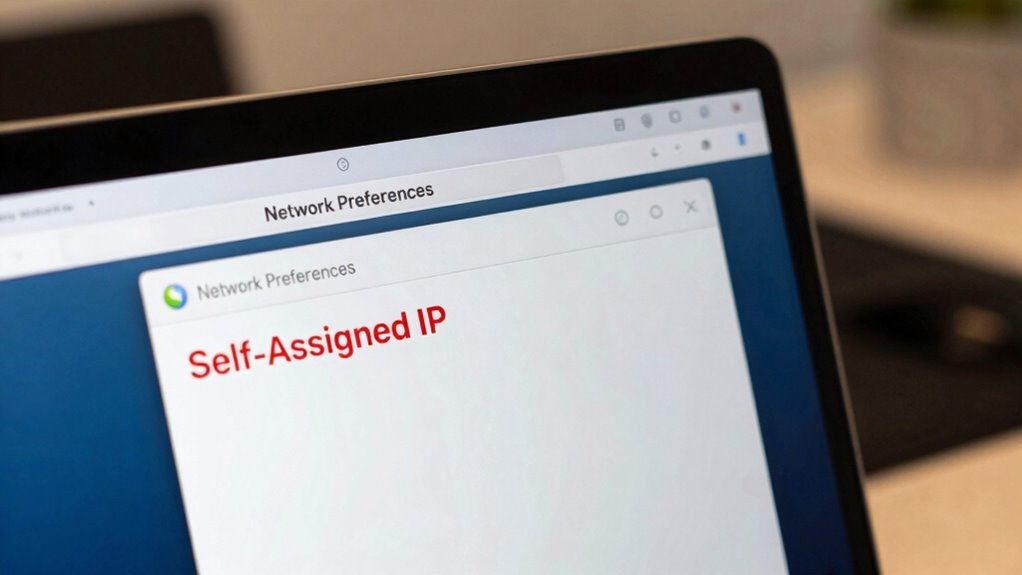
To quickly resolve self‑assigned IP errors, start by renewing your Mac’s DHCP lease. This refreshes your IP configuration and often fixes connectivity issues. If that doesn’t work, check your network security settings—sometimes, overly strict security can block proper IP assignment. Restart your Wi-Fi router to ensure it’s functioning correctly, as outdated router firmware can cause IP conflicts. Updating your router’s firmware can improve network stability and resolve bugs that interfere with DHCP. Additionally, verify that your network security settings aren’t causing conflicts between devices. These simple steps address common causes of self‑assigned IP errors and can restore your connection without extensive troubleshooting. Incorporating network device maintenance can also prevent recurring IP conflicts. Sometimes, network security policies may need adjustment to allow proper IP assignment, especially if recent changes have been made. Regular network management helps maintain stable connections and can prevent issues like self‑assigned IP errors. Proper network device maintenance can also prevent recurring IP conflicts.
As an affiliate, we earn on qualifying purchases.
Advanced Solutions to Fix Self-Assigned IP Problems
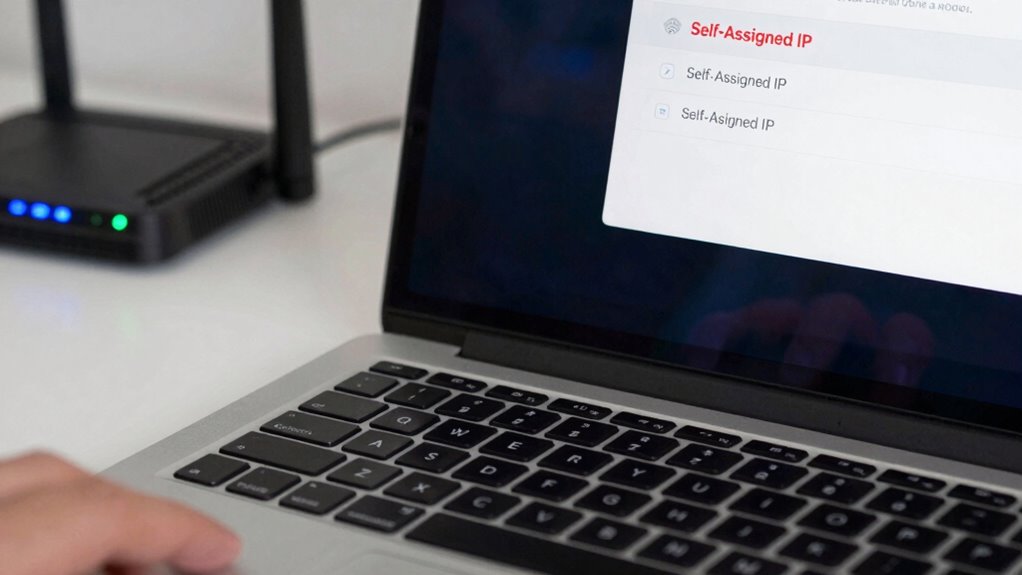
If renewing your DHCP lease and updating your router’s firmware haven’t fixed the self-assigned IP issue, it’s time to explore more advanced solutions. Begin by checking your router’s configurations, ensuring DHCP is enabled and correctly set up. Misconfigured router settings can interfere with IP assignment. Also, review your network security settings—sometimes, firewalls or security protocols block proper IP allocation, causing self-assigned IP errors. Resetting your router to factory defaults can resolve stubborn configuration issues. For added security, update your router’s firmware, which patches vulnerabilities and improves stability. If problems persist, consider manually assigning a static IP within your network’s range to bypass DHCP issues. Ensuring your network uses natural light can also help maintain overall device performance and connectivity stability, as a well-lit environment reduces electronic interference and promotes better device operation. Proper network configuration is essential to prevent recurring IP conflicts and errors. Regularly reviewing your network security settings can help prevent unauthorized access that might disrupt your IP assignments. These steps help ensure your network security remains tight while fixing your IP troubles effectively. Additionally, verifying your network’s air quality considerations can help maintain overall device performance and connectivity stability.
How to Prevent Future Wi-Fi IP Address Issues
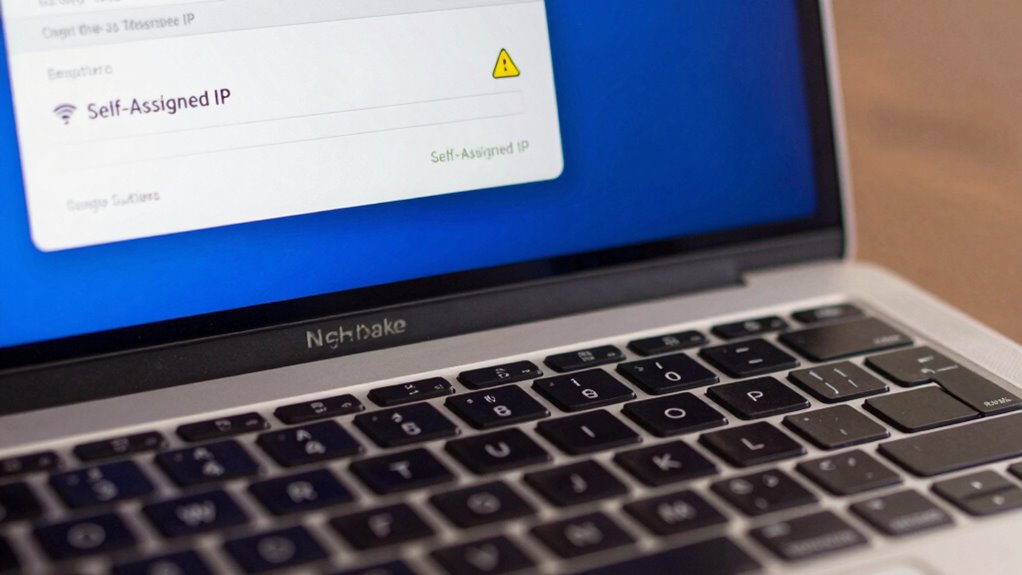
Preventing future Wi-Fi IP address issues starts with maintaining your network’s stability and proper configuration. To do this effectively, focus on these key steps:
- Keep your router firmware updated to ensure security patches and stability improvements.
- Enable strong network security, like WPA3 encryption, to prevent unauthorized access.
- Assign static IP addresses for critical devices to avoid conflicts.
- Regularly restart your router to refresh network settings and clear temporary glitches.
- Properly managing your network’s light/humidity environment can also contribute to overall stability and performance. Additionally, monitoring your network’s configuration helps identify potential issues before they cause disruptions. Ensuring that your network setup is compliant with security standards can further reduce vulnerabilities and prevent unauthorized access. Regularly checking your extension cord standards and ensuring they meet safety guidelines can also prevent power-related disruptions that might impact network equipment. Implementing network monitoring tools can help track and troubleshoot issues proactively.
These actions help prevent IP conflicts and self-assigned IP errors. Consistently updating firmware reduces vulnerabilities, while good network security keeps your network safe. Static IPs ensure important devices maintain a stable connection, and routine restarts help sustain overall network health. Following these tips minimizes future IP address issues, keeping your Wi-Fi running smoothly.
Frequently Asked Questions
Can Resetting Network Settings Permanently Fix the Self-Assigned IP Error?
Resetting network settings can often fix the self-assigned IP error temporarily, but it may not be a permanent solution. You should follow troubleshooting steps like renewing your DHCP lease and checking your router for network stability issues. If the problem persists, resetting network settings can help, but you might need to explore other solutions like updating your software or configuring network preferences to guarantee long-term stability.
Does a Router Firmware Update Resolve Self-Assigned IP Issues?
Yes, updating your router firmware can help resolve self-assigned IP issues—because nothing screams “tech wizard” like a shiny new firmware. It might fix wireless interference and DHCP conflicts that cause your Mac to throw a fit and assign itself an IP. Think of it as giving your router a spa day—clean, refreshed, and ready to banish those pesky network errors for good.
How Does MAC Address Filtering Impact IP Assignment Problems?
Mac address filtering can impact IP assignment problems by restricting device access based on their MAC addresses. If your device’s MAC address isn’t whitelisted, it might struggle to obtain an IP, causing connectivity issues. This affects device compatibility, as some devices may be blocked unintentionally. While it enhances network security, improper filtering can inadvertently create IP conflicts, so double-check your MAC address lists to make certain smooth IP assignment and seamless connection.
Are There Specific Network Configurations That Cause Self-Assigned IP Errors?
Think of your network like a busy highway. Network misconfigurations and DHCP conflicts cause traffic jams, leading to self-assigned IP errors. Misconfigured routers or static IPs can disrupt DHCP’s role, causing your Mac to assign itself an IP. Ensuring your network settings are correct, DHCP is enabled, and there are no IP conflicts helps keep your connection smooth and prevents these errors from happening.
Can Using a Static IP Prevent Future Wi-Fi Connectivity Issues?
Yes, using a static IP can help prevent future Wi-Fi connectivity issues by avoiding IP conflicts that occur when multiple devices share the same address. It can also reduce network congestion caused by dynamic IP assignment, leading to more stable connections. However, guarantee you assign a unique IP outside the DHCP range to prevent conflicts. Regularly updating network settings and avoiding manual IP conflicts keeps your Wi-Fi connection smooth.
Conclusion
Imagine you’re trying to join your favorite café’s Wi-Fi, only to see a self-assigned IP error pop up. If you don’t fix it, you’re stuck offline, missing out on updates or work. By understanding the causes and trying quick fixes like renewing your DHCP lease, you can reconnect swiftly. Just like Sarah, who fixed her Wi-Fi in minutes and kept her project on track—don’t let IP issues hold you back.
Fall Picks
fall essentials
As an affiliate, we earn on qualifying purchases.