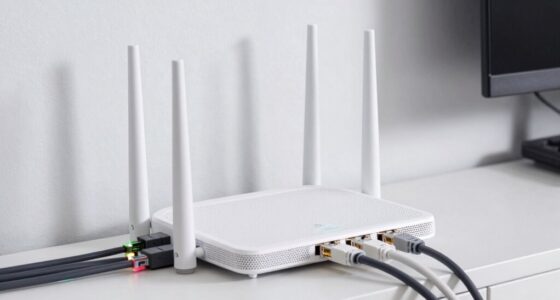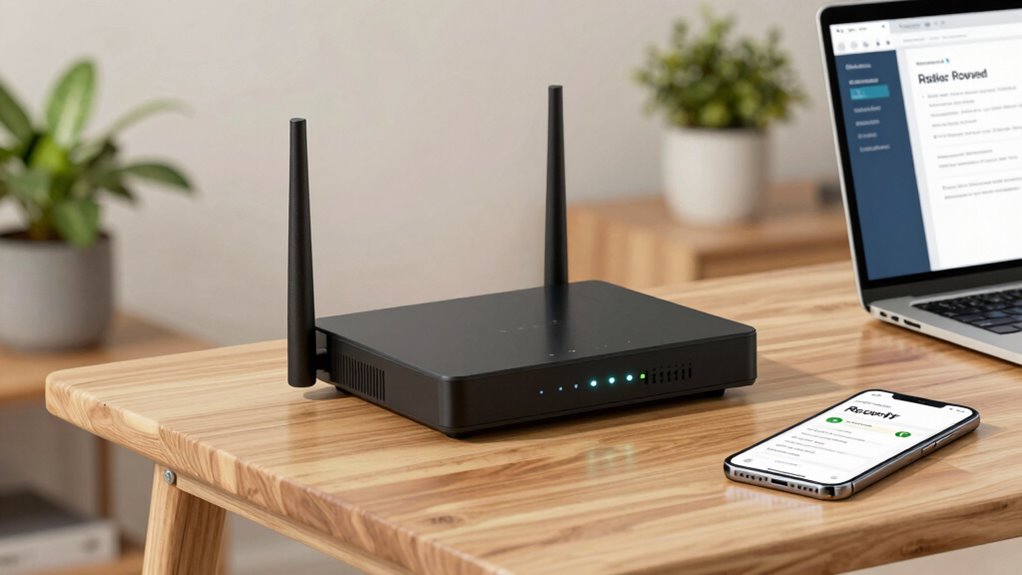

When setting up your new router, you should change the default admin username and password to keep unauthorized users out. Disable remote management to prevent external access and update your firmware regularly to patch security flaws. Give your Wi-Fi a unique name and enable WPA3 encryption for stronger security. Keep an eye on connected devices and remove any unfamiliar ones promptly. To protect your privacy further, more tips are coming up that can boost your network’s safety.

Get the latest gadgets delivered free — and shop member deals
- Fast, free delivery on millions of items
- Access to Prime Big Deal Days deals on October 6–7
- Prime Video, Amazon Music and more included
Key Takeaways
- Change default admin username and password to strong, unique credentials to prevent unauthorized access.
- Disable remote management to prevent external access to router settings.
- Enable WPA3 encryption to secure wireless network traffic.
- Create a separate guest network to isolate visitors from main devices.
- Regularly update firmware to patch security vulnerabilities and enhance protection.
As an affiliate, we earn on qualifying purchases.
Why Your Router’s Privacy Settings Matter
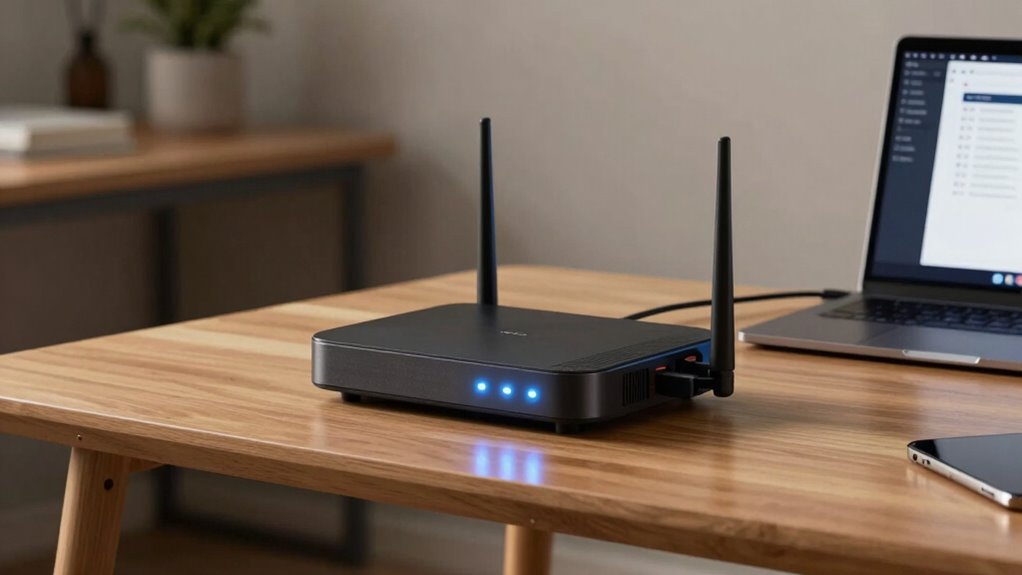
Your router’s privacy settings are crucial because they help protect your personal information and prevent unauthorized access to your home network. Proper settings ensure that data encryption is enabled, making your internet traffic unreadable to outsiders. This keeps sensitive information, like passwords and financial details, secure. Regular firmware updates are equally important because they fix security vulnerabilities that hackers might exploit. Keeping your router’s firmware current ensures you benefit from the latest security enhancements. Without these protections, your network becomes more vulnerable to cyber threats, data theft, or unauthorized devices connecting without permission. By actively managing these privacy features, you strengthen your overall security and maintain control over who accesses your network and what data remains private. Additionally, enabling guest network options can isolate your main devices from potential threats posed by other connected devices. Understanding the regional regulations that may affect your privacy settings can further help you customize your security approach. Being aware of privacy policies related to your internet provider can also help you make informed decisions about your network security. Staying informed about security best practices can further enhance your understanding of how to protect your digital presence.
As an affiliate, we earn on qualifying purchases.
Access Your Router’s Admin Panel Safely
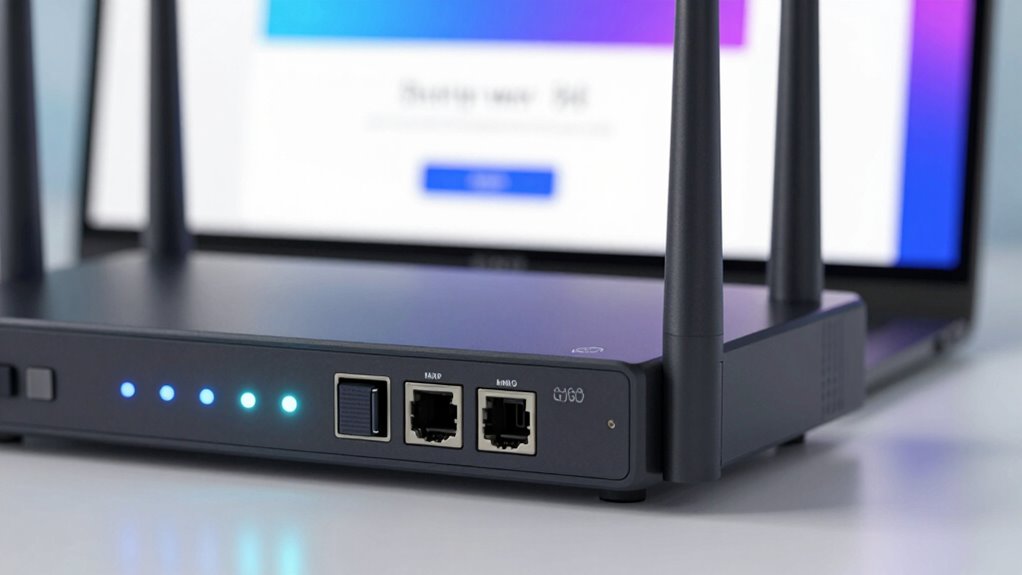
To access your router’s admin panel safely, it’s essential to use a secure connection and follow best practices to prevent unauthorized access. Always connect via a protected Wi-Fi network or Ethernet cable, avoiding public Wi-Fi. Change the default username and password to strong, unique credentials. Enable guest networks to limit access for visitors, keeping your main network more secure. Use parental controls to restrict device access and monitor usage, reducing the risk of security breaches. Regularly update your router’s firmware to patch vulnerabilities. Avoid sharing login details and never leave the admin panel accessible from the internet unless necessary. These steps *guarantee* you manage your router’s settings securely and maintain control over your network’s privacy. Additionally, understanding the role of encryption in network security can help safeguard your data from potential hackers, especially since cookies are often used to enhance browsing experience but should be managed carefully to protect your privacy. Moreover, implementing high-quality security protocols can further strengthen your network defenses against malicious threats. Being aware of U.S. tax law changes and other relevant legal updates can also inform your broader approach to digital security and privacy strategies. Staying informed about security standards is crucial for maintaining a resilient network.
As an affiliate, we earn on qualifying purchases.
Disable Remote Management to Prevent Unauthorized Access
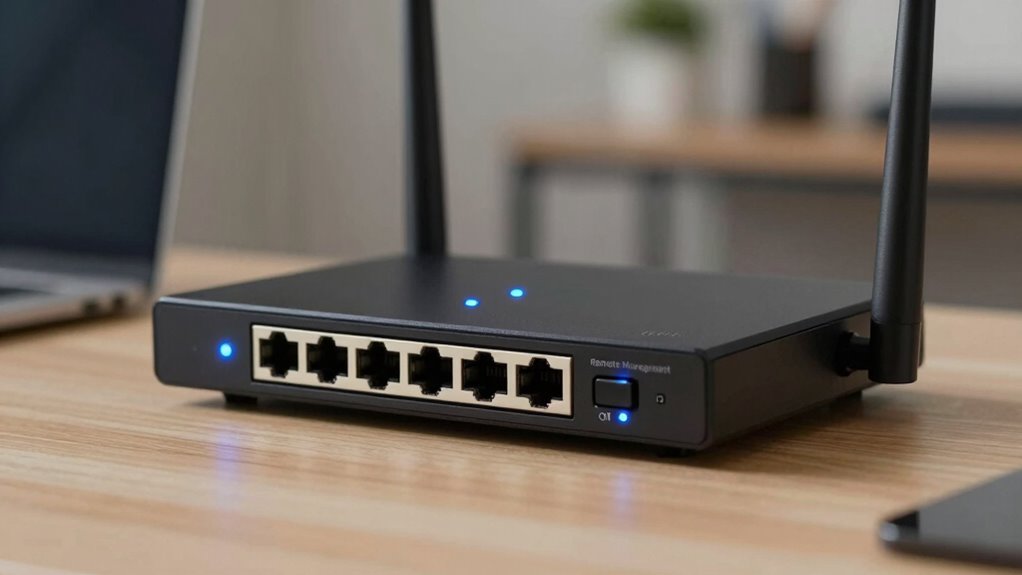
Disabling remote management on your router is a crucial step in preventing unauthorized access from outside sources. When remote access is enabled, anyone with your IP address could attempt to log in, risking your network’s security. To secure your device, follow these steps:
- Log into your router’s admin panel.
- Locate the remote management or remote access settings.
- Turn off remote management to prevent external connections.
- Ensure firmware updates are installed regularly, as they often fix security vulnerabilities.
- Regularly review your privacy settings to maintain control over your network’s security and data sharing. Firmware updates are especially important because they often include security patches that protect against emerging cyber threats. Additionally, keeping your network configuration secure can help prevent unauthorized access. Staying informed about security best practices can further strengthen your network defenses. Maintaining a secure network environment is essential for protecting personal data and preventing breaches.
Disabling remote management reduces exposure to cyber threats and keeps control local. Remember, firmware updates enhance security by patching known issues, so keep your router’s firmware current to maintain maximum protection.
As an affiliate, we earn on qualifying purchases.
Change Your Wi-Fi Network Name and Password for Better Security
Changing your Wi-Fi network name and password is a vital step in safeguarding your home network. Start by accessing your router’s admin panel, and verify your router firmware is up to date for maximum security. Choose a unique, non-identifiable network name (SSID) to prevent easy detection. Set a strong password using a mix of letters, numbers, and symbols to make it difficult for intruders to guess. Additionally, consider creating a separate Guest network to isolate visitors from your main devices, reducing security risks. Regularly updating your Wi-Fi password and reviewing your Guest network settings can further protect your data. Understanding digital concepts can help you better manage your network security measures. Being aware of internet culture & trends can also inform your decisions about your network’s privacy settings. Implementing security best practices, such as monitoring connected devices, can help detect unauthorized access early. Staying informed about home network security and network vulnerabilities can aid in identifying potential vulnerabilities and strengthening your defenses. These steps help prevent unauthorized access and keep your home network secure against potential threats.
Enable WPA3 Encryption for Stronger Wi-Fi Security
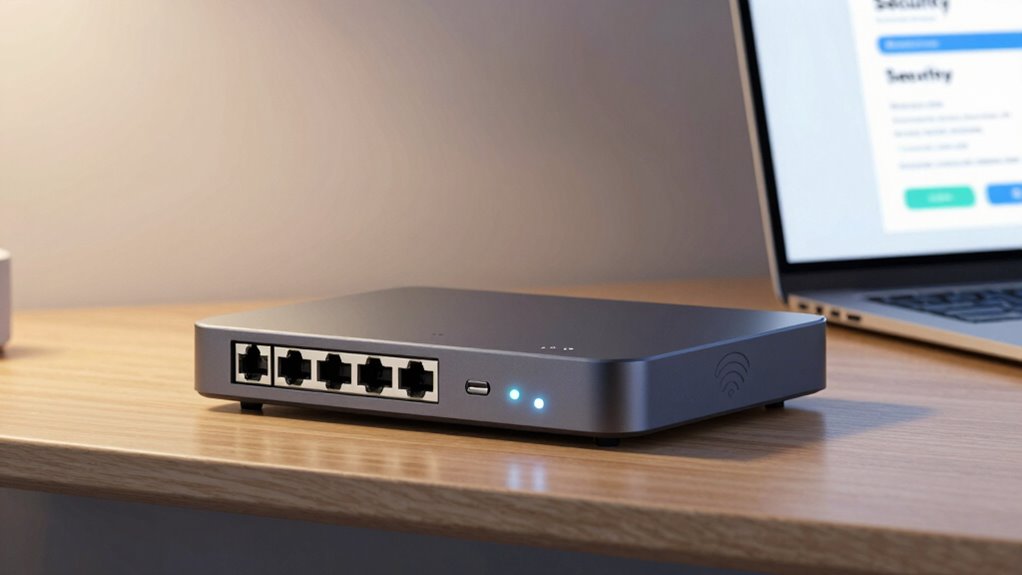
After updating your Wi-Fi network name and password, the next step is to strengthen your wireless security by enabling WPA3 encryption. This upgrade enhances your protection against cyber threats and keeps your network safer. To do this:
- Access your router’s admin panel.
- Locate the wireless security settings.
- Select WPA3 as your encryption type.
- Save your changes.
Enabling WPA3 not only boosts security but can also improve Wi-Fi speed by providing a more efficient handshake process. Additionally, with stronger encryption, your parental controls remain more secure against interference. This setting ensures your network remains private and protected from unauthorized access, giving you peace of mind knowing your connected devices are safer. Proper network configuration is essential for maintaining optimal performance and security. A well-optimized setup can also help prevent potential performance issues caused by misconfigured settings. Understanding the importance of wireless security can further help you safeguard your home network effectively. Regularly updating your router’s firmware can also fix vulnerabilities and enhance the overall security of your wireless network.
Review Connected Devices to Maintain Control
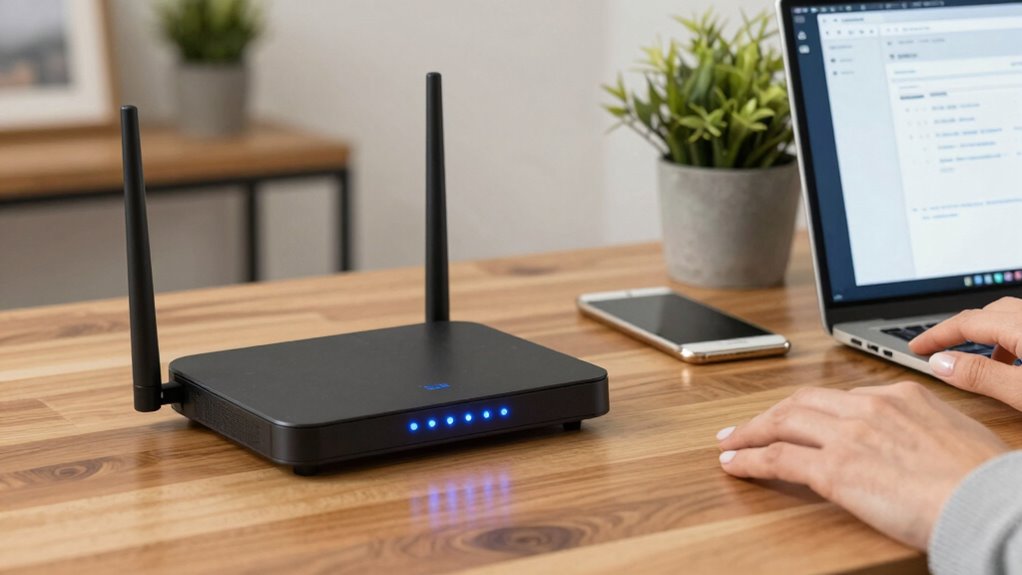
You should regularly check which devices are connected to your network to stay in control. Spot any unknown or unrecognized connections and remove them immediately. Setting access limits for your devices can help prevent unauthorized users from connecting in the future. Implementing secure data management practices can further enhance your network’s privacy and safety.
Identify Unknown Devices
Monitoring the devices connected to your router is essential for maintaining control over your network. Regular device monitoring helps you spot unfamiliar connections and prevent potential security threats. To effectively identify unknown devices, consider these steps:
- Check your router’s device list frequently to review connected devices.
- Use network segmentation to isolate unfamiliar or untrusted devices from your main network.
- Look for devices with unfamiliar names, MAC addresses, or IP addresses.
- Change your Wi-Fi password if you detect any suspicious or unauthorized connections.
Remove Unrecognized Connections
Once you’ve identified unrecognized devices connected to your network, the next step is to eliminate them to protect your privacy and security. Check your router’s connected devices list and note any unfamiliar entries. If you see unrecognized devices, consider disabling or blocking their access. Using a guest network can help isolate devices you don’t fully trust, preventing them from accessing your main network. Also, review your firewall settings to ensure they’re configured to block unauthorized connections. Adjust rules to restrict access from unknown or suspicious devices. Regularly monitoring connected devices and updating your firewall settings reduces the risk of unauthorized access. Removing unrecognized connections helps you maintain control over your network and keeps your personal information safe.
Set Device Access Limits
Regularly reviewing the devices connected to your router is essential for maintaining control over your network. To set device access limits effectively, consider these steps:
- Create a guest network for visitors, keeping your main network secure.
- Use parental controls to restrict access for certain devices or users during specific times.
- Remove or block unrecognized devices immediately to prevent unauthorized access.
- Limit bandwidth or set time restrictions for connected devices to manage usage.
Frequently Asked Questions
How Often Should I Update My Router’s Firmware?
You should update your router’s firmware as often as possible, ideally every few months, to guarantee device compatibility and security. Regular firmware updates fix bugs, patch vulnerabilities, and improve performance. Check your router manufacturer’s website or admin panel regularly for new updates. Keeping firmware current helps protect your network from threats, enhances stability, and guarantees your devices work seamlessly with the latest features and security protocols.
Can I Set up a Guest Wi-Fi Network Securely?
Yes, you can set up a guest Wi-Fi network securely by enabling a dedicated guest network on your router. This creates network segmentation, preventing guests from accessing your main devices and data. Use a strong, separate password for the guest network and disable sharing options. Regularly update your router’s firmware to enhance security. This way, you maintain privacy while providing convenient internet access for visitors.
What Is the Best Way to Hide My Router’s Network Name?
Like a secret agent in a spy movie, you can hide your network name by disabling SSID broadcasting on your router. This is the best way to hide your network’s SSID, making it less visible to others. Log into your router settings, find the wireless options, and turn off the SSID broadcast. Remember, while this adds a layer of privacy, it’s not foolproof—use it alongside other security measures.
Are There Any Risks in Disabling Remote Management Entirely?
Disabling remote management entirely is a smart move because it reduces your router’s exposure to security vulnerabilities. Without remote access, hackers can’t try to access your network from outside your home, considerably increasing your security. While it might limit certain features, this setting helps protect your private data and devices. Overall, turning off remote management enhances your network’s security by minimizing potential attack points.
How Do I Identify Suspicious Devices Connected to My Network?
You can identify suspicious devices by performing device monitoring and network scanning. Log into your router’s admin panel and check the connected devices list for unfamiliar names or IP addresses. Use network scanning tools like Fing or Advanced IP Scanner to detect unknown devices. Regularly monitoring your network helps spot suspicious activity early, so you can take action, like blocking or disconnecting unrecognized devices, to protect your privacy.
Conclusion
Think of your router as the front door to your digital home. Just like you’d lock your door to keep unwanted visitors out, tweaking your privacy settings keeps your data safe from intruders. When I changed my Wi-Fi password, I felt like I’d secured a treasure chest—no one else could access my personal treasures. Taking these simple steps turns your router into a fortress, giving you peace of mind in today’s connected world.
Fall Picks
fall essentials
As an affiliate, we earn on qualifying purchases.