
If your AirPods keep disconnecting, start by checking their battery level and ensuring they’re charged. Resetting them the right way can often fix the issue: place them in the case, hold the setup button until the LED flashes amber and white, then reconnect. Make sure your device’s software is up-to-date and free from interference. If problems persist, exploring detailed troubleshooting tips can help you restore a stable connection—keep going for all the helpful solutions.
Key Takeaways
- Properly reset your AirPods by placing them in the case, holding the setup button until the LED flashes amber then white.
- Ensure your device’s Bluetooth and software are up to date before reconnecting.
- Remove your AirPods from Bluetooth settings and reconnect them after a reset.
- Check and maintain battery health, and keep firmware updated for optimal performance.
- Minimize interference and environmental factors that could cause disconnection during use.
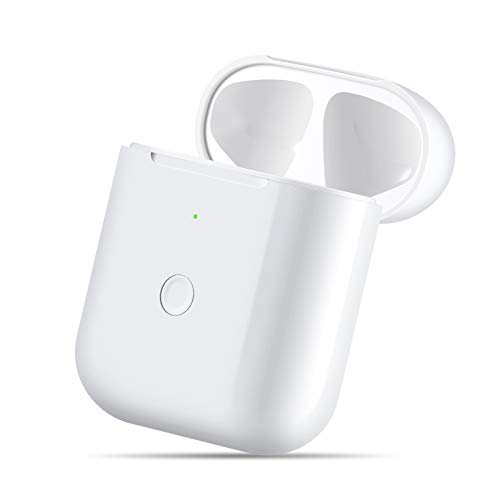
CIVPOWER Wireless Charging Case Compatible with AirPods 1 2,Air pods Charger Case Replacement with Bluetooth Pairing Sync Button,no Aipods (White)
Air Pods Charging Replacement: If you have lost or damaged your Air pods charging case, choose this nice…
As an affiliate, we earn on qualifying purchases.
As an affiliate, we earn on qualifying purchases.
Why Do AirPods Disconnect and How Can You Fix It?
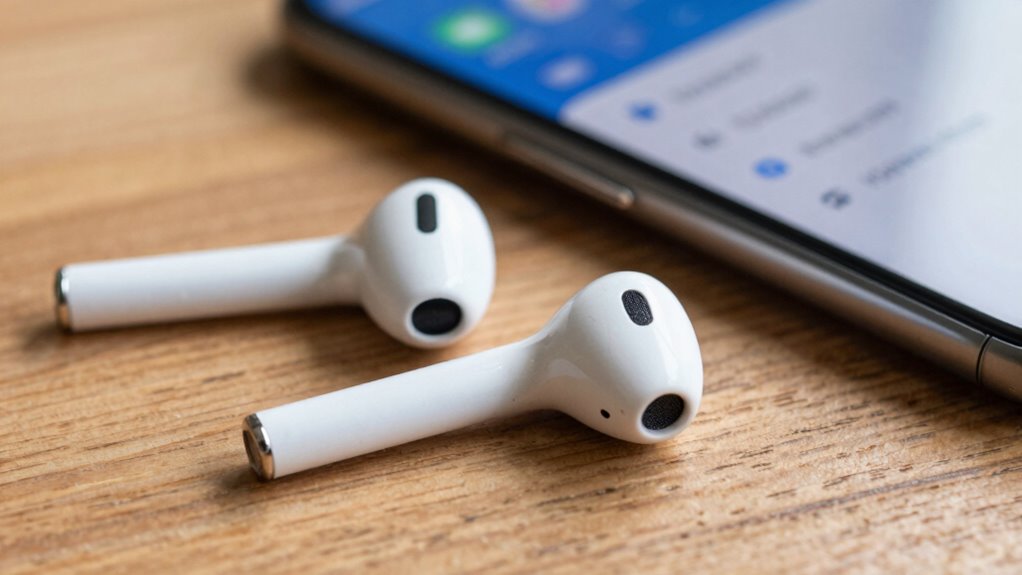
AirPods often disconnect due to interference, low battery, or connectivity issues with your device. Poor battery health can cause your AirPods to lose connection frequently, especially if the batteries can’t hold a charge. Environmental interference is another common culprit; signals from Wi-Fi networks, microwaves, or other Bluetooth devices can disrupt the connection. If you’re in a crowded area with many wireless signals, your AirPods might struggle to stay connected. Additionally, if your AirPods or device have outdated software, this can cause instability. To fix these issues, ensure your AirPods have enough charge, keep your device’s software updated, and move away from potential sources of interference. Regularly checking battery health can also prevent unexpected disconnections caused by power loss. Understanding the role of interference in connectivity issues can help you better troubleshoot and maintain a stable connection. Being aware of environmental factors can help you identify and mitigate sources of signal disruption, such as wireless interference.

Wellue Bluetooth Pulse Oximeter Fingertip, Blood Oxygen Saturation Monitor with Built-in Memory, OLED Screen, Batteries, Free APP, Carry Bag & Lanyard
ACCURATE & RELIABLE: Plethysmograph wavefom provides a visual representation of heartbeat and the amount of blood flowing through…
As an affiliate, we earn on qualifying purchases.
As an affiliate, we earn on qualifying purchases.
Check if Your Airpods Are Compatible With Your Device

Make sure your AirPods work with your device by checking the compatibility requirements for your model. Also, verify that your device’s software is up to date, as outdated versions can cause connection issues. Ensuring both are compatible can help prevent your AirPods from disconnecting unexpectedly. Additionally, staying informed about toilet maintenance and repairs can improve your understanding of device requirements and compatibility.
Device Compatibility Requirements
Before troubleshooting connection issues, verifying that your device meets the compatibility requirements for your AirPods is essential. Different AirPods models work best with specific Apple devices and certain operating systems. If your device isn’t compatible, you might experience issues like poor sound quality or limited features. Check that your device’s Bluetooth is enabled and that it supports the necessary Bluetooth version for your AirPods. Also, make sure your device’s battery health is good, as low battery levels can cause connection problems. Compatibility isn’t just about pairing; it affects sound quality, stability, and overall performance. Confirm that your device’s software is up to date, and that it meets the minimum requirements for your AirPods model. This step helps prevent disconnects and improves your listening experience. Additionally, understanding digital safety and device security can help prevent issues caused by software conflicts or malware that might disrupt Bluetooth connections.
Software Version Compatibility
Ensuring your device runs the latest software version is essential for maintaining compatibility with your AirPods. Outdated software can cause issues like reduced battery life, disrupted connectivity, or problems with noise cancellation features. Check your device’s software updates regularly to guarantee smooth pairing and peak performance. Compatibility updates often include improvements that enhance battery life and noise cancellation capabilities, making your listening experience more seamless. If your AirPods keep disconnecting, verifying that both your device and AirPods are running the latest firmware can resolve the problem. Keeping your device’s firmware up to date is crucial for optimal performance and compatibility. Additionally, software version compatibility plays a key role in ensuring your AirPods work reliably with your device. Regularly updating your device’s operating system is crucial for maintaining these compatibilities and avoiding potential issues. Being aware of firmware updates can help prevent unexpected disconnections and optimize your overall experience.
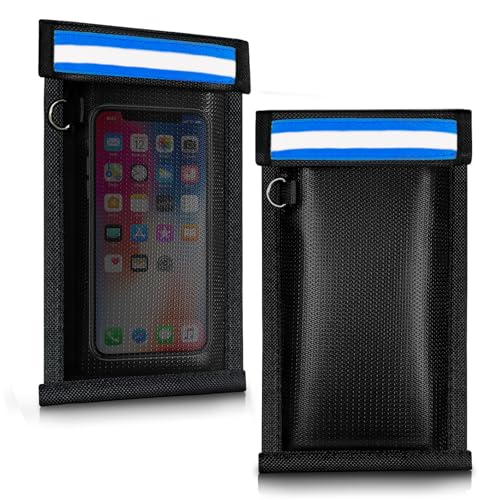
ocuvaep Faraday Bags for Phones and Car Keys (2 Pack), Military Grade Signal Blocking Bag Blocks 5G, WiFi, GPS, RFID & Bluetooth, Anti-Theft Protection for Phones & Digital Privacy
【Perfect Signal Blocking】ocuvaep Faraday bags feature a double-fold closure. They are made of double-layer super-shielding metal fibers, which…
As an affiliate, we earn on qualifying purchases.
As an affiliate, we earn on qualifying purchases.
Troubleshoot Common AirPods Connection Problems
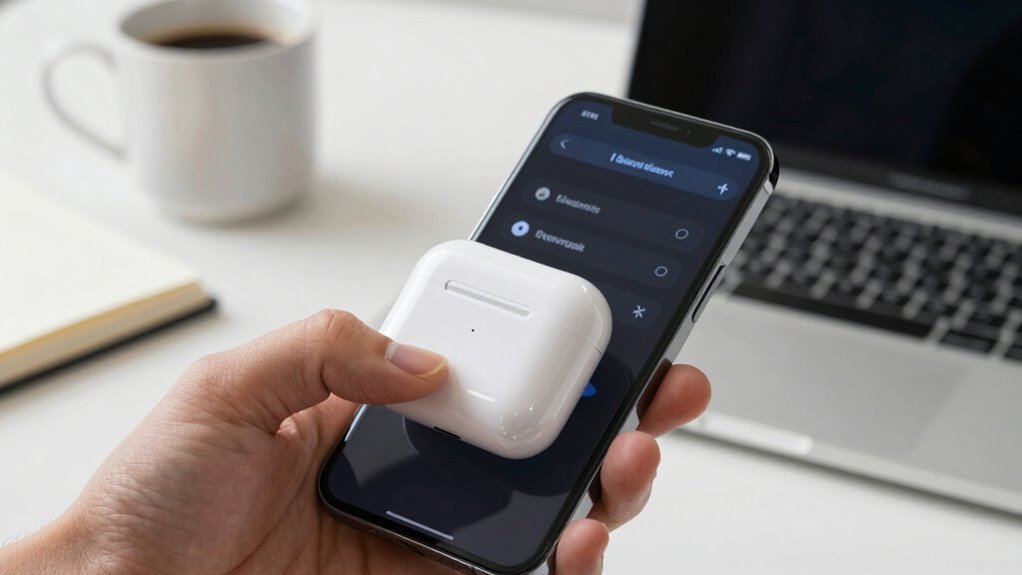
When your AirPods keep disconnecting, it can be frustrating, but many connection issues have straightforward solutions. First, check your device’s battery optimization settings; low battery levels can cause connectivity problems. Make sure your AirPods are charged fully. Next, consider Bluetooth interference—other devices or Wi-Fi networks can disrupt the signal. Move away from crowded areas with many Bluetooth or Wi-Fi signals. Turning Bluetooth off and on again can refresh the connection. Also, try disconnecting and reconnecting your AirPods in Bluetooth settings. Keep your device and AirPods close together during use. If issues persist, updating your device’s software can fix compatibility problems that might affect connection stability. Exploring wireless technology principles can also help you understand how to optimize your setup. Understanding nanotech fabrication challenges can provide insights into potential hardware issues that impact device performance. Additionally, ensuring your device’s Bluetooth drivers are up to date can prevent hardware compatibility problems that cause disconnections. Regularly checking for software updates can also help resolve underlying bugs that affect connection stability. Being aware of hardware limitations can guide you in troubleshooting persistent connection issues more effectively. Following these steps can help you troubleshoot and restore a reliable connection quickly.
AirPods troubleshooting kit
As an affiliate, we earn on qualifying purchases.
As an affiliate, we earn on qualifying purchases.
How to Reset Your AirPods the Right Way
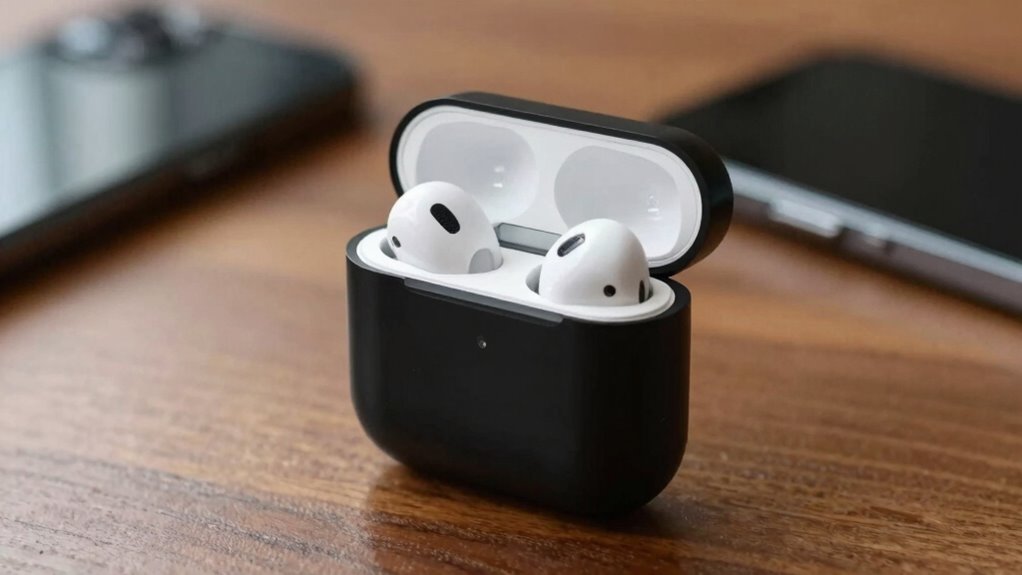
Resetting your AirPods can often resolve persistent connection issues, but it’s important to do it correctly to guarantee they function properly afterward. First, put your AirPods in their charging case and close the lid for about 30 seconds. Then, open the lid and press and hold the setup button on the back until the status light flashes amber, then white. This reset clears any glitches affecting battery life or noise cancellation features. Afterward, reconnect your AirPods to your device. Resetting can improve battery life and restore noise cancellation effectiveness, both of which might degrade if your AirPods are glitching or disconnecting frequently. Make sure your device’s Bluetooth is active before reconnecting. This process guarantees your AirPods are refreshed and ready for maximum performance. A proper reset ensures your earbuds are functioning reliably and can help prevent frustration during use. Additionally, understanding the battery health of your AirPods can help you determine when a reset might be necessary to optimize performance. Regularly checking for software updates can also enhance their overall stability and connectivity. To further maintain optimal performance, consider cleaning your AirPods regularly to prevent debris that could interfere with connectivity. Performing a reset periodically can also help maintain overall device stability, especially if you notice frequent disconnections.
What to Do If Resetting Doesn’t Fix Disconnections
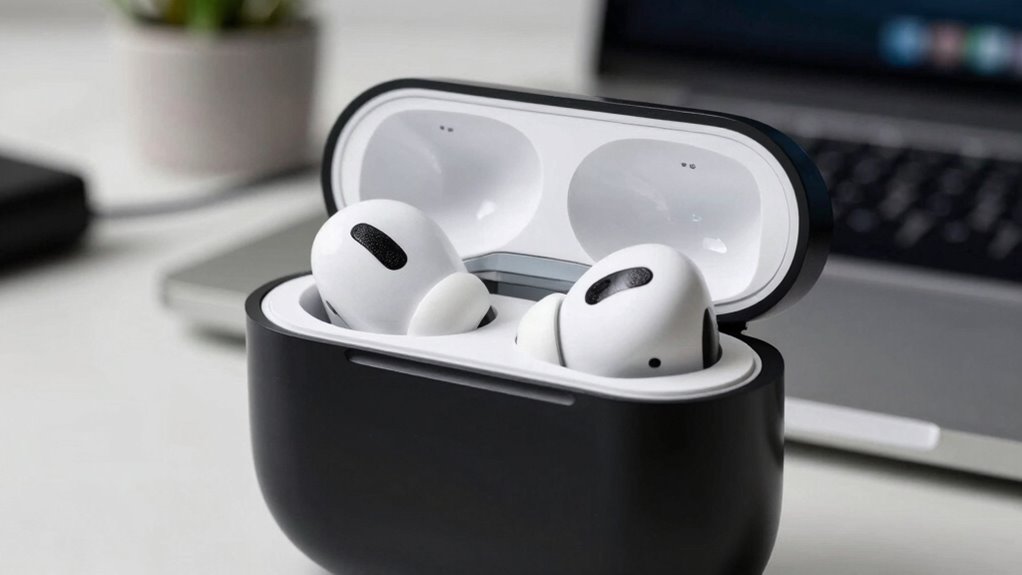
If resetting your AirPods didn’t solve the disconnection issues, try checking for firmware updates to guarantee they have the latest software. You should also reconnect them through Bluetooth settings and test on different devices to identify if the problem persists across platforms. These steps can help pinpoint whether the issue is with the AirPods or the device itself. Additionally, consider exploring regional flavors and chicory/coffee insights that highlight how different environments and cultural preferences can influence device usage habits, which might indirectly affect connectivity stability.
Check for Firmware Updates
Sometimes, persistent disconnections can be caused by outdated firmware on your AirPods, so it’s important to check for updates. Firmware updates improve device compatibility and fix bugs that might cause disconnections. To do this, verify your AirPods are connected to your iPhone or compatible device and follow these steps:
- Keep your device connected to Wi-Fi.
- Make sure your AirPods are charging and in the case.
- Check for updates in your device’s settings.
- Keep your iOS or device software up to date.
If an update is available, install it immediately. Updating firmware can resolve compatibility issues and enhance overall stability, reducing disconnection problems. Regularly checking for updates guarantees your AirPods stay current and perform smoothly.
Reconnect via Bluetooth Settings
When resetting your AirPods doesn’t resolve disconnection issues, reconnecting them through Bluetooth settings can often do the trick. First, ensure your device’s Bluetooth is on and within range—ideally within 30 feet. Check your AirPods’ battery health; low battery levels can cause frequent disconnects. To reconnect, go to your device’s Bluetooth menu, find your AirPods, and select “Forget This Device.” Then, put your AirPods back in their case, close the lid, and wait a few seconds. Open the case near your device, press and hold the pairing button until the LED flashes, and then select your AirPods to reconnect. This process can help stabilize the connection, especially if Bluetooth range or battery health was causing the issue.
Test on Different Devices
Testing your AirPods on a different device can quickly reveal whether the disconnection issue is specific to your original device or a problem with the AirPods themselves. If they work fine elsewhere, your device might have connectivity or software issues. If the problem persists across devices, it’s likely a hardware problem. While testing, pay attention to the battery life, as low battery levels can cause disconnects. Also consider comfort adjustments—poor fit may loosen the connection, leading to interruptions. To troubleshoot further:
- Try pairing with a different phone or tablet
- Check if the issue occurs during calls or audio playback
- Monitor battery levels on all devices
- Experiment with different comfort adjustments to ensure a snug fit
This process helps pinpoint whether the issue is device-specific or AirPods-related.
Tips to Keep Your AirPods Connecting Seamlessly
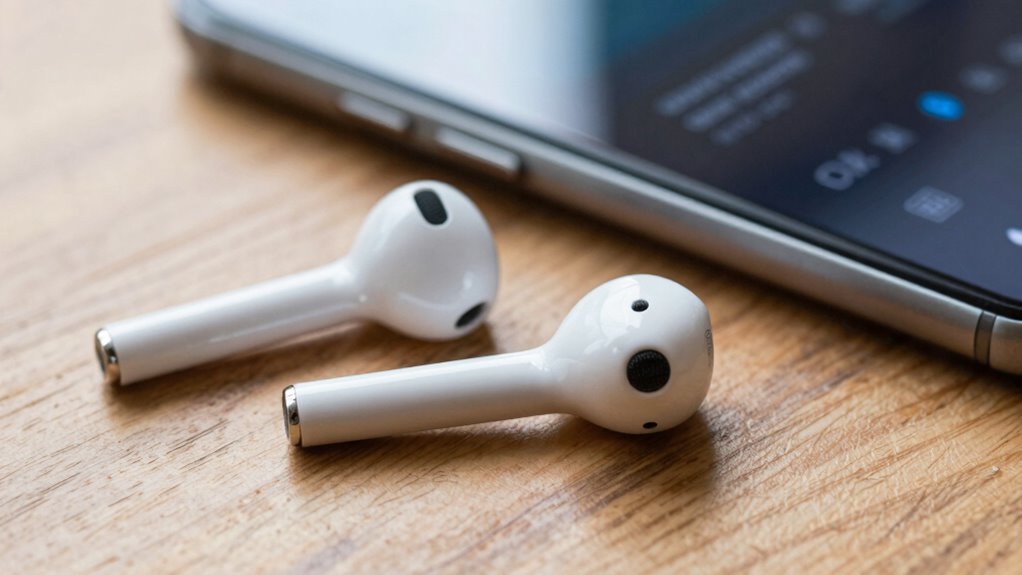
To guarantee your AirPods stay connected without interruptions, start by keeping their firmware up to date. Regular updates fix bugs that can cause disconnections and improve overall stability. Manage your battery life by ensuring your AirPods are sufficiently charged, as low battery levels can lead to connection issues. When using features like noise cancellation, note that they can drain power faster, so turn them off when not needed to conserve battery. Additionally, avoid obstacles and interference from other electronic devices that may disrupt the Bluetooth connection. Keeping your device’s Bluetooth and Wi-Fi turned on and close to your AirPods helps maintain a stable link. Following these tips ensures smoother, more reliable connectivity for your AirPods during daily use.
When to Seek Professional Help for Your AirPods

If your AirPods continue to disconnect despite troubleshooting, it’s time to consider professional help. Persistent issues might stem from flaws in the AirPods design or damage affecting the Bluetooth range. You should seek assistance if:
- The connection drops even when within the ideal Bluetooth range
- Your AirPods feel physically damaged or don’t fit properly
- They frequently disconnect regardless of device or environment
- Firmware updates don’t resolve ongoing connectivity problems
A professional can diagnose hardware issues or recommend repairs, especially if the disconnects aren’t linked to user settings. Sometimes, a defect in the AirPods’ internal components or design flaws can cause recurring problems that only a technician can fix effectively. Don’t delay seeking help if troubleshooting no longer works.
Prevent Future AirPods Connectivity Issues

Wondering how to keep your AirPods connection seamless in the future? Focus on optimizing battery life and enabling ear detection. Proper battery optimization guarantees your AirPods stay charged and ready, reducing disconnection chances. Ear detection automatically pauses playback when you remove your AirPods, preventing unnecessary disconnects and reconnects.
| Tip | Benefit |
|---|---|
| Keep your AirPods charged | Prevents disconnection due to low battery |
| Enable ear detection | Ensures smooth connectivity and playback control |
| Regular firmware updates | Fixes bugs and improves connection stability |
Avoid Common Mistakes When Resetting Your AirPods
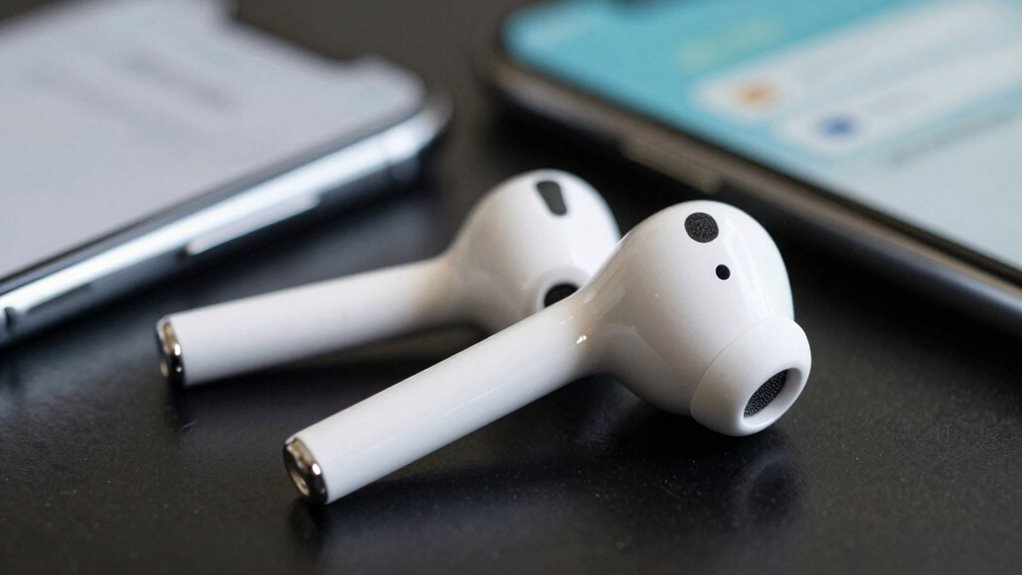
Resetting your AirPods can resolve persistent connectivity issues, but doing it incorrectly can lead to more problems or even render your device unusable. To avoid common mistakes, verify you’re not rushing the process. For example, don’t forget to check the battery life; low battery can interfere with a proper reset. Keep your AirPods within the Bluetooth range during the reset process to confirm successful pairing afterward. Avoid interrupting the reset once started, as this can cause incomplete resets. Finally, don’t reset repeatedly without troubleshooting other issues, like cleaning the charging case or updating firmware.
- Make sure your AirPods have sufficient battery life before resetting
- Keep your device within Bluetooth range during reset
- Don’t interrupt the reset process
- Troubleshoot other issues before resetting repeatedly
Frequently Asked Questions
How Often Should I Reset My Airpods?
You should reset your AirPods only when you notice issues like poor battery management or Bluetooth range problems. There’s no need to reset them regularly; doing so too often can reset saved settings. If your AirPods keep disconnecting or their battery life drops unexpectedly, a reset can help restore proper connection. Otherwise, focus on maintaining a good charge and keeping within the Bluetooth range to prevent disconnects.
Can Software Updates Improve Airpods Connectivity?
Software updates can definitely boost your AirPods’ Bluetooth stability and reduce wireless interference issues. By updating, you’re often fixing bugs and enhancing connectivity features, which helps your AirPods stay connected longer. Regular updates streamline the connection process, making pairing smoother and more reliable. So, keep your firmware current to minimize disconnects and maximize wireless performance, ensuring your listening experience remains seamless and satisfying.
Do Airpods Disconnect Automatically After Inactivity?
Yes, AirPods can disconnect automatically after inactivity to conserve battery life. During periods of no use, they may turn off or disconnect if they’re outside the Bluetooth range, which is typically about 33 feet. This behavior helps preserve battery life and maintains a stable connection. To avoid disconnects, keep your AirPods within Bluetooth range and verify they’re charged, especially if you notice frequent disconnections after inactivity.
How Do I Check Airpods Firmware Version?
To verify your AirPods firmware version, connect them to your iPhone, then go to Settings > Bluetooth. Tap the info icon next to your AirPods, and you’ll see the firmware version listed at the bottom. Keep in mind, firmware compatibility and update frequency are important, as Apple releases updates periodically to fix bugs and improve performance. Regularly check for updates to guarantee your AirPods work smoothly and stay compatible.
Are Third-Party Accessories Safe for Airpods?
Third-party accessories can be safe for your AirPods if they’re compatible and come from reputable brands. However, using incompatible accessories might cause compatibility issues or negatively affect battery performance. Always check product reviews and compatibility details before purchasing. If you notice issues like reduced battery life or connectivity problems, try removing the accessory to see if performance improves. Sticking to official or well-reviewed accessories helps guarantee your AirPods stay in top shape.
Conclusion
Remember, persistence is key when troubleshooting your AirPods. If they keep disconnecting, follow the steps to reset and troubleshoot, but don’t hesitate to seek help if needed. Sometimes, the solution is just around the corner—like the saying goes, “A problem shared is a problem halved.” Keep patient and proactive, and you’ll enjoy seamless listening again in no time. After all, a stitch in time saves nine!