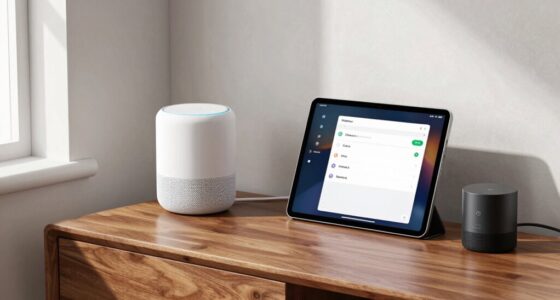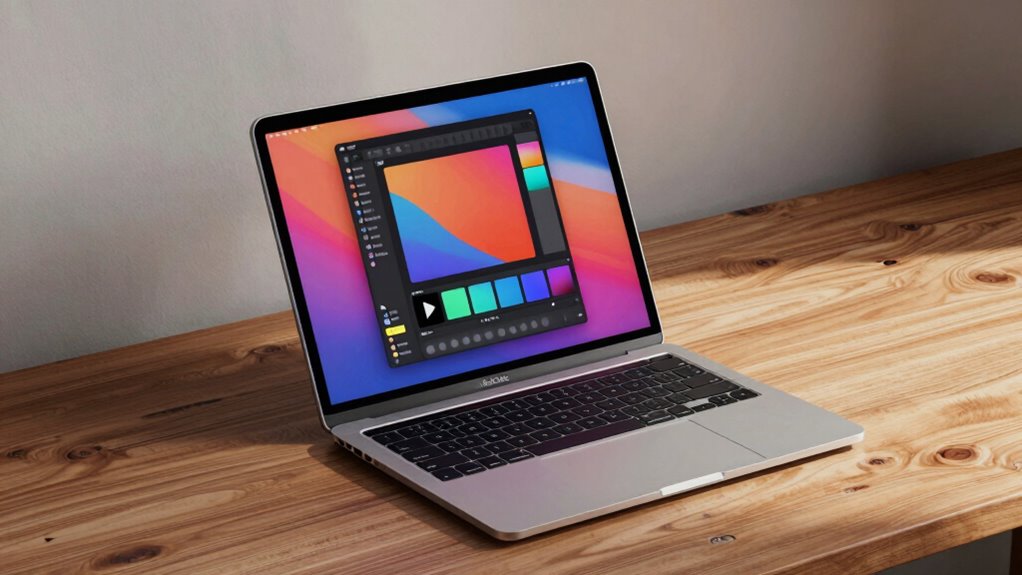
You can turn your iPad into a second display with Apple’s built-in Sidecar feature, which extends your workspace and boosts productivity. It’s simple to set up if your devices are compatible, signed into the same Apple ID, and connected via Wi-Fi or cable. Sidecar supports touch, Apple Pencil, and gestures, making it versatile for creative and work tasks. Keep exploring to learn how to customize, troubleshoot, and maximize your Sidecar experience.

Get the latest gadgets delivered free with Prime
- Fast, free delivery on millions of items
- Prime Video, Amazon Music and more included
- Member-only deals all year
Key Takeaways
- Sidecar is a built-in macOS and iPadOS feature that turns your iPad into a second display for your Mac.
- It supports stylus input, allowing drawing and annotations with Apple Pencil directly on the iPad.
- Compatibility requires recent Mac and iPad models signed into the same Apple ID with two-factor authentication.
- Connection methods include Wi-Fi or a wired cable for seamless extended workspace setup.
- Customizable settings enhance display resolution, touch controls, and workflow integration for creative and productivity tasks.
As an affiliate, we earn on qualifying purchases.
What Is Sidecar and Why Use It as a Second Display?
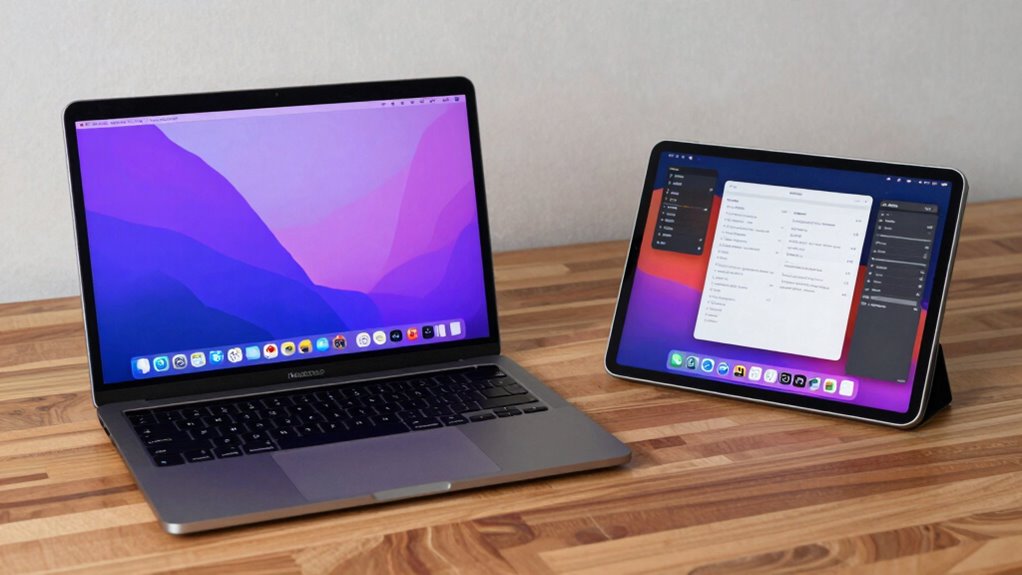
Sidecar is a built-in feature on MacOS and iPadOS that allows you to use your iPad as a second display for your Mac. This setup boosts your digital creativity by giving you extra screen space to work with, making it easier to manage multiple apps or tools simultaneously. It’s also a great way to enhance productivity, especially when you need to reference materials or keep certain windows open while working on others. With Sidecar, you can draw, annotate, or sketch directly on your iPad using Apple Pencil, making creative tasks more intuitive. Overall, it’s a seamless way to extend your workspace, making your workflow more efficient and helping you access new levels of digital creativity. Exploring new frontiers in digital content and research highlights how innovative features like Sidecar can transform the way we work and create in a digital environment.
As an affiliate, we earn on qualifying purchases.
Do You Meet the Requirements to Use Sidecar? Compatibility Tips
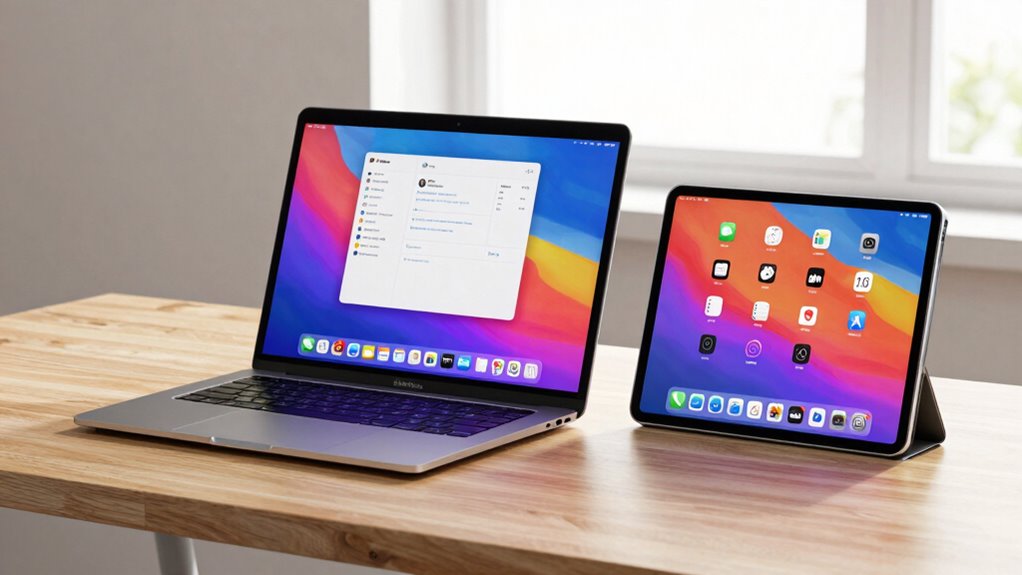
To use Sidecar effectively, you need to make certain your devices are compatible and meet specific requirements. First, check that your Mac and iPad support Sidecar; compatible models include recent MacBook, iMac, and Mac mini versions, paired with compatible iPads. Verify both devices are signed in with the same Apple ID and connected via Wi-Fi or Bluetooth. Good battery management is essential—your iPad should have enough charge, or be plugged in to prevent interruptions during use. Keep your software updated—both macOS and iPadOS need the latest versions to support Sidecar functionality. Regular software updates fix bugs and improve compatibility, making your experience smoother. Confirm these requirements before attempting to use Sidecar, ensuring seamless connection and performance. Additionally, software compatibility is crucial, as outdated operating systems may hinder Sidecar’s performance. Ensuring that your devices meet the compatibility requirements can prevent potential issues and enhance your overall experience. It’s also helpful to consult the latest device specifications to verify compatibility details and avoid surprises. Being aware of device capabilities can help you optimize your setup for the best Sidecar performance. For example, understanding the performance limitations of your hardware can help set realistic expectations for your setup.
As an affiliate, we earn on qualifying purchases.
How to Set Up Sidecar on Your Mac and iPad
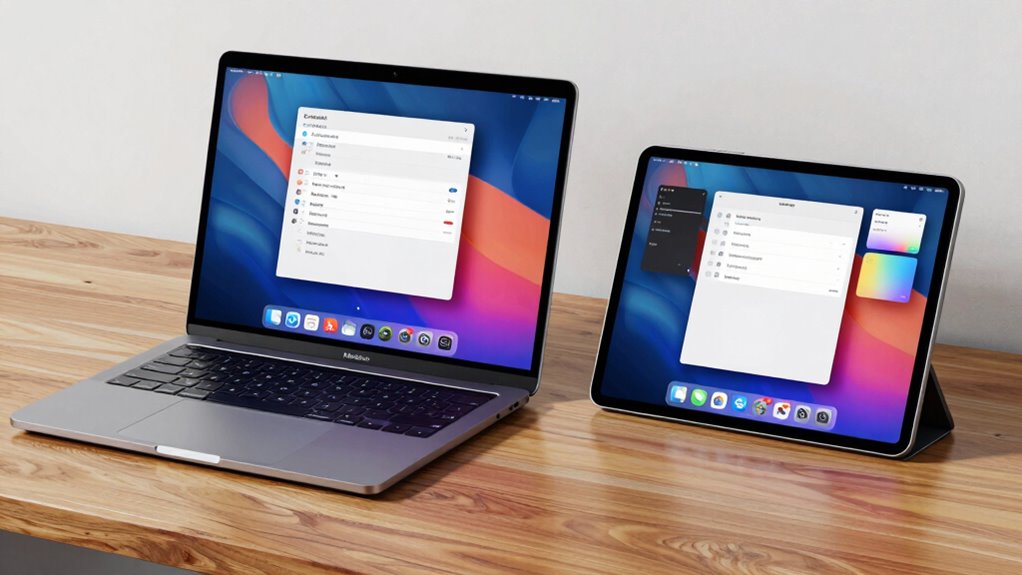
To set up Sidecar on your Mac and iPad, you need to make sure both devices meet the compatibility requirements. Once confirmed, you can follow a simple step-by-step process to connect and configure your iPad as a second display. We’ll walk through each step so you can start using Sidecar quickly and easily. Additionally, ensuring your devices support wireless connectivity can improve your setup experience.
Compatibility Requirements
Make verify your Mac and iPad meet the necessary requirements before setting up Sidecar. Your Mac needs macOS Catalina or later, and your iPad should run iPadOS 13 or newer. Both devices must be signed into the same Apple ID with two-factor authentication enabled. Compatibility also depends on hardware; for example, certain Mac models like the MacBook Pro (2016 or later) and iPad Pro (2018 or later) are required. Bluetooth, Wi-Fi, and Handoff must be enabled for seamless connection. These compatibility requirements ensure smooth iPad multitasking and allow you to enjoy the screen sharing advantages Sidecar offers. Confirming your devices meet these criteria guarantees a hassle-free setup and optimizes your experience using your iPad as a second display. Additionally, ensuring your devices are compatible with Sidecar can prevent potential connection issues and improve overall performance.
Step-by-Step Setup
Setting up Sidecar on your Mac and iPad is straightforward once you’ve confirmed they meet the compatibility requirements. First, verify both devices are signed in with the same Apple ID and connected to the same Wi-Fi network. To address security concerns, enable two-factor authentication on your Apple ID. Then, update your macOS and iPadOS to the latest software version to ensure smooth functionality and security patches. On your Mac, click the AirPlay icon in the menu bar and select your iPad from the list. Once connected, choose “Use as Separate Display” to activate Sidecar. If you encounter issues, restarting both devices often helps. Regular software updates also improve security and compatibility, making your Sidecar experience more reliable.
As an affiliate, we earn on qualifying purchases.
How to Customize Your Sidecar Display and Settings
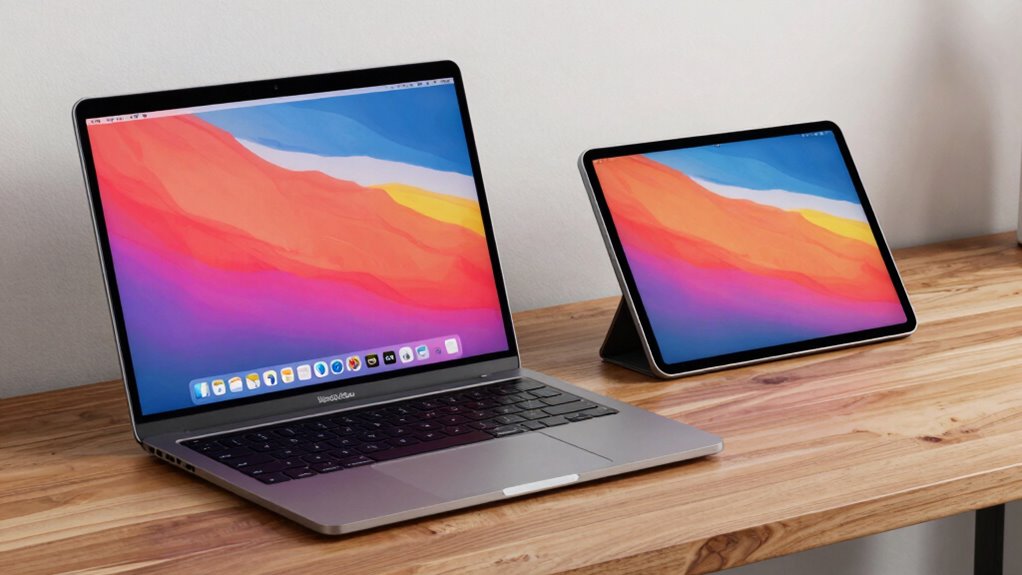
You can tailor your Sidecar experience by adjusting the display resolution to match your workflow, making everything clearer and sharper. Customizing the Touch Bar allows you to access your favorite controls quickly, boosting your efficiency. Managing connection settings guarantees a stable link between your Mac and iPad, giving you a seamless second-screen experience.
Adjust Display Resolution
Wondering how to fine-tune the resolution of your Sidecar display? You can easily customize it by adjusting display calibration and resolution scaling settings. To start, go to System Preferences > Sidecar. Here, you can:
- Select the “Optimize for” option to balance quality and performance.
- Adjust resolution scaling to either prioritize clarity or responsiveness.
- Use display calibration tools for fine-tuning brightness, contrast, and color accuracy.
These adjustments help you customize your Sidecar experience, guaranteeing your iPad display matches your workflow needs. Proper resolution scaling enhances visual clarity, while calibration ensures accurate colors. Experiment with these settings to find the perfect balance between sharpness and smooth performance, making your second display as effective as possible.
Customize Touch Bar
Once you’ve optimized your display resolution and calibration, customizing the Touch Bar on your Sidecar display can further enhance your workflow. Touch Bar customization allows you to tailor controls for specific apps, making iPad multitasking more efficient. To customize, open System Preferences on your Mac, then go to the Keyboard section, and select “Customize Touch Bar.” From there, you can drag and drop controls to suit your needs, including shortcuts for frequently used commands. You can also add app-specific controls for better iPad multitasking, like media controls, formatting options, or shortcuts. This personalization streamlines your workflow, reducing the time spent orchestrating menus and enabling quicker access to tools directly on your Sidecar display. Incorporating features like natural pools can inspire ways to create seamless and integrated user experiences.
Manage Connection Settings
Managing your Sidecar connection settings guarantees a seamless and customized experience between your Mac and iPad. To optimize your setup, consider these steps:
- Adjust Battery Optimization: Enable automatic low-power mode on your iPad to conserve battery during extended use, ensuring your device stays connected longer.
- Configure Security Settings: Set a passcode or enable Touch ID for your iPad to protect your data when using Sidecar, adding an extra layer of security.
- Manage Connection Preferences: Choose whether to connect via Wi-Fi or cable, and specify trusted devices to streamline your workflow and maintain control over your connection.
- Explore regional flavors and pairings to enhance your overall experience, whether you’re using your iPad for work or entertainment.
Using Touch, Apple Pencil, and Gestures in Sidecar
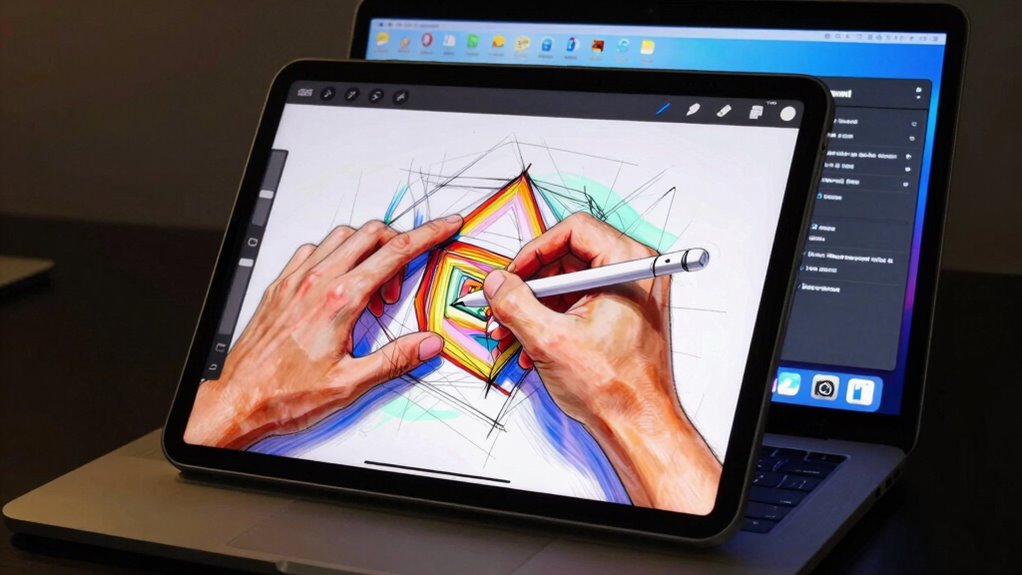
Using Touch, Apple Pencil, and Gestures in Sidecar allows you to seamlessly interact with your secondary display. You can directly tap, swipe, and pinch on the iPad to navigate apps, enabling smooth multi window multitasking. For digital drawing, the Apple Pencil offers precise control, pressure sensitivity, and tilt features, making creative tasks intuitive. Gestures like pinch to zoom or swipe to switch apps help you manage your workspace efficiently. Touch interactions feel natural, and you can quickly access menus or tools without reaching for your keyboard or mouse. This integration creates a fluid experience, letting you draw, edit, or organize windows effortlessly. The combination of touch, Pencil, and gestures guarantees that your iPad functions as an effective, responsive extension of your Mac, enhancing productivity and creativity. Understanding user interaction principles helps optimize the overall experience and leverages the intuitive design behind these tools, which is rooted in ergonomic principles to improve usability. Additionally, awareness of seasonal variations in lighting can inspire creative scenes when using your iPad for digital art or reference. Recognizing device compatibility ensures that your setup remains smooth and reliable across different hardware configurations.
Tips to Boost Performance and Save Battery Life
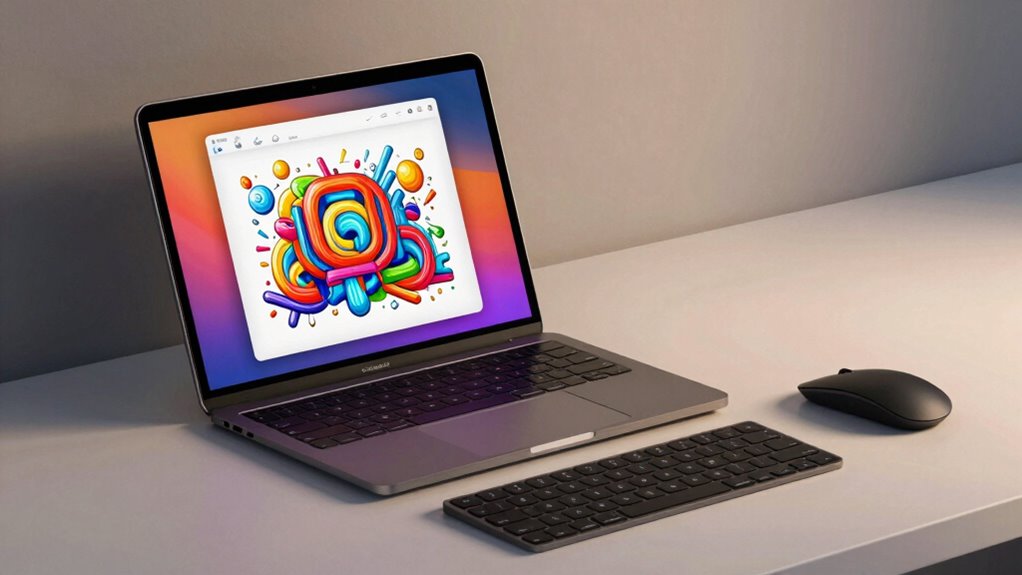
To keep your iPad running smoothly while using it as a second display, you should optimize its performance and conserve battery life. Good tablet ergonomics ensures comfortable use, reducing strain during extended sessions. To improve performance and battery efficiency, consider these tips:
Optimize iPad performance and ergonomics for smooth use and longer battery life during extended sessions.
- Close unnecessary apps to free up resources and enhance software integration.
- Adjust display brightness and enable auto-brightness to save power without sacrificing visibility.
- Enable Low Power Mode and turn off unused features like Bluetooth or Wi-Fi when not needed.
- Be mindful of device management practices, such as keeping your iPad updated and maintaining proper storage, to sustain optimal performance. Incorporating Stoic principles like moderation and patience can also help you develop a more mindful approach to device usage, promoting resilience and balance. Practicing mindful usage helps prevent overreliance on technology and encourages healthier habits. Additionally, understanding privacy policies and managing your data can contribute to a more secure and stress-free experience. Regularly reviewing your device settings can further help you identify areas for optimization and prevent unnecessary battery drain. These steps help maintain smooth operation and extend battery life. Prioritizing ergonomic setup and optimizing software integration ensures a seamless, efficient experience while safeguarding your device’s longevity.
Troubleshooting Common Sidecar Connectivity and Functionality Issues
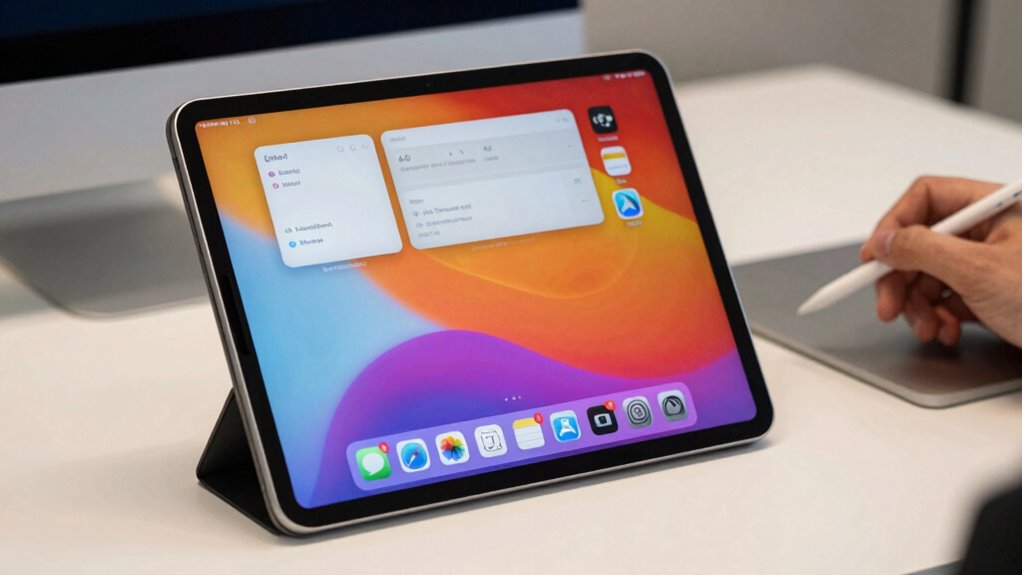
If you’re having trouble connecting your iPad as a second display, start by checking your device compatibility and network settings. To fix display issues, make certain your iPad and Mac are updated and within close range. These simple steps can often resolve common Sidecar problems quickly and effectively. Additionally, ensuring your setup aligns with industry best practices can help improve overall connectivity and performance. Regularly reviewing device compatibility requirements can also prevent future connection issues, especially when considering factors like wireless signal strength and interference. Staying informed about waterproofing and maintenance tips for your devices can also prolong their lifespan and ensure consistent performance.
Connectivity Troubleshooting Tips
Connectivity issues with Sidecar can be frustrating, but many problems are easily fixable with some simple troubleshooting steps. First, check your wireless connectivity—ensure both your Mac and iPad are on the same Wi-Fi network and within range. Second, verify hardware compatibility: confirm your devices support Sidecar and meet system requirements. Third, restart both devices to refresh the connection. If issues persist, toggle Bluetooth and Wi-Fi off and on, as these are essential for wireless communication. Keep your software up to date, since outdated OS versions can cause compatibility issues. Finally, disconnect any VPNs or security software that might interfere with network connections. Following these steps should resolve most common connectivity problems and help you seamlessly use your iPad as a second display.
Resolving Display Issues
Even when your devices are connected properly, display issues can still arise. If your iPad’s display looks off, try adjusting the display calibration settings to improve clarity and color accuracy. Poor graphic performance can cause lag or stuttering, impacting your workflow. Make sure your Mac and iPad are updated to the latest software versions, as updates often fix bugs related to display connectivity. Restart both devices to reset the connection and clear temporary glitches. Check your iPad’s resolution settings and verify Sidecar is configured for peak performance. If problems persist, disconnect and reconnect the devices or try using a different cable or wireless network. These steps help resolve most display calibration and graphic performance issues, guaranteeing a smoother Sidecar experience.
How Does Sidecar Compare to Other Second Display Options?
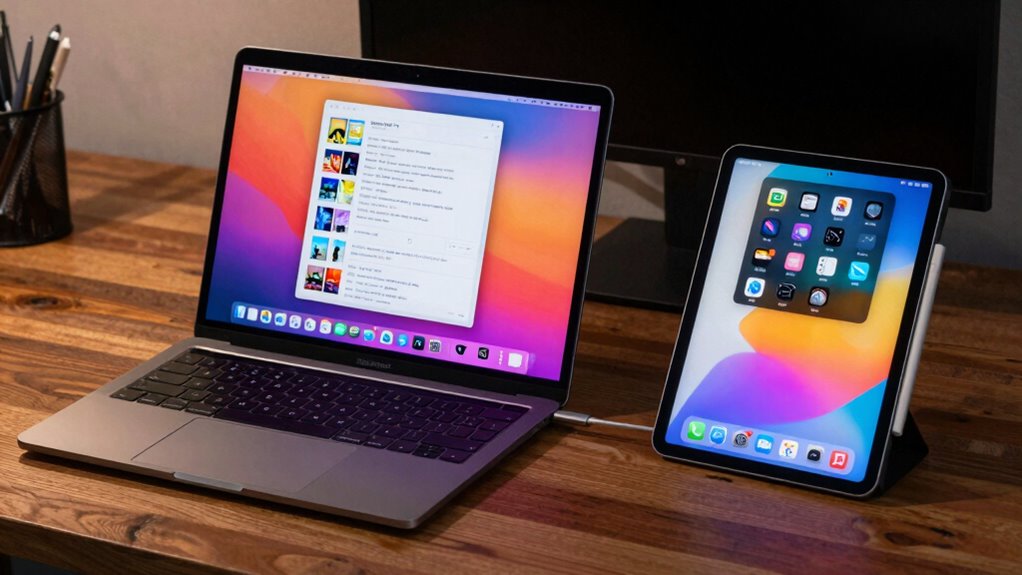
When comparing Sidecar to other second display options, it’s important to take into account how seamlessly it integrates with your existing Apple devices and how easy it is to set up. Sidecar offers smooth connectivity, enhancing multitasking efficiency by allowing you to extend or mirror your Mac screen effortlessly. Unlike third-party apps, it requires minimal configuration, saving you setup time. Consider these points:
Sidecar seamlessly integrates with Apple devices, offering easy setup and smooth multitasking without extra configuration.
- Compatibility: Sidecar works exclusively with Apple’s ecosystem, providing a native experience.
- Performance: It offers high latency and good resolution, making it ideal for real-time tasks.
- Screen real estate: Sidecar effectively expands your workspace, boosting multitasking efficiency without cluttering your primary display.
Creative Ways to Use Your iPad as a Second Monitor in Different Workflows
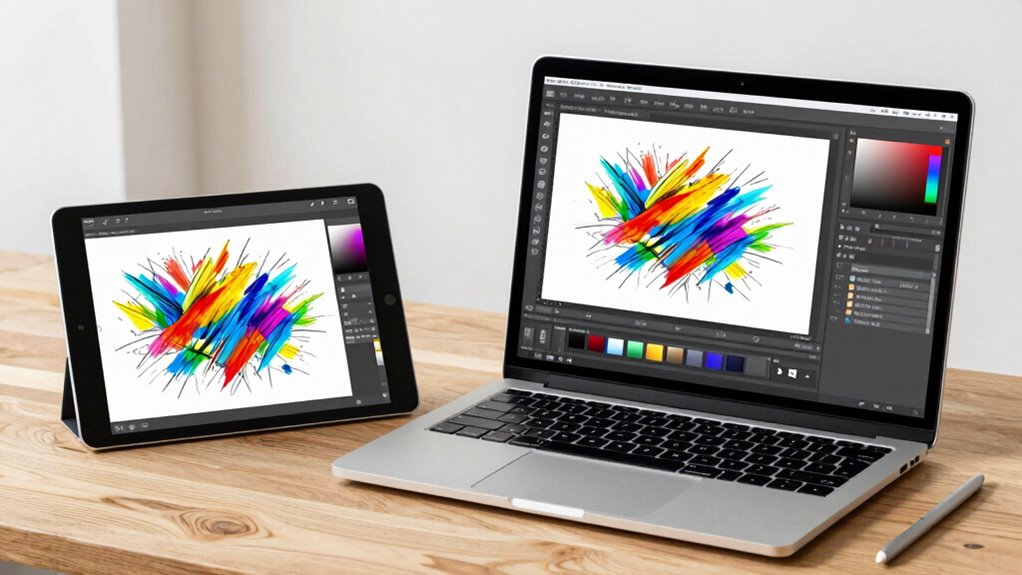
Using your iPad as a second monitor can considerably enhance your workflow by offering versatile and creative ways to manage tasks. For creative workflows, use your iPad for sketching or editing visuals with apps like Procreate or Adobe Fresco, freeing up your main screen for reference material. In productivity hacks, dedicate your iPad to communication tools—email, messaging, or video calls—so your primary monitor stays focused on work tasks. For multitasking, set up side-by-side apps, like a browser with a note-taking app, to streamline research and idea development. You can also use your iPad as a secondary timeline or preview monitor for video editing. These creative setups boost efficiency and help you customize your workspace for maximum productivity.
Top Tips for Getting the Most Out of Sidecar
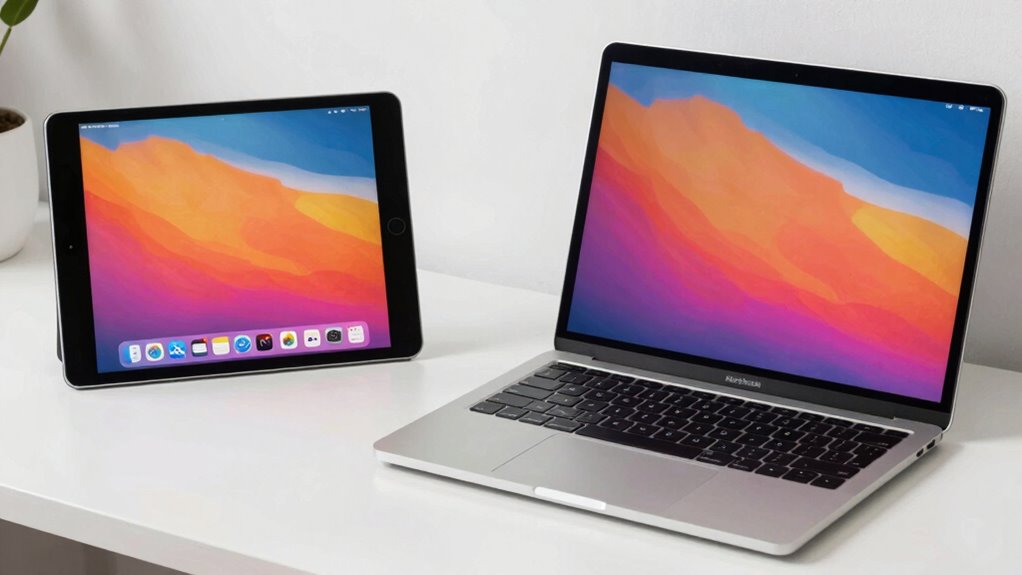
To get the most out of Sidecar, start by ensuring your devices are properly connected and updated. Once set, optimize your experience with these tips:
Ensure devices are connected and updated to maximize Sidecar’s features and performance.
- Adjust color calibration to match your main display, ensuring consistent color accuracy across screens.
- Explore app integration options, using Sidecar with compatible creative or productivity apps for seamless workflows.
- Use gestures and keyboard shortcuts to enhance navigation and efficiency while working on your iPad as a secondary display.
Frequently Asked Questions
Can I Use Sidecar Wirelessly Without a Cable Connection?
Yes, you can use Sidecar wirelessly without a cable connection. To do this, you need a stable wireless connection, typically via Wi-Fi, and both your Mac and iPad must be signed into the same Apple ID. This setup removes cable dependency, giving you more freedom to position your iPad as a second display. Keep in mind, a strong Wi-Fi signal ensures smooth performance without lag or interruptions.
Does Sidecar Support Multiple External Monitors Simultaneously?
Sidecar doesn’t support multiple external monitors simultaneously through its native features. However, you can achieve a multi-device setup using third-party apps like Duet Display or Air Display, which allow your iPad to act as an additional monitor alongside other external displays. These apps enable you to create a multi-device setup, giving you more screen space and flexibility, but keep in mind that performance may vary depending on your hardware and network connection.
How Secure Is the Sidecar Connection Regarding Privacy?
Your Sidecar connection is safer than Fort Knox! It uses robust data encryption to protect your information, making unauthorized access nearly impossible. Plus, you control privacy settings to customize who can connect, adding an extra layer of security. While no system is entirely foolproof, Apple’s security measures keep your data private during Sidecar sessions, giving you peace of mind that your work stays confidential and protected from prying eyes.
Can I Use Sidecar With Non-Apple External Displays?
You can’t use Sidecar directly with non-Apple external displays, as it’s designed specifically for Apple devices. However, third-party compatibility solutions, like Duet Display or Luna Display, let you connect your iPad to other external monitors. These apps often support various display resolution options, giving you flexibility in how you set up your workspace. Just make certain your system supports the chosen third-party app for smooth performance.
Is There a Way to Extend or Mirror Multiple Macs With One iPad?
You can’t directly extend or mirror multiple Macs to one iPad using Sidecar, as it only supports a single connection per device. For multi-device management and cross-platform compatibility, consider third-party apps like Duet Display or Luna Display, which allow you to connect multiple Macs or Windows PCs to your iPad simultaneously. These solutions enable more flexible multi-screen setups, improving your workflow across different devices.
Conclusion
So, now you’re all set to turn your iPad into a second display with Sidecar—who knew your tablet could become your new favorite workspace sidekick? Ironically, the very device you might have thought was just for entertainment can boost your productivity. Just remember, even with all its clever features, it’s not perfect. But hey, if you can overlook the occasional hiccup, you’ll wonder how you ever worked without it. Happy multitasking!
Halloween Picks
halloween
As an affiliate, we earn on qualifying purchases.