
If your disk usage hits 100%, start by opening Task Manager to identify which processes are causing high activity. Run a disk cleanup, update your drivers, and disable unnecessary background apps. Check for malware and perform a system restart. Monitoring these steps can often solve the issue without hardware changes. If problems persist, there’s more you can try—continue exploring solutions to get your system back to normal.
Key Takeaways
- Use Task Manager or Resource Monitor to identify processes causing high disk activity.
- Perform disk cleanup and remove unnecessary files to reduce disk load.
- Update outdated drivers and system software to fix potential software conflicts.
- Check disk health with tools like CHKDSK or SMART diagnostics for hardware issues.
- Disable unnecessary startup programs and background processes to improve performance.

Disk Wiper Hard Drive Eraser USB DVD DBan Boot And Nuke Hard Drive Data Wiping Software Made for Windows All Versions, Linux & Mac Geddes Software
Completely erase ALL your hard drive data. Hard Drive Eraser erases 100% of your data, operating system and…
As an affiliate, we earn on qualifying purchases.
As an affiliate, we earn on qualifying purchases.
How to Recognize the Signs of 100% Disk Usage and Why It Matters

When your computer’s disk usage hits 100%, it can cause noticeable slowdowns and system freezes, disrupting your workflow. Recognizing the signs early is vital for maintaining your system’s health and performance. You might notice prolonged response times, applications loading slowly, or the cursor freezing unexpectedly. You could also see a high disk activity indicator in your task manager, signaling that your disk is overwhelmed. These symptoms directly impact system performance, making everyday tasks frustrating. Keeping an eye on disk health helps prevent more severe issues and guarantees your computer runs smoothly. Regularly monitoring these signs allows you to address problems before they escalate, keeping your system efficient and reliable. Ignoring these signs can lead to hardware deterioration and data loss. Additionally, understanding underlying causes, such as hardware deterioration, can help you take proactive steps to protect your data, especially when combined with disk health monitoring techniques. Recognizing signs early and understanding system performance factors can also guide you in maintaining overall system stability.

M.2 NVMe SSD Enclosure Adapter Tool-Free, 10Gbps USB 3.2 Gen 2 USB C External, M.2 NVMe to USB Reader, Support UASP Trim for NVME M and (B+M) Keys and Size 2230/2242 /2260/2280 SSDs(up to 8TB), Purple
【Why choose ZE's purple NVMe SSD enclosure】Powered by 10Gbps USB 3.2 Gen 2, UASP & TRIM, and a…
As an affiliate, we earn on qualifying purchases.
As an affiliate, we earn on qualifying purchases.
What Causes High Disk Usage on Your PC
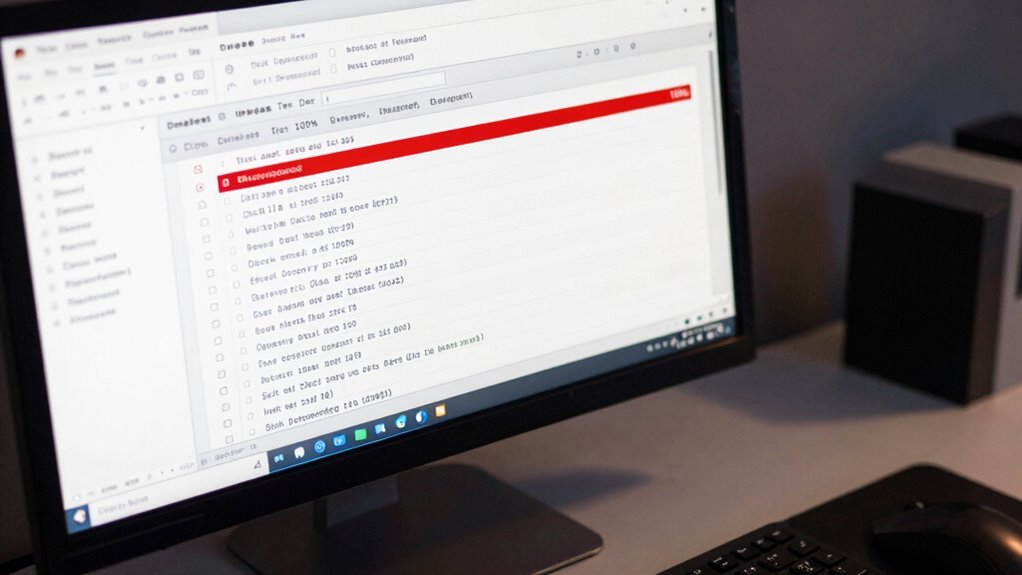
Have you ever wondered what causes your PC to grind to a halt with high disk usage? Several factors can contribute to this issue. One common cause is background processes or apps that run continuously, using up your disk resources. Outdated or faulty drivers and system updates can also cause high disk activity if they’re stuck or failing to install properly. Additionally, insufficient disk cleanup can lead to clutter and slowdowns, as your system struggles to manage unnecessary files. Malware or viruses might also be behind the spike, consuming resources without your knowledge. Regularly performing a disk cleanup helps remove unnecessary files, and keeping your system updated ensures maximum performance. Sometimes, system maintenance like defragmentation or scans is necessary to resolve persistent issues, just as managing disk usage requires careful diagnosis and appropriate action. Understanding the importance of software quality assurance can help you identify underlying issues that affect overall system performance. Additionally, monitoring disk activity can provide insights into which processes are causing the high usage, enabling more targeted troubleshooting. Recognizing the role of disk health can also guide you in preventing hardware failures that contribute to performance problems. Identifying these causes can help you address high disk usage effectively.

Burning Studio 26 – Burn, copy, save – the multimedia all-rounder – burning software – create covers, inlays, disk labels for Win 11, 10
Your powerful burning software for burning and copying CDs, DVDs and Blu-ray Discs
As an affiliate, we earn on qualifying purchases.
As an affiliate, we earn on qualifying purchases.
How to Diagnose Disk Usage Problems Step-by-Step
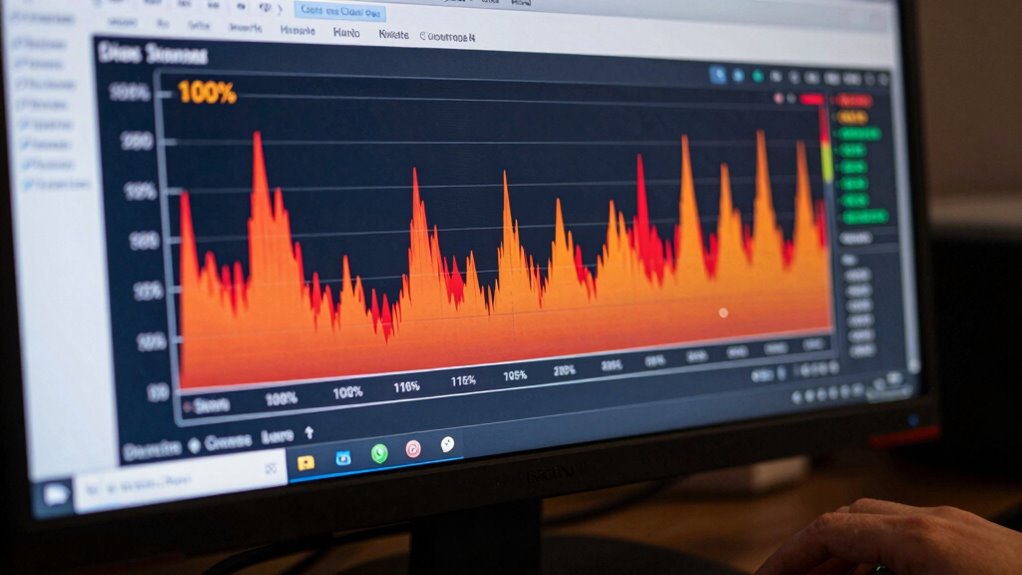
To effectively address high disk usage, you first need to pinpoint what’s causing the problem. Start with system monitoring tools like Task Manager or Resource Monitor to identify which processes are consuming the most disk activity. Check for any programs or services that are unusually active. Next, perform a disk cleanup to remove unnecessary files, temporary data, and cached files that could be slowing down your system. Use built-in tools like Disk Cleanup or third-party utilities for thorough cleaning. Keep monitoring your disk activity during this process to see if the usage drops. If disk usage remains high despite cleanup and monitoring, note the specific processes involved. This step-by-step approach helps you diagnose whether the issue is software-related or if further troubleshooting is needed. Additionally, reviewing disk management practices can help prevent future high usage issues. Implementing proper system maintenance can also contribute to overall disk health and performance, especially by managing software processes more effectively. Regularly checking your disk health status can provide early warnings of potential issues before they escalate.

FixMeStick Gold Computer Virus Removal Stick for Windows PCs – Unlimited Use on Up to 5 Laptops or Desktops for 2 Years – Works with Your Antivirus
WHAT YOU GET: FixMeStick Virus Removal Tool for Windows PCs (Windows XP, Vista, 7, 8, 8.1, 10, and…
As an affiliate, we earn on qualifying purchases.
As an affiliate, we earn on qualifying purchases.
How to Fix High Disk Usage Without Hardware Changes

High disk usage can often be resolved without replacing hardware by focusing on software solutions and system optimizations. Start by performing a disk cleanup to remove unnecessary files that slow down your system. Next, identify and disable unnecessary background processes that consume disk resources, especially those running in the background without your knowledge. Additionally, consider updating device drivers and Windows to improve overall performance. These steps help reduce disk activity and improve responsiveness. Regular maintenance like disk cleanup and managing background processes can prevent high disk usage issues from recurring, saving you time and money on hardware replacements. Staying aware of system resource management is essential for preventing issues like high disk usage from affecting your computer’s performance. Incorporating system health checks can further assist in maintaining optimal performance over time. Properly managing software processes is also crucial in ensuring that disk activity remains at acceptable levels. Monitoring disk performance regularly can help identify underlying issues early before they worsen.
When to Seek Professional Help for Disk Issues
Sometimes, despite your best efforts to troubleshoot and optimize your system, disk issues persist or worsen. If you notice ongoing high disk usage, unresponsive performance, or data loss signs, it’s time to seek professional help. Professionals can perform advanced disk maintenance, diagnose hardware failures, and recover critical data safely. They’ll also advise on proper data backup strategies to prevent future loss. Recognize these signs: piercings and jewelry materials can impact healing and susceptibility to infection.
In addition, understanding the top products for your home and outdoors can help you choose reliable hardware replacements when necessary, much like selecting smart locks and office gear for secure spaces. Being aware of the best woods for farmhouse tables can also be beneficial when considering durable hardware or furniture replacements for your home.
Tips to Prevent High Disk Usage in the Future
Even with professional help, prevention is your best defense against persistent disk issues. Regularly performing a disk cleanup removes unnecessary files, freeing up space and reducing system strain. Scheduling disk defragmentation helps organize fragmented files, improving read/write speeds and preventing high disk usage. Avoid neglecting background processes or unnecessary startup programs that can spike disk activity. Keep your system updated to guarantee efficiency and security. Also, monitor your disk usage regularly to catch issues early. Incorporating product roundups of useful tools can help you select the best software for maintenance tasks.
Frequently Asked Questions
Can High Disk Usage Damage My Hard Drive?
High disk usage itself won’t directly damage your hard drive’s health, but it can lead to issues like data corruption if it causes your drive to overwork or crash. Continuous excessive usage strains your system, potentially increasing the risk of errors and affecting disk health over time. To prevent problems, monitor your disk activity and address underlying causes, ensuring your drive remains reliable and your data stays safe.
Does Antivirus Software Affect Disk Usage Levels?
Antivirus impact can temporarily increase your disk usage during scans or updates, but it usually doesn’t cause long-term issues. However, if your antivirus software conflicts with other programs or runs too aggressively, it might contribute to high disk activity. To reduce this, update your antivirus, schedule scans during off-peak times, and guarantee no software conflicts exist. Regularly monitoring can help maintain ideal disk performance.
How Does Disk Fragmentation Influence Disk Usage?
Think of file fragmentation as scattered leaves across a yard, making it harder for your system to find what it needs. When files are fragmented, disk performance slows because the drive works harder to piece data together. This increased effort can push disk usage to 100%, causing sluggishness. Regularly defragmenting your disk reorganizes these scattered files, restoring smoother disk performance and reducing unnecessary strain on your system.
Is SSD Faster Than HDD Regarding Disk Usage Issues?
Yes, SSDs are faster than HDDs regarding disk usage issues because their performance isn’t hindered by fragmentation, unlike HDDs. Upgrading to an SSD can considerably reduce disk usage problems, leading to quicker data access and overall system responsiveness. The disk upgrade benefits include faster boot times, smoother operation, and less likelihood of hitting 100% disk usage. So, if you’re facing persistent issues, switching to an SSD can make a big difference.
Can Malware Cause 100% Disk Utilization?
Yes, malware can cause 100% disk utilization by running malicious processes that overload your disk. Its impact can slow down your system considerably. To fix this, perform a thorough disk cleanup and run a reliable antivirus scan. Removing malware helps restore normal disk performance, preventing unnecessary hardware replacement. Always keep your security software updated and stay vigilant to avoid future infections that could impair your disk’s health.
Conclusion
High disk usage can slow down your PC and cause frustration. Did you know that over 50% of Windows users experience significant disk issues at some point? By understanding the signs, causes, and troubleshooting steps, you can quickly identify problems before considering costly hardware replacements. Staying proactive with regular maintenance and diagnostics can save you time and money, keeping your system running smoothly and efficiently for years to come.