

To create a photo backup workflow that combines local and cloud storage without duplicates, start by organizing your photos with consistent naming and folder structures. Use duplicate detection tools and delete or consolidate repeats before backing up. Automate regular backups to both local devices and cloud services, ensuring metadata stays intact. Make sure to regularly verify your backups’ accuracy and security. Continuing this guide will help you master a seamless, efficient system that keeps your memories safe and easily accessible.

Get the latest gadgets delivered free with Prime
- Fast, free delivery on millions of items
- Prime Video, Amazon Music and more included
- Member-only deals all year
Key Takeaways
- Organize photos with consistent naming conventions and folder structures before backing up to streamline detection of duplicates.
- Use duplicate detection tools based on content and metadata to identify and remove existing duplicates prior to backup.
- Automate backups with synchronization software that preserves metadata and prevents duplicate uploads across local and cloud storage.
- Implement version control and regular review processes to verify backup integrity and eliminate redundant copies.
- Employ multi-layer security measures, such as encryption and access controls, to protect data during both local and cloud backups.
As an affiliate, we earn on qualifying purchases.
Why You Need a Solid Photo Backup System
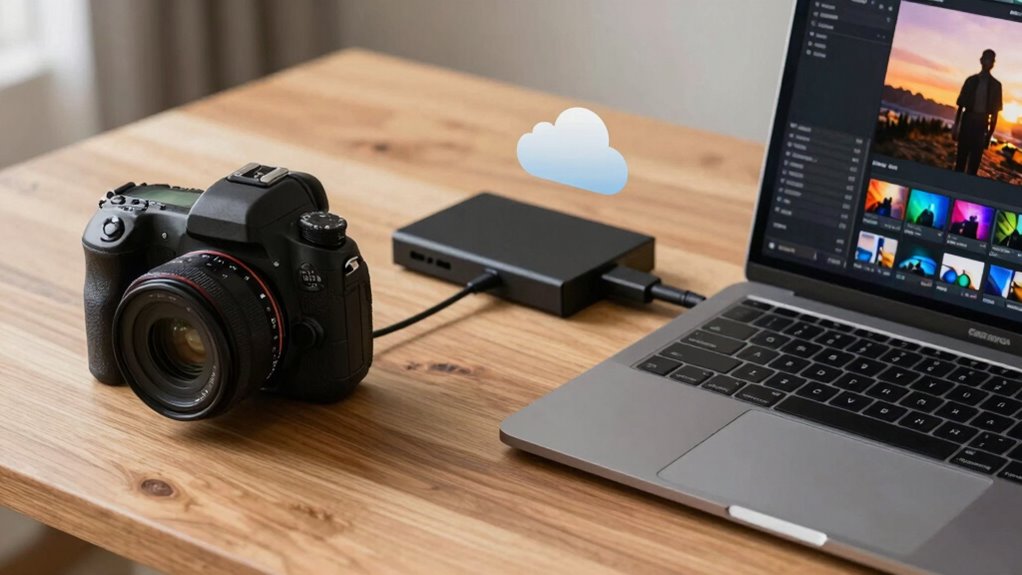
Having a solid photo backup system is essential because your memories are irreplaceable. It guarantees your images are safe from hardware failures, theft, or accidental deletions. A good system also simplifies metadata management, so you can easily organize and find photos later. When your backup process integrates seamlessly with photo editing tools, you save time and avoid duplicate efforts. This integration allows for direct editing and backup without disrupting your workflow. Plus, a reliable backup reduces stress, knowing your images are protected and accessible across devices. Without it, a single mishap could erase years of memories. Investing in a robust backup system keeps your photos secure, organized, and ready for quick retrieval whenever you need them. Color accuracy in your backup images ensures they look consistent across devices and platforms. Additionally, choosing the right data storage solutions, such as optical drives or enterprise USB backups, can enhance your overall backup reliability. Regularly verifying your backups and understanding your storage capacity needs can prevent potential data loss and improve long-term safety. Incorporating backup verification methods helps ensure your copies remain intact and usable over time. Understanding the importance of photo file formats can also improve your backup strategy by preserving quality and compatibility.
As an affiliate, we earn on qualifying purchases.
Choosing the Best Local Storage for Your Photos

When selecting local storage for your photos, you need to think about how much space you’ll need now and in the future, ensuring it can grow with your collection. Speed and accessibility are also key—quick retrieval makes editing and sharing easier. Additionally, considering ethical considerations in consumer technology can help you choose storage options that align with your values, such as privacy and sustainability. Incorporating durability and reliability into your decision ensures your photos stay safe over time, especially as storage technology advances. Ultimately, choose a storage option that’s durable and reliable, so your photos stay safe over time. Incorporating natural light into your workspace can also improve your mood and productivity when managing your photo library.
Storage Capacity and Scalability
Choosing the right local storage for your photos requires careful consideration of capacity and scalability. You want a setup that can handle your current needs and grow with your collection. Think about storage expansion options, such as adding drives or upgrading existing ones. Scalability planning guarantees your system remains efficient as your photo library enlarges. To help visualize, consider this table:
| Storage Type | Ideal for |
|---|---|
| External HDDs | Budget-friendly, simple capacity upgrades |
| NAS Devices | Centralized, scalable, multiple users |
| Internal SSDs | Fast access, for editing workflows |
| RAID Arrays | Redundant, large capacity, reliable |
Assess your growth trajectory and choose a solution that balances capacity and future-proofing without sacrificing performance.
Speed and Accessibility
Speed and accessibility are crucial factors when selecting local storage for your photos because they directly impact your workflow and user experience. Fast read/write speeds ensure smooth photo sharing, quick edits, and seamless browsing. If your storage has slow access times, your editing speed slows down, frustrating your process. Accessibility also matters; you want your photo library to be readily available without delays. Consider these key points:
- High-speed SSDs for rapid photo editing and sharing
- USB-C or Thunderbolt connections for quick data transfer
- Easy-to-navigate file systems for swift access
- Compatibility with your devices and software
- Minimal lag during large file transfers
Choosing the right local storage boosts productivity, makes editing more efficient, and keeps your workflow flowing without hiccups.
Durability and Reliability
Ensuring your photo storage is durable and reliable is essential for safeguarding your valuable images over time. You need redundancy strategies that protect against hardware failures and ensure data integrity. Choose storage options with built-in error correction and long-term stability, such as RAID arrays or SSDs designed for durability. Regularly test your backups to confirm they’re intact and accessible.
| Storage Type | Key Benefit |
|---|---|
| HDDs | Cost-effective with large capacity |
| SSDs | Faster, more durable, less failure |
| Network-NAS | Centralized, accessible, reliable |
| External Drives | Portable, simple, yet vulnerable |
Prioritize redundancy and regularly verify your backups to keep your memories safe.
As an affiliate, we earn on qualifying purchases.
Selecting Reliable Cloud Storage Options

When choosing a cloud storage service, you need to take into account how well it protects your photos and keeps your privacy secure. Look into their security features and privacy policies to ensure your data stays safe. Also, compare costs and storage limits to find an option that fits your needs without overspending. Additionally, consider how the service manages user consent and cookie preferences to maintain your control over privacy settings. Implementing security measures, such as encryption, can further safeguard your data during storage and transfer. Understanding the Gold IRA markets can help you make informed decisions about your investments and ensure that your assets are protected with trustworthy providers. Conducting thorough privacy policy reviews can reveal how well your data privacy is prioritized by the provider.
Security and Privacy Measures
Choosing a reliable cloud storage provider is essential to protecting your photos from unauthorized access or data breaches. You want a service that uses robust security and privacy measures, like strong encryption protocols and strict access controls. Look for providers that encrypt data both in transit and at rest, guaranteeing your photos stay private. Access controls should include multi-factor authentication and customizable permissions to limit who can view or modify your files. Additionally, check if the provider has transparent privacy policies and complies with regulations like GDPR. These features help prevent unauthorized access and safeguard your personal images. Regular security audits can uncover vulnerabilities and ensure the provider maintains high security standards, building trust with users concerned about privacy. Prioritizing security and privacy also involves selecting providers that have a clear data protection policy and regularly update their security measures to adapt to emerging threats. Understanding the importance of security protocols can further enhance your confidence in the safety of your backups. Implementing comprehensive security measures can also help mitigate risks associated with data breaches and unauthorized access. By doing so, you guarantee your backups remain protected, giving you peace of mind knowing your photos are safe.
Cost and Storage Limits
Cost and storage limits are key factors to take into account when selecting a cloud storage provider for your photo backups. Conducting a thorough cost analysis helps you find a plan that fits your budget while offering enough space for your needs. Some providers offer tiered plans, so you can choose based on your current storage and scale as your collection grows. Look for options that prioritize storage optimization—such as compressing images or removing duplicates—to maximize value. Be aware of potential overage fees or restrictions on data transfer, which could increase costs unexpectedly. Comparing providers on both price and storage limits guarantees you find a reliable service that balances affordability with capacity, keeping your photo backups safe and accessible without overspending. Additionally, Vetted options ensure that you select high-quality services that meet your security and reliability standards. Considering content management features can further help optimize your storage and prevent unnecessary expenses. Understanding how storage limits are enforced can help you avoid surprises and plan your backup strategy more effectively. Being aware of the softener brine impact in water filtration systems can also influence your choices if you use cloud services that depend on stable internet connections, as fluctuations may affect transfer speeds. Furthermore, selecting a provider with clear data management policies can help you stay compliant and protect your privacy.
As an affiliate, we earn on qualifying purchases.
How to Prevent Duplicate Photos During Backup

To effectively prevent duplicate photos during backup, start by organizing your files with consistent naming conventions and folder structures. Proper metadata management helps identify duplicate images, making it easier to detect repeats during backup. Implement duplicate detection tools that scan for identical or similar files based on content and metadata. Keep your library clean by removing or consolidating duplicates before backing up. Use file comparison features to catch near-duplicates that might slip through standard checks. Regularly review your backups to ensure no duplicates have been added. Additionally, set rules for naming and filing photos to maintain consistency. This approach minimizes redundancy, saves storage space, and guarantees your backups are efficient and reliable. Leveraging metadata can significantly improve duplicate detection accuracy. Incorporating vetted file management practices ensures your backup process remains streamlined and trustworthy.
Automate Your Photo Backup for Peace of Mind

Automating your photo backup process guarantees your memories are protected without constant manual effort. By setting up backup automation, you guarantee new photos are automatically saved to your chosen local and cloud destinations. This process preserves photo metadata, such as date, location, and device information, which helps maintain context and organization. With automation in place, you won’t have to remember to back up regularly, reducing the risk of losing important images. Many backup tools allow you to schedule automatic uploads, sync folders, or monitor new files continuously. This way, your workflow becomes seamless, saving time and mental energy. Ultimately, backup automation provides peace of mind, knowing your photos are consistently protected, organized, and ready for recovery whenever needed.
Organize Your Photos for Easy Retrieval
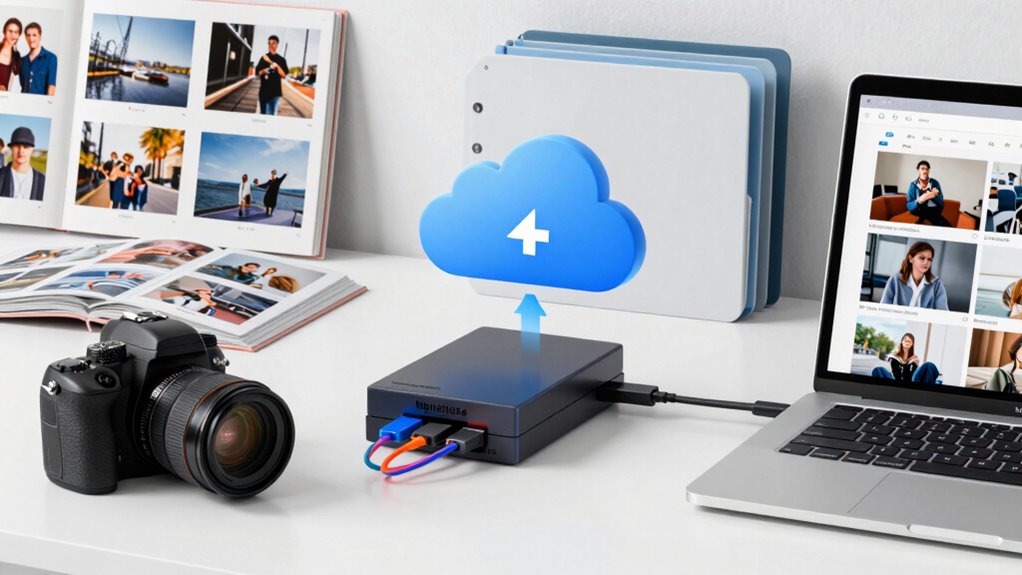
Once your photos are backed up automatically, the next step is organizing them in a way that makes retrieval simple. Effective organization relies on good metadata management and clear photo categorization. Assign descriptive tags, dates, and locations to your images to enhance searchability. Create folders based on events, dates, or themes to streamline navigation. Use consistent naming conventions to avoid confusion. Regularly update your metadata and categorize new photos as you add them. This system guarantees you can quickly find specific images without sifting through duplicates or clutter. By maintaining a structured approach, you’ll save time and avoid frustration when locating memories later. Proper organization turns your backups into a well-ordered photo library ready for easy access anytime.
Troubleshooting Common Backup Problems
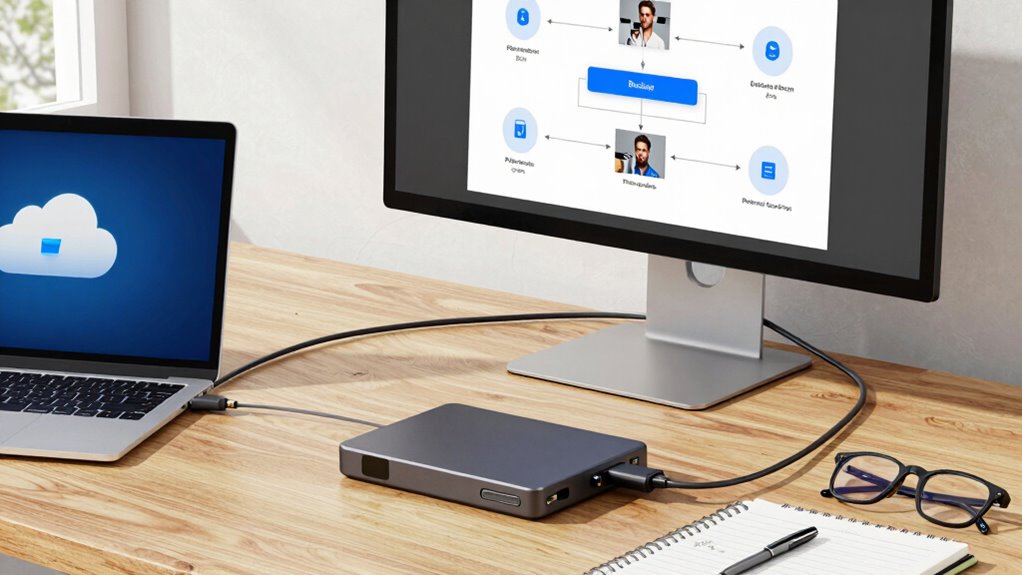
Despite having a solid backup system in place, you may encounter common issues like slow upload speeds, failed transfers, or synchronization errors. These problems often stem from mismatched photo metadata or incomplete files that disrupt the process. To troubleshoot, start by verifying your backup’s accuracy—perform backup verification to ensure all files, including metadata, are correctly stored. If uploads are slow, check your internet connection or consider optimizing your connection for large transfers. Failed transfers may require reattempting or manually resuming uploads. Synchronization errors often happen when local and cloud versions differ; resolving these involves comparing metadata and timestamps. Regularly confirming your backups helps catch issues early, ensuring your photos are safely stored without duplicates or missing data.
Tips to Keep Your Photos Safe and Accessible

To keep your photos safe and accessible, it’s essential to implement multiple layers of protection. This approach minimizes the risk of losing valuable memories. Use strong passwords and enable two-factor authentication for your cloud accounts. Regularly organize your images with clear folder structures and delete duplicates to avoid clutter. Incorporate photo editing tips to enhance images without risking quality loss, and consider backups on different media types. When sharing photos, adopt strategies like sharing links instead of originals to maintain privacy and control. Keep your software updated to patch security vulnerabilities. Additionally, consider using photo management apps that sync seamlessly across devices, ensuring easy access from anywhere. These steps help safeguard your collection while keeping it readily available for creative projects or sharing moments with loved ones.
Frequently Asked Questions
How Often Should I Update My Photo Backup System?
You should update your photo backup system regularly, ideally weekly or bi-weekly, to keep your photo organization current and protected. Regular updates guarantee new photos are backed up promptly, reducing the risk of loss. Use backup automation to streamline this process, so you don’t have to remember manually. Consistent updates help maintain a reliable, duplicate-free backup, and keep your photo library safe and organized across your local and cloud storage.
What Security Measures Protect My Photos in Cloud Storage?
Your photos are guarded by strong encryption protocols that scramble your data, making it nearly impossible for outsiders to access. Access controls, such as two-factor authentication and permissions, add an extra layer of security, ensuring only you can view or modify your images. But beware—cyber threats constantly evolve. Stay vigilant by regularly updating your security settings and choosing reputable cloud providers to keep your precious memories safe from prying eyes.
Can I Recover Deleted Photos From My Backup?
Yes, you can recover deleted photos from your backup. Most cloud services keep deleted images in a trash or recycle bin for a certain period, allowing you to perform photo recovery easily. Check your cloud storage’s recovery or restore options to retrieve your deleted images. Act quickly, as these deleted photos might be permanently removed after the retention period, making photo recovery impossible.
How Do I Handle Large Photo Libraries Efficiently?
To handle large photo libraries efficiently, focus on metadata management and storage organization. Use software that allows you to tag and categorize photos with keywords, dates, and locations, making searches easier. Regularly organize your files into folders or albums based on themes or dates. Implement a consistent naming convention, and back up your organized library locally and to the cloud to prevent data loss, ensuring quick access and streamlined management.
What Are the Costs Associated With Long-Term Cloud Storage?
Long-term cloud storage costs vary based on your needs, but generally, there’s a cost comparison to take into account: larger storage plans cost more, though they offer better storage scalability. You might pay monthly or annually, with prices decreasing per GB as you buy more. Keep in mind potential extra fees for data transfers or retrievals. To save, choose a plan that matches your current needs and allows for future growth without overspending.
Conclusion
By setting up a reliable local and cloud backup system, you can protect your photos from loss and avoid duplicates. Automate your backups and organize your files for quick access. Surprisingly, some experts believe that a well-structured backup system can even reduce stress, as it guarantees your memories are safe and always within reach. With these tips, you’ll have peace of mind knowing your photos are secure, accessible, and well-managed.
Halloween Picks
halloween
As an affiliate, we earn on qualifying purchases.