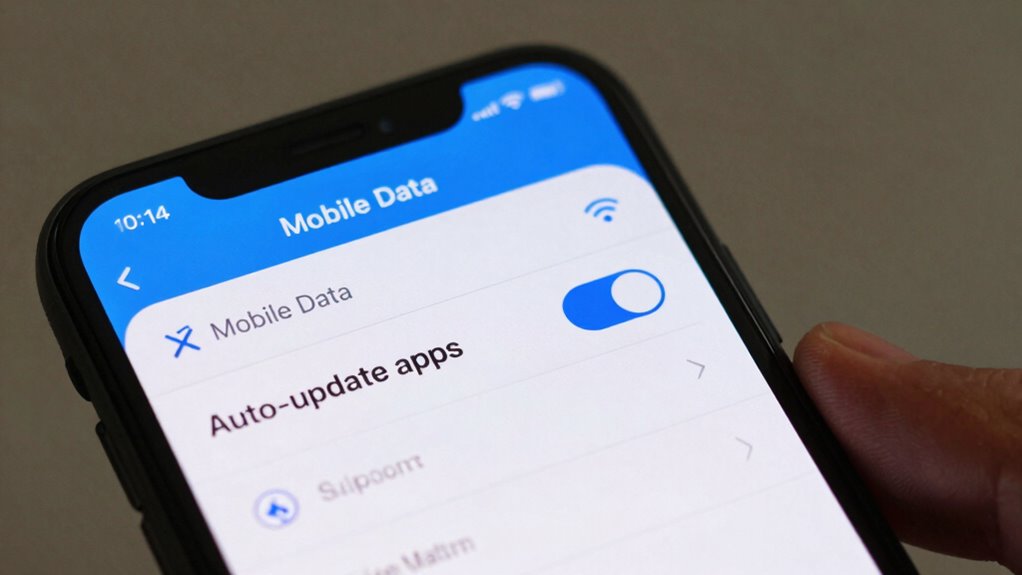

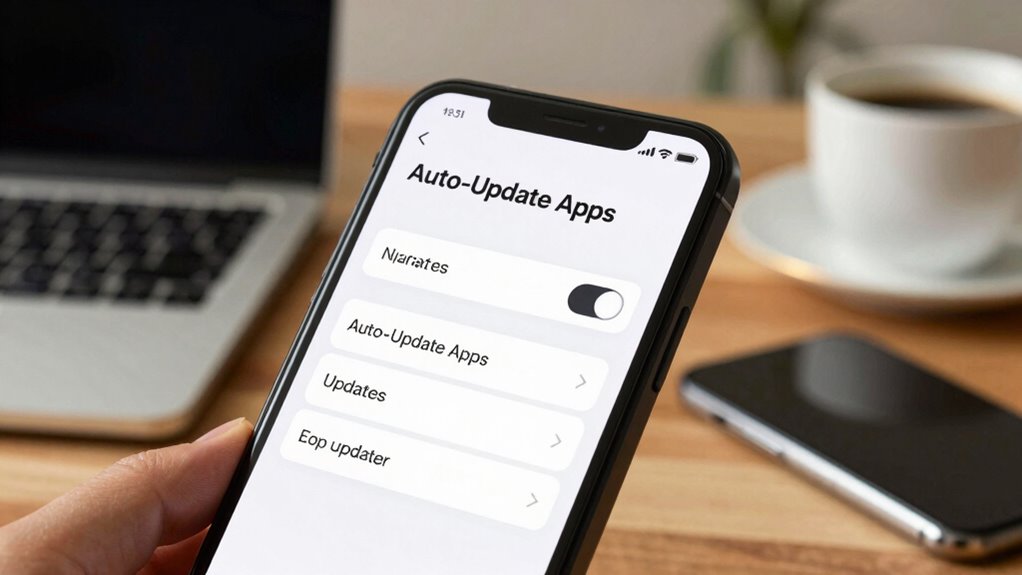
To stop apps from auto-installing updates on mobile data, start by disabling auto-updates in your device settings. On Android, go to the Google Play Store, tap your profile icon, then select Settings > Network Preferences > Auto-update apps, and choose “Over Wi-Fi only.” On an iPhone, turn off “App Updates” in Settings > App Store. Controlling update settings helps save data, extend battery life, and keep your device running smoothly. Keep exploring for more helpful tips.

Get the latest gadgets delivered free with Prime
- Fast, free delivery on millions of items
- Prime Video, Amazon Music and more included
- Member-only deals all year
Key Takeaways
- On Android, disable auto-update for individual apps via the Google Play Store settings.
- On iPhone, turn off “App Updates” in Settings > App Store to prevent automatic updates.
- Select “Over Wi-Fi only” for updates to restrict downloads to Wi-Fi networks.
- Manually check for updates during Wi-Fi sessions instead of enabling automatic updates.
- Regularly review and adjust app update settings to maintain control over data usage.
As an affiliate, we earn on qualifying purchases.
How Do Auto-Updates Impact Your Mobile Data?
Ever wondered how auto-updates affect your mobile data usage? When your apps update automatically, they often consume significant data, especially if updates happen in the background. This increases your overall data consumption, which can lead to exceeding your data plan limits and incurring extra charges. Additionally, auto-updates can cause battery drain, as your device works harder to download and install new versions without your intervention. This ongoing background activity reduces battery life, leaving you with less power when you need it most. If you’re on a limited data plan or want to conserve battery, auto-updates can be a hidden drain. Managing these updates helps you control both your data consumption and battery life, giving you more peace of mind. One way to optimize your device’s performance is by understanding how high refresh rates and other features impact overall efficiency. Being aware of software update settings allows you to choose appropriate times for updates, preventing unnecessary background activity during your busy hours. Adjusting automatic update preferences can further help you manage when and how updates are downloaded, ensuring you stay within your data limits. Implementing data saver modes can further help restrict background data use, making your device more efficient overall. Recognizing the impact of microplastics in dust on health can also encourage better device hygiene and air quality management in your environment.
iPhone app update management tool
As an affiliate, we earn on qualifying purchases.
As an affiliate, we earn on qualifying purchases.
Check Your App Update Settings on Android and iPhone
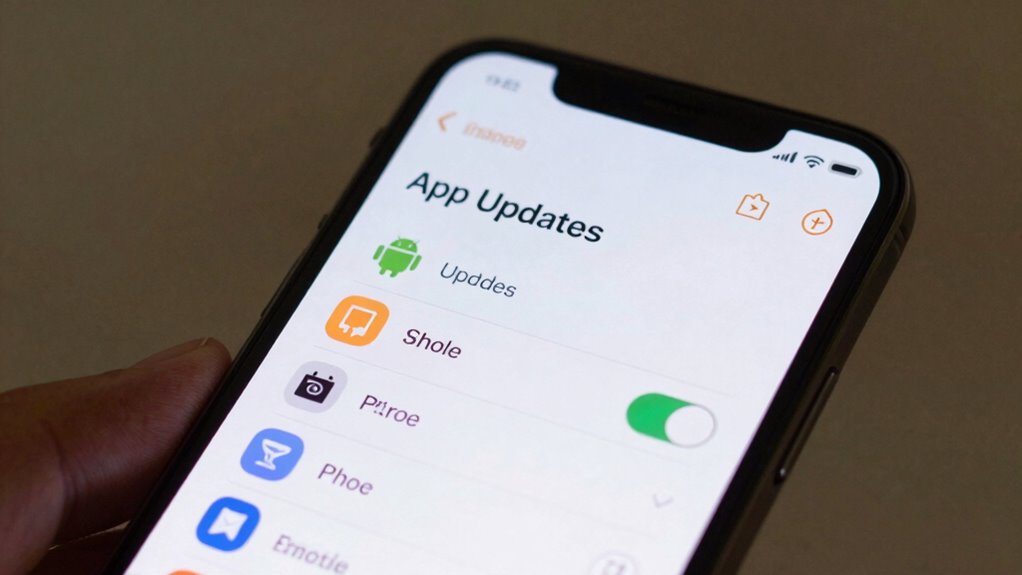
To prevent unwanted auto-updates, start by checking your app update settings on your device. You can adjust auto-update options, manage data usage preferences, and disable background app updates. Exploring new digital concepts helps you understand how these settings impact your control over app updates, saving your mobile data. Being aware of smart thermostat setup and other digital tools can also assist in optimizing your device management.
Adjust Auto-Update Settings
Checking and adjusting your auto-update settings is an essential step to prevent apps from updating automatically over mobile data. On Android and iPhone, you can review your app update notifications and change update scheduling preferences. For Android, open the Google Play Store, tap your profile icon, then select “Settings” > “Network Preferences” > “Auto-update apps.” Choose “Over Wi-Fi only” or disable auto-updates completely. On iPhone, go to Settings > App Store, and toggle off “App Updates” to stop automatic updates. These adjustments guarantee you’re in control of when apps update, preventing unexpected data consumption. By managing update scheduling and notifications, you avoid surprise updates and maintain better control over your mobile data usage.
Manage Data Usage Preferences
Managing your data usage preferences is essential to prevent unwanted app updates on mobile networks. To do this, check your app update settings on your device. On Android, go to the Google Play Store, tap your profile icon, then select “Settings,” followed by “Network preferences,” and “Auto-update apps.” Choose “Over Wi-Fi only” to restrict updates to Wi-Fi connections, which helps maintain app compatibility without consuming mobile data. On iPhone, open the App Store, tap your profile icon, then “Settings,” and disable “App Updates” to stop auto-updates altogether. You’ll still receive update notifications, but updates won’t install automatically over mobile data. Managing these preferences guarantees you stay in control of data usage while keeping your apps compatible and up-to-date. Additionally, understanding the trend towards smarter devices in the vaping market can help you stay informed about new features that might affect app performance and updates.
Disable Background App Updates
Disabling background app updates guarantees your apps only update when you choose, preventing unnecessary data usage and interruptions. On Android, go to Settings > Apps & Notifications > Advanced > App permissions, then select your apps and disable auto-update permissions. On iPhone, open Settings > App Store, and turn off “App Updates” to stop auto-updates. This prevents apps from updating in the background, which can trigger update notifications and consume data without your knowledge. By managing app permissions and disabling background updates, you gain control over when your apps refresh. Keep an eye on your device’s settings to ensure updates only occur when you’re connected to Wi-Fi or when you manually initiate them. Being aware of smart home privacy practices helps you maintain security and control over your device ecosystem. Understanding drone hive health can also inform you about the importance of regular maintenance and monitoring for optimal performance, even if it’s related to beekeeping, as it emphasizes the significance of oversight and management. Incorporating Free Floating backyard transformation ideas can also help create a relaxing outdoor space where you can enjoy your device less and unwind more. Additionally, staying informed about Gold IRA markets can help you make better financial decisions regarding your investments. Moreover, exploring anime movies can broaden your cultural understanding and appreciation for storytelling techniques used in animation.
As an affiliate, we earn on qualifying purchases.
Disable Auto-Updates on Android Devices
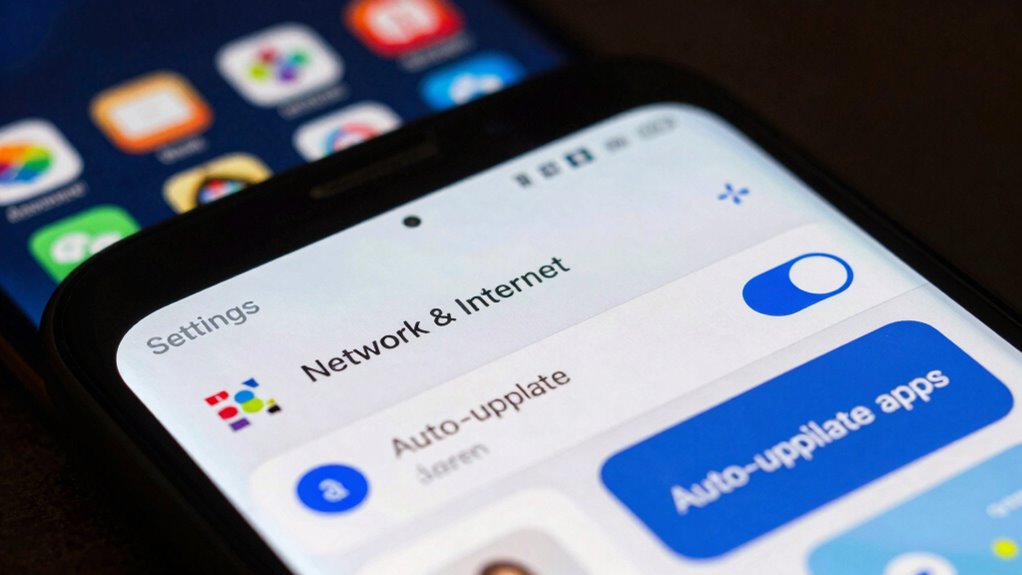
Ever wonder how to prevent your Android device from automatically updating apps when you’re on mobile data? To stop auto-updates, open the Google Play Store app. Tap the menu icon (three lines) and select “Settings.” Under App download preferences, choose “Over Wi-Fi only” or “Don’t auto-update apps” to disable auto-updates completely. This prevents unwanted app update notifications and controls update frequency, saving data and avoiding interruptions. If you want more control, you can also disable auto-updates for specific apps individually through their settings. Keep in mind, turning off auto-updates means you’ll need to manually update apps to get the latest features and security patches. Additionally, managing app update settings can help optimize your device’s performance and security, similar to how filter maintenance ensures efficient operation in air purifiers. Being aware of your update preferences allows you to better manage your device’s security by controlling when and how updates are applied. Understanding how cultural artifacts like Indonesian masks are used can inspire you to customize your device’s aesthetic in a meaningful way. For example, understanding different types of software updates can help you make informed decisions about when to apply them, ensuring your device remains secure and efficient. This way, you stay in control of your update schedule and data usage on Android devices.
As an affiliate, we earn on qualifying purchases.
Stop Auto-Installing Updates on Your iPhone
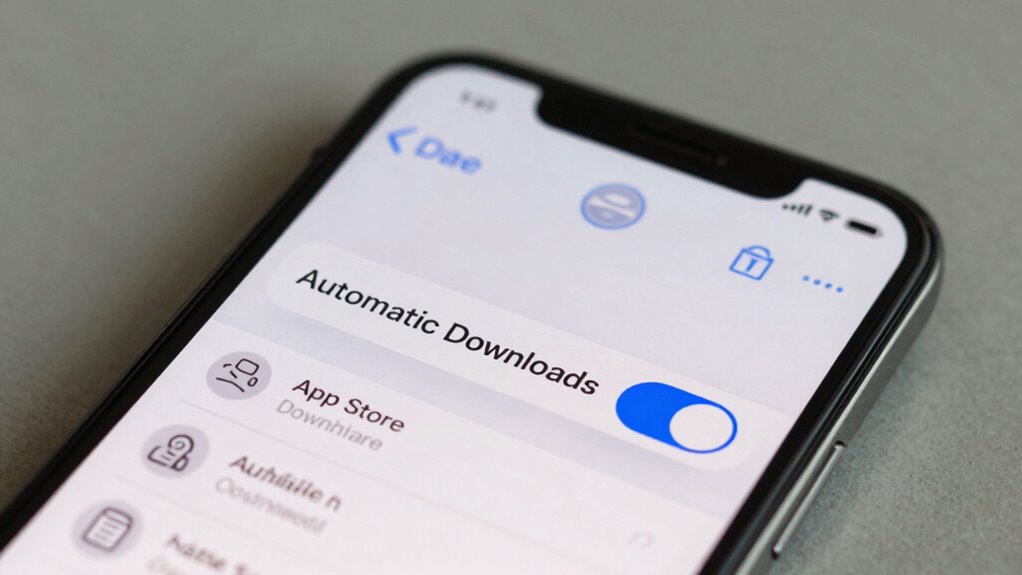
Want to prevent your iPhone from automatically installing app updates? You can do this by adjusting your App Store settings. First, go to Settings, then tap on your Apple ID, and select “App Store.” Turn off the “App Updates” toggle to stop automatic updates. This prevents apps from updating in the background and reduces unwanted app update notifications. If you’re concerned about data usage, consider using data throttling strategies, such as restricting background activity or setting your Wi-Fi as the only network for updates. This way, updates won’t occur over mobile data, saving you from unexpected data drain. Additionally, understanding your privacy policy can help you manage how your data is used when updates are applied. Being aware of essential oils for digital detox can also provide a relaxing break from constant notifications, helping you stay focused on your device management. Keep in mind, though, that disabling auto-updates means you’ll need to update apps manually to benefit from the latest features and security patches. Regularly reviewing your cookie preferences ensures your browsing experience remains personalized and secure. Furthermore, staying informed about app update policies allows you to make better choices regarding your device’s security and performance. To further improve your control, consider reviewing your device’s security settings regularly to ensure your data remains protected during manual updates.
Tips to Minimize Data Use When Updating Apps
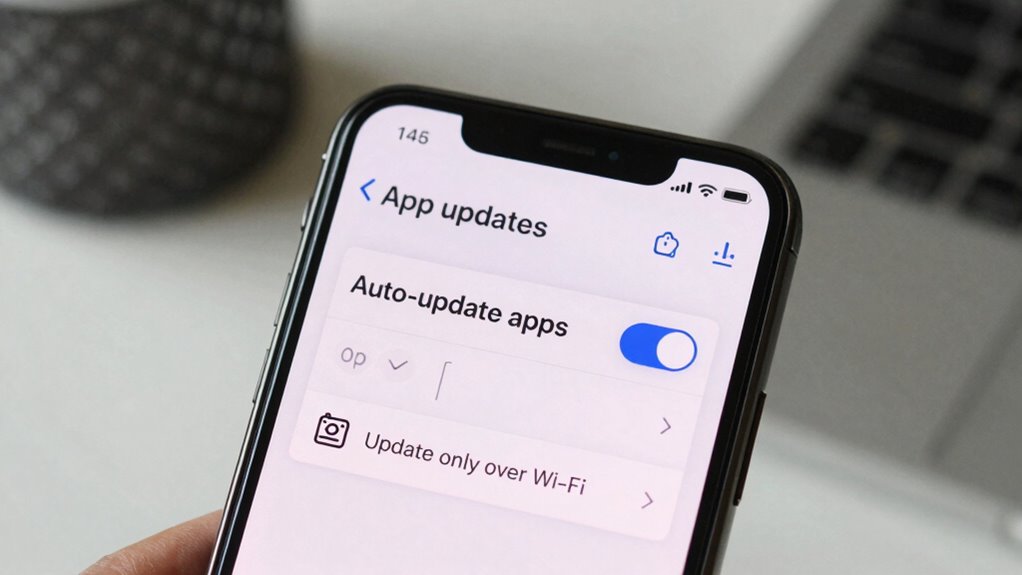
To reduce data consumption when updating apps, you can take several proactive steps. First, disable app update notifications so you’re not prompted to update apps on mobile data, preventing accidental updates. Use your device’s settings to restrict updates to Wi-Fi only, which helps with data plan optimization. Consider manually checking for updates during Wi-Fi sessions, rather than allowing automatic downloads. Clear app cache regularly to keep app sizes smaller, reducing the amount of data needed for updates. Additionally, review which apps update automatically and turn off auto-updates for non-essential apps. These steps guarantee you stay in control of your data usage, avoid unnecessary charges, and keep your data plan optimized while still keeping your apps current. Proper piercing aftercare can also prevent infections that might require additional app downloads for medical advice or supplies. Being aware of your device’s app management features can further help in controlling data consumption effectively.
Troubleshooting Auto-Update Problems on Android and iPhone
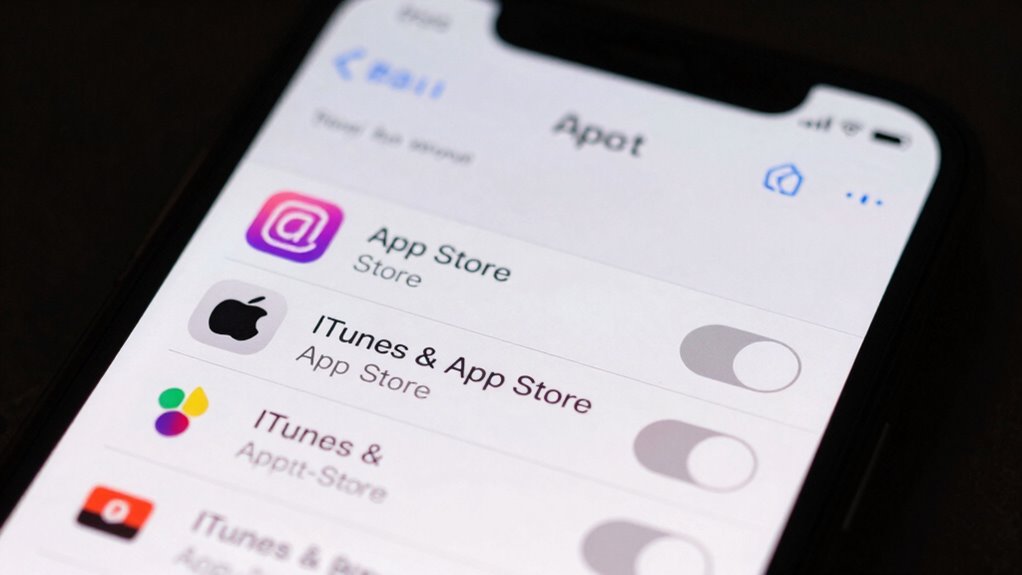
When auto-update problems occur on your Android or iPhone, troubleshooting begins by checking your device’s update settings. Start by reviewing app update notification management, ensuring notifications aren’t muted or disabled, which can hide update prompts. If apps aren’t updating correctly, you might face app version conflicts that prevent new updates from installing properly. On Android, verify that auto-update is enabled under Google Play Store settings, and on iPhone, check if “App Updates” are toggled on in the App Store settings. Sometimes, outdated app versions or conflicting app data cause issues. Restart your device after making adjustments to refresh system processes. These steps help identify whether update notification management or app version conflicts are blocking updates, allowing you to resolve auto-update problems efficiently.
Why Managing Auto-Updates Boosts Your Phone’s Performance
Managing auto-updates can considerably improve your phone’s battery life by preventing unnecessary background processes. It also helps cut down on data usage and keeps your device running smoothly. When updates are controlled, your phone stays faster and more responsive throughout the day.
Improves Battery Life
Auto-updates that occur during mobile data use can quickly drain your battery, causing your device to work harder than necessary. When updates run in the background, they increase battery drain because your phone spends extra energy downloading and installing files. This process also leads to unnecessary data consumption, which can further strain your device’s resources. By managing auto-updates and preventing them from occurring during mobile data use, you reduce the workload on your phone’s processor and minimize power usage. As a result, your battery lasts longer throughout the day, and your device maintains peak performance. Keeping auto-updates off or scheduled for Wi-Fi only ensures your phone conserves energy, improving overall battery life and keeping your device ready when you need it most.
Reduces Data Usage
Ever wonder how much data auto-updates consume in the background? They can use a significant chunk of your mobile data, especially if multiple apps update simultaneously. By managing auto-updates, you reduce unnecessary data usage, saving you money and preventing overage charges. This control also enhances data privacy since fewer updates mean less frequent data transfers, reducing the risk of exposure to potential security vulnerabilities during automatic downloads. Additionally, stopping auto-updates allows you to choose when and which updates to install, ensuring app compatibility remains intact without risking compatibility issues caused by rushed updates. Overall, managing auto-updates keeps your data lean, private, and under your control, making your device more efficient and secure.
Enhances Device Speed
When your apps update automatically in the background, they often run processes that can slow down your device’s overall speed. This constant activity consumes system resources, leading to lagging and sluggish performance. Managing auto-updates helps with device optimization, ensuring your phone runs more smoothly. By preventing unnecessary updates during mobile data usage, you reduce background processes that drain CPU power and memory. This performance enhancement makes your device more responsive, especially when opening apps or switching tasks. Disabling auto-updates allows your phone to prioritize essential functions, preserving battery life and maintaining faster operation. Overall, controlling app updates is a simple yet effective way to boost your device’s speed and keep it performing at its best.
Frequently Asked Questions
Can I Schedule Updates to Occur Only on Wi-Fi?
Yes, you can schedule updates to occur only on Wi-Fi by using Wi-Fi scheduling and update restrictions. Most devices let you set specific times for updates or restrict auto-updates to Wi-Fi networks only. Check your device settings or app store options to enable update restrictions, ensuring updates happen only when you’re connected to Wi-Fi. This way, you save mobile data and control when your apps update.
Are There Third-Party Apps to Control Auto-Updates?
Think of third-party management as your gatekeeper, stopping unwanted auto updates from sneaking through. Yes, there are auto update blockers—apps designed to control your updates more precisely. These third-party tools let you set rules, like only updating on Wi-Fi or blocking updates altogether. Just be cautious, as not all are reliable or safe. Choose well-rated options and keep your device security in mind while taking control.
Will Disabling Auto-Updates Affect App Security?
Disabling auto-updates can increase security risks because you might miss critical patches that fix vulnerabilities. However, it also helps reduce data consumption, especially if you’re on limited mobile data. If you choose to disable auto-updates, make sure to manually update apps regularly to keep security features current. This balance helps prevent security risks without unnecessarily draining your mobile data.
How Do Auto-Updates Impact Battery Life?
Auto-updates can silently drain your battery, like a steady leak in a boat, causing increased power consumption. When apps update automatically, your device works harder, using more energy to download and install files in the background. This ongoing activity accelerates battery drain, leaving you with less power for essential tasks. To preserve your battery life, consider managing auto-updates and limiting background processes.
Can I Selectively Update Specific Apps Manually?
Yes, you can selectively update specific apps manually, giving you control over which apps get updates. To do this, open the app store settings and turn off auto-updates. Then, go to each app’s page and choose the update option manually when you want. This selective updates approach helps you manage data usage and battery life while keeping only essential apps up-to-date.
Conclusion
By taking control of auto-updates, you’re steering your device away from unexpected data storms and unnecessary bloat. Think of it as planting your own garden—tending to what truly matters and letting the weeds of unwanted updates wither away. With a few simple steps, you’ll keep your data flow smooth and your phone humming like a well-tuned orchestra, ready to perform whenever you need it. Your device, your rules—enjoy the harmony.
Fall Picks
fall essentials
As an affiliate, we earn on qualifying purchases.