
TL;DR
An XDA Developers writer found that an old HDMI cable kept a 3440×1440 monitor at 60Hz, even though the display could run at 100Hz over HDMI. Replacing it with the monitor’s included Premium High Speed cable made 100Hz available in Windows. Cable limits are one possible cause; Windows settings and monitor port capabilities should also be checked.
An old HDMI cable kept an XDA Developers writer’s 3440×1440 monitor at 60Hz, despite the display supporting 100Hz over HDMI; swapping in the cable supplied with the monitor restored the higher refresh-rate option in Windows. The account highlights cable bandwidth as one possible reason a monitor may not offer its advertised refresh rates, while noting that settings and port limits can produce the same symptom.

Get the latest gadgets delivered free with Prime
- Fast, free delivery on millions of items
- Prime Video, Amazon Music and more included
- Member-only deals all year
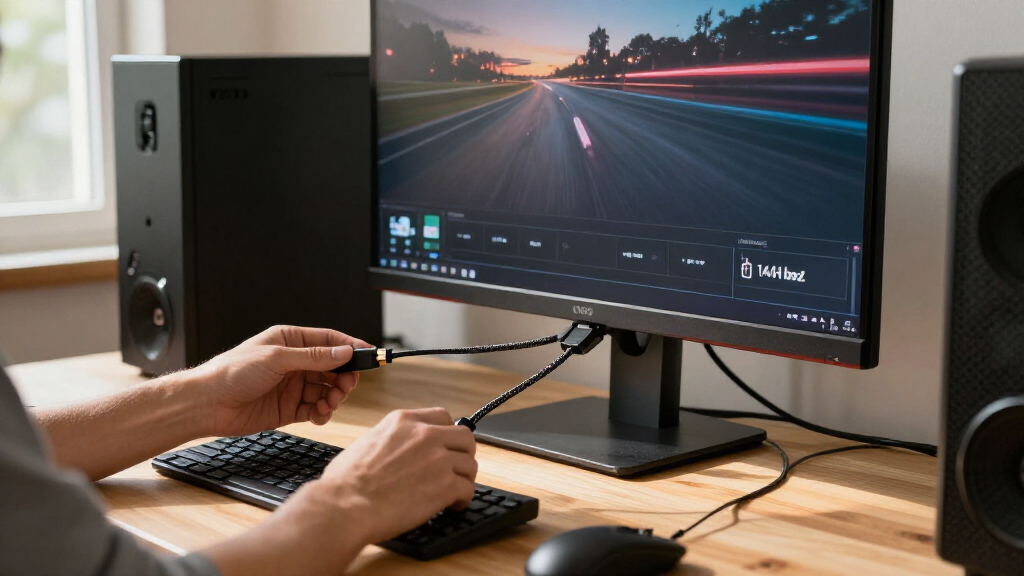
The writer had connected an older Alienware AW3423DW monitor to a graphics card using a cable from a drawer. The display was being used as a secondary screen, and the writer expected to limit it to 100Hz rather than its maximum DisplayPort refresh rate. Instead, Windows offered no setting above 60Hz, and moving the cursor felt sluggish.
The cable’s sleeve was marked “High Speed.” The article says that label refers to a cable rated for up to 10.2Gbps, which was not enough for the writer’s 3440×1440 monitor at 100Hz. The monitor’s HDMI 2.0 port could support the intended mode with an appropriate cable. Using the included Premium High Speed HDMI cable, rated for up to 18Gbps, made 100Hz selectable without other changes.
The article also cautions that cable replacement is not a guaranteed fix. Windows may default to 60Hz, and a monitor’s HDMI port may impose a lower ceiling than its DisplayPort connection. The writer’s Alienware AW2725DF, for example, has an HDMI 2.1 port but supports up to 144Hz at 1440p over HDMI, according to the article; DisplayPort is needed to reach 360Hz on that monitor.
Stuck at 60Hz?Check the HDMI cable
An old cable capped one 3440×1440 monitor at 60Hz. Replacing it made 100Hz selectable in Windows, but settings and port limits can cause the same symptom.
What changed
The display could run at 100Hz over HDMI 2.0 with a suitable cable.
- Older High Speed cable rated up to 10.2Gbps
- Windows offered no setting above 60Hz
- Included Premium High Speed cable rated up to 18Gbps
- 100Hz became selectable in Windows
Cable ratings matter
Match bandwidth to the resolution and refresh rate you want.
| Cable rating | Bandwidth | Article example |
|---|---|---|
| High Speed | Up to 10.2Gbps | Too little for this 3440×1440 at 100Hz setup |
| Premium High Speed | Up to 18Gbps | Enabled 100Hz in the reported setup |
| Ultra High Speed | Up to 48Gbps | Called for by 4K at 144Hz |
Check the other limits
A cable swap is one possible fix, not a guarantee.
Confirm the desired refresh rate is selected in display settings.
Verify the monitor’s HDMI port supports your resolution and refresh rate.
Compare its rating with the bandwidth your display mode needs; try a suitable cable if needed.
Why Cable Bandwidth Can Limit Refresh Rates
A monitor can receive a picture and still fail to run at the refresh rate a user expects. That makes an under-capable cable easy to overlook: the screen appears to work, but Windows may show only 60Hz or omit higher options. For people who bought a high-refresh-rate display, that can mean missing out on smoother motion without realizing why.
The practical point is to match the cable to the resolution and refresh rate, not just to check whether it fits. Higher resolutions and refresh rates require more data than a basic 1080p/60Hz setup. The article says a Premium High Speed cable rated for 18Gbps suited the writer’s HDMI 2.0 use, while 4K at 144Hz calls for an Ultra High Speed cable rated for up to 48Gbps. Actual performance still depends on the monitor and its port implementation.
Products Worth Considering

LG UltraGear 27G640A-B 27-Inch QHD IPS Gaming Monitor, 300Hz, 1ms, G-SYNC Compatible, FreeSync Premium, DisplayHDR 400, HDMI 2.1, USB-C, Adj

LG UltraGear 34G600A-B 34-Inch Curved WQHD Gaming Monitor, 160Hz, FreeSync Premium, HDR10

Apple Watch Ultra 3 GPS + Cellular 49mm Smartwatch with Natural Titanium Milanese Loop
As an affiliate, we earn on qualifying purchases.
The Cable Labels Behind the Fix
The incident began after the writer upgraded to an Alienware AW2725DF and reused a DisplayPort cable for that monitor, while connecting the older AW3423DW over HDMI. The writer expected the older display to run at 100Hz, rather than its 175Hz DisplayPort capability, but an old HDMI cable restricted the available setting further. The included cable had been set aside because the monitor was initially used over DisplayPort.
According to the article, High Speed HDMI cable labeling corresponds to a 10.2Gbps rating, while Premium High Speed is rated up to 18Gbps and Ultra High Speed up to 48Gbps. These ratings describe cable bandwidth; they do not override limitations imposed by a monitor’s port, graphics hardware, or selected display mode. The article says newer HDMI 2.1 monitors may need an Ultra High Speed cable to use their full bandwidth, while some users may instead use DisplayPort for higher refresh rates.
“I could finally select 100Hz in Windows without touching anything else.”
— XDA Developers writer
What the Cable Check Cannot Confirm
The account describes one person’s setup and does not establish how often old cables cause a 60Hz cap across monitors. It also does not identify the exact cable model or provide an independent test of its bandwidth. The result supports the writer’s diagnosis in that particular configuration, but it does not show that every cable labeled High Speed will fail at every higher-resolution or higher-refresh-rate mode.
It may also be unclear from a refresh-rate menu alone whether the limitation comes from the cable, Windows configuration, the graphics output, or the monitor’s HDMI port. The article gives examples of port-specific limits, including an HDMI 2.1 port that does not deliver the monitor’s maximum refresh rate over HDMI. Users should check their display’s specifications for the mode they want rather than assuming the HDMI version or cable label guarantees a particular refresh rate.
Check Settings, Ports, Then Cable
For a monitor stuck at 60Hz, the next steps are to confirm the refresh rate selected in Windows, verify that the chosen HDMI port supports the desired resolution and refresh rate, and compare the cable’s rating with the required bandwidth. If those checks do not explain the missing option, trying a known suitable cable is a straightforward way to test whether the cable is the constraint. A supplied cable may be sufficient when its rating matches the display’s needs.
After changing cables, users can return to Windows display settings and see whether the higher refresh-rate modes appear. The article does not report a broader product test or any follow-up findings beyond the writer’s own setup. Its guidance is to use a cable suited to the specific monitor mode and to consider DisplayPort when that connection supports a higher refresh rate than HDMI.
Key Questions
Can an old HDMI cable keep a monitor at 60Hz?
Yes. In the reported setup, a cable rated for up to 10.2Gbps did not provide enough bandwidth for a 3440×1440 monitor at 100Hz. Replacing it with an appropriate cable restored the 100Hz option.
What should I check before buying another cable?
Check the refresh rate selected in Windows and confirm that the monitor’s HDMI port supports the resolution and refresh rate you want. The cable may not be the cause if settings or port limits are restricting the mode.
Which HDMI cable rating do I need?
It depends on the display mode and the monitor’s capabilities. The article cites Premium High Speed cables rated up to 18Gbps for the writer’s 100Hz HDMI 2.0 setup and says 4K at 144Hz calls for an Ultra High Speed cable rated up to 48Gbps.
Does an HDMI 2.1 port guarantee the monitor’s highest refresh rate?
No. The monitor’s port implementation can impose a lower limit. The article says the writer’s AW2725DF supports up to 144Hz at 1440p over HDMI, while DisplayPort is needed for 360Hz on that display.
Source: XDA Developers