

On your Android device, cache stores temporary data like images and scripts to speed up app performance, while data includes your personal settings, login info, and app preferences. Files are actual documents or media saved on your device. Clearing cache can free space and help with app issues, but deleting data or files may erase personal info or cause app problems. If you want to understand how to manage these effectively, there’s much more to discover below.

Get the latest gadgets delivered free with Prime
- Fast, free delivery on millions of items
- Prime Video, Amazon Music and more included
- Member-only deals all year
Key Takeaways
- Cache stores temporary, frequently accessed app resources to speed up performance and offline access, and can be safely cleared when needed.
- Data includes encrypted personal app information like settings and login credentials, essential for app functionality.
- Files are permanent documents, media, or downloads stored on your device unless manually deleted.
- Clearing cache improves storage space and app speed, but deleting data or files may cause loss of settings or app malfunctions.
- Proper management involves regularly reviewing, organizing, and securely backing up data and files to optimize device performance.
As an affiliate, we earn on qualifying purchases.
What Are Cache, Data, and Files on Android?
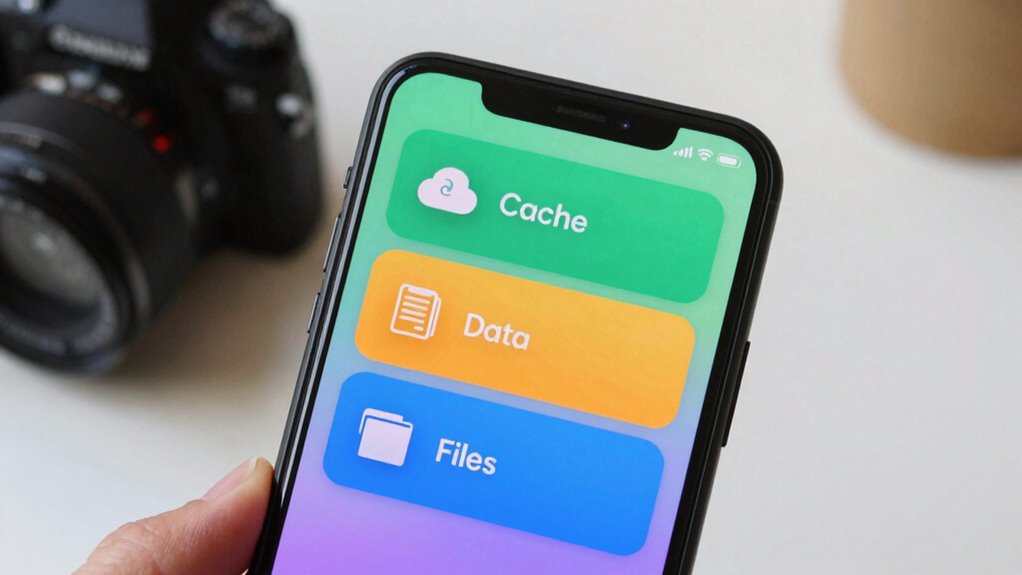
Are you wondering what exactly cache, data, and files are on your Android device? Cache organization helps your device store temporary information from apps, making future use faster. These cached files include images, scripts, and other resources that don’t need to be downloaded again. Data, on the other hand, refers to personal app information stored to keep your settings and progress intact. This data is often encrypted for security through data encryption, protecting your sensitive info from unauthorized access. Files are the actual documents, downloads, or media saved directly on your device. Unlike cache and data, files are permanent unless manually deleted. Understanding the differences helps you manage storage effectively and keeps your device running smoothly.
Android storage management tools
As an affiliate, we earn on qualifying purchases.
As an affiliate, we earn on qualifying purchases.
How Does Cache Help Speed Up Your Android Apps?

When apps use cache, they load faster because they store essential data locally, reducing wait times. This also cuts down on network usage, saving your data plan and speeding up app responses. Plus, cached data lets you access certain features offline, making your experience smoother and more reliable. Additionally, understanding how AI trends influence app performance can help optimize your device’s responsiveness. Implementing efficient data management strategies further enhances app speed and overall device performance. Being aware of security considerations related to cached data is also crucial to protect your privacy and sensitive information. Properly managing cache can also contribute to sustainable digital practices, aligning with environmentally conscious technology use.
Faster App Loading
Cache plays a crucial role in speeding up your Android apps by storing frequently accessed data locally. This allows apps to load faster, reducing wait times and improving your experience. When cache is utilized efficiently, apps don’t need to fetch data from the network or storage repeatedly, saving processing time. Proper cache management also supports battery optimization by minimizing background activity. However, app permissions influence cache control; granting or restricting access can impact performance. Here’s a quick overview:
| Cache Type | Purpose | Impact on Speed |
|---|---|---|
| Data Cache | Stores user data | Faster load times |
| Image Cache | Stores images | Quicker rendering |
| App Cache | Stores app resources | Smooth operation |
| Permissions | Control cache access | Optimized performance |
Additionally, understanding how cache capacity affects storage and performance can help you better manage your device’s resources. Being aware of cache management techniques enables users to optimize their device’s overall performance and efficiency.
Reduced Network Usage
By storing frequently accessed data locally, cache considerably reduces the need for your apps to repeatedly fetch information from the internet or remote servers. This means less data transfer, which cuts down on network usage and speeds up your experience. When an app retrieves data from cache, it avoids unnecessary cloud synchronization, saving bandwidth and reducing delays. For example, if you view a webpage or stream media, the cached content loads faster, decreasing the load on your network. Additionally, cache helps improve Bluetooth sharing by quickly providing data without needing constant online access. Overall, caching minimizes network dependency, conserves data plans, and makes your apps more responsive, ensuring smoother performance even with limited or unstable internet connections. Using efficient storage methods like optimized cache management further enhances these benefits, especially when combined with effective data organization to keep cache sizes manageable.
Offline Access Benefits
Have you ever noticed how your apps open instantly even without an internet connection? That’s thanks to cache. When you access data frequently, your device stores it locally, enabling offline access and faster load times. This speeds up your app experience because it doesn’t need to fetch information from the cloud every time. Cache also supports cloud synchronization by temporarily holding updates, so when you’re back online, data syncs seamlessly. Plus, cached data is protected through device encryption, keeping your information secure even when stored locally. This local storage reduces network usage and enhances speed, making your apps more responsive. Additionally, fire pits and outdoor kitchens can be integrated into backyard transformations to create inviting outdoor living spaces. Understanding environmental considerations like minimizing impact and fire safety regulations helps ensure responsible use of your device’s storage. Proper management of storage types can also optimize your device’s performance and longevity. Furthermore, incorporating high-quality crystal glassware can elevate your app’s presentation when sharing drinks with friends.
Android data backup and transfer device
As an affiliate, we earn on qualifying purchases.
As an affiliate, we earn on qualifying purchases.
When Should You Clear App Data on Android?

Knowing when to clear app data on your Android device can help resolve issues and free up storage. If an app is malfunctioning, crashing, or not syncing properly with the cloud, erasing its data might fix the problem. Also, if you’re planning to sell or reset your device, clearing app data ensures your personal information is removed. Remember to check if the app supports cloud synchronization or offers an app backup; doing so safeguards your data before clearing. Clearing app data resets the app to its default state, deleting login info, settings, and stored files. Use this option sparingly, mainly when troubleshooting or preparing for device changes, to avoid losing important information that may not be backed up. Additionally, understanding the differences between cache, data, and files—like regional flavors and chicory/coffee insights—can help you make more informed decisions about managing your device storage. Recognizing the purpose of each storage type can prevent accidental data loss and optimize device performance. Knowing the storage management options available on your device can further streamline this process.
As an affiliate, we earn on qualifying purchases.
Which Files Are Safe to Delete to Free Up Space?
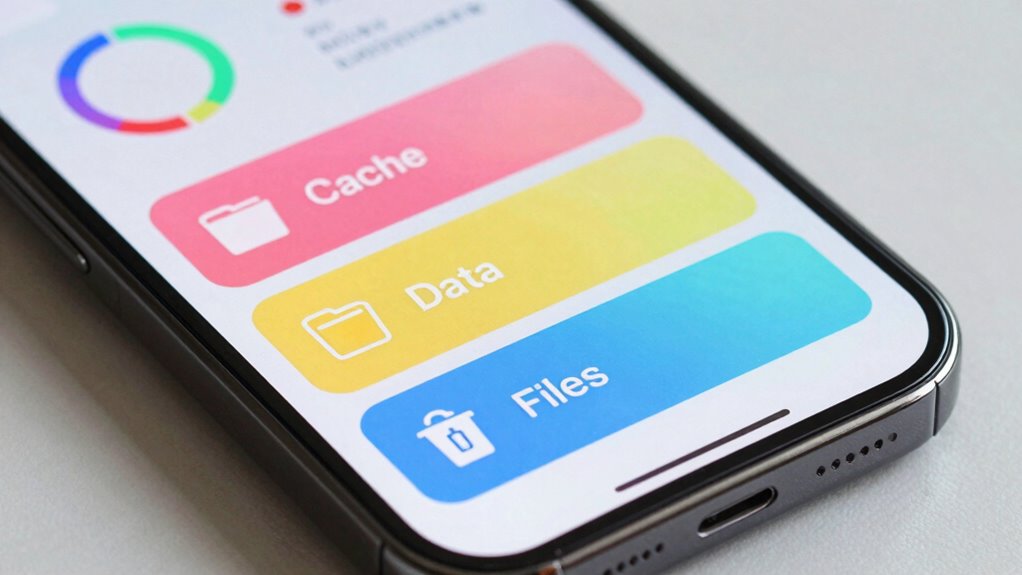
To free up space on your Android device, you need to identify which files are safe to delete. Temporary files, like cache data, can be safely removed since they’re created for quick access but don’t contain essential information. Clearing duplicate images also frees significant space without affecting your original photos. Use file management apps or your device’s built-in storage tools to find and delete these duplicates. Be cautious with other files, especially those in app folders or system directories, as deleting them might cause issues. Focus on clearing temporary files regularly and removing duplicate images to keep your storage optimized. This approach helps you free space efficiently without risking important data or breaking apps. Additionally, understanding piercing care and hygiene can help prevent infections that might lead to additional storage issues if complications arise. Recognizing the importance of file organization and management can further assist in maintaining a clutter-free device environment. Regularly reviewing your storage can also help identify unnecessary files, ensuring your device stays optimized over time. Properly managing your files based on personality test insights can also help streamline your digital environment and prevent clutter buildup. Being mindful of system updates and app data is also essential, as these can accumulate and take up considerable space if not managed regularly.
How to Check and Manage Your Android Storage
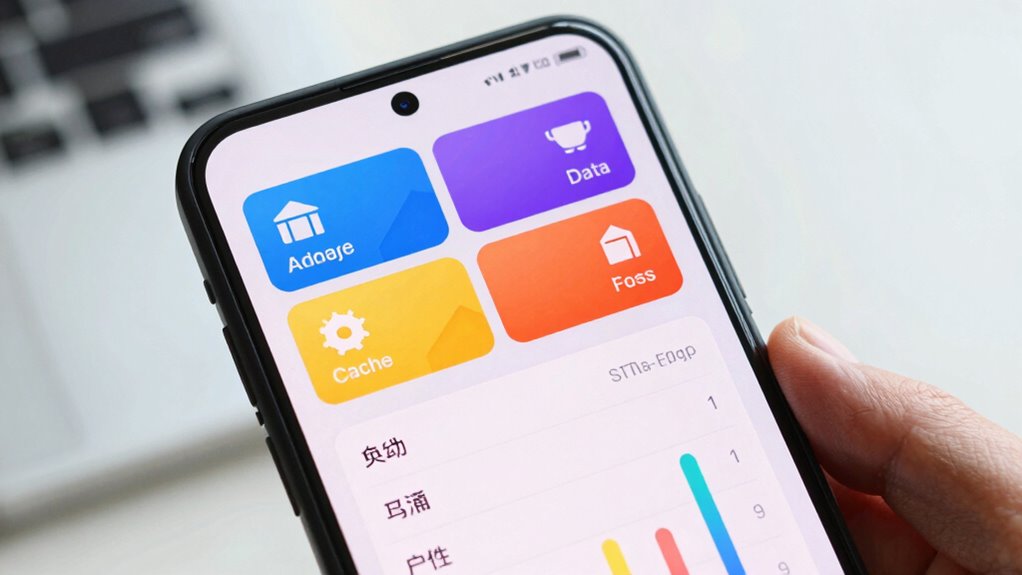
Managing your Android storage effectively starts with checking how much space is available and what’s taking up most of it. To do this, go to your device’s Settings > Storage. Here, you’ll see a breakdown of your storage use, including apps, media, and system files. Use this info to identify large apps or files you no longer need. Pay attention to app permissions, as some apps may store unnecessary data or cache that you can clear. Cloud synchronization helps free up local storage by backing up photos, videos, and documents online. Regularly reviewing your storage allows you to delete unwanted files and manage app data efficiently, preventing clutter. Additionally, understanding storage management techniques can help you optimize space and improve device performance. Being aware of data storage options, such as cloud and local storage, can further enhance your device’s organization and efficiency. Staying on top of these steps guarantees your device operates at its best and remains organized.
What Are the Risks of Deleting Cache, Data, or Files?

Deleting cache, data, or files can lead to potential data loss or require you to re-enter login information. You might also experience app malfunctions or crashes if essential files are removed. Additionally, some apps could need reconfiguration, which can be time-consuming and frustrating.
Potential Data Loss Risks
While clearing cache, data, or files can free up storage, it also carries the risk of losing important information or disrupting app functionality. Deleting app data might erase saved settings or login details, making you reconfigure apps. If your data isn’t properly encrypted, accidental exposure or loss becomes more likely. Storage fragmentation can worsen if you delete large files or cache repeatedly, leading to inefficient space management and potential data corruption. Additionally, removing files without understanding their purpose may cause apps to malfunction or lose essential data. Always back up critical information before clearing storage to prevent unintended data loss. Recognizing how data encryption protects sensitive information can help you make safer decisions when managing storage.
App Malfunction Possibilities
Removing cache, data, or files from your device can sometimes cause apps to stop working properly or crash unexpectedly. When you delete app data, you might lose saved settings or login information, forcing you to set up the app again. Clearing cache can temporarily slow down app performance if it needs to rebuild stored information. Additionally, deleting files may interfere with app permissions or background processes, leading to errors or limited functionality. Some apps rely on cached data to run smoothly, so removing it can cause unexpected behavior or crashes. If an app isn’t functioning correctly after deletion, it might be because necessary background processes or permissions are disrupted. Always consider these risks before clearing storage components to avoid unnecessary malfunctions.
Reconfiguration Requirements
When you clear cache, data, or files from your device, you often need to reconfigure certain app settings or logins afterward. This process can temporarily disrupt your system optimization, as apps may lose saved preferences or login credentials. Additionally, deleting files might affect app functionality if essential files are removed. Be cautious with storage encryption, as it safeguards your data; improper deletion could compromise security or make data inaccessible.
| Action | Reconfiguration Needed | Risks |
|---|---|---|
| Clear Cache | Re-login, adjust app settings | Loss of temporary data |
| Delete Data | Re-enter login info, reset preferences | Loss of personalized settings |
| Remove Files | Reinstall or reconfigure apps | Data loss, system instability |
Best Practices for Managing Android Storage Safely

To manage Android storage safely, you need to understand how to handle cache, data, and files properly. Start by reviewing app permissions; limit access to sensitive data to prevent unnecessary storage use. Regularly clear cache files for apps that no longer need them or are consuming excessive space. Use cloud synchronization to back up important data, reducing local storage reliance and protecting your info if your device is lost or damaged. Be cautious when granting permissions, especially for apps requesting access to storage, as they might store unnecessary data. Keep your apps updated to benefit from storage management improvements. By staying vigilant about app permissions and leveraging cloud services, you minimize storage clutter and safeguard your data effectively.
Frequently Asked Questions
How Often Should I Clear App Cache to Optimize Performance?
You should perform cache cleanup every few weeks to keep your device running smoothly. Regularly clearing app cache helps optimize storage and prevents apps from slowing down due to unnecessary data buildup. However, avoid excessive cleaning, as cached data can speed up app loading times. By balancing cache cleanup with storage optimization, you guarantee your device stays responsive without losing important temporary files.
Can Deleting App Data Cause Data Loss or App Issues?
Deleting app data can sometimes cause data loss or app issues, like losing saved preferences or progress. To avoid this, always perform an app data backup before clearing, ensuring your important info stays safe. While cache clearing risks are minimal, deleting app data is more impactful. Think of it as tidying up your digital space—just make sure you’re prepared with backups, so nothing valuable slips away unnoticed.
What’s the Difference Between Hidden and Visible Files on Android?
Hidden files on Android are files that aren’t shown by default, often used for system or app settings, while visible files are easily seen and accessible through your file manager. You might need to enable “show hidden files” to see hidden files. Hidden files help protect important system data from accidental deletion, whereas visible files are usually user-created, like photos or downloads. Always be cautious when managing hidden files to avoid system issues.
Are There Any Apps That Can Automate Storage Management?
Yes, there are apps that can automate storage management for you. Tools like SD Maid, Files by Google, and CCleaner offer automated cleanup and storage optimization features. They scan for unnecessary files, cache, and junk, then remove them to free up space effortlessly. Using these apps helps keep your device running smoothly without manual effort, making storage management easier and more efficient.
How Do I Identify Which Files Are Safe to Delete Manually?
Think of your device’s storage like a cluttered closet—you need to sort through it carefully. To identify safe files for manual deletion, do a storage analysis using your device’s built-in tools or apps like Files by Google. Look for old downloads, duplicate photos, or app cache files. These are typically safe to delete, freeing up space without affecting your essential data or app functions.
Conclusion
So, go ahead—tackle that storage mess with confidence, or at least pretend you know what you’re doing. Clearing cache might speed up your apps, but don’t be surprised if they stumble back to life just as slow the next day. Deleting data or files can free space, yet somehow, your phone still feels cramped. Ah, the irony of managing storage—you’re in control, until you’re not. Happy cleaning!
Fall Picks
fall essentials
As an affiliate, we earn on qualifying purchases.