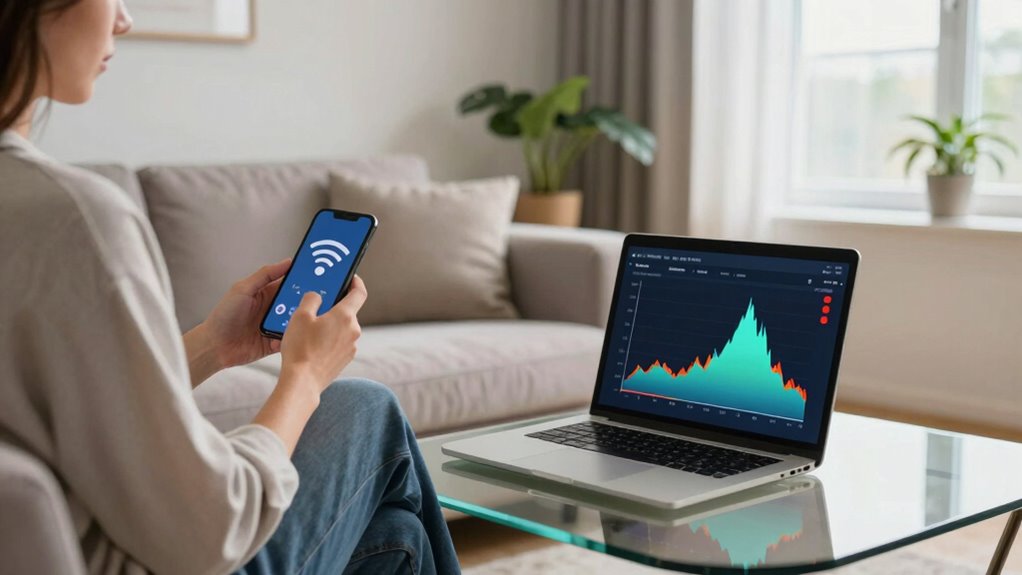
To choose the best Wi-Fi channel without special tools, start by checking your current network settings on your device, like using Command Prompt on Windows or holding the Option key on Mac to see current connection info. Then, observe nearby networks and note which channels they use—aim for less crowded ones like 1, 6, or 11 on the 2.4 GHz band. Adjust your router’s channel manually through its settings. More tips follow if you want to optimize your Wi-Fi even further.
Key Takeaways
- Check your current Wi-Fi channel using built-in system features like Windows Command Prompt or macOS Wi-Fi info.
- Observe nearby networks’ channels by viewing available Wi-Fi connections on your device.
- Choose less crowded channels, such as 1, 6, or 11 in the 2.4 GHz band, to reduce congestion.
- Access your router’s admin panel to manually switch to a less congested channel.
- Test your network performance after changing channels to identify the best option for stability and speed.

Foseal OBD2 Scanner, WiFi Car Code Reader Check Engine Light Diagnostic Scan Tool for iOS and Android
OBD2 Scanner Car Diagnostic Tool : Read diagnostic trouble codes for the check engine light, both generic &…
As an affiliate, we earn on qualifying purchases.
As an affiliate, we earn on qualifying purchases.
How Does Wi-Fi Interference Slow Down Your Connection?

Have you ever noticed your Wi-Fi slowing down unexpectedly? Interference is a common culprit. When multiple devices or networks operate on the same channel, signals clash, causing slower speeds and dropped connections. This interference can come from neighboring Wi-Fi networks or even household electronics like microwaves. To protect your Wi-Fi security, confirm your router firmware is up to date, as updates often improve performance and security features. Outdated firmware can leave your network vulnerable and less efficient. When interference occurs, your device struggles to communicate effectively, leading to lag and buffering. Choosing the right Wi-Fi channel helps minimize interference, boosting speed and connectivity. Regularly checking for channel congestion and updating your router firmware keeps your network running smoothly and securely. Media literacy also plays a key role in understanding and managing online environment factors that affect your Wi-Fi, including awareness of digital concepts that influence network performance. Additionally, understanding the frequency bands used by your Wi-Fi can help you select the optimal channel for your environment. Recognizing interference sources can further help in diagnosing and resolving connection issues, especially as network congestion increases in densely populated areas.

CablesOnline 2-Way A/B RJ45 Metal Rotary Manual Switch Box (SB-034)
2-Way RJ45 Ethernet Network AB Switch
As an affiliate, we earn on qualifying purchases.
As an affiliate, we earn on qualifying purchases.
Compare 2.4 GHz and 5 GHz Wi-Fi Bands for Better Performance
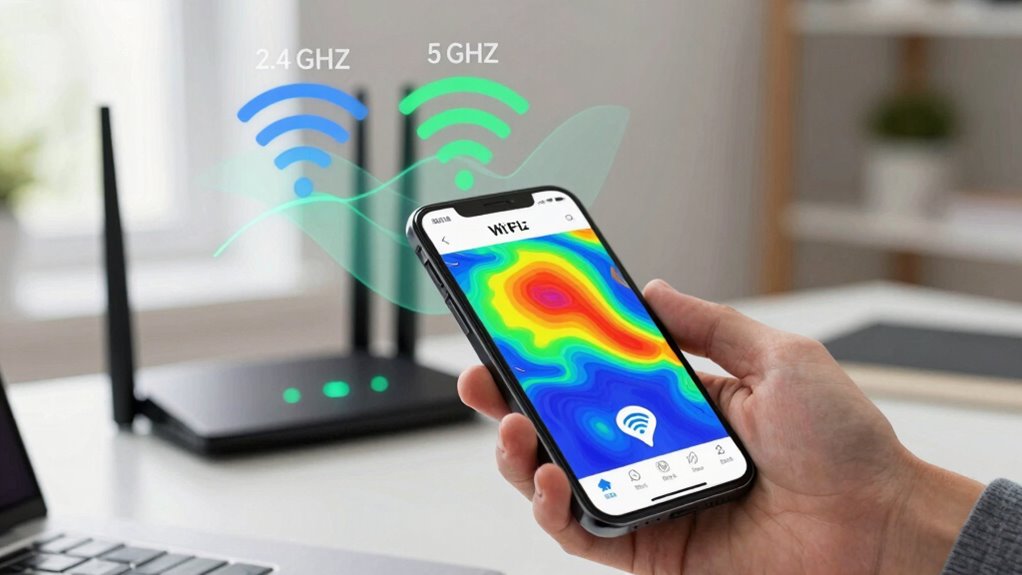
Wondering which Wi-Fi band offers better performance for your needs? The frequency comparison between 2.4 GHz and 5 GHz reveals key differences. 2.4 GHz covers a broader area but has lower bandwidth, making it prone to congestion. In contrast, 5 GHz offers higher bandwidth differences, providing faster speeds but shorter range.
- 2.4 GHz is ideal for larger spaces and basic browsing.
- 5 GHz supports streaming, gaming, and high-speed transfers.
- 2.4 GHz often faces more interference from other devices.
- 5 GHz is less crowded, leading to less congestion.
- Bandwidth differences favor 5 GHz for data-heavy tasks.
Choosing the right band depends on your needs for speed versus range, balancing frequency comparison with your home setup.

ERICKHILL 3 in 1 EMF Detector, Electromagnetic Field Radiation Detector for EF, RF, MF, WiFi,5G Signal,Triple Alarm Modes, Type-C Charging, EMF Meter for Home, Office, and Paranormal Investigation
All-in-One Detection: RT-100S 3-in-1 EMF Reader measures Electric (EF), Magnetic (MF), and Radio Frequency (RF) fields to monitor…
As an affiliate, we earn on qualifying purchases.
As an affiliate, we earn on qualifying purchases.
Find Overcrowded Wi-Fi Channels Near You

To improve your Wi-Fi performance, you need to identify which channels are overcrowded nearby. Use tools or apps to detect other Wi-Fi networks in your area and see which frequencies are most congested. Then, select a less crowded channel to guarantee a stronger, more reliable connection. Properly managing your Wi-Fi channels can also prevent interference from other devices, ensuring a smoother online experience. Understanding wireless communication protocols can further help optimize your network settings for better performance and reduce signal interference from neighboring networks. Additionally, being aware of network security practices can help protect your connection from unauthorized access that could contribute to congestion. Familiarizing yourself with channel planning strategies can also assist in maintaining a stable and efficient network environment.
Detect Nearby Wi-Fi Networks
Detecting nearby Wi-Fi networks is a vital step in choosing the best channel for your router, especially in crowded areas. By scanning, you can spot how many networks are active and assess their signal strength, helping you gauge network congestion. Strong signals indicate nearby networks that could interfere with yours, causing slower speeds.
You might notice:
- Multiple networks clustered on similar channels
- Several networks with high signal strength nearby
- Networks with overlapping coverage areas
- Hidden networks not broadcasting their name
- Variations in signal strength indicating distance
Identifying these networks helps you understand which channels are crowded and which are less congested, enabling you to select a cleaner, less interference-prone Wi-Fi channel.
Identify Congested Frequencies
Once you’ve scanned for nearby Wi-Fi networks, the next step is to identify which frequencies are overcrowded. Look for channels with multiple networks using similar bandwidths; this indicates congestion. Wireless encryption, like WPA2, can sometimes hint at network security and stability, but it doesn’t directly reveal congestion levels. Instead, focus on the network topology—how devices connect and overlap. If several networks cluster on the same channel, they compete for bandwidth, slowing your connection. Check for overlapping coverage areas, especially in densely populated places. Recognizing crowded frequencies helps you avoid channels with high interference, ensuring smoother Wi-Fi performance. By understanding the congestion patterns, you’re better equipped to pick a less crowded, more efficient channel. Additionally, consider how smart home devices may influence network traffic and congestion levels, especially as they become more integrated into your Wi-Fi environment.
Choose Less Crowded Channels
After identifying which frequencies are crowded, the next step is to select the least congested channels within those bands. To reduce network congestion and signal overlap, choose channels with fewer nearby networks. Look for gaps between active channels to minimize interference. Additionally, selecting channels with optimal filter sizing/flow can help improve overall network efficiency and stability.
- Channels with no overlapping signals nearby
- Fewer networks competing for the same space
- Clearer signals with less interference
- Reduced chances of dropped connections
- Better overall Wi-Fi performance

LiteVNA-64 VNA Analyzer 50KHz-6.3GHz Portable Vector Network Analyzer Antenna Analyzer 4" Display
with multiple internal RF switches for S11 and S21 measurements, and IFFT calculations for TDR and DTF measurements.
As an affiliate, we earn on qualifying purchases.
As an affiliate, we earn on qualifying purchases.
Check Your Current Wi-Fi Channel Without Special Tools
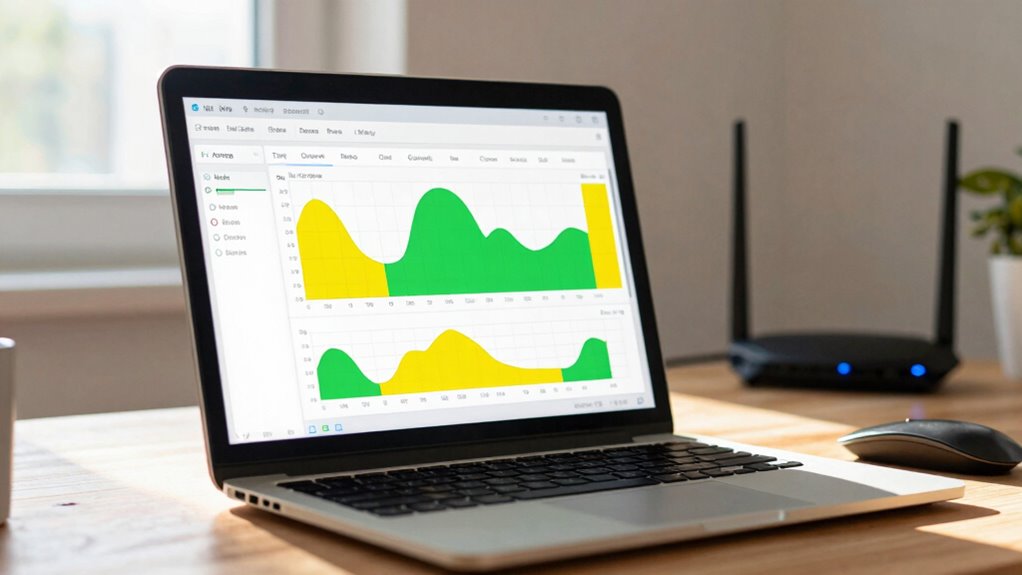
Ever wonder how to find out which Wi-Fi channel your network is using without buying any extra tools? You can check this directly through your device’s settings. On Windows, open Command Prompt and type “netsh wlan show interfaces” to see your current network details, including the channel. On macOS, hold the Option key and click the Wi-Fi icon on the menu bar to view your connection info. Knowing your current channel helps improve network security by avoiding overcrowded frequencies, which can be vulnerable to interference. It also ensures device compatibility, as some older devices may only connect to specific channels. Checking your current Wi-Fi channel is simple and doesn’t require additional tools, giving you quick insight into your network’s configuration and performance. Additionally, understanding network interference can help optimize your device’s connection stability by reducing interference from other networks. Regularly monitoring your Wi-Fi environment can further assist in selecting the best channel for improved speed and reliability. Being aware of your current channel can also help you troubleshoot connectivity issues more effectively. Recognizing how Twin Flame connections influence emotional and energetic states can also inform your awareness of environmental disruptions affecting your Wi-Fi signals.
Change Your Router’s Wi-Fi Channel Manually
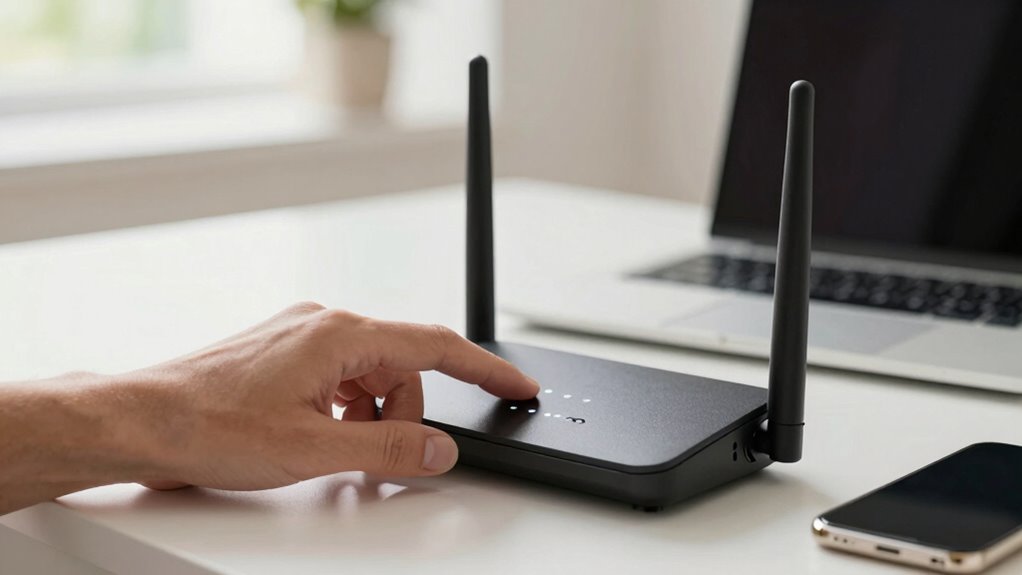
To change your Wi-Fi channel manually, start by accessing your router’s settings through your web browser. Then, select the appropriate Wi-Fi band and pick the channel that offers the least interference. This simple adjustment can help improve your network’s speed and stability. Being aware of Wi-Fi interference can further assist in choosing the best channel for optimal performance. Additionally, understanding microplastics in dust can be useful for maintaining a healthier indoor environment, which indirectly supports better Wi-Fi signal quality by reducing dust accumulation around your equipment. Monitoring indoor environmental factors can also contribute to maintaining consistent network performance. Recognizing the impact of environmental conditions can help you optimize your setup for more reliable connectivity. Paying attention to body-based healing methods can also promote overall well-being, which can positively influence your focus and patience during technical adjustments.
Access Router Settings
Accessing your router’s settings is the first step to manually changing your Wi-Fi channel. You typically do this by entering your router’s IP address into a web browser, then logging in with your admin credentials. Once inside, you’ll see options to adjust your Wi-Fi settings. Be sure to check your router security settings to keep your network safe. It’s also a good idea to verify that your firmware is up to date, as updates often improve performance and security. When exploring the interface, look for sections labeled “Wireless,” “Wi-Fi,” or “Network Settings.” Here, you can find the channel selection menu. Familiarize yourself with the layout so you can easily locate the settings you need to change. Additionally, understanding template compatibility testing can help you optimize your network for various devices and configurations. Ensuring your router supports multiple device connections can also enhance overall performance.
Select Wi-Fi Band
How do you choose the right Wi-Fi band for your router? Start by considering device compatibility, as some older devices only work on the 2.4 GHz band, while newer ones support 5 GHz for faster speeds. Most modern routers offer dual-band options, allowing you to select between the two frequency bands. The 2.4 GHz band provides broader coverage but is more prone to interference, making it suitable for basic browsing and connected devices. The 5 GHz band offers higher speeds and less congestion, ideal for streaming and gaming. Check your devices’ specifications to see which bands they support. Switching between bands ensures your devices connect to the most suitable frequency, improving overall performance without needing specialized tools.
Choose Optimal Channel
Even after choosing the right Wi-Fi band, interference from nearby networks can still slow down your connection. To optimize performance, manually change your router’s Wi-Fi channel. Look for a channel with less congestion and minimal signal overlap.
- Avoid channels crowded by multiple networks
- Select a channel with fewer overlapping signals
- Use your router’s admin panel to switch channels
- Test different channels for better speed
- Keep an eye on nearby networks to prevent interference
Choosing the right channel reduces channel congestion and signal overlap, leading to faster, more stable Wi-Fi. Repeatedly switching channels may be necessary to find the best fit for your environment. Regularly monitor your network for interference to maintain optimal performance.
Choose the Best Wi-Fi Channel for a Cleaner Signal
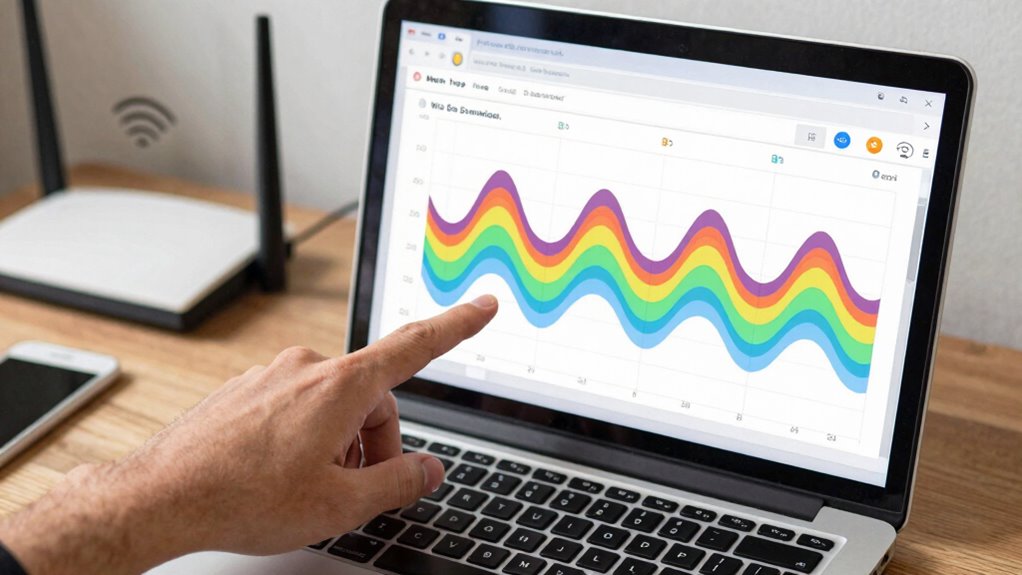
To guarantee your Wi-Fi signal stays strong and clear, selecting the right channel is essential. A cleaner signal reduces interference, boosting performance. Start by selecting a channel with less congestion, which can be done by observing nearby networks. Also, confirm your router firmware is up to date to optimize performance and security, including Wi-Fi encryption. Use the following table to understand how different channels might impact your connection:
| Channel | Best Use Case | Potential Interference |
|---|---|---|
| 1 | Common, less crowded | Overlap with other networks |
| 6 | Most popular, balanced | Moderate interference |
| 11 | Least overlap, cleaner | Less congestion |
| 3 | Slightly less crowded | Possible interference |
| 9 | Alternative option | Overlap with channels 6, 11 |
Choosing the right channel leads to a more stable, cleaner signal. Additionally, understanding interference sources can help you make a more informed choice for optimal Wi-Fi performance.
How Nearby Networks Impact Your Wi-Fi Speed
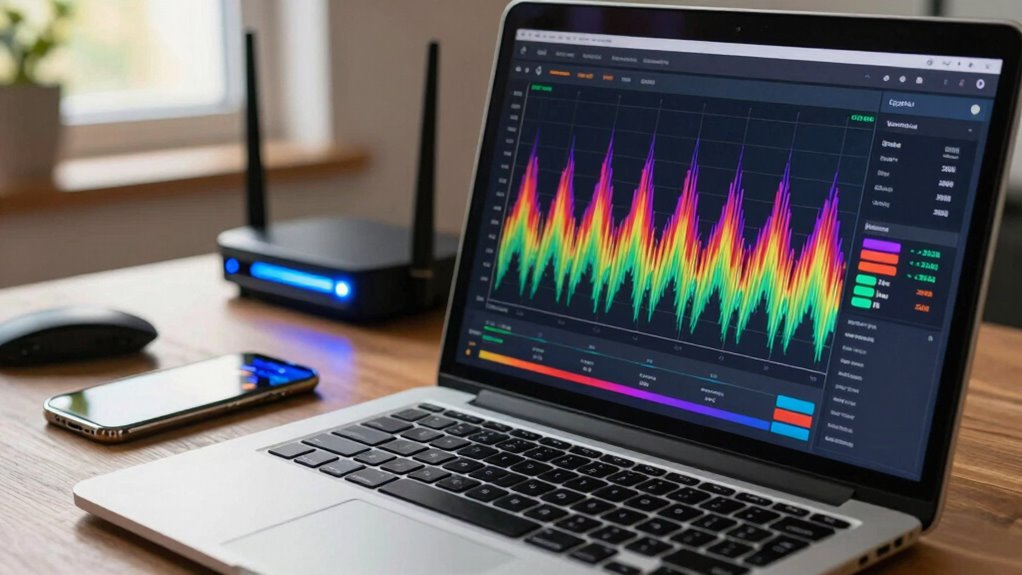
Have you ever noticed your Wi-Fi slows down when many networks are nearby? That’s because overlapping signals cause interference, reducing your connection speed. When multiple networks operate on similar channels, they compete for bandwidth, leading to slower speeds and potential connectivity issues. This interference can also impact wireless security, as congested channels may make it easier for unauthorized users to access your network. Additionally, device compatibility plays a role—older devices may struggle with crowded channels or specific frequency bands. To visualize, consider:
- Multiple routers broadcasting on the same channel
- Overlapping Wi-Fi signals causing noise
- Devices constantly reconnecting and renegotiating links
- Reduced bandwidth availability for your device
- Increased latency and dropped connections
Choosing a less crowded channel helps mitigate these issues, improving speed, security, and device performance.
Avoid These Mistakes When Picking a Wi-Fi Channel

Choosing the right Wi-Fi channel is essential, but many users make simple mistakes that hinder their network’s performance. One common mistake is ignoring channel congestion, which causes slow speeds and dropped connections. Another is overlooking signal overlap, where overlapping channels create interference. To avoid these issues, don’t pick a channel just because it’s open; check for crowded channels. Use the table below to see how signals can overlap and cause congestion:
| Channel | Signal Overlap | Congestion Level |
|---|---|---|
| 1 | High | Likely crowded |
| 6 | Moderate | Less crowded |
| 11 | Low | Usually clear |
Choosing the right channel involves understanding these overlaps and avoiding crowded, overlapping channels.
Upgrade Your Router or Use Extenders for Better Wi-Fi
If your current Wi-Fi setup struggles with dead spots or slow speeds despite selecting the best channel, upgrading your router or adding extenders can make a big difference. A new router offers better device compatibility, supporting more devices and faster speeds. Extenders help boost coverage in hard-to-reach areas, reducing dead zones. When choosing a new device, confirm firmware updates are available, as they improve security and performance. Consider these options:
- Modern routers with multiple antennas for better signal strength
- Mesh Wi-Fi systems for seamless coverage
- Range extenders compatible with your existing network
- Dual-band or tri-band devices for less interference
- Devices supporting the latest standards like Wi-Fi 6
Upgrading guarantees peak performance and future-proofing your network, making your Wi-Fi faster and more reliable everywhere in your home.
Troubleshoot Wi-Fi Speed Issues After Changing Channels
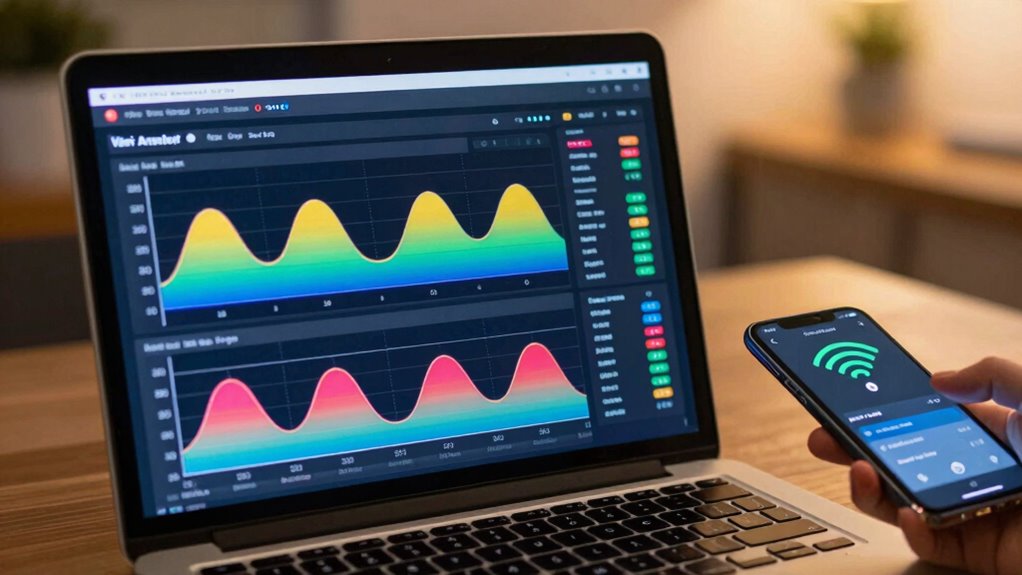
If your Wi-Fi slows down after switching channels, start by checking if your signal strength remains steady across different areas. Look for sources of interference nearby, like other electronics or neighboring networks, that could be causing issues. Also, consider repositioning your router to optimize coverage and reduce potential disruptions.
Verify Signal Strength Consistency
After changing your Wi-Fi channel, verifying that your signal strength remains consistent across different areas of your home or office is essential. This guarantees signal stability and helps identify any weak spots. Conduct consistency testing by moving around and observing your device’s connection quality. Look for areas where the signal drops or becomes unreliable. Use simple observations like slower speeds or dropped connections as clues.
- Check connection strength at your desk, kitchen, and bedroom
- Note any spots with noticeably weaker signals
- Observe if your device disconnects or slows down unexpectedly
- Test during different times of day for congestion effects
- Confirm that signal strength remains stable over several minutes
These steps help you ensure your Wi-Fi remains dependable after channel adjustments.
Identify Interference Sources
To troubleshoot Wi-Fi speed issues after changing channels, start by identifying potential interference sources that could be disrupting your signal. Common interference sources include cordless phones, microwave ovens, Bluetooth devices, and neighboring Wi-Fi networks operating on overlapping channels. These devices emit signals that can cause signal disruption, reducing your network’s performance. Check for any electronic devices nearby that might interfere with your Wi-Fi, especially those used frequently. Also, look for other Wi-Fi networks in your area, as overlapping channels can create congestion. By pinpointing these interference sources, you can better understand why your connection struggles and take steps to minimize their impact. Eliminating or relocating interfering devices can substantially improve your Wi-Fi speed and stability.
Adjust Router Placement
Adjusting your router’s placement can considerably improve your Wi-Fi speed and stability, especially after changing channels. Proper router placement enhances signal maximization and reduces dead zones. Position your router centrally in your home, away from thick walls or metal objects that block signals. Keep it elevated—on a shelf or high surface—to maximize coverage. Avoid placing it near cordless phones, microwaves, or other electronics that cause interference. Ensure antennas are angled correctly for optimal signal distribution. Consider relocating the router to a more open space for better coverage.
- Place it in a central, elevated location
- Keep it away from metal objects and electronics
- Avoid enclosed cabinets or drawers
- Position antennas for best signal spread
- Minimize obstacles between router and devices
Frequently Asked Questions
Can My Wi-Fi Channel Selection Affect Device Battery Life?
Yes, your Wi-Fi channel selection can affect your device’s battery life. When you pick a crowded channel with lots of signal interference or congestion, your device works harder to maintain a stable connection, draining more battery. Switching to a less congested channel reduces signal interference, allowing your device to use less power. So, choosing the right channel helps improve battery life by minimizing the effort your device needs to stay connected.
How Often Should I Change My Wi-Fi Channel?
You should consider changing your Wi-Fi channel every few months or if you notice slow speeds or frequent disconnections. Approximately 70% of networks experience channel congestion, which leads to interference sources affecting performance. Regularly switching channels helps avoid interference from nearby networks and other appliances, ensuring smoother connections. Keep an eye on your network’s performance, and don’t hesitate to change channels when congestion or interference sources increase to maintain peak Wi-Fi performance.
Does Router Placement Influence Optimal Channel Choice?
Yes, router placement greatly influences your ideal channel choice. Placing your router away from interference sources like microwaves, cordless phones, and thick walls boosts signal strength and reduces interference. By positioning it centrally and elevated, you enhance signal strength and minimize interference, making it easier to select a clear channel. Proper placement guarantees you get the best signal strength enhancement, leading to faster, more reliable Wi-Fi connections.
Are Some Channels More Secure Than Others?
You might imagine your Wi-Fi signals as whispering conversations in a crowded room. Some channels are more secure because they experience less Wi-Fi interference and channel overlap, making it harder for outsiders to eavesdrop. Choosing a less crowded, clearer channel keeps your connection more private and stable. While no channel guarantees complete security, avoiding overlapping channels reduces interference, helping your Wi-Fi stay safer from unauthorized access and interference.
Can Multiple Routers Cause Channel Conflicts?
Yes, multiple routers can cause channel conflicts. When several devices operate on overlapping channels, interference sources increase, leading to channel congestion. This congestion weakens your Wi-Fi signal and slows down your connection. To minimize conflicts, make sure your routers are set to different, non-overlapping channels, especially in crowded areas. Regularly check for nearby networks and switch channels if you notice performance issues caused by interference sources.
Conclusion
Choosing the right Wi-Fi channel doesn’t have to be challenging. By checking crowded channels, changing settings, and avoiding common mistakes, you can dramatically boost your bandwidth. Remember, smart selection and simple strategies stand out as your strongest solutions. So, stay savvy, stay strategic, and steer clear of slowdowns—because a smooth, swift Wi-Fi experience starts with selecting the best channel for your space. Keep these tips in mind and enjoy seamless streaming and surfing!