
If your Wi-Fi drops only on Windows, it’s often caused by outdated drivers, interference, or software glitches. Updating your network adapter drivers and resetting your network stack can usually fix these issues. You might need to reconfigure network settings or move your router to improve signal strength. For more detailed steps and tips, explore how resetting your network stack can help stabilize your Wi-Fi connection effectively.
Key Takeaways
- Resetting the network stack can resolve software glitches causing Wi-Fi drops on Windows devices.
- Use Command Prompt commands like `netsh int ip reset` and `netsh winsock reset` to reset network components.
- Restart your computer after resetting to apply changes and restore network stability.
- Updating network drivers and firmware ensures compatibility and fixes known issues causing disconnections.
- Reconfigure network settings if needed, after resetting the network stack, to ensure proper Wi-Fi connection.

UGREEN WiFi Adapter for Desktop PC, AX900 USB WiFi 6 Adapter with 5GHz/2.4GHz Dual Band, Built-in Driver for Windows 10/11
Wifi 6 High-speed Transmission: The WiFi adapter supports the new generation of WiFi6 technology with transmission speeds of…
As an affiliate, we earn on qualifying purchases.
As an affiliate, we earn on qualifying purchases.
Why Does Wi-Fi Drop Only on Windows Devices?
Have you ever wondered why your Wi-Fi connection drops only on Windows devices? One common reason is Wi-Fi interference. Nearby electronic devices, thick walls, or other networks can cause signal disruptions that Windows might struggle to handle better than other systems. Additionally, router compatibility plays a role; some routers don’t communicate well with Windows hardware or drivers, leading to connection drops. Windows updates or network settings can also influence stability, but hardware interference and router compatibility are often the culprits. You might notice that switching to a less congested network or updating your router firmware improves your connection. Understanding these factors helps you pinpoint why your Wi-Fi fails on Windows and guides you toward effective solutions. Adjusting wireless network settings can also help improve connection stability. Sometimes, network driver updates are necessary to resolve persistent connection issues on Windows devices. Being aware of interference sources can further help you troubleshoot and maintain a steady Wi-Fi connection, especially since signal strength plays a critical role in connection reliability. Recognizing router compatibility issues can help you choose better hardware for a more stable connection.

2026 WiFi Extender Signal Booster – 2.4GHz 300Mbps WiFi Booster for Home, Covers Up to 9999 Sq. Ft, Easy Setup, Ethernet Port & Access Point, Stable Internet Performance with 60+ Devices
STABLE & FAST 300Mbps WiFi EXTENDER: Advanced central processing unit and powerful new-generation chips,High-speed up to 300Mbps in…
As an affiliate, we earn on qualifying purchases.
As an affiliate, we earn on qualifying purchases.
Check Your Network Adapter and Drivers for Issues
Sometimes, outdated or incompatible network adapter drivers cause your Wi-Fi to drop unexpectedly. To fix this, check your device’s network driver status in Device Manager. Update or reinstall the driver if needed. Make certain your network security settings aren’t blocking your connection, as strict security can interfere with Wi-Fi stability. Also, verify your router placement—placing it too far away or behind obstacles can weaken your signal, leading to drops. Sometimes, driver issues stem from conflicts or outdated firmware, so keeping drivers current helps maintain a stable connection. Regularly check for driver updates from your manufacturer. Proper router placement and up-to-date drivers improve Wi-Fi reliability, reducing disruptions and enhancing your overall network security.

TRENDnet Gigabit Multi-WAN VPN Business Router, TWG-431BR, 5 x Gigabit Ports, 1 x Console Port, QoS, Inter-VLAN Routing, Dynamic Routing, Load-Balancing, High Availability, Online Firmware Updates
INTERFACE: 5 x Gigabit ports (Modes:4 WAN ports/1 LAN port or 1 WAN port/4 LAN ports), 1 x…
As an affiliate, we earn on qualifying purchases.
As an affiliate, we earn on qualifying purchases.
How to Reset Your Network Settings on Windows
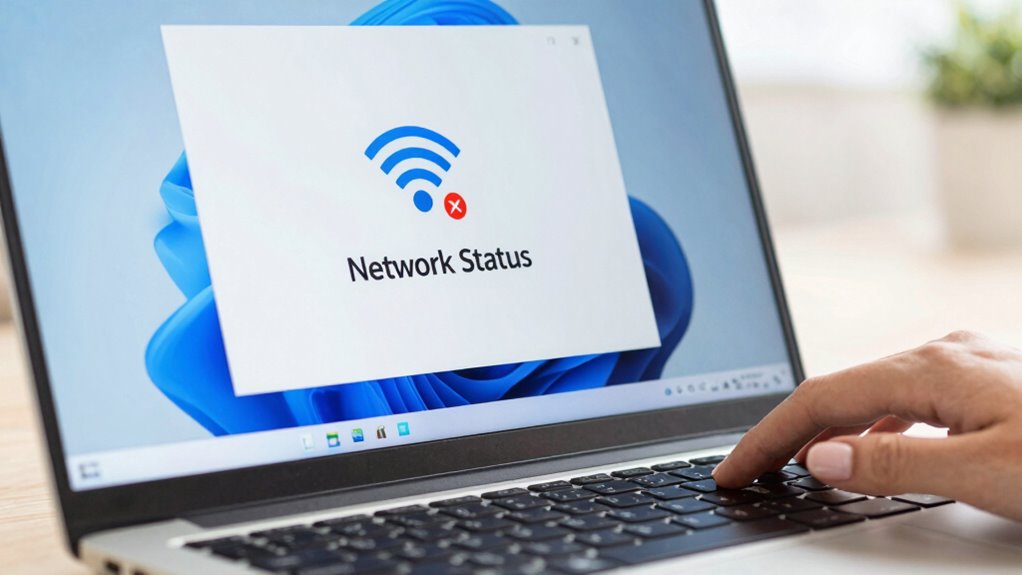
Struggling with persistent Wi-Fi drops? Resetting your network settings can often fix this. Start by opening the Settings menu, then navigate to Network & Internet > Status. Click on “Network reset” and confirm. This process clears all network adapters and resets TCP/IP, which can resolve issues caused by Wi-Fi interference or poor router placement. After your PC restarts, reconnect to your Wi-Fi network and reconfigure any custom settings. Keep in mind that interference from nearby devices or improper router placement can cause drops, so consider relocating your router to a central, open spot. Resetting your network settings is a quick way to refresh your connection and eliminate software glitches that might be causing those frustrating Wi-Fi drops. Additionally, understanding security and compliance measures for your network can help prevent unauthorized access and improve stability. Being aware of network troubleshooting best practices can also assist in maintaining a reliable connection. Regularly updating your network drivers can further enhance connection stability, ensuring smoother Wi-Fi performance. Incorporating proper air quality and humidity control in your environment can also reduce interference that affects network equipment.

WiFi Router Cover, WiFi RF Blocking Wireless, Blocks 5G Protective Cover 13.7 x 15.7
RF radiation caused by router. Modem/Wifi Cover provides over 60dB shielding! Shielding frequency range of 10MHz to 3GHz…
As an affiliate, we earn on qualifying purchases.
As an affiliate, we earn on qualifying purchases.
Troubleshooting Common Wi-Fi Problems on Windows

When your Wi-Fi keeps dropping, start by checking your network settings to make sure everything’s configured correctly. If that doesn’t help, resetting your network stack can often resolve connection issues. These steps can quickly identify and fix common problems causing Wi-Fi instability on Windows. Additionally, understanding the network fundamentals can help you better troubleshoot and prevent future connectivity problems. Ensuring your network components are properly configured for stability can make a significant difference in maintaining a reliable connection. For example, optimizing your network performance can lead to more consistent Wi-Fi signals, similar to how performance parts like flywheels can enhance a vehicle’s engine feel. Properly managing and reducing interference from home soundproofing solutions can also contribute to a more stable environment for your wireless devices. Being aware of natural landscaping practices, such as planting trees or shrubs, can help minimize signal obstruction and improve Wi-Fi coverage.
Check Network Settings
Checking your network settings is a crucial step in troubleshooting Wi-Fi issues on Windows. Start by verifying your network encryption type; incompatible encryption can cause connection drops. Make certain your network security settings are correct and match those supported by your router. Next, check your router firmware; outdated firmware can lead to instability. Visit your router manufacturer’s website to see if updates are available. Additionally, review your network adapter settings in Windows to confirm they’re configured properly. Incorrect settings can interfere with your connection’s stability. Make sure your network profile is set to private for better security and performance. By confirming your network encryption and router firmware, you eliminate common causes of Wi-Fi drops linked to misconfigured or outdated network settings. Also, consider microplastics in dust, which can affect indoor air quality and overall network device health if dust accumulates around your hardware.
Reset Network Stack
If network settings and router firmware are properly configured but Wi-Fi issues persist, resetting the network stack can often resolve underlying problems. This process clears corrupted network configurations that might be affecting your connection. To do this, open Command Prompt as an administrator and run commands like “netsh int ip reset” and “netsh winsock reset.” Afterward, restart your computer to apply changes. Resetting the network stack can help fix issues caused by conflicts in network security settings or outdated router firmware. It fundamentally refreshes your network’s core components, eliminating glitches that might be causing drops. Keep in mind, resetting the network stack doesn’t affect your personal data but may require re-entering Wi-Fi passwords. Proper network configuration is essential for optimal performance, and resetting the stack can help restore stability and improve your Wi-Fi connection reliability. Understanding network troubleshooting techniques can further assist in diagnosing persistent issues. Additionally, being aware of network security settings can prevent future conflicts that disrupt your connection. Regularly updating your router firmware can also help prevent issues caused by outdated software or security vulnerabilities. Performing a network reset periodically can maintain your connection’s stability and prevent future disruptions.
When to Try Advanced Fixes or Contact Support
Sometimes, Wi-Fi issues persist despite trying basic troubleshooting steps, signaling that it’s time to consider advanced fixes or contact support. If you notice frequent drops even after resetting the network stack, it might be due to Wi-Fi interference or poor router placement. Interference from other electronic devices or neighboring networks can disrupt your connection, making advanced solutions necessary. Additionally, if your router isn’t positioned ideally—like being tucked away in a corner or behind furniture—signal strength drops and disconnections become more likely. When these issues continue despite your efforts, it’s a sign to seek expert help. Contacting your ISP or a tech support professional can help identify underlying problems and guide you toward a more stable, reliable Wi-Fi connection. Paying attention to router placement and ensuring your router is in an open, central location can significantly improve signal stability. Understanding how modern networking standards impact your connection can also be beneficial.
Quick Tips to Keep Your Wi-Fi Connection Stable
To maintain a stable Wi-Fi connection, small adjustments can make a big difference. Minimizing Wi-Fi interference and optimizing router placement are key. Keep your router away from devices that cause interference, like microwaves or cordless phones. Position it centrally in your home, elevated, and free from obstructions to ensure even coverage. Avoid placing the router behind furniture or inside cabinets. Regularly update your router’s firmware to improve stability. Check for overlapping channels with neighboring networks and switch to less congested ones. Keep your device close to the router whenever possible. Using these quick tips can reduce disconnects and improve overall Wi-Fi reliability.
- Move your router to a central, elevated spot
- Keep it away from interference sources
- Update your router firmware regularly
- Switch to less congested Wi-Fi channels
- Keep devices close to the router
Frequently Asked Questions
Can Resetting Network Settings Delete My Saved Wi-Fi Passwords?
Yes, resetting your network settings can delete your saved Wi-Fi passwords, impacting your Wi-Fi security. When you do this, your device removes all saved network configurations, including passwords, which helps with network troubleshooting. After the reset, you’ll need to re-enter your Wi-Fi passwords, so keep them handy. This step can resolve connectivity issues but requires re-connecting to your networks afterward, ensuring your Wi-Fi security stays intact.
Will Resetting Network Settings Improve Wi-Fi Speed?
Resetting your network settings can markedly improve your Wi-Fi speed, but it’s not a miracle cure. It clears out old configurations, which helps optimize connection stability and speed. While it doesn’t directly boost network security or address device compatibility issues, it creates a fresh start, reducing interference from outdated settings. This process can lead to a smoother, faster Wi-Fi experience, especially if your network has been sluggish or unstable.
How Often Should I Reset My Network Stack?
You should reset your network stack only when troubleshooting steps indicate persistent connectivity issues or network instability. Regular resets aren’t necessary and may disrupt your connection temporarily. Typically, if your Wi-Fi drops frequently or you experience slow speeds, resetting helps restore stability. Do it only as needed—perhaps once a month or when other troubleshooting steps fail. Overdoing it can cause more inconvenience than benefit, so save resets for when issues persist.
Does Resetting Network Settings Affect VPN Connections?
Resetting your network settings can temporarily disrupt VPN stability, as it clears saved networks and configurations. However, once you reconnect, your VPN should work normally. Keep in mind, resetting network settings also enhances network security by removing potentially risky saved networks or configurations. If you experience ongoing VPN issues after a reset, consider updating your VPN app or network drivers to guarantee peak security and stable connections.
Are There Risks Involved in Resetting Network Configurations?
Resetting network configurations generally poses minimal risks if done correctly, but there are some security vulnerabilities to take into account. You might temporarily lose device compatibility with certain network features or hardware, and sensitive information could be exposed if not secured afterward. Always back up your settings before resetting and make sure your device’s security updates are current to minimize risks. This way, you protect your network while resolving issues like Wi‑Fi drops.
Conclusion
Remember, a stitch in time saves nine. If your Wi-Fi keeps dropping on Windows, don’t hesitate to reset your network stack and check your drivers. Sometimes, simple troubleshooting can save you hours of frustration. Staying proactive and adopting these quick fixes will help keep your connection stable. With patience and a bit of troubleshooting, you’ll be back online in no time—because a problem shared is a problem halved.