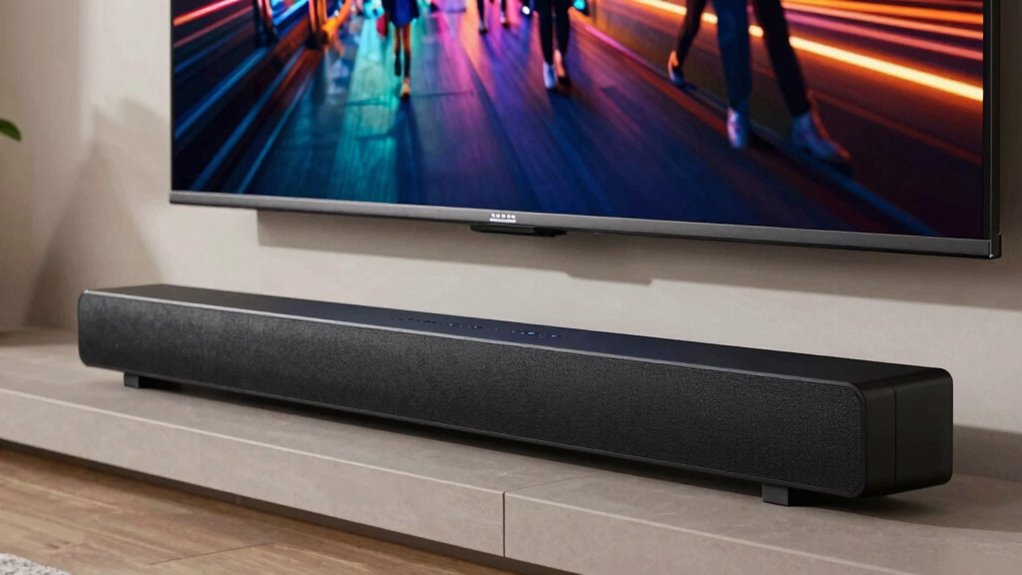

If your soundbar is out of sync, start by checking your connections—ensure HDMI, optical, or Bluetooth cables are secure and undamaged. Adjust the audio delay settings on your soundbar or TV to match the visuals and reduce lag. Update your device firmware to prevent glitches and improve compatibility. Minimize interference and use good quality cables for the best results. Staying on top of these tips will help you restore perfect sync, and there’s more to discover if you keep exploring.
Key Takeaways
- Use your soundbar or TV’s built-in lip sync or audio delay settings to manually adjust synchronization precisely.
- Check and secure all cables, especially HDMI ARC or optical connections, to prevent signal delays.
- Minimize wireless interference by keeping devices away from routers, microwaves, and other electronics.
- Keep firmware updated on your soundbar and TV to fix bugs that can cause lip sync issues.
- Perform a device reset or restart to resolve temporary glitches affecting audio and video sync.
![192KHz HDMI ARC to Optical Audio Converter 6FT,ARC to Optical Audio Extractor Cable,Plug & Play, AR C to O ptical Audio Adapte for HDTV to Soundbar,Amplifier-[No CEC]](https://m.media-amazon.com/images/I/41+o2ysBZ3L._SL500_.jpg)
192KHz HDMI ARC to Optical Audio Converter 6FT,ARC to Optical Audio Extractor Cable,Plug & Play, AR C to O ptical Audio Adapte for HDTV to Soundbar,Amplifier-[No CEC]
【HDMI ARC Audio Converter】This ARC to Optical Audio Extractor Support HDMI ARC Input to Optical Output Perfect for…
As an affiliate, we earn on qualifying purchases.
As an affiliate, we earn on qualifying purchases.
Why Does Lip Sync Get Out of Sync on Your Soundbar?
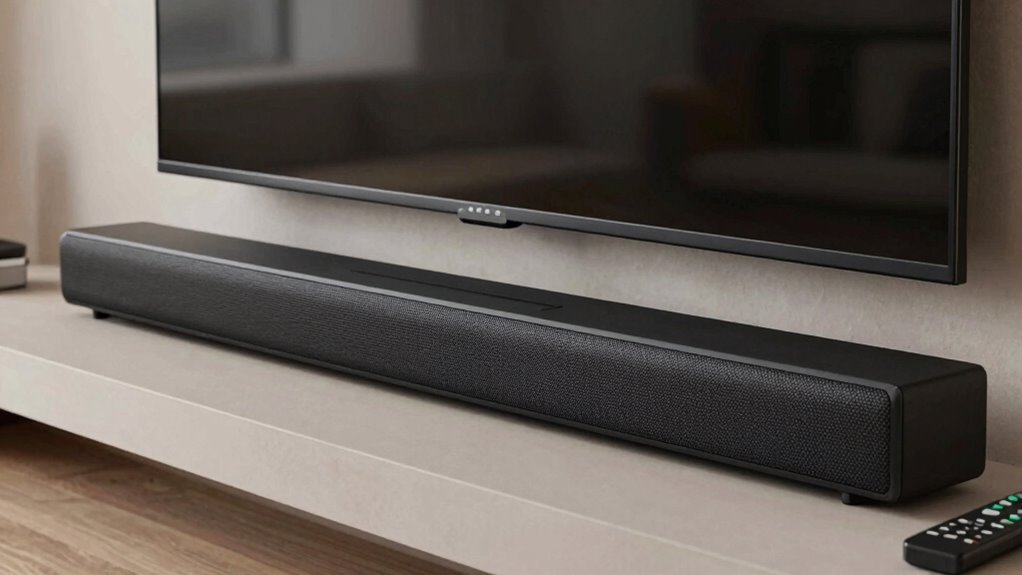
Lip sync issues on your soundbar often happen because of delays in processing audio and video signals. When your device struggles with audio delay, the sound doesn’t match the on-screen action, causing that frustrating out-of-sync experience. This mismatch affects video synchronization, making it seem like the audio is ahead or behind the visuals. Several factors can cause this, including the device’s internal processing speed or how signals are transmitted. Streaming services and certain content formats might also introduce delays, especially if your soundbar isn’t optimized for specific audio codecs. Understanding that these synchronization issues stem from processing delays helps you target the problem, whether by adjusting settings or updating firmware, to restore proper lip sync and improve your overall viewing experience. Exploring digital concepts can also help you better understand how different devices handle signal processing and synchronization. Additionally, adjusting audio settings can sometimes mitigate these delays without extensive troubleshooting. Being aware of signal transmission methods can help you identify where the delay originates, allowing for more precise fixes.

Universal Soundbar Remote Control Replacement for Vizio Home Theater Sound Bar and Vizio Home Audio Sound System
Brand new, no need any program and work out of box after put the batteries in
As an affiliate, we earn on qualifying purchases.
As an affiliate, we earn on qualifying purchases.
Check HDMI, Optical, and Bluetooth Connections First
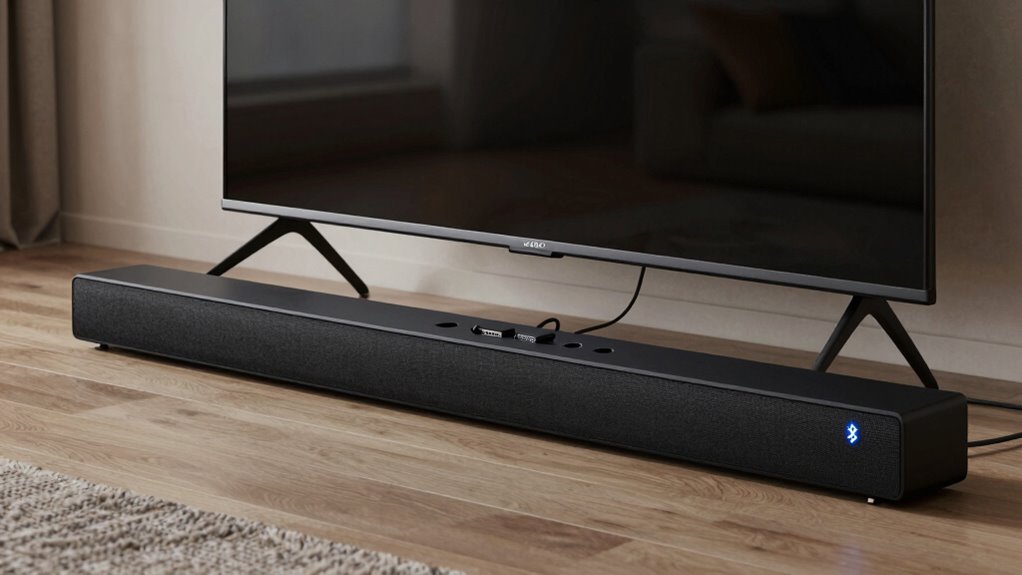
Before diving into complex fixes, it’s crucial to check your soundbar’s connections—especially HDMI, optical, and Bluetooth. Loose or faulty connections can disrupt audio calibration, leading to out-of-sync sound and affecting sound quality. Confirm all cables are securely plugged in and undamaged. For HDMI, verify the cable is connected to the correct port and the source device supports audio return channel (ARC) if applicable. For optical connections, check for dust or misalignment. If you’re using Bluetooth, confirm the pairing is stable and within range. Poor connections often cause audio delays or dropout, which can mimic lip sync issues. Addressing these connection problems first simplifies troubleshooting and helps maintain ideal sound quality, reducing unnecessary adjustments later. Additionally, understanding soundbar setup best practices can prevent future connection problems and ensure optimal performance. Being aware of connection stability tips can further help in maintaining consistent audio quality over time. Regularly inspecting and maintaining your connections can also prevent interference that might impact audio synchronization.
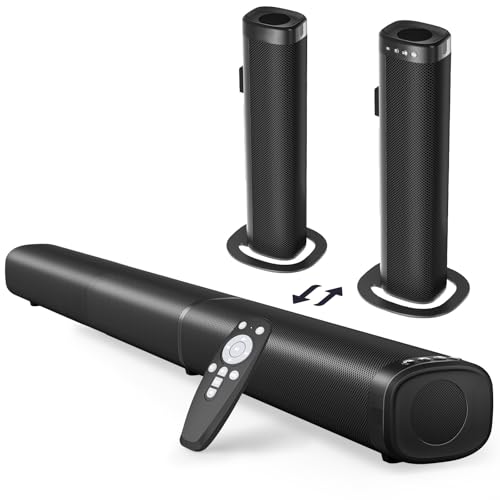
Puriom Sound Bar for Smart TV, 100W Sound Bar with Bluetooth 5.3/ARC/Opt/AUX Connect, 2-in-1 Detachable Home Soundbar, Home Theater Speaker & Bass Effect, for TV/PC/Projectors
【2-in-1 Sound bar】This versatile soundbar works with TVs, gaming consoles, and home entertainment setups. Use it as two…
As an affiliate, we earn on qualifying purchases.
As an affiliate, we earn on qualifying purchases.
Adjust Audio Delay Settings on Your Soundbar
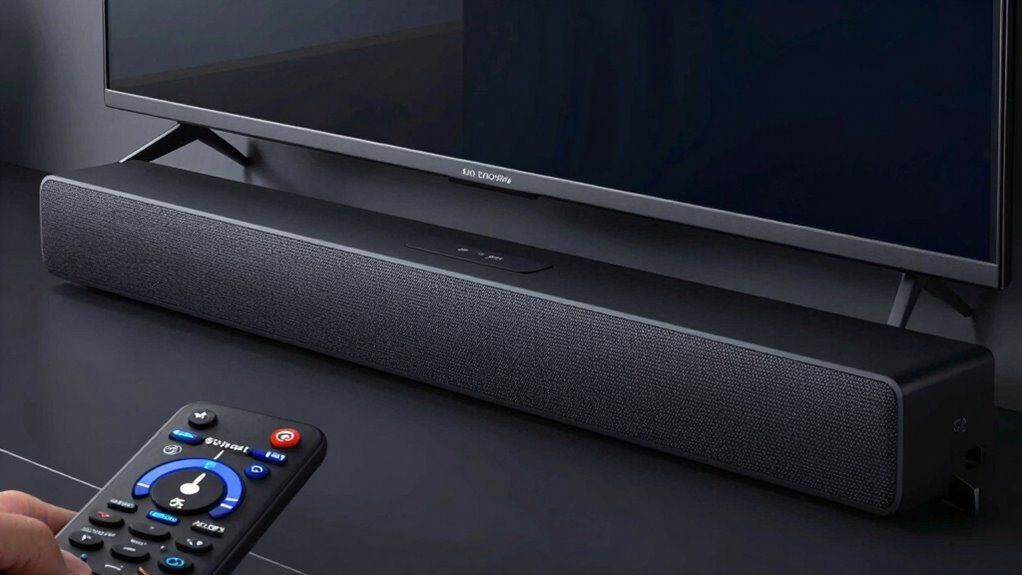
Start by accessing your soundbar’s settings menu, which is usually done via the remote or a mobile app. Look for the audio delay or lip sync adjustment option, then select it. Finally, tweak the delay setting until the audio perfectly matches the on-screen action. Incorporating affordable jewelry gifts can make your setup more personalized and festive for special occasions. If you’re unsure about how to navigate your specific model, consulting the user manual can provide helpful troubleshooting tips. Additionally, understanding essential oils and their properties can aid in creating a relaxing environment while troubleshooting your audio settings. Familiarizing yourself with home entertainment systems can also aid in optimizing your overall setup for better sound synchronization, especially as you observe market trends that influence how we enjoy multimedia experiences.
Access Soundbar Settings
To fix audio delay issues, you’ll need to access your soundbar’s settings menu, where you can adjust the audio delay or lip-sync settings. Proper soundbar placement is key, as it impacts voice clarity and overall sync. Once in the menu, you can fine-tune settings to match your setup. Additionally, understanding the importance of sustainable foraging practices can help you maintain a balanced audio environment by ensuring your setup doesn’t interfere with other household electronics. Correct placement can also prevent common issues like audio interference, which can disrupt synchronization.
- Use the remote or app to navigate to the sound settings
- Look for “Audio” or “Sound” options
- Find the “Lip Sync” or “Audio Delay” setting
- Test different delay levels for best sync
- Save your adjustments once voice clarity improves
Locate Audio Delay Option
Locating the audio delay option on your soundbar is usually straightforward, but it can vary depending on the brand and model. Start by entering your soundbar’s settings menu, often accessible via a remote or app. Look for options labeled “audio calibration,” “audio sync,” or “lip sync.” Some models include a dedicated audio delay setting, allowing you to fine-tune the delay to match your speaker placement and TV. Adjusting this setting helps align the audio with the visuals, reducing lip sync issues. If you can’t find the option directly, consult your user manual or manufacturer’s website. Proper speaker placement also plays a role in minimizing audio lag, so ensure your soundbar is positioned best suited for the best sound calibration. Understanding audio delay settings can help you make more precise adjustments for optimal sound, especially when considering factors like speaker placement and room acoustics. Additionally, some devices offer automatic audio synchronization features that can simplify this process.
Adjust for Lip Sync
Once you’ve found the audio delay setting on your soundbar, adjusting it is usually a straightforward process. Proper soundbar calibration helps eliminate audio mismatch, ensuring your lip movements sync with the dialogue. To fine-tune your settings:
- Start with small adjustments, testing each change
- Use the built-in test tone or dialogue samples
- Play content with clear speech for accurate calibration
- Pause after each adjustment to assess sync
- Keep notes of effective delay times for future reference
soundbar firmware update kit
As an affiliate, we earn on qualifying purchases.
As an affiliate, we earn on qualifying purchases.
Use Your TV’s Lip Sync Adjustment Features

Many modern TVs come equipped with built-in lip sync adjustment features, making it easier to fix audio delay issues without external devices. Using these settings can help you synchronize sound with on-screen action, especially during voice recognition or sound calibration. To access this feature, navigate to your TV’s audio or sound menu. Adjust the lip sync setting until the voice matches the lip movements. Some TVs allow fine-tuning with a slider or numerical input. Here’s a quick guide:
| Step | Action | Tips |
|---|---|---|
| 1 | Open sound menu | Find lip sync options |
| 2 | Select adjustment | Use voice recognition cues |
| 3 | Make small changes | Test with dialogue scenes |
| 4 | Save settings | Confirm calibration |
| 5 | Re-test | Ensure perfect sync |
Additionally, understanding how audio delay works can help you better troubleshoot and optimize the lip sync settings for your specific setup. Knowing how to adjust audio delay can often resolve persistent sync issues without needing to replace hardware or seek professional help. It’s also useful to explore the settings menu for other audio calibration options that might improve overall sound quality. Being aware of timing adjustments can further enhance your audio experience and ensure seamless synchronization.
Make Sure Your Soundbar’s Firmware Is Up to Date
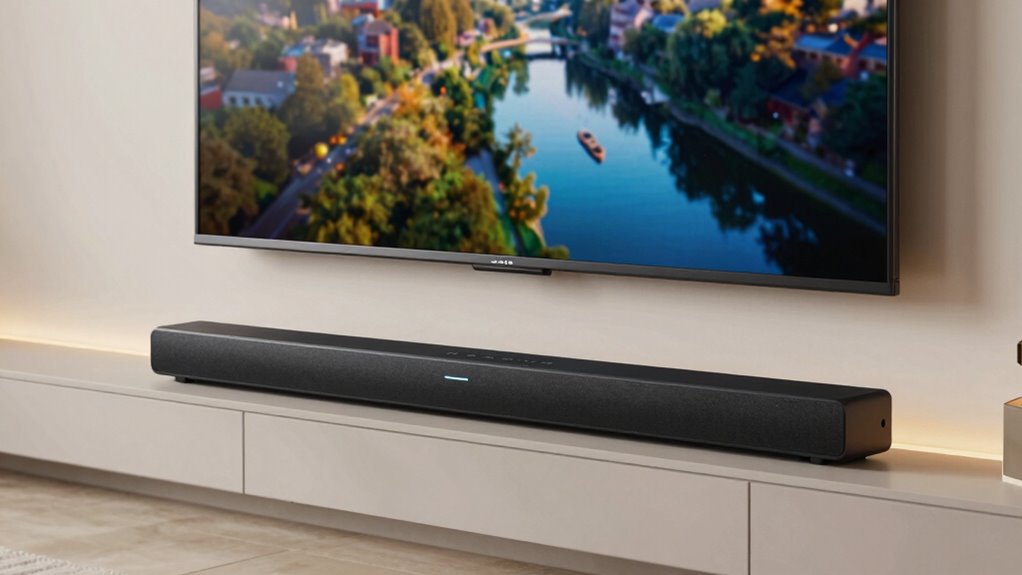
Keeping your soundbar’s firmware updated guarantees it can communicate effectively with your TV and other devices, which is essential for maintaining proper audio synchronization. Firmware updates often fix bugs, improve performance, and enhance compatibility, directly impacting lip sync issues. Regularly checking for updates also preserves the soundbar’s aesthetics by preventing glitches that could affect its appearance or functionality. Additionally, keeping firmware current boosts your confidence in the brand’s reputation for quality and reliability. Being aware of your device’s privacy policy and cookie settings can also help you manage your online experience while maintaining device security. Ensuring your soundbar’s firmware compatibility with your TV and other devices is crucial for a seamless audio experience. For optimal performance, it’s important to verify that your firmware version aligns with the latest standards recommended by the manufacturer. Staying informed about AI developments can also influence future updates and features for your device.
Troubleshoot Hardware Compatibility and Interference
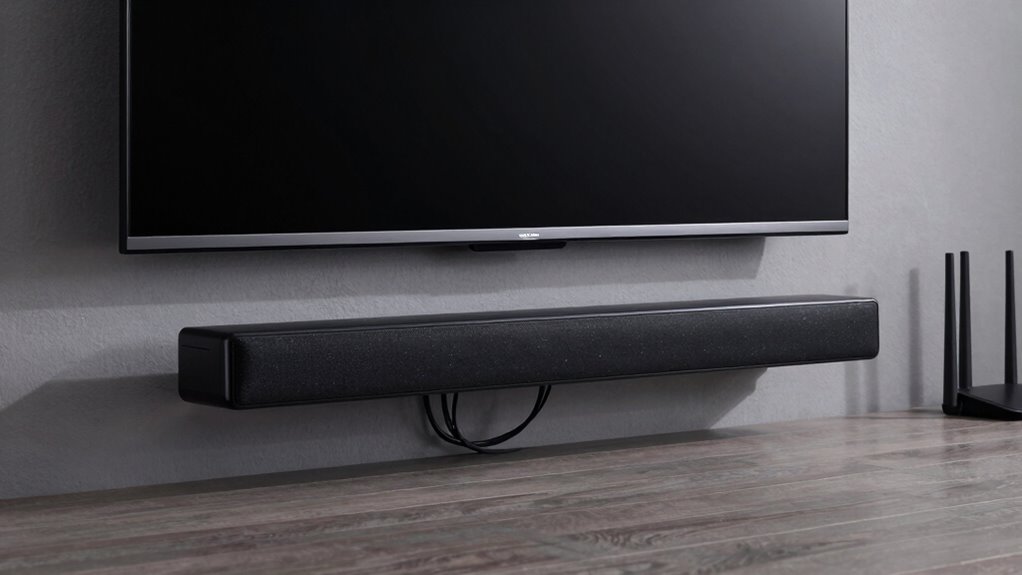
First, verify your soundbar is compatible with your TV and other devices to prevent lag issues. Next, keep wireless signals clear by minimizing interference from other electronics or Wi-Fi networks. These steps can help improve synchronization and overall performance. Additionally, ensuring your devices are up to date with the latest law updates can help address any compatibility issues that might cause lip sync problems.
Check Hardware Compatibility
Ensuring your soundbar is compatible with your TV and other connected devices is essential for preventing lip sync issues. If hardware compatibility isn’t right, connection troubleshooting becomes more complicated, leading to delays or mismatched audio and video. To check this, verify that your soundbar supports your TV’s input types, such as HDMI ARC or optical. Ensure your devices are running compatible firmware versions. Confirm that your audio output settings match the soundbar’s requirements. Consider the following:
- Confirm HDMI ARC or optical connection support
- Check device firmware updates
- Match audio output formats
- Verify supported audio codecs
- Ensure power and signal cables are in good condition
Addressing these hardware compatibility factors can significantly reduce lip sync problems and improve your overall experience.
Minimize Wireless Interference
Wireless interference can often be the culprit behind lip sync issues with your soundbar, especially if you notice fluctuating audio delays or dropouts. Wireless interference causes signal disruption, weakening the connection between your soundbar and audio source. To minimize this, keep your soundbar away from other wireless devices like routers, cordless phones, and microwaves, which can emit signals that interfere. Make certain your soundbar and transmitter are on the same Wi-Fi channel or frequency band to reduce conflicts. Additionally, use wired connections whenever possible, especially for high-quality audio, to eliminate interference entirely. Regularly restarting your router and soundbar can also clear temporary signal disruptions, helping maintain a stable connection. These steps can markedly improve audio sync and overall sound quality.
Know When to Seek Professional Help or Consider Upgrading

Sometimes, despite your best efforts to fix lip sync issues, the problem persists or worsens over time. When this happens, it’s time to consider professional assistance or upgrade recommendations. If troubleshooting hasn’t resolved the issue, a technician can diagnose hardware or firmware problems you might not see. Upgrading your soundbar or associated devices could also be the best solution for long-term reliability. Look for signs like persistent delay, audio dropping out, or incompatibility with your setup.
- Persistent sync problems after troubleshooting
- Unusual sounds or hardware malfunctions
- Outdated or incompatible equipment
- Frequent need for manual adjustments
- Desire for better audio-video experience
In these cases, seeking expert help or upgrading makes your setup seamless and frustration-free.
Final Tips for Seamless Sound and Video Sync

To achieve a truly seamless audio-visual experience, it’s important to implement a few final strategies that help maintain perfect sync between sound and video. First, regularly update your device firmware and apps to optimize sound quality and video clarity. Adjust audio delay settings on your soundbar or TV, ensuring they match perfectly with your display. Use high-quality cables and connections to reduce lag or interference. Keep your firmware and software up to date, as manufacturers often release fixes for sync issues. Position your soundbar properly, avoiding obstructions that can impact sound quality. Finally, consider resetting your devices if problems persist. These steps help you maintain sharp video clarity and crisp sound quality, minimizing lag and delivering a truly immersive viewing experience.
Frequently Asked Questions
Can Using External Devices Cause Lip Sync Issues With My Soundbar?
Yes, external device interference can cause lip sync issues with your soundbar. Devices like gaming consoles, streaming boxes, or HDMI splitters might introduce audio delay, making it tricky to match sound with visuals. To fix this, check your soundbar’s audio delay settings and adjust them accordingly. Sometimes, disconnecting or repositioning external devices can reduce interference, helping your soundbar sync perfectly with your TV and content.
How Do I Identify if My HDMI Cable Is Faulty?
You can identify a faulty HDMI cable by checking its cable quality and connection stability. Look for visible damage like frays or bent connectors, and test the cable with different devices to see if issues persist. If your picture or sound drops frequently or there’s flickering, it indicates a poor connection. Using a high-quality, well-made HDMI cable guarantees better connection stability, reducing the chances of signal interruptions.
Are There Specific Settings for Different TV Brands to Fix Lip Sync?
Yes, there are brand-specific settings you can adjust to fix lip sync issues. Check your TV’s calibration options, as many brands offer dedicated audio delay or lip sync settings. Refer to your TV’s user manual or menu to find these options. Adjusting them helps synchronize audio with video more precisely. Each brand may label these settings differently, so look for terms like “audio delay,” “lip sync,” or “TV calibration” within your TV’s sound or picture menu.
What Impact Does Room Acoustics Have on Sound and Video Synchronization?
Room acoustics profoundly impact sound and video synchronization. Room reflections can cause echoes that delay audio, making it seem out of sync with video. Acoustic treatment helps absorb or diffuse these reflections, reducing echo and improving clarity. By controlling room acoustics, you create a more accurate audio environment, which helps your soundbar deliver synchronized sound, making your viewing experience more immersive and enjoyable without guesswork.
How Often Should I Check for Soundbar Firmware Updates?
You should check for firmware updates on your soundbar every few months or whenever you notice persistent audio delay issues. Firmware updates often include improvements for audio sync problems, reducing delay and enhancing performance. Regularly updating guarantees your soundbar stays compatible with new devices and features. To stay current, visit the manufacturer’s website or use the app that manages your soundbar, and enable automatic updates if available.
Conclusion
When your soundbar’s lip sync drifts off like a wayward boat, don’t just watch it float away in frustration. Instead, steer your setup with these simple fixes, fine-tuning your audio to sync perfectly with your screen. Think of it as a dance where every step counts — with patience and a little adjustment, you’ll be back to enjoying movies and shows in harmonious harmony, where sound and vision waltz together seamlessly, creating an immersive experience that feels just right.