

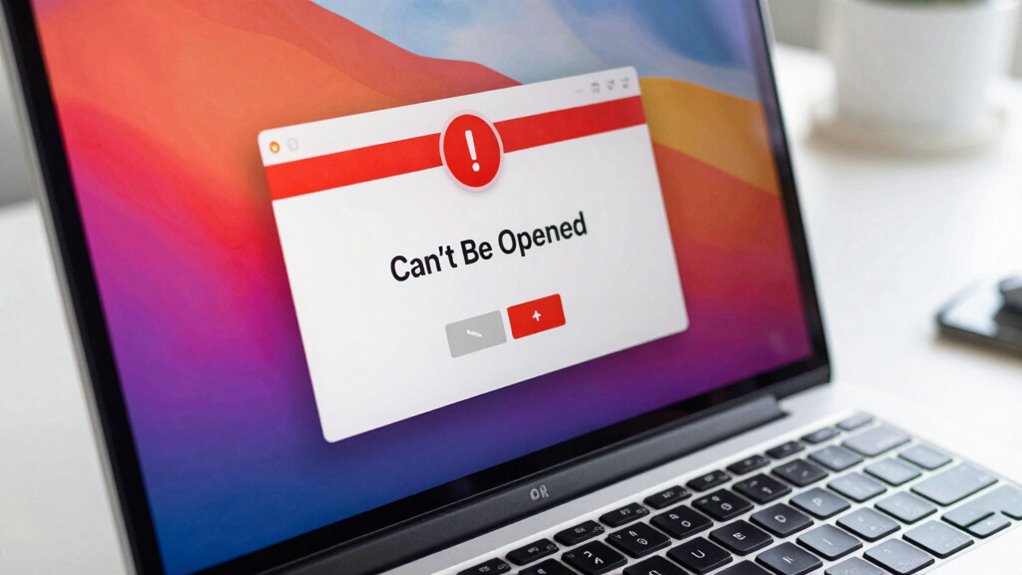
When you see a “Can’t Be Opened” warning on your Mac, it usually means security or compatibility issues are blocking the app from launching. This can happen if the app is from an untrusted source, unsigned, or designed for an older macOS version. You might need to verify the app’s source or adjust security settings to open it. If these tips sound familiar, you’ll find more detailed solutions to help you resolve the problem effectively.
Key Takeaways
- Security settings or app compatibility issues often trigger “Can’t Be Opened” warnings on macOS.
- Verify an app’s source and digital signature to ensure it’s trustworthy before opening.
- Adjust security preferences in System Preferences > Security & Privacy to allow apps from unrecognized developers.
- Compatibility problems or corrupted files may prevent apps from opening; reinstall or update the app.
- Bypassing security prompts by right-clicking and selecting “Open” can allow trusted apps to launch.

Apple Mac Pro Security Lock Adapter
- Secure with third-party lock: Compatible with Kensington-style locks
- Tool-free attachment: Attaches without tools or damage
- Enclosure security: Locks housing to prevent access
As an affiliate, we earn on qualifying purchases.
As an affiliate, we earn on qualifying purchases.
Why Does My Mac Say ‘Can’t Be Opened’?

If your Mac displays a ‘Can’t Be Opened’ warning, it’s usually because the system has blocked the app from running due to security settings or compatibility issues. Your Mac’s security features assess app permissions to prevent potentially harmful software from opening. If an app lacks proper permissions or isn’t signed, macOS may block it. Additionally, software compatibility plays a role—if the app was designed for an older version of macOS or isn’t optimized for your current system, it might not open. Updating the app or your operating system can often resolve these issues. Sometimes, the app’s developer hasn’t configured the necessary permissions correctly, or the app conflicts with your system’s security protocols. Recognizing these factors helps you understand why your Mac prevents certain apps from opening. Exploring security protocols and adapting to evolving digital concepts can sometimes help in understanding and troubleshooting these issues more effectively.
![MixPad Multitrack Recording Software for Sound Mixing and Music Production Free [Mac Download]](https://m.media-amazon.com/images/I/51kaO82jYOL._SL500_.jpg)
MixPad Multitrack Recording Software for Sound Mixing and Music Production Free [Mac Download]
- Audio, music, and voice mixing: Mix multiple track types
- Multi-track recording: Record single or multiple tracks
- Editing tools: Split, trim, join, and more
As an affiliate, we earn on qualifying purchases.
As an affiliate, we earn on qualifying purchases.
How to Check If an App Is Safe to Open
To guarantee an app is safe before opening, you should verify its developer identity and where you downloaded it from. Checking the app’s digital signature can also confirm it hasn’t been tampered with. These steps help protect your Mac from potential security threats. Additionally, being aware of common website policies and user privacy practices can help you identify trustworthy sources. Recognizing signs of authenticity can further ensure the app’s integrity and safety. Knowing how to verify digital signatures can give you added confidence in the app’s safety. For example, understanding the regional and cultural context of certain applications can also reveal whether they are appropriate and secure for your use. Being familiar with affiliate disclosures and privacy policies can help you assess the credibility of the source you’re downloading from.
Verify Developer Identity
When you encounter a “Can’t Be Opened” warning, verifying the developer’s identity is a crucial step in ensuring the app’s safety. You want to confirm that the app comes from a trusted source, and checking developer credentials is key. Think of the developer credentials as a badge of authenticity, similar to a VIP pass. To envision, imagine this table:
| Developer Credentials | App Verification | Security Confidence |
|---|---|---|
| Verified Identity | Digital Signature | Trust Level |
| Official Developer | Source Authenticity | Risk Assessment |
| Trusted Publisher | Certificate Check | Safety Assurance |
| Apple-Approved | Integrity Check | Reduced Threats |
| Recognized Name | Validation Process | Peace of Mind |
This process helps you decide if the app is safe to open based on its verified developer credentials. Additionally, understanding digital signatures can provide further assurance of an app’s authenticity and integrity.
Check App Source
Wondering how to determine if an app is safe to open? Start by checking the app source. If you downloaded the app from the Mac App Store, it’s generally safer, as Apple screens these apps for security. For apps from outside sources, research the developer reputation. Look for reviews or mentions online to gauge trustworthiness. Avoid downloading apps from unfamiliar or suspicious websites. Also, verify if the app source is official or well-known; dodgy sites often host altered or malicious versions. If you’re unsure about an app’s source, it’s best to skip it or seek alternatives from reputable sources. By paying attention to the app source and developer reputation, you reduce the risk of exposing your Mac to malware or security issues.
Assess Digital Signature
Checking an app’s digital signature is a crucial step in verifying its authenticity and safety. The digital signature confirms the app’s source and guarantees it hasn’t been tampered with. To assess app authentication, you can use built-in tools or third-party software to verify the signature. For example, you might compare the signature to known reputable sources, such as verified developers or trusted platforms. Additionally, you can look for a valid digital signature that matches the developer’s credentials. Verify the signature is from a trusted source, like Apple or a reputable developer. Confirm that the app hasn’t been altered since it was signed. Digital signatures are essential in ensuring the integrity of software, much like the safety measures at a family waterpark that protect visitors from hazards. Understanding how sound vibrations influence cellular health can shed light on the importance of verifying the integrity of digital information. Additionally, assessing the app’s origin and reputation can help determine its safety.

Silverhill Tools ATKMMI Tool Kit for Mac Mini Computers (2010 and newer)
- Compatible Models: Mac Mini 2012 and newer
- Included Screwdrivers: Phillips #00, Torx 8 & 6
- Additional Tools: Hex key, Spudger, Logic board tool, Opening picks
As an affiliate, we earn on qualifying purchases.
As an affiliate, we earn on qualifying purchases.
Quick Fixes for ‘Can’t Be Opened’ Errors
If you’re encountering a “Can’t Be Opened” error on your Mac, there are straightforward steps you can take to resolve it quickly. First, check app compatibility—make sure the software is designed for your macOS version. Sometimes, outdated apps aren’t compatible, causing this error. Next, verify your software licensing; if the app requires activation or a valid license, ensure it’s properly registered. Restart your Mac and try opening the app again. You can also temporarily disable Gatekeeper by right-clicking the app and selecting “Open,” which bypasses security restrictions. Updating your macOS and the app itself can resolve compatibility issues. These quick fixes address common causes of the error and can help you open your app without further delays.
As an affiliate, we earn on qualifying purchases.
Why Mac Blocks Some Apps : and How to Change That

Your Mac blocks some apps to protect you through Gatekeeper security measures, which verify the app’s source. If an app isn’t from a recognized developer, your Mac may stop it from opening. You can adjust security settings or identify the developer to bypass these restrictions. Recognizing early warning signs can help prevent issues and ensure your device remains secure. Additionally, understanding how app security protocols work can empower you to make safer choices when downloading and opening new applications. Being aware of software authenticity is crucial for maintaining your device’s security and avoiding potential threats. Familiarity with natural pools and eco-friendly backyard features can also help you identify trustworthy apps that support sustainable practices and secure design options. Understanding security measures can further assist in making informed decisions about which apps to trust.
Gatekeeper Security Measures
Mac’s Gatekeeper security feature is designed to protect your system by blocking the installation of unverified apps. It enforces strict controls like app sandboxing and user permissions to keep malicious software out. When an app isn’t from an identified developer, Gatekeeper may prevent it from opening, citing security risks. You can bypass this by adjusting settings or manually opening the app, but always verify the source first.
- Restricts apps that haven’t been signed by an identified developer
- Uses app sandboxing to limit app access to system resources
- Requires user permissions for sensitive operations
Understanding these measures helps you navigate security prompts confidently, ensuring you stay protected without unnecessarily blocking legitimate apps.
App Developer Identification
When a Mac blocks an app due to developer identification, it’s because the system can’t verify the source of the software. Apple uses app certification and developer credentials to confirm the app comes from a trusted developer. If the credentials aren’t recognized or missing, macOS flags the app as untrusted, leading to blocking. This process helps protect you from potentially harmful software. Developers go through a verification process to obtain their credentials, which are linked to their identity and app signing. If you encounter a blocked app, it might mean the developer’s credentials aren’t verified or the app isn’t properly signed. To run such apps, you may need to manually override the security settings, but always guarantee you trust the source before doing so. developer credentials are crucial for ensuring the app’s authenticity and safety.
Adjusting Security Settings
Sometimes, macOS blocks an app because its security settings are more restrictive than you might expect. You can adjust these settings to allow the app to open smoothly. To do this, you may need to manage app permissions or verify your user authentication. Here are steps to take into account:
- Open System Preferences > Security & Privacy and click the General tab to allow apps from identified developers.
- Use your administrator credentials to override restrictions if prompted.
- Right-click the app, select Open, then confirm you want to open it, which can bypass the block after user authentication.
- Understanding security settings helps you make informed decisions about app management while protecting your device.
Adjusting security settings helps you control which apps run on your Mac while maintaining security.
Adjust Security Settings to Open Your Apps
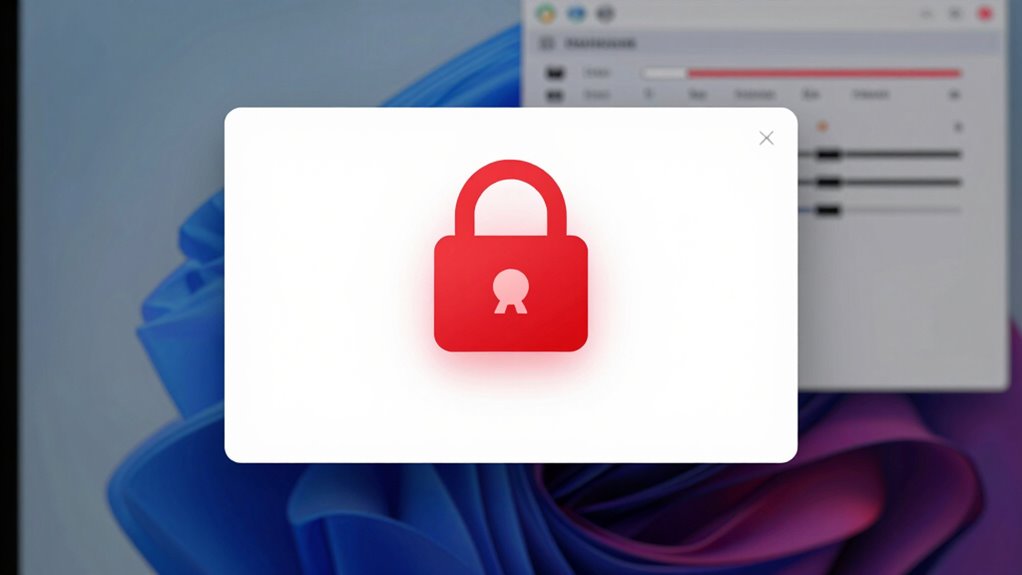
Have you ever encountered a warning that prevents you from opening an app on your Mac? This usually happens because of security settings related to app permissions and user authentication. To fix this, go to System Preferences > Security & Privacy. Under the General tab, you might see a message about the app being blocked. Click the lock icon and authenticate with your user credentials to make changes. Then, select “Allow Anyway” next to the app’s warning. This process adjusts security settings to permit your Mac to open the app, but it still requires you to authenticate as the user. By managing these settings, you control which apps are trusted, ensuring your Mac remains secure while letting you open apps that previously triggered warnings.
Troubleshooting Common Mac App Opening Problems
If your Mac struggles to open certain apps, it can be frustrating, but most issues have straightforward solutions. Often, app compatibility or user permissions cause these problems. First, check if the app is compatible with your macOS version; outdated apps may not open correctly. Second, review user permissions—ensure you have the necessary rights to open the app, especially if it’s from an unrecognized developer. Third, try opening the app via the context menu or using Terminal to bypass restrictions. Additionally, quitting and restarting your Mac can resolve temporary glitches. If problems persist, verify app integrity or consider resetting permissions for the app in System Preferences. To ensure smooth operation, also review app compatibility with your macOS version. Addressing these common issues can often get your apps running smoothly again.
When to Reinstall or Update Your Apps
Reinstalling or updating your apps becomes necessary when they no longer function properly or refuse to open after troubleshooting. If you notice app compatibility issues with your current macOS version or encounter persistent errors, it’s time to contemplate software updates. Updates often include bug fixes and compatibility improvements that resolve these problems. Reinstalling can be helpful if an app’s files are corrupted or incomplete, preventing it from launching or functioning correctly. Before reinstalling, check for available updates; they might fix the issue without a full reinstall. If problems persist after updating, reinstalling the app ensures you get a clean, fresh version. Regular updates also help prevent future issues by keeping your apps compatible with the latest macOS security and performance enhancements. Additionally, staying current with updates aligns with effective personal finance planning, as it minimizes unexpected disruptions and maintains smooth, secure device operation. Maintaining up-to-date software can also improve your device’s overall software stability and security, reducing the risk of vulnerabilities. Furthermore, understanding app compatibility helps in troubleshooting issues more effectively.
Frequently Asked Questions
Can I Open Apps From Unidentified Developers Safely?
You can open apps from unidentified developers, but it’s risky. First, make sure the developer is reputable by checking their verification status. Mac’s security features, like app sandboxing, help contain potential threats, but they don’t eliminate all risks. If you decide to proceed, right-click the app, select “Open,” and confirm you trust the source. Always stay cautious, especially with apps from unknown developers, to protect your system and data.
What Should I Do if an App Is Corrupted?
If an app is corrupted, start by investigating if app repair tools can fix the issue. First, try restarting your Mac and reinstalling the app, which often resolves minor corruption. If that doesn’t work, consider file recovery options to restore a clean version from a backup. Using reliable repair software can also help repair the app, ensuring your data stays safe and your app functions properly again.
How Do I Allow Apps From Outside the App Store?
To allow apps from outside the App Store, you need to adjust your security settings. Open System Preferences, then go to Security & Privacy. Click the lock to make changes, enter your password, and under the ‘General’ tab, select “Allow apps downloaded from: App Store and identified developers.” This enables app verification for trusted sources, easing the process of opening apps from outside the App Store while maintaining security.
Why Does My Mac Block Certain System Files?
Imagine your Mac as a security guard, carefully checking every system file. It blocks certain system files because of system file integrity and Mac security protocols designed to protect your device from malware or corruption. These protocols prevent unauthorized modifications, ensuring your system stays stable and secure. If a trusted file gets blocked, you can adjust security settings or verify the file’s authenticity, but always prioritize safety to avoid potential risks.
Is It Safe to Bypass Security Warnings Temporarily?
Yes, you can temporarily bypass security warnings, but it’s risky. When you do, you’re bypassing app verification and security protocols designed to protect your Mac from harmful software. Only bypass these warnings if you trust the source completely. Make sure your system’s security settings are restored afterward. Always weigh the potential security risks against the need to open the app, and consider updating your macOS for better security features.
Conclusion
Understanding why your Mac shows ‘Can’t Be Opened’ warnings helps you navigate its security landscape like a seasoned sailor. By checking app safety, adjusting security settings, or updating your software, you can turn these obstacles into mere ripples on your tech journey. Remember, these alerts are your Mac’s way of guarding its castle. With a little troubleshooting, you’ll keep your digital fortress secure while smoothly opening the apps you trust, like revealing a treasure chest of productivity.