
To stop your iPhone from auto-joining bad Wi-Fi networks, open Settings, tap Wi-Fi, and select the network. Tap the info icon and disable “Auto-Join” for suspicious or unreliable networks. You can also turn off “Ask to Join Networks” to prevent automatic prompts. Turning on Airplane Mode temporarily stops all connections, and managing saved networks helps avoid unwanted ones. Want to learn more tips to keep your Wi-Fi secure and reliable?

Get the latest gadgets delivered free with Prime
- Fast, free delivery on millions of items
- Prime Video, Amazon Music and more included
- Member-only deals all year
Key Takeaways
- Turn off auto-join for specific networks by tapping the info icon next to the network and disabling “Auto-Join.”
- Use “Forget This Network” to remove untrusted or problematic Wi-Fi networks from your saved list.
- Disable “Ask to Join Networks” in Wi-Fi settings to prevent automatic prompts for new networks.
- Regularly review and delete unfamiliar or suspicious networks from your saved list.
- Toggle Airplane Mode on and off to reset network connections and temporarily stop auto-joining problematic networks.
Products Worth Considering

Sonos Era 100 SL Compact Microphone-Free Speaker, Black

Anker SOLIX C200 DC Portable Power Station, 192Wh, 200W

Apple iPad Air (4th Generation, 10.9-inch, Wi-Fi, 256GB) – Space Gray
As an affiliate, we earn on qualifying purchases.
How to Access Wi-Fi Settings on Your iPhone
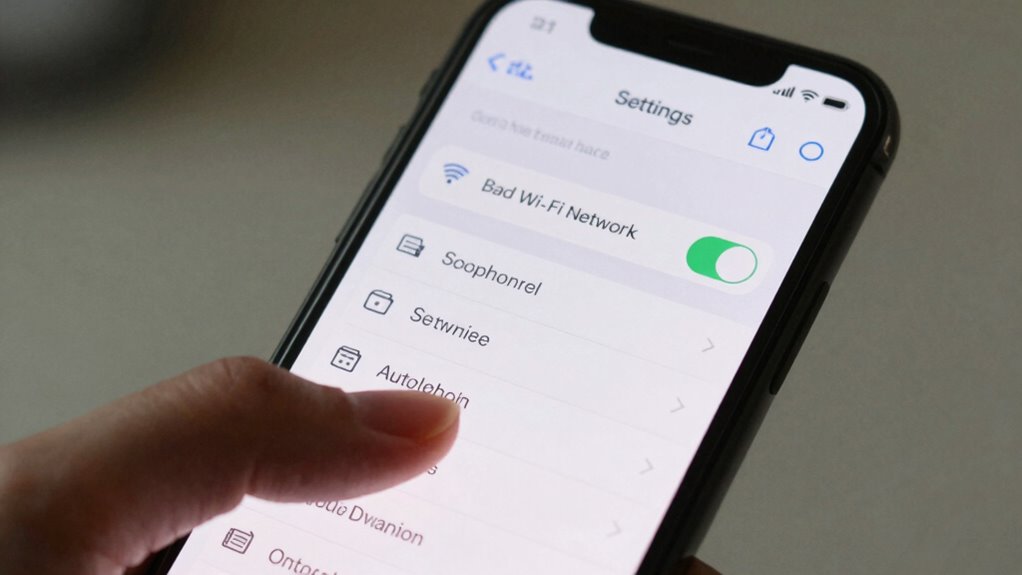
Wondering how to access the Wi-Fi settings on your iPhone? First, open the Settings app and tap on Wi-Fi. Here, you’ll see a list of available networks. To view detailed information like Wi-Fi encryption and network frequency, tap the info icon (the “i” in a circle) next to a connected or saved network. This section reveals security details, helping you identify if the network uses proper Wi-Fi encryption. You can also see whether the network operates on 2.4 GHz or 5 GHz frequency, which affects speed and range. If you want to make changes or forget a network, use these options directly from this menu. Accessing Wi-Fi settings this way gives you control over your connections and helps you manage your network preferences effectively. Understanding network security protocols can further enhance your ability to prevent devices from auto-joining problematic networks. Additionally, familiarizing yourself with Wi-Fi frequency bands can help optimize your connection stability and speed. Being aware of hidden networks can also prevent your device from connecting to unintended or insecure Wi-Fi hotspots. It’s also helpful to check for open networks that lack encryption, which may pose security risks.
How to Identify Unreliable or Insecure Wi-Fi Networks
To spot unreliable or insecure Wi-Fi networks, start by checking for suspicious or unfamiliar network names. You should also verify the security settings to see if they use encryption like WPA2 or WPA3. Being cautious about these signs helps keep your device safe from potential threats. Additionally, observing the network’s signal strength can provide clues about its legitimacy, as fake networks often have weak or inconsistent signals. Recognizing the AI Ethicist Jobs involved in creating secure systems can also be useful, as they focus on ethical implications and trustworthy technology. Being aware of cybersecurity practices related to Wi-Fi security can further enhance your ability to identify safe networks. Developing an understanding of accessibility features can help you better utilize security tools designed for diverse users, ensuring a safer browsing experience. Knowing about gelato flavors and the importance of quality and authenticity can also remind you to prioritize trustworthy sources and secure connections when browsing or making online transactions.
Recognize Suspicious Network Names
How can you tell if a Wi-Fi network is suspicious? Look out for network names that seem unusual or inconsistent with nearby networks. Hackers often use network spoofing to mimic legitimate Wi-Fi names, tricking you into connecting. Suspicious names might include misspellings, strange characters, or overly generic terms like “Free Wi-Fi” or “Linksys.” Also, be cautious if the network name appears suddenly or changes frequently, which could indicate signal interference or malicious intent. To avoid connecting to unreliable networks, watch for these signs:
- Misspelled or odd-sounding names
- Names that mimic trusted networks
- Frequent changes in network names
- Networks that seem out of place or unknown in your area
Being aware of Gold IRA Markets and their reputation can also help you recognize trustworthy networks from malicious ones. Recognizing these clues helps prevent auto-joining dangerous networks.
Check Network Security Settings
Once you’ve identified suspicious network names, the next step is to check the security settings of those Wi-Fi networks. Tap the network in your Wi-Fi settings and look for details about network encryption. Reliable networks typically use WPA2 or WPA3 encryption, while insecure ones might use outdated protocols like WEP. Also, consider the password strength; secure networks usually have complex, long passwords, whereas insecure ones often have simple or default passwords. If a network lacks proper encryption or has a weak password, avoid auto-joining it in the future. Changing your iPhone’s settings to ignore these networks can prevent auto-connection, keeping your device safer from insecure connections that could compromise your data.
How to Remove or Prioritize Wi-Fi Networks on Your iPhone
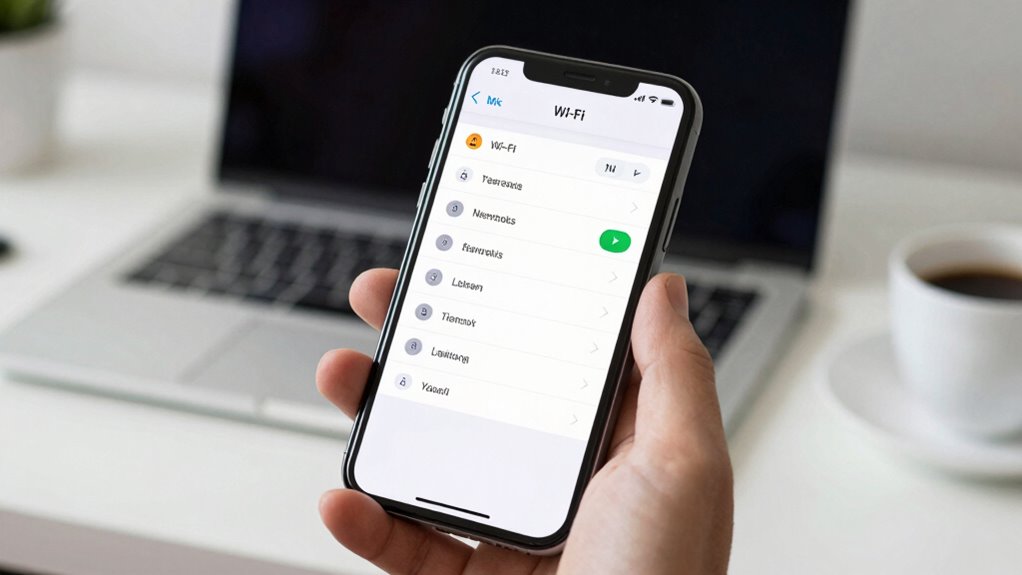
If your iPhone is automatically connecting to unwanted Wi-Fi networks, you can take control by removing or prioritizing networks in your settings. This helps guarantee your device connects to secure networks with strong signal strength and proper network encryption. To do this:
- Open Settings and tap Wi-Fi.
- Find the network you want to remove or prioritize.
- Tap the info icon (i) next to the network.
- Choose “Forget This Network” to remove or select “Reorder” to prioritize saved networks.
Prioritizing networks ensures your iPhone connects to the most secure or strongest signals first, reducing chances of auto-joining unreliable or insecure Wi-Fi. Adjusting these settings keeps your connections safe and reliable.
How to Turn Off Auto-Join for Specific Wi-Fi Networks
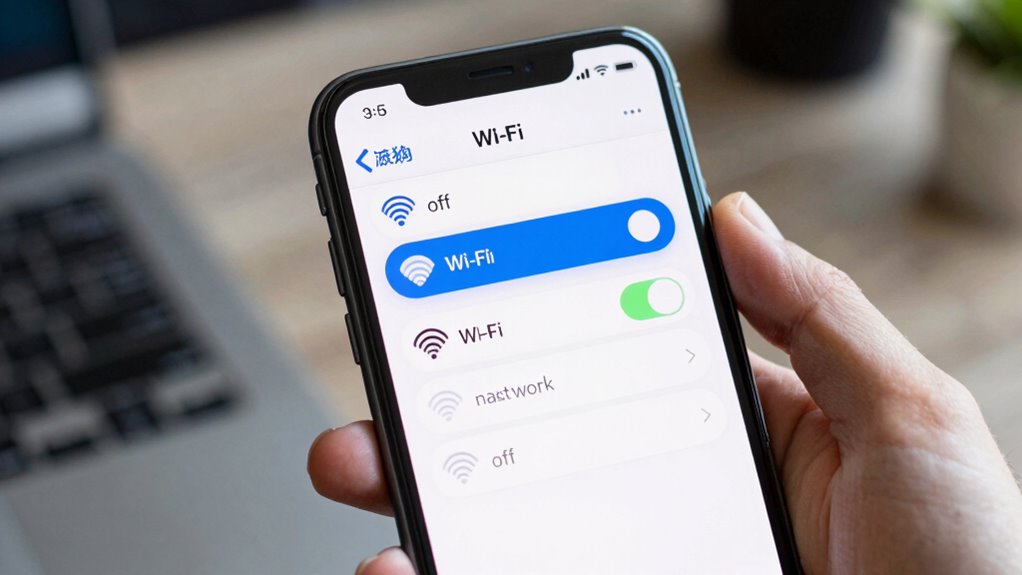
Sometimes your iPhone automatically joins Wi-Fi networks even when you don’t want it to, which can lead to security risks or unreliable connections. To prevent this, you can turn off auto-join for specific networks, improving Wi-Fi optimization and network prioritization. A good understanding of battery inverter generators can help you choose the best options for your needs if you’re managing multiple devices or connections. Being aware of network security practices can further protect your device from potential threats. Additionally, understanding how Wi-Fi network management works can help you troubleshoot connection issues more effectively. Properly managing your Wi-Fi connections can also prevent automatic network switching, ensuring your device stays connected to trusted networks. You can also consider how portable restroom solutions are integrated into event planning to ensure seamless experiences for guests. Follow these steps:
| Step | Action | Result |
|---|---|---|
| 1 | Tap the info icon next to the network | Opens network settings |
| 2 | Toggle off “Auto-Join” | Stops your iPhone from auto-connecting |
| 3 | Repeat for other networks | Customizes your Wi-Fi connections |
This approach helps you control which networks your iPhone connects to, enhancing security and ensuring reliable connections.
How to Prevent Your iPhone From Auto-Connecting to New Networks
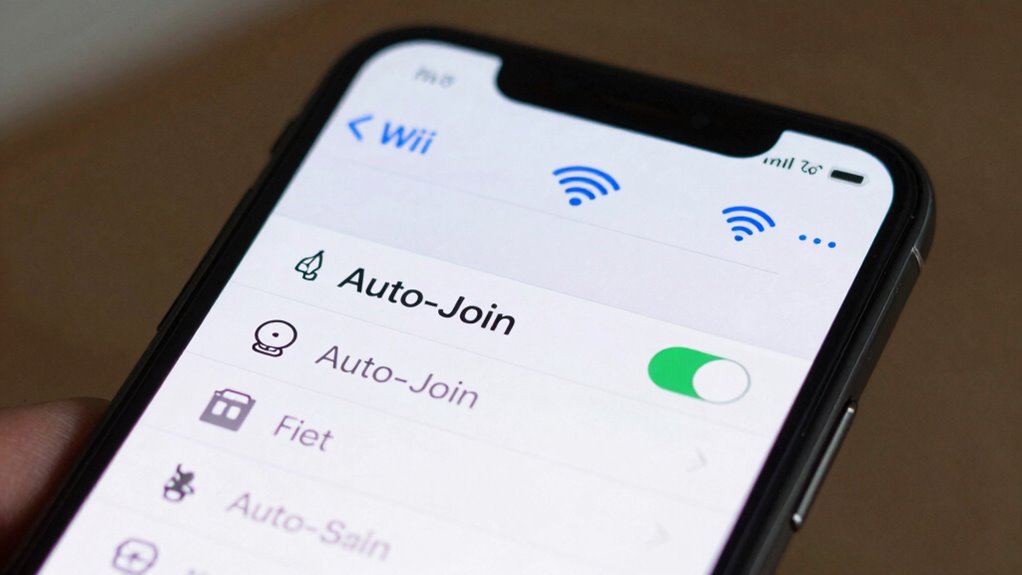
To prevent your iPhone from automatically connecting to new Wi-Fi networks, you need to adjust your device’s settings to stop it from joining unknown or untrusted networks without your permission. This helps reduce Wi-Fi interference and simplifies network troubleshooting. Here’s what you can do:
- Open Settings and tap Wi-Fi.
- Disable “Ask to Join Networks” to prevent your iPhone from seeking new connections.
- Toggle off “Auto-Join” for networks listed under “My Networks” to avoid accidental connections.
- Regularly review saved networks and delete unfamiliar or untrusted ones.
Can Using Airplane Mode Stop Your iPhone From Auto-Connecting?
Turning on Airplane Mode disables your iPhone’s Wi-Fi, stopping it from auto-connecting to networks. However, this also causes a temporary disconnection, so you’ll need to manually reconnect if you want to use Wi-Fi again. Keep in mind, Airplane Mode doesn’t prevent your device from automatically joining networks once it’s turned off. To enhance your experience, understanding how home soundproofing can reduce noise distractions may be beneficial.
Airplane Mode Disables Wi-Fi
Activating Airplane Mode on your iPhone disables all wireless connections, including Wi-Fi, which can temporarily prevent your device from auto-connecting to any networks. This is useful when you’re trying to avoid connecting to problematic networks or during network troubleshooting. When Wi-Fi is off, your device won’t attempt to join known networks, regardless of their Wi-Fi encryption status.
To understand its effects, consider:
- You turn on Airplane Mode to stop auto-joining a suspicious network.
- Wi-Fi remains disabled until you manually re-enable it.
- This prevents your iPhone from connecting to networks with weak or compromised encryption.
- Once Wi-Fi is re-enabled, your device may still remember preferred networks, so manual management might be necessary to avoid auto-connection issues.
Temporary Network Disconnection
When you enable Airplane Mode, your iPhone disconnects from all wireless networks, including Wi-Fi, even if it was previously connected. This temporary disconnection helps with network troubleshooting by stopping your device from auto-connecting to problematic networks. It’s a quick way to reset your network connections, improving device optimization. During this period, your iPhone won’t attempt to connect to any Wi-Fi, preventing unwanted connections. This method can be particularly useful when dealing with frequent disconnections or poor network quality. Keep in mind, however, that it’s a short-term fix. Use the table below to understand how toggling Airplane Mode impacts your device:
| Action | Effect | Best Use Case |
|---|---|---|
| Enable Airplane Mode | Disconnects all networks | Temporary network troubleshooting |
| Disable Airplane Mode | Reconnects Wi-Fi | Resume normal network function |
| Manual Wi-Fi toggle | Reconnects specific networks | Device optimization after troubleshooting |
Manual Reconnection Required
Using Airplane Mode can temporarily stop your iPhone from auto-joining problematic Wi-Fi networks, but it doesn’t guarantee a permanent solution. When you manually reconnect, you’re actively managing your network troubleshooting. This process involves choosing the right Wi-Fi network, ensuring it’s secured with proper Wi-Fi encryption, and avoiding networks that may be insecure or unreliable. Additionally, selecting the appropriate airless paint spraying gear can help you better understand how to maintain control over your tools and settings. Here are four steps to manual reconnection:
- Open Settings and select Wi-Fi.
- Tap the problematic network’s name.
- Confirm the network’s security details, especially Wi-Fi encryption.
- Enter the password if prompted, then tap Connect.
This method forces you to scrutinize networks, helping you avoid auto-connecting to bad options while maintaining control over your device’s network choices.
How to Use Shortcuts to Control Wi-Fi Auto-Connections
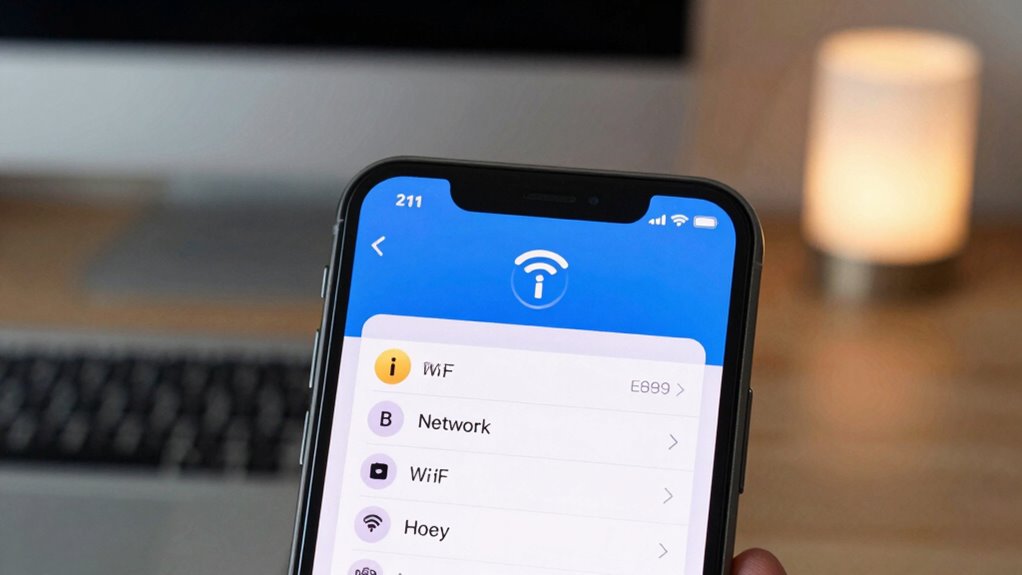
Shortcuts on your iPhone can help you manage Wi-Fi auto-connections more efficiently. With the Shortcuts app, you can create automation to toggle Wi-Fi on or off based on your location or time of day, reducing unwanted auto-joins. This helps minimize Wi-Fi interference that can disrupt your connection or cause network troubleshooting issues. For example, you can set a shortcut to disable Wi-Fi when you leave your home, preventing your iPhone from connecting to poor networks automatically. Conversely, you can create a shortcut to turn Wi-Fi on when you arrive at a trusted network. Using these shortcuts gives you quick control over Wi-Fi connections, helping you avoid problematic networks and improving overall connectivity management.
Why Does My iPhone Keep Connecting to Bad Networks: And How to Fix It
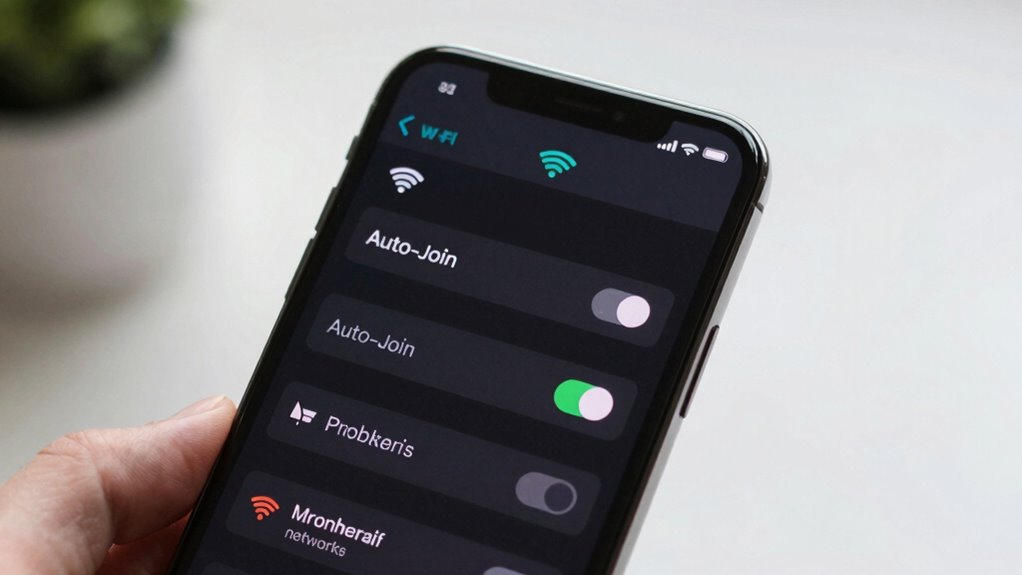
Have you noticed your iPhone keeps connecting to unreliable or slow Wi-Fi networks even when better options are available? Several factors cause this, including network interference and weak signal strength. Your device may automatically connect to saved networks with stronger signals, even if they’re unreliable. Sometimes, your phone favors familiar networks over new, faster ones. Here are common reasons:
- Nearby networks with overlapping channels create network interference, confusing your iPhone.
- Poor signal strength causes your device to stick to weaker networks instead of searching for better options.
- Saved networks with auto-join enabled may reconnect automatically, even if they’re bad.
- Your iPhone might not recognize that a network is unreliable due to weak signals or interference, leading to repeated connections.
Tips to Keep Your Wi-Fi Secure and Save Battery Power
Keeping your Wi-Fi connection secure and optimizing your device’s battery life go hand in hand, especially when your iPhone auto-connects to networks unknowingly. To enhance security, verify Wi-Fi encryption is enabled on your router, which protects your data from eavesdroppers. Avoid connecting to open or unsecured networks, and consider turning off Wi-Fi when not in use. Use network prioritization to control which networks your iPhone automatically joins, reducing the risk of connecting to unsafe ones. Limiting background Wi-Fi activity and disabling Wi-Fi Assist also save battery power. Regularly forget untrusted networks and keep your device’s software up to date to patch security vulnerabilities. Understanding battery management techniques can further improve your device’s longevity and performance. Additionally, managing your network security settings helps prevent unauthorized access to your devices and data. Being aware of potential security threats associated with public Wi-Fi networks can help you make safer choices. Implementing security best practices ensures your connections remain protected while extending your iPhone’s battery life. For example, enabling automatic updates ensures you receive the latest security patches promptly. These steps help keep your Wi-Fi connections secure while extending your iPhone’s battery life.
Frequently Asked Questions
Can I Disable Wi-Fi Auto-Join Entirely on My iPhone?
Yes, you can disable Wi-Fi auto-join entirely on your iPhone. To do this, go to Settings, tap Wi-Fi, then select the specific network and toggle off “Auto-Join.” This helps with Wi-Fi prioritization, ensuring your device only connects to trusted networks. Disabling auto-join enhances network security by preventing your iPhone from automatically connecting to potentially unsafe or insecure networks without your knowledge.
Does Forgetting a Network Delete All Its Saved Data?
When you forget a network, your iPhone deletes its saved data related to that network, including passwords and preferences. This action affects network prioritization, as your device no longer automatically connects or remembers that network. If you want to keep some data but prevent auto-joining, you should modify settings instead of forgetting the network. Forgetting is a complete data deletion for that specific network, ensuring your device won’t reconnect automatically.
How Does iOS Decide Which Wi-Fi Network to Connect to Automatically?
iOS prioritizes Wi-Fi networks based on your previous connections and signal strength, using network selection to choose the best option. It automatically connects to the highest-priority network with a strong signal, but you can modify this by adjusting Wi-Fi prioritization settings or forgetting networks. Your iPhone continually evaluates available networks, ensuring you stay connected to the most reliable Wi-Fi, even if that means skipping weaker or less trusted ones.
Can Third-Party Apps Help Manage Wi-Fi Auto-Connection Settings?
Third-party apps can help manage Wi-Fi auto-connection settings by improving Wi-Fi security and allowing network prioritization. These apps often let you control which networks your iPhone connects to automatically, helping you avoid bad or insecure Wi-Fi. They offer features like managing trusted networks and setting preferred networks, giving you more control over your device’s connection behavior. However, always verify the app is reputable to keep your network safe.
Will Turning off Wi-Fi Assist in Preventing Auto-Joining Bad Networks?
Turning off Wi-Fi can be a quick fix, but it’s like locking the door to bad Wi-Fi networks. It prevents your iPhone from automatically connecting, helping you stay secure and avoid unreliable networks. To improve Wi-Fi security and network prioritization, manually select trusted networks and forget the shady ones. This way, your device only connects to networks you trust, keeping your connection safe and reliable.
Conclusion
Think of your iPhone as a lighthouse, guiding you safely through the foggy seas of Wi-Fi networks. By managing your connections wisely, you steer clear of treacherous, unreliable signals that could lead you astray. When you control which networks you trust, your device becomes a steady beacon, shining brightly with security and efficiency. Keep your connection habits clear and intentional, and your digital voyage will always stay on course—safe, secure, and sailing smoothly.