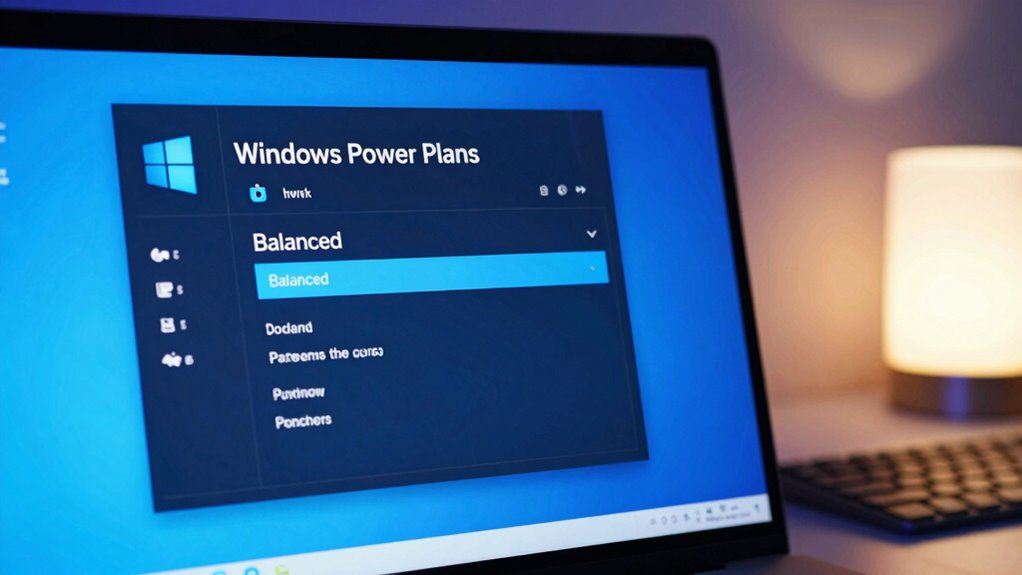

Windows power plans control how your PC balances performance and energy use, affecting speed, responsiveness, and battery life. The default “Balanced” plan adjusts performance based on activity, but it may not be ideal for demanding tasks or extended battery use. You can customize or switch plans like High Performance or Power Saver to better suit your needs. To get the most out of your device, it’s worth exploring how tweaking these settings can optimize both performance and battery life.
Key Takeaways
- Power plans control hardware settings to balance energy use and performance based on activity needs.
- The default “Balanced” plan optimizes efficiency but may limit performance during demanding tasks.
- Customizing or switching plans can enhance hardware responsiveness or extend battery life.
- High Performance maximizes speed but drains battery faster; Power Saver prioritizes energy efficiency.
- Choosing the right plan depends on usage scenarios, hardware compatibility, and energy management goals.

CopGain P2 Triple Portable Monitor for Laptop Screen Extender 12 Inch Dual Monitors Extender FHD 1080P IPS Display Type-C/HDMI/USB-A/Speakers for 13-16 Inch Notebook Computer Windows Mac Phone
【Portable Monitor Workstation】 12-inch full HD LCD IPS screens, Multifunction external portable fold dual-screen laptop monitor, Each screen…
As an affiliate, we earn on qualifying purchases.
As an affiliate, we earn on qualifying purchases.
What Are Windows Power Plans and How Do They Affect Your PC?
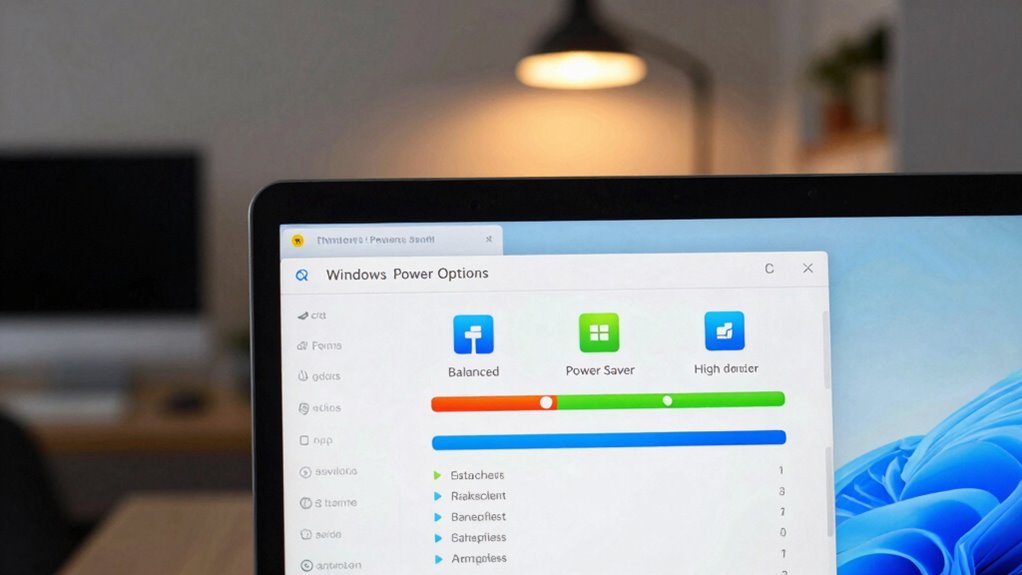
Ever wondered how your computer balances performance and energy use? That’s where Windows power plans come in. These plans are preset configurations that manage how your PC uses hardware resources and energy, influencing everything from CPU speed to display brightness. Your choice impacts hardware compatibility, ensuring components work smoothly without draining too much power. When you update software, especially drivers, these plans can help optimize performance or extend battery life. For example, a high-performance plan might boost CPU activity for demanding tasks, while a power saver plan reduces energy consumption. By selecting the right plan, you control how your PC responds to different needs, making sure hardware compatibility is maintained and software updates are effectively managed for smoother operation. Understanding power management strategies can also give insight into how different cultures prioritize balance and harmony, similar to how you should balance performance and energy efficiency in your PC. Additionally, being aware of how these plans interact with hardware components can help you fine-tune your settings for optimal results. Recognizing how different power plans influence hardware performance can assist in customizing your setup for specific activities or preferences, especially as these plans are designed with energy conservation principles in mind.

New Avalon Design | High-Performance 4-Pin Low-Voltage Power Supply Cable for All AD2000 Series, PC-1 (8-Feet)
As an affiliate, we earn on qualifying purchases.
As an affiliate, we earn on qualifying purchases.
Understanding the Default ‘Balanced’ Power Plan: Pros and Cons
The default ‘Balanced’ power plan aims to optimize energy efficiency while maintaining decent performance. However, you might notice some limitations in performance during demanding tasks. Understanding these trade-offs helps you decide if this plan fits your needs or if adjustments are necessary. For example, recognizing twin flame signs can enhance your emotional awareness and decision-making in personal growth journeys. Additionally, being aware of natural pool design principles can inspire eco-friendly modifications to your backyard space. Adjusting power settings can also influence system performance optimization, which is crucial for specific workflows or gaming experiences. Being familiar with system power management features can help you fine-tune your device for better efficiency or performance depending on your priorities. Exploring power plan customization options allows you to tailor your device’s energy use to better suit your daily activities and specific needs.
Energy Efficiency Balance
Have you wondered how the default ‘Balanced’ power plan manages your computer’s energy use? It aims to strike an energy efficiency balance by adjusting performance based on activity. This plan promotes energy conservation during low usage, helping reduce electricity consumption and support renewable energy initiatives. By automatically dimming your screen or slowing down processes when idle, it minimizes power waste without sacrificing responsiveness. A comprehensive understanding of power management can help optimize your device’s efficiency. While not as aggressive as power-saving modes, it encourages responsible energy use without compromising daily tasks. Recognizing how different power plans can impact your device’s performance and energy consumption allows for more tailored and efficient use. Additionally, understanding how automatic adjustments optimize energy efficiency can help users make informed choices about their device settings. For example, being aware of dimming screens or slowing processes can help you customize your device to better suit your energy-saving preferences.
Performance Limitations
While the default ‘Balanced’ power plan aims to optimize energy use without sacrificing performance, it does have limitations that can affect your computer’s capabilities. One issue is hardware compatibility; some components may not perform ideally under the plan’s dynamic adjustments, resulting in slower response times or reduced processing power. Additionally, software conflicts can arise when programs expect consistent performance levels, but the plan’s power-saving features throttle CPU speeds or other hardware. This can cause applications to lag or crash unexpectedly. If you need maximum performance for demanding tasks, relying solely on ‘Balanced’ might hinder your productivity. Adjusting the plan or switching to a custom setting can help mitigate these performance limitations, especially when hardware compatibility or software stability is a concern. Understanding the emerging trends in digital publishing can also help optimize your system settings for better performance.

Memory Saver for Car Battery On-Board Computers, OBD11 | C'ode 12 Volt Attaches to Power Van/Truck/PortCar
Saves all drive-ability codes and settings changing a vehicle's starter battery.
As an affiliate, we earn on qualifying purchases.
As an affiliate, we earn on qualifying purchases.
How to Access and Customize Windows Power Plans
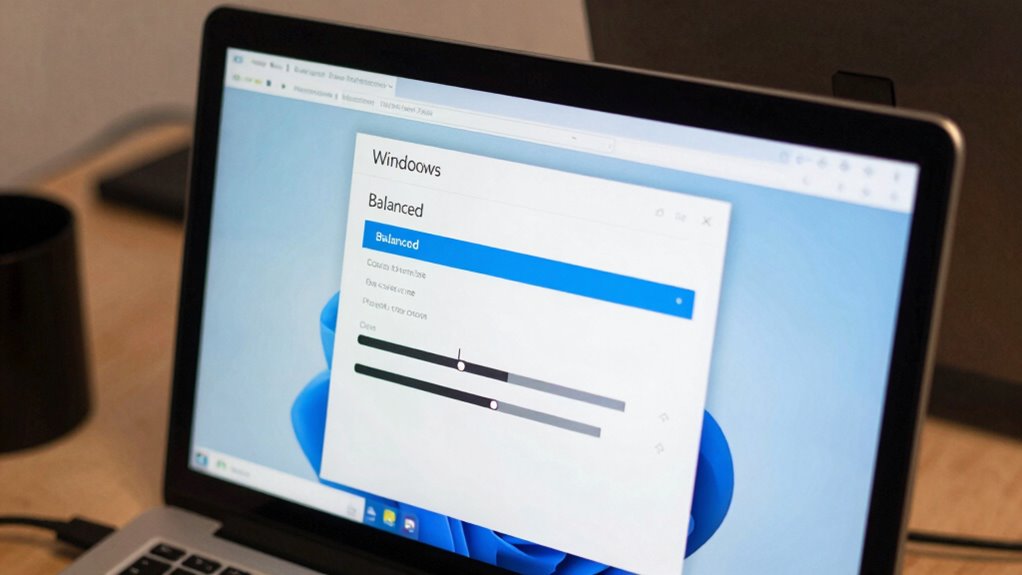
You can easily access your power settings through the Control Panel or Settings app to see your current plan. From there, you can modify existing plans or create custom profiles to better suit your needs. Customizing these options helps optimize your device’s performance and battery life. Understanding how power plan settings impact system efficiency can further enhance your experience. Exploring luxurious lifestyle products can also inspire you to upgrade your workspace with premium accessories that complement your device.
Access Power Settings
Wondering how to access and customize your Windows power plans? It’s straightforward. First, open the Control Panel or click the battery icon in the taskbar. Then, navigate to “Power Options” to see available plans. To fine-tune settings, select “Change plan settings” next to your chosen plan. Be aware that hardware compatibility issues or software conflicts can affect power management, so adjustments may require troubleshooting. Here’s what to do for deeper customization:
- Use advanced power settings for detailed control.
- Access “Troubleshoot” to resolve conflicts.
- Check for driver updates to improve hardware compatibility.
- Use the “Create a power plan” feature for custom configurations.
Knowing how to access and tweak these settings helps optimize performance and energy efficiency while avoiding conflicts. Additionally, understanding concepts like watt-hours and capacity can help you select the right battery inverter generator for your needs.
Modify Power Plans
Want to customize your Windows power plans to better suit your needs? You can do this by accessing the power plan settings through the Control Panel or Settings app. Once there, select the plan you want to modify, then click “Change plan settings.” From this menu, you can adjust options like display timeout and sleep mode, enhancing hardware compatibility and software integration. For more advanced tweaks, click “Change advanced power settings,” where you can fine-tune processor performance, USB settings, and more. Customizing these settings allows you to balance performance and energy efficiency based on your usage, ensuring your hardware runs smoothly and your software functions effectively. These adjustments give you control over how your device manages power, helping you maximize its potential.
Create Custom Profiles
Creating custom power profiles allows you to tailor your Windows settings precisely to your needs. This helps optimize energy consumption and guarantees hardware compatibility, especially if you use specialized devices. To create a profile, access the Power Options in the Control Panel or Settings menu. From there, you can duplicate an existing plan and modify it.
Here’s what to do:
- Open Power & Sleep Settings or Control Panel > Power Options.
- Select or create a plan, then choose “Change plan settings.”
- Click “Change advanced power settings” to fine-tune options.
- Save your customized profile for quick access.
Custom profiles let you balance performance and energy efficiency while maintaining hardware compatibility for your specific tasks.

Windows Programming Power with Custom Controls: Create Better Windows Programs Faster with C/C++ and Software Components
Used Book in Good Condition
As an affiliate, we earn on qualifying purchases.
As an affiliate, we earn on qualifying purchases.
When Should You Switch to a Different Power Plan?
Knowing when to switch to a different power plan can help you optimize your Windows device’s performance and battery life. If you notice your battery draining quickly or your device overheating, switching to a power plan focused on battery optimization can extend usage time. Conversely, if you’re performing demanding tasks like gaming or video editing, a high-performance plan ensures your hardware runs smoothly. Hardware compatibility also plays a role—older devices may struggle with aggressive power-saving settings, so adjusting plans can prevent performance issues. Additionally, when you’re plugged in and need maximum performance, transitioning from a balanced plan to high performance allows your hardware to operate at its full potential. Recognizing these signs helps you choose the right power plan for your current needs.
Comparing Power Saver, High Performance, and Custom Plans
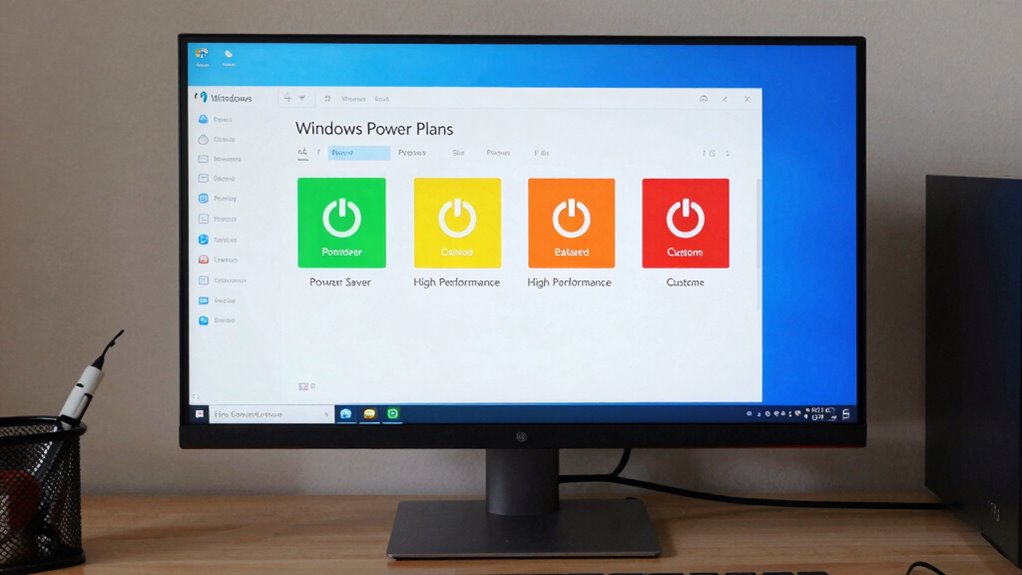
Understanding the differences between Power Saver, High Performance, and Custom plans helps you choose the right setting for your needs. Power Saver prioritizes battery management, extending battery life but limiting hardware performance. High Performance maximizes hardware compatibility and responsiveness, often draining the battery faster. Custom plans let you tailor settings to balance efficiency and power, based on your preferences. Consider these factors:
- Battery life vs. performance needs
- Hardware compatibility with demanding apps
- Extent of power management adjustments
- Specific use cases like gaming or work tasks
- Smart Home integration features can also influence your power plan choice depending on how connected devices are managed and optimized. Additionally, understanding how your hardware’s storage and connectivity capabilities interact with power settings can help optimize overall device performance and longevity. For example, power management settings may also impact how quickly your device can access data or connect to networks. Moreover, some sound healing techniques have been shown to influence brainwave patterns, which could potentially enhance focus when used in conjunction with specific power plans. Being aware of energy-efficient practices can further contribute to extending device life and reducing energy consumption.
How Power Settings Impact Battery Life and Performance
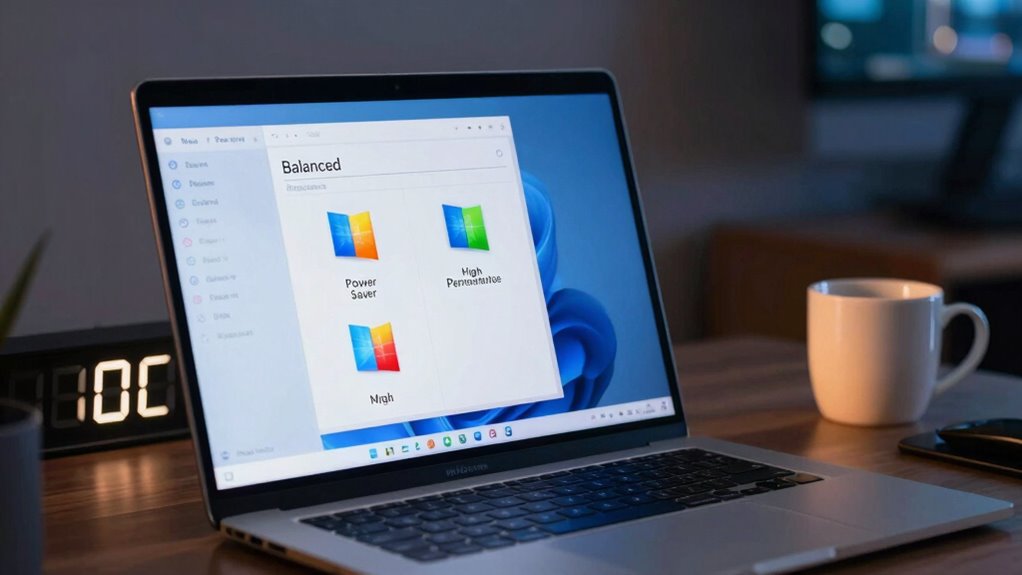
Power settings directly influence how your device balances battery life and performance, with each option making specific trade-offs. Choosing a high-performance plan boosts speed but drains your battery faster, while a power-saving plan extends battery life at the cost of responsiveness. Proper battery calibration helps guarantee your device reports accurate remaining runtime, especially when using aggressive power plans. Additionally, tweaking power plan security settings can protect your device from unauthorized access if you’re running on battery, but overly restrictive security may hinder performance. Understanding these impacts allows you to optimize your device’s behavior based on your needs, whether you prioritize longer battery life or peak performance. Adjusting settings thoughtfully helps maintain a healthy battery life that suits your usage patterns. Being aware of home soundproofing techniques can also help create a quieter environment, reducing the need for device adjustments to minimize noise disruptions.
Common Power Plan Mistakes and How to Fix Them
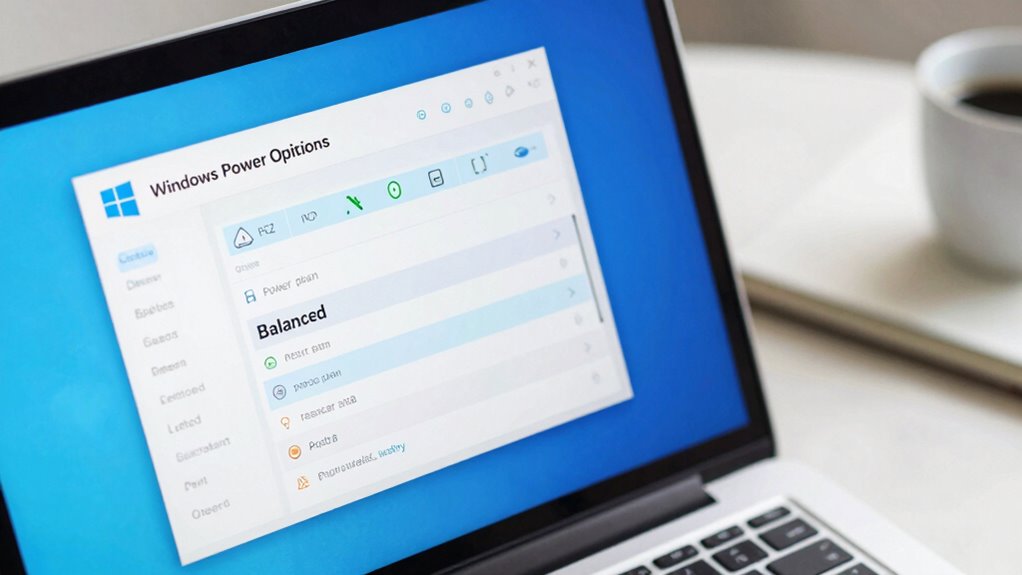
Many users set their power plans once and forget about them, but this often leads to inefficiencies or unintended consequences. Common power plan mistakes include falling for power plan myths, such as believing “Balanced” is always best, or ignoring hardware compatibility issues. These misconceptions can cause performance drops or unnecessary battery drain. To fix these issues, start by customizing your plan to match your actual usage. Avoid relying solely on default settings, which may not suit your hardware. Verify your hardware drivers are up to date to prevent compatibility problems. Ultimately, don’t assume one-size-fits-all; fine-tune your power plan based on your specific needs for peak performance and efficiency.
Tips for Optimizing Power Plans for Your Needs
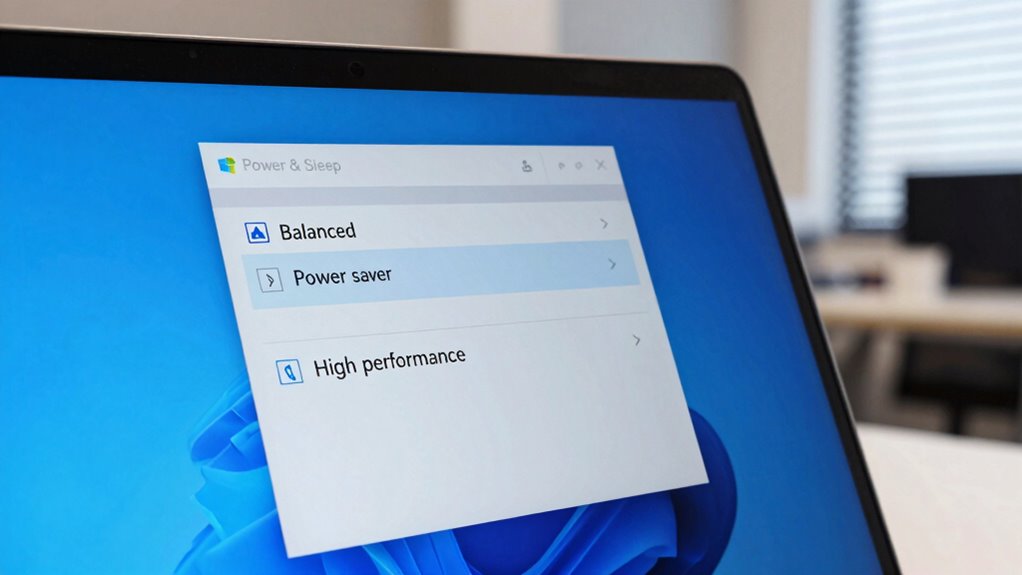
To get the most out of your Windows power plans, you need to tailor them specifically to how you use your device. Start by adjusting settings for battery optimization if you’re on a laptop—setting shorter sleep timers and dimming the screen can extend battery life. For desktop users, prioritize performance by increasing processor power limits or disabling power-saving features that may hinder hardware compatibility. Consider customizing your plan’s display and sleep settings based on your activity patterns. Regularly review and tweak these settings to guarantee your hardware runs smoothly without sacrificing efficiency. Balancing power consumption with performance helps optimize your device’s longevity and responsiveness. Remember, an effective power plan aligns with your usage habits, enhancing both battery life and hardware compatibility.
Frequently Asked Questions
Can Customizing Power Plans Improve Gaming Performance?
Yes, customizing power plans can boost your gaming performance. By adjusting settings for battery optimization, you guarantee your system prioritizes performance over power saving, especially when plugged in. Thermal management is also essential; setting your PC to prevent overheating keeps your hardware running smoothly during intense gaming sessions. Tailoring these options allows you to strike a balance between power and performance, resulting in smoother gameplay and less lag.
Are There Risks in Using High-Performance Power Settings Constantly?
Using high-performance power settings constantly risks draining your battery faster, increasing energy consumption, and causing your hardware to work harder. You might enjoy smoother performance, but it can compromise energy efficiency and battery conservation. Over time, this may lead to overheating, hardware wear, and higher electricity bills. Think of it like pushing your device to its limits—you’re sacrificing longevity and efficiency for short-term gain, which isn’t sustainable.
How Do Power Plans Affect Hardware Longevity?
Power plans influence your hardware’s longevity by impacting battery efficiency and thermal management. Using high-performance settings constantly can generate more heat, stressing components and potentially shortening their lifespan. Conversely, power plans that optimize for energy saving reduce heat and wear on hardware, extending its life. Adjusting your power plan based on your needs helps balance performance with hardware health, ensuring your device remains reliable and efficient over time.
Can I Create Multiple Custom Power Plans for Different Tasks?
Yes, you can create multiple custom power plans for different tasks, and it’s a smart way to optimize battery life and power efficiency. You might set a plan for gaming that boosts performance or another for work that conserves energy. Experimenting with these plans helps you find a balance that fits each activity, ensuring your hardware runs smoothly while extending battery life and maintaining overall system health.
Do Power Plans Impact System Security or Updates?
Power plans can sometimes influence system security and updates. If a plan reduces system activity or sleep modes, it might create vulnerabilities by delaying security patches or updates. Conversely, aggressive power settings could interfere with updates, causing delays or failed installations. So, you should choose or customize your power plan carefully, balancing energy savings with system security and ensuring updates aren’t hindered by overly aggressive or restrictive settings.
Conclusion
Choosing the right power plan can feel like walking a tightrope, but understanding your options helps you strike the perfect balance. Whether you prioritize battery life or performance, tweaking your settings guarantees you get the most out of your PC. Remember, don’t put all your eggs in one basket—experiment to find what works best for you. With a little know-how, you can turn your device into a well-oiled machine, tailored to your needs.