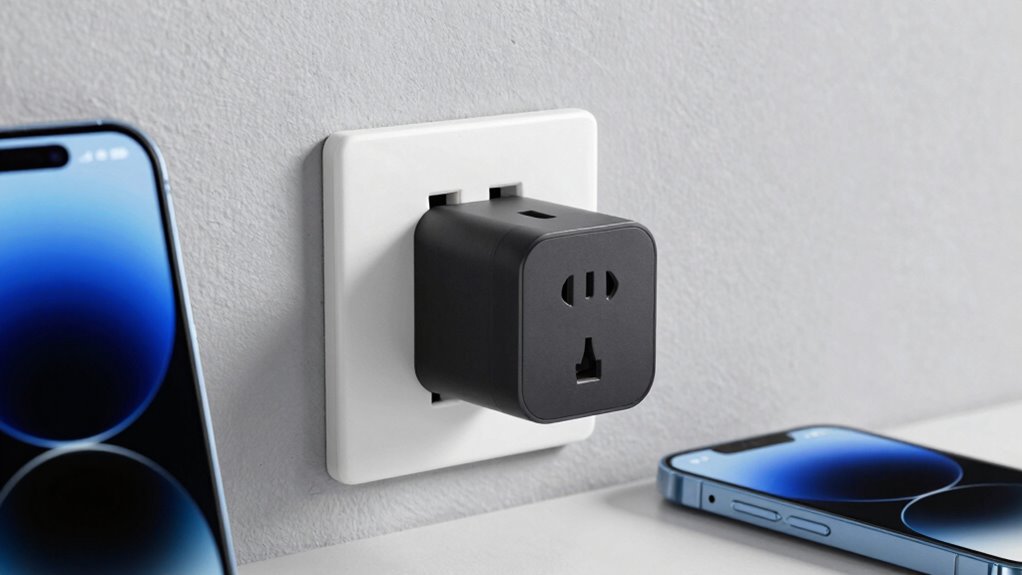

Smart plugs can disconnect randomly because of weak Wi-Fi signals, interference from devices like microwaves or Bluetooth gadgets, outdated firmware, or poor placement near thick walls or electronics. To stabilize their connection, make sure your router is positioned centrally, update firmware regularly, and keep smart plugs away from interference sources. Managing your network and optimizing your Wi-Fi setup can make a big difference. For more tips on maintaining a stable connection, keep exploring these solutions.

Get the latest gadgets delivered free with Prime
- Fast, free delivery on millions of items
- Prime Video, Amazon Music and more included
- Member-only deals all year
Key Takeaways
- Poor placement near the router or thick walls weakens Wi-Fi signals, causing disconnections.
- Interference from electronics like microwaves, Bluetooth devices, and overlapping Wi-Fi channels disrupt connectivity.
- Outdated firmware or incompatible network settings can lead to unstable smart plug connections.
- Regularly updating firmware and apps improves stability and security.
- Proper placement, minimizing interference, and managing network congestion help stabilize smart plug connections.
Wi-Fi range extender for smart home
As an affiliate, we earn on qualifying purchases.
As an affiliate, we earn on qualifying purchases.
Why Do Smart Plugs Keep Disconnecting? Common Causes and Fixes
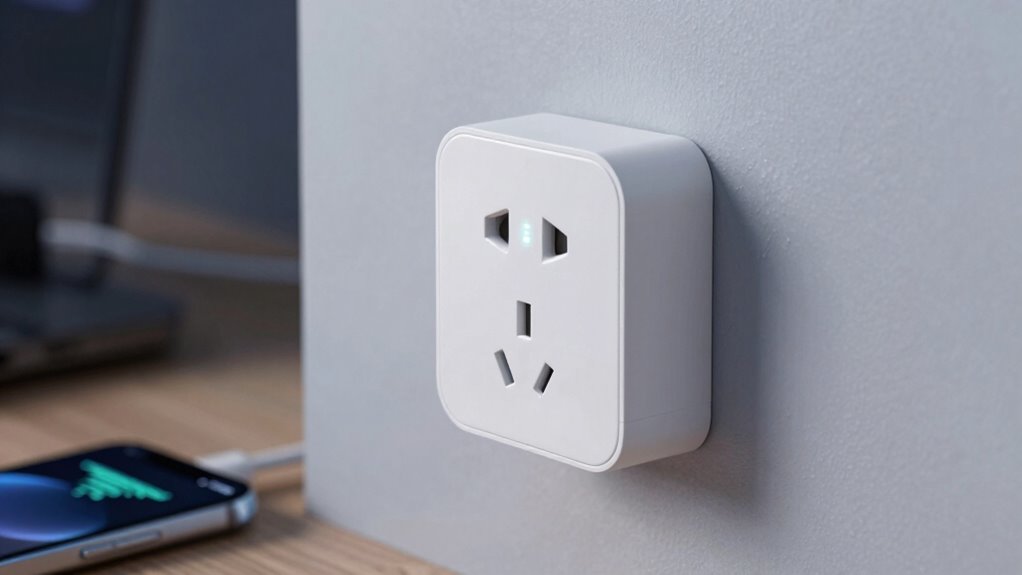
Smart plugs often disconnect because of issues with your Wi-Fi network or interference from other devices. One common cause is poor smart plug placement, which can weaken signal strength. Keep your smart plug close to your router or a Wi-Fi extender to improve connection stability. If your placement isn’t ideal, consider signal boosting techniques like adding a Wi-Fi range extender or repositioning your router. Avoid placing smart plugs behind large objects or in areas with thick walls, as these can block signals. Interference from other electronics, such as microwaves or cordless phones, can also cause disconnections. Ensuring your smart plug is in a spot with minimal interference and strong signal strength helps prevent disconnections, making your smart home more reliable. Additionally, checking your Wi-Fi network’s signal quality and upgrading your router if necessary can further stabilize your device connections. Improving network coverage throughout your home can also help prevent disconnections and ensure consistent operation. Regularly updating your firmware can also fix bugs that might cause instability. To further enhance stability, consider optimizing your Wi-Fi settings for better performance. Maintaining a clear and organized network can reduce signal interference, leading to more reliable connections.
As an affiliate, we earn on qualifying purchases.
How Do Smart Plugs Connect to Your Network?
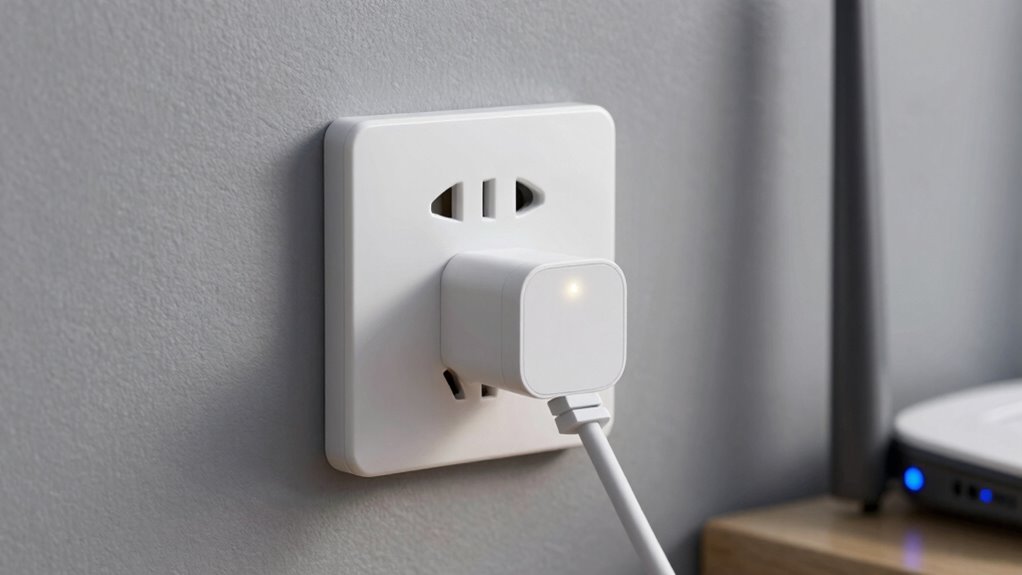
Ever wonder how your smart plug connects seamlessly to your home network? It typically uses Wi-Fi or sometimes Bluetooth, depending on the model. To guarantee smooth connection, your device must be compatible with your network’s standards. Here’s how it works:
Smart plugs connect via Wi-Fi or Bluetooth, ensuring compatibility for reliable, seamless operation at home.
- The smart plug scans for available networks and selects one it’s compatible with.
- You enter your Wi-Fi password to authenticate the device.
- Once connected, it communicates with your router to maintain a stable link.
- Proper setup helps monitor energy consumption and guarantees device compatibility for smooth operation.
- Ensuring your device understands digital safety standards can prevent disconnects caused by security settings. Additionally, verifying that your network’s hosting and VPS services are configured correctly can help maintain a reliable connection. Understanding your network’s compatibility standards can further improve stability.
As an affiliate, we earn on qualifying purchases.
Why Connectivity Issues Occur With Smart Plugs
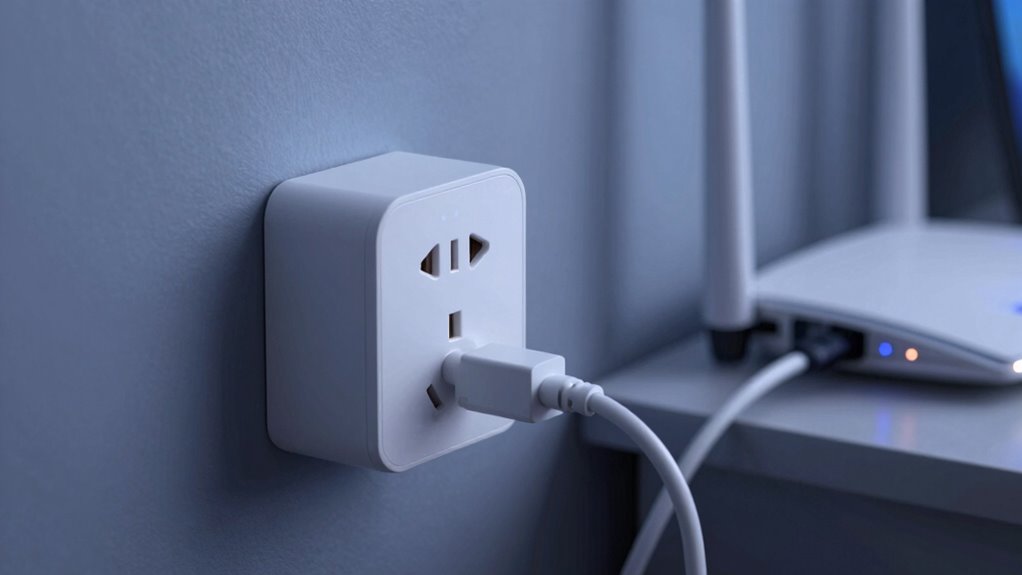
Connectivity issues with smart plugs often happen when your Wi-Fi signal is weak or unstable, making it difficult for the device to stay connected. If your smart plug isn’t compatible with your router or network setup, it can lead to frequent disconnections. Compatibility problems may arise from outdated firmware or using a smart plug designed for a different frequency band. Power surge effects can also cause connectivity hiccups, damaging the device’s internal components or resetting its settings. Sudden electrical surges might temporarily disrupt the smart plug’s connection or impair its ability to reconnect. Ensuring your smart plug is compatible with your network and protecting it from power surges can notably improve stability and reduce disconnection issues. Additionally, weak or unreliable Wi-Fi signals are a common cause of disconnections, especially in larger homes or buildings with thick walls. Proper placement of your router and signal strength can help mitigate these issues.
As an affiliate, we earn on qualifying purchases.
How Signal Interference Disrupts Your Smart Plug Connection
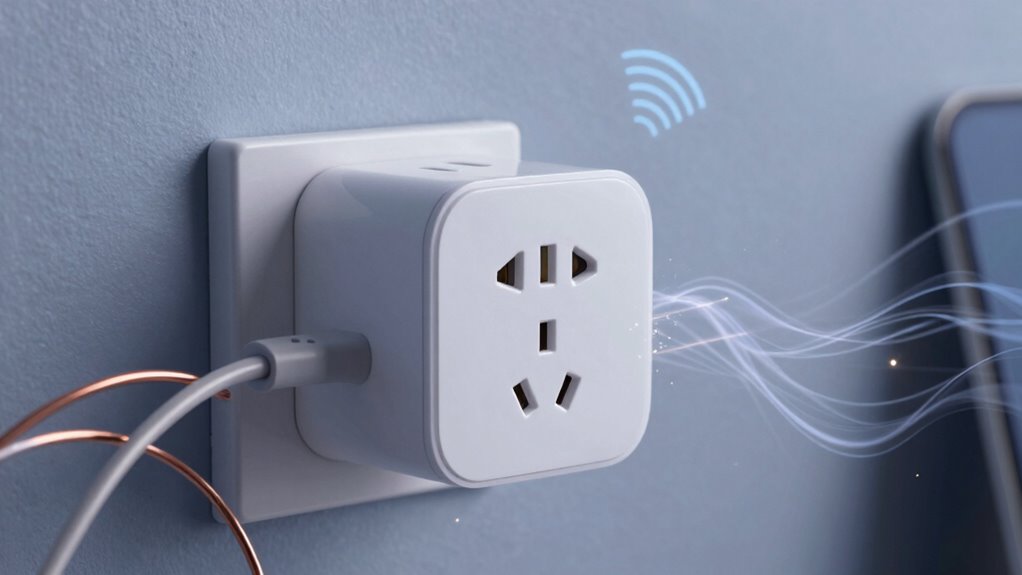
Have you noticed your smart plug disconnecting randomly even when your Wi-Fi signal seems strong? Wireless interference is often the culprit, causing signal disruption that affects your smart device’s connectivity. Interference can come from various sources, leading to unreliable performance. Here are four common disruptors:
- Other Wireless Devices: Bluetooth gadgets, cordless phones, or baby monitors can interfere with your Wi-Fi signals.
- Microwave Ovens: Operating on similar frequencies, they can cause temporary signal disruption.
- Neighboring Wi-Fi Networks: Overlapping channels from nearby routers create interference, especially in crowded areas.
- Physical Barriers: Thick walls, metal objects, and appliances can weaken signals, increasing chances of disconnection.
- Water-related Devices: Devices like hydrotherapy equipment or water parks using wireless tech can also contribute to signal interference.
Addressing these sources can help stabilize your smart plug connection by reducing wireless interference.
How to Optimize Your Wi-Fi Router for Stable Smart Plug Performance
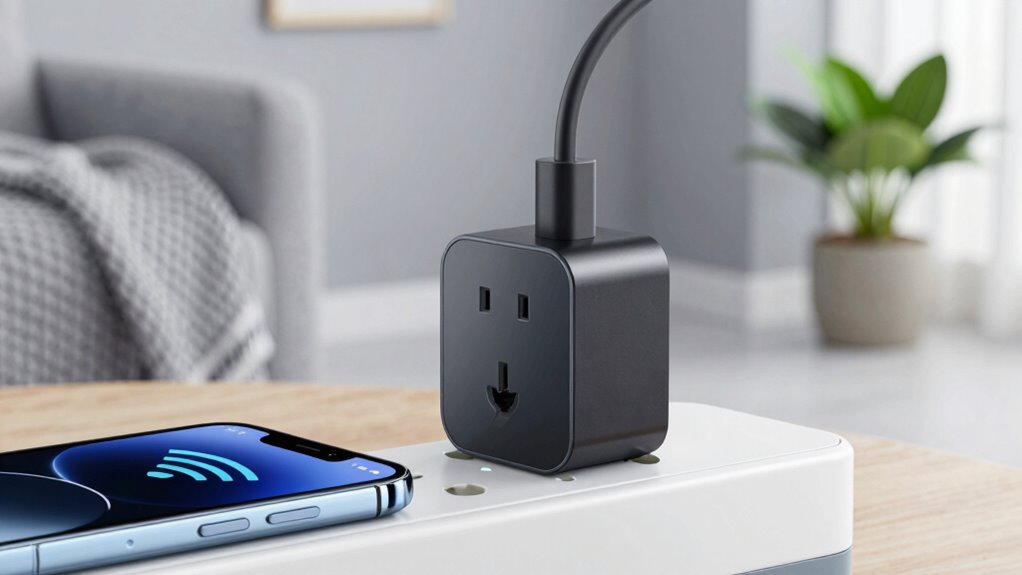
To improve your smart plug’s connection, start by placing your router in a central, open spot away from obstructions. Make sure your router’s firmware is up to date for peak performance, and consider switching to the 5GHz band for a faster, less congested connection. These steps can help guarantee your smart plugs stay reliably connected. Additionally, ensuring your Wi-Fi signal strength is robust can be influenced by network interference, which can disrupt device stability. Reviewing your router’s compatibility with your devices or considering recommended market solutions can further enhance connection stability. For optimal results, home network protocols should also be configured properly to minimize disruptions.
Position Router Strategically
Positioning your Wi-Fi router correctly is essential for ensuring your smart plugs stay connected without interruptions. A well-placed router improves signal strength and reduces dead zones, which enhances device compatibility and prevents disconnects. To optimize placement:
- Place the router in a central location, away from thick walls or metal objects.
- Elevate the router on a shelf or high surface for better coverage.
- Keep it away from electronic devices that cause interference, like microwaves.
- Avoid placing the router near windows or glass, which can weaken signals.
- Regularly monitor your Wi-Fi signal, adjusting the router’s position as needed to maintain optimal connectivity.
Additionally, if your smart plugs disconnect often, power cycling your router can help reset connections and improve stability. Proper placement combined with regular power cycling can markedly reduce disconnects and maintain a reliable network connection.
Update Router Firmware
Updating your router’s firmware is a crucial step in maintaining a stable connection for your smart plugs. Firmware updates improve device compatibility, ensuring your smart plugs work smoothly with your network. Outdated firmware can cause disconnections or slow performance, so regularly check your router manufacturer’s website for updates. Once you install a new firmware version, it’s helpful to power cycle your router—turn it off, wait a few seconds, then turn it back on—to refresh the connection. This process helps your router recognize new features and fix bugs that might disrupt device communication. Keeping your firmware current and performing power cycles when needed strengthens your network’s stability, reducing the chances of your smart plugs disconnecting unexpectedly. Additionally, updating firmware can address security vulnerabilities, protecting your entire smart home setup. Regular maintenance like firmware updates and network optimization ensures your smart home devices stay connected and function properly.
Use 5GHz Band
Switching your smart plugs to the 5GHz band can considerably boost their connection stability. Although many smart plugs are optimized for the 2.4GHz band, some newer models support 5GHz, which can reduce interference and improve performance. To maximize compatibility and stability, consider these steps:
- Check your smart plug’s compatibility with 5GHz networks before switching.
- Use a dual-band router that broadcasts both 2.4GHz and 5GHz signals simultaneously.
- Place your router closer to your smart plugs to ensure a strong, stable connection.
- Keep your router’s firmware updated to optimize energy consumption and network performance.
- Understand the frequency bands your devices operate on to make informed decisions about your network setup. Additionally, being aware of the interference sources in your environment can help improve overall connectivity.
Best Placement Tips for Your Smart Plug to Stay Connected
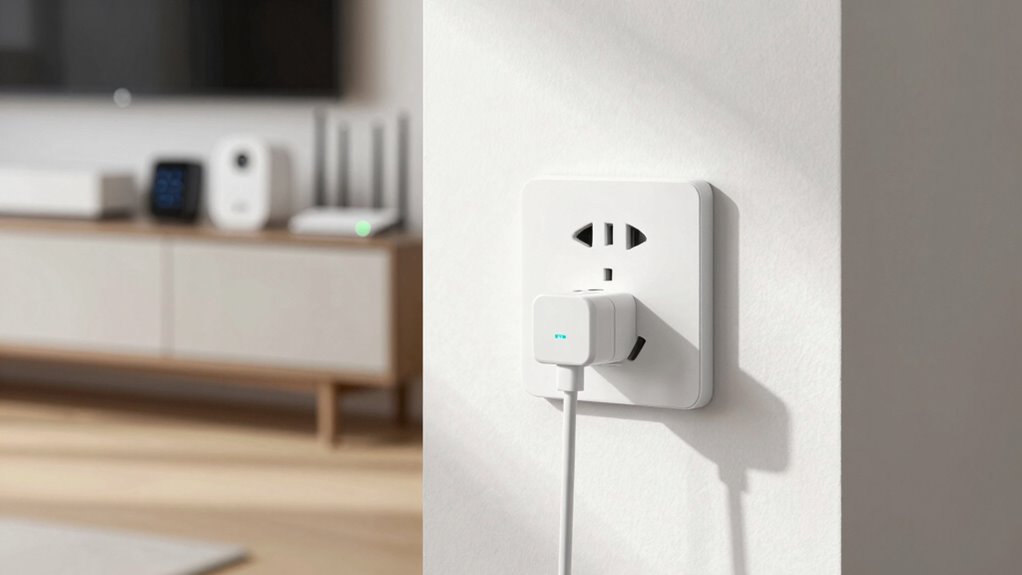
To guarantee your smart plug stays connected, place it in a central location away from obstructions and electronic interference. Good smart plug placement improves signal strength, reducing disconnects. Keep it elevated and clear of furniture, appliances, or walls that can block Wi-Fi signals. Avoid placing it near metal objects or thick walls, which weaken connectivity. Consider the placement of your router too—closer and more direct line-of-sight enhances signal strength. Use the table below for quick tips:
| Placement Tip | Why It Matters | Example |
|---|---|---|
| Central location | Maximizes coverage | Living room outlet |
| Elevated position | Reduces interference | On a shelf |
| Away from electronic devices | Minimizes interference | Not near microwaves |
| Clear of obstructions | Improves signal strength | No furniture in front |
| Close to router | Boosts connectivity | Within 10 feet |
How Firmware and App Updates Improve Connection Reliability

Keeping your smart plug in the right spot is just one part of maintaining a reliable connection. Regular firmware updates are essential because they fix bugs, improve stability, and enhance security, reducing disconnects. Additionally, updating your app guarantees compatibility with the latest firmware and device features, preventing communication issues. Ensuring your device has proper network setup can also significantly improve connection stability. Being aware of firmware support and updates can help you choose devices that are more likely to stay connected over time. Monitoring toilet flushing mechanisms and avoiding improper disposal practices can also prevent plumbing issues that might interfere with your home’s overall systems, including smart devices. Staying informed about network security can further protect your smart home from potential vulnerabilities that could disrupt device connectivity.
To maximize stability, consider these steps:
- Keep your smart plug’s firmware up to date through the app’s update feature.
- Regularly check for app updates to ensure compatibility.
- Enable automatic updates if available, so you don’t miss critical improvements.
- Follow manufacturer recommendations for firmware and app versions to prevent conflicts.
- Using product roundups can help you select reliable smart plugs with better firmware support.
Staying current with updates helps your smart plug communicate smoothly and reduces random disconnects, ensuring a more reliable smart home experience.
Troubleshooting Wi-Fi Connection Problems With Your Smart Plug
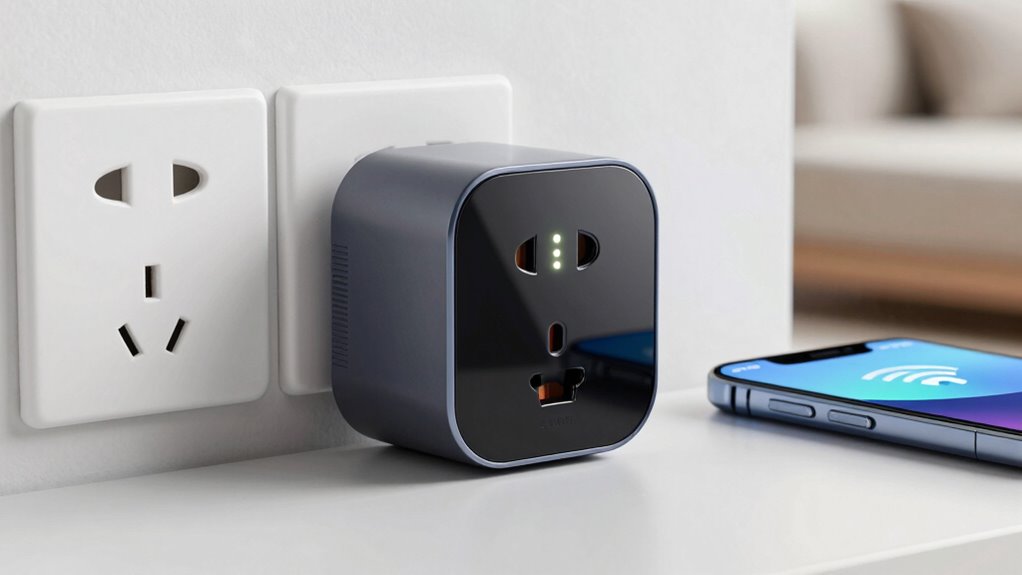
Wi-Fi connection problems are a common cause of smart plug disconnects, and troubleshooting them can quickly restore reliable operation. Start by checking your smart plug’s placement; it should be close to your Wi-Fi router, avoiding thick walls or metal objects that block signals. Confirm your Wi-Fi network is stable and functioning properly. Also, verify user device compatibility—your smartphone or tablet should meet the smart plug’s requirements and be connected to the same Wi-Fi network. Restart your router and reconnect the smart plug to refresh the connection. Sometimes, simply moving the plug to a better location or updating your device’s firmware can solve connectivity issues. Proper placement and compatible devices are key to maintaining a steady, reliable connection. Additionally, understanding your Wi-Fi network’s capabilities can help you optimize your setup for better stability.
Prevent Future Disconnections: Easy Network Management Tips
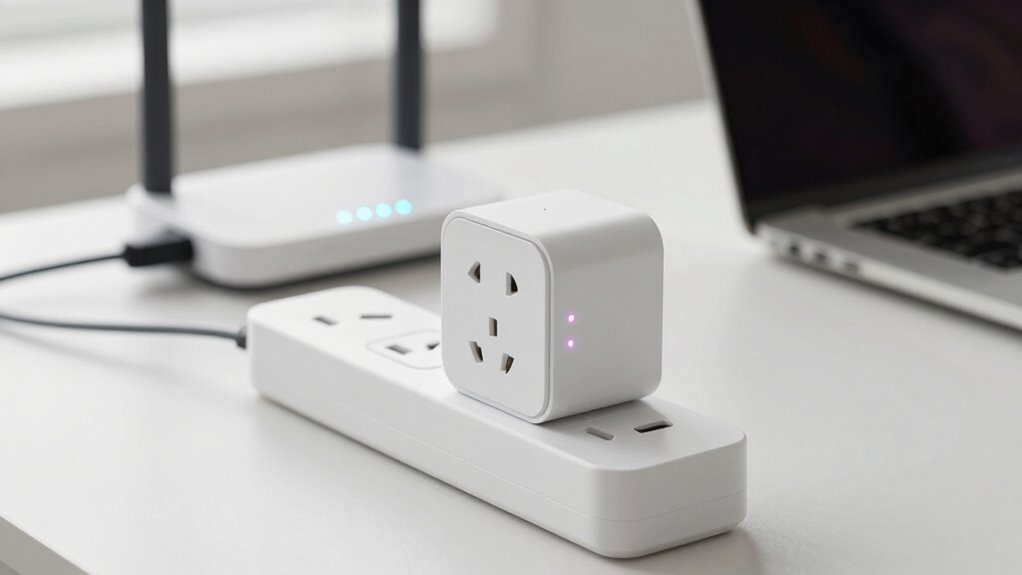
Regularly managing your network settings can considerably reduce the chances of smart plugs disconnecting in the future. Good network management helps guarantee your smart home automation runs smoothly and energy efficiency is maximized. To improve stability, consider these tips:
- Keep your router firmware updated to support seamless connectivity.
- Assign static IP addresses to your smart plugs for consistent network access.
- Limit the number of devices connected to your Wi-Fi to prevent congestion.
- Place your router in a central location to enhance signal strength across your home.
When to Seek Help for Persistent Smart Plug Connectivity Issues

Although smart plugs are generally reliable, persistent connectivity problems can be frustrating and disrupt your smart home routine. If troubleshooting steps like resetting or updating firmware don’t resolve the issue, it’s time to seek help. Contact customer support for expert advice tailored to your specific device. They can often diagnose underlying problems or guide you through advanced fixes. If your smart plug is still under warranty, consider filing warranty claims to replace or repair the defective unit. Don’t delay seeking assistance if connectivity issues persist, as ongoing problems could indicate hardware failure or compatibility issues needing professional intervention. Addressing these problems promptly guarantees your smart home remains seamless and functional.
Frequently Asked Questions
Can Multiple Smart Plugs Cause Wi-Fi Congestion?
Yes, multiple smart plugs can cause Wi-Fi congestion, especially if they’re all competing for the same bandwidth. Wireless interference from numerous devices can lead to signal congestion, making your Wi-Fi less stable. To reduce this, try limiting the number of active smart plugs, use a less congested Wi-Fi channel, or upgrade your router. This helps improve signal quality and prevents frequent disconnections caused by congestion.
Do Smart Plugs Work With All Wi-Fi Routers?
Smart plugs don’t work with all Wi-Fi routers, as device compatibility varies. Check if your router supports the necessary Wi-Fi standards, like 2.4 GHz, which most smart plugs require. Network interference from other devices can also disrupt signals, causing disconnects. To guarantee smooth operation, verify compatibility before purchasing and minimize interference by reducing crowded Wi-Fi channels. This helps your smart plugs stay connected and function reliably.
How Does Distance Affect Smart Plug Connectivity?
Think of your smart plug’s signal like a messenger pigeon—distance weakens its message. As you move farther, signal interference from walls or other devices increases, disrupting connectivity. To keep your smart plug stable, guarantee firmware updates are current and place it closer to your Wi-Fi router. The closer you are, the stronger the connection, preventing random disconnects and keeping your smart home running smoothly.
Are There Specific Smart Plug Brands More Prone to Disconnection?
Some smart plug brands are more prone to disconnection due to inconsistent reliability and less frequent firmware updates. Brands with strong reliability tend to maintain stable connections, so you should choose reputable ones like TP-Link or Belkin. Regular firmware updates help fix bugs and improve stability, reducing disconnections. If your smart plug disconnects often, consider switching brands with better reliability and guarantee it’s always updated to the latest firmware.
Can Power Outages Permanently Affect Smart Plug Performance?
Power outages can temporarily disrupt your smart plug’s performance, but they won’t cause permanent damage. When power returns, firmware updates often help restore stability and fix bugs. However, power surges during outages can harm internal components, leading to ongoing issues. To protect your smart plug, use surge protectors and keep firmware updated. Regularly checking for updates and safeguarding against surges keeps your smart devices reliable and running smoothly.
Conclusion
If your smart plugs keep disconnecting, it’s likely due to signal interference or weak Wi-Fi signals, not just faulty devices. Notably, some experts suggest that smart plugs may disconnect more often during peak internet usage times, as network congestion increases. By optimizing your Wi-Fi setup and keeping firmware updated, you can greatly improve stability. Remember, persistent issues might be a sign to consult a professional, ensuring your smart home runs smoothly and reliably.
Halloween Picks
halloween
As an affiliate, we earn on qualifying purchases.