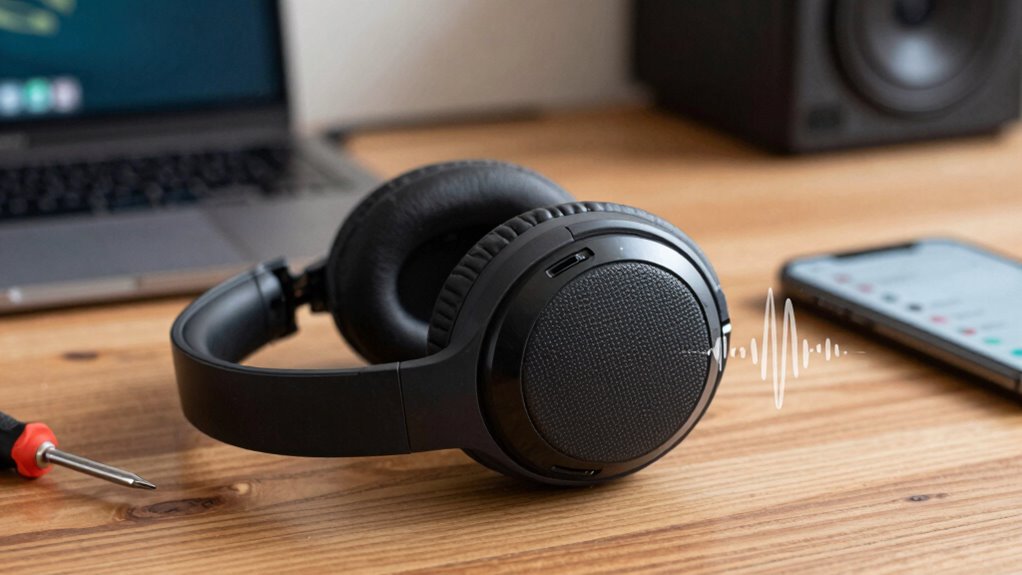
To fix crackling audio on your Bluetooth headphones, start by ensuring they’re within close range and free from interference from Wi-Fi or other devices. Check your device and app settings, turning off any audio enhancements or optimizing profiles. Update your headphone firmware and device drivers for better performance. Try connecting to a different device or switch to a wired connection for testing. Keep these tips in mind to improve sound quality and discover more solutions along the way.

Get the latest gadgets delivered free with Prime
- Fast, free delivery on millions of items
- Prime Video, Amazon Music and more included
- Member-only deals all year
Key Takeaways
- Keep headphones within 10 feet of your device and ensure a clear line of sight to reduce signal interference.
- Restart both your headphones and device after updates to reset connections and improve stability.
- Update your headphone firmware and device drivers to fix known issues and enhance compatibility.
- Avoid interference from Wi-Fi, microwaves, and other wireless devices by maintaining distance or changing channels.
- Test with different devices and connection methods to identify if the issue is hardware or source-related.
Products Worth Considering

Sony WH-1000XM6 Wireless Noise-Canceling Over-Ear Headphones, Blue, Bundle

Sony WH-1000XM4C Wireless Noise-Cancelling Headphones, Black

Bose QuietComfort Headphones (2nd Gen), Wireless Noise-Cancelling Over-Ear Headphones, Eucalyptus Green
As an affiliate, we earn on qualifying purchases.
Why Are My Bluetooth Headphones Crackling?
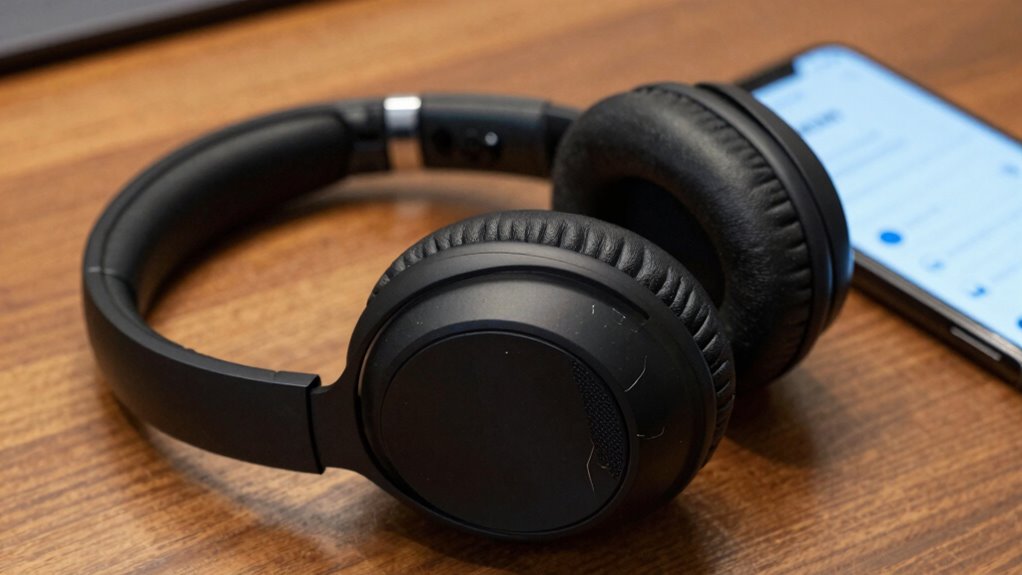
Have you ever wondered why your Bluetooth headphones suddenly start crackling? Poor audio quality often causes this issue, and it’s frustrating when your sound cuts out unexpectedly. One reason might be that your headphones aren’t durable enough to handle regular use, leading to connection problems or internal damage. Over time, wear and tear can weaken the internal components, disrupting the audio signal. Also, if your headphones have exposed wiring or loose parts, they’re more prone to crackling sounds. Low-quality materials or manufacturing flaws can also reduce headphone durability, making crackling more frequent. To improve your listening experience, consider investing in headphones with better build quality. Regular maintenance and gentle handling can help preserve both audio quality and the longevity of your headphones. Additionally, understanding technology specifications like build materials and component quality can help you choose more durable options. Being aware of potential wear and tear issues can help you catch problems early before they affect sound quality. Proper care and maintenance can extend the lifespan of your headphones and ensure consistent audio performance. Incorporating headphones with robust construction can significantly reduce the chances of crackling caused by internal damage. Moreover, choosing headphones with quality internal components can further minimize the risk of audio disruptions.
Find and Minimize Bluetooth Interference
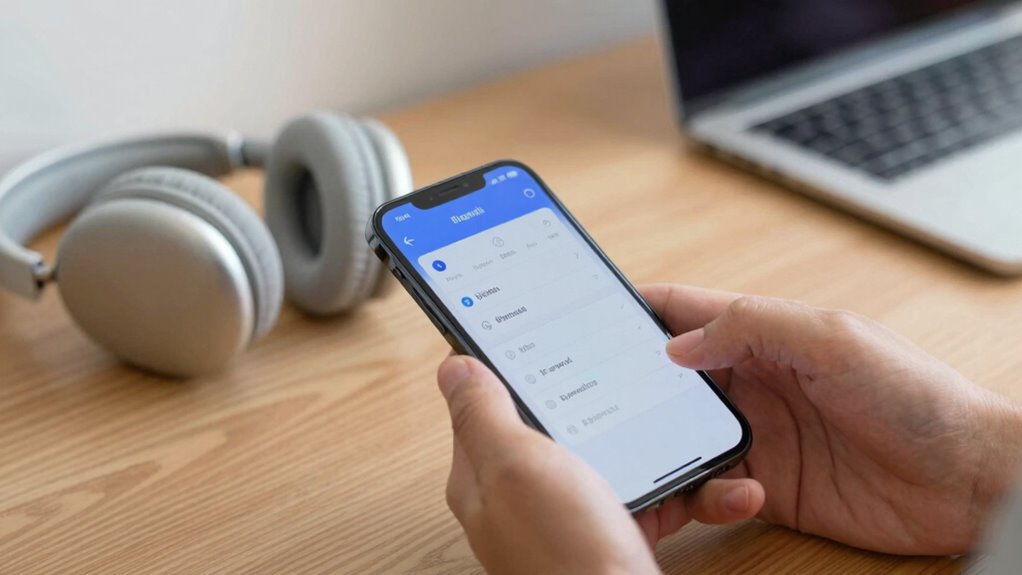
Bluetooth interference is a common cause of crackling audio, especially in environments crowded with wireless devices. To improve your wireless signal, you need to identify and reduce potential sources of interference. First, move away from other wireless gadgets like Wi-Fi routers, cordless phones, or microwaves, which can disrupt the Bluetooth signal. Second, keep your headphones and device within a close range, ideally within 10 feet, to minimize environmental factors that weaken the connection. Third, consider switching to a different Bluetooth channel or frequency if your device allows, as this can help avoid crowded frequencies. Additionally, maintaining a clutter-free space with minimal wireless device congestion can significantly enhance signal stability. Being aware of how Bluetooth frequencies operate can help you choose optimal settings for better performance. Understanding radio frequency interference and its effects can further aid in troubleshooting connection issues. Recognizing interference sources in your environment can help you take more targeted steps to improve signal quality. Moreover, understanding how wireless spectrum management works can assist in optimizing your setup for fewer disruptions. By reducing environmental factors and positioning your devices strategically, you can substantially diminish interference and enjoy clearer audio.
Check and Adjust Your Device and App Settings
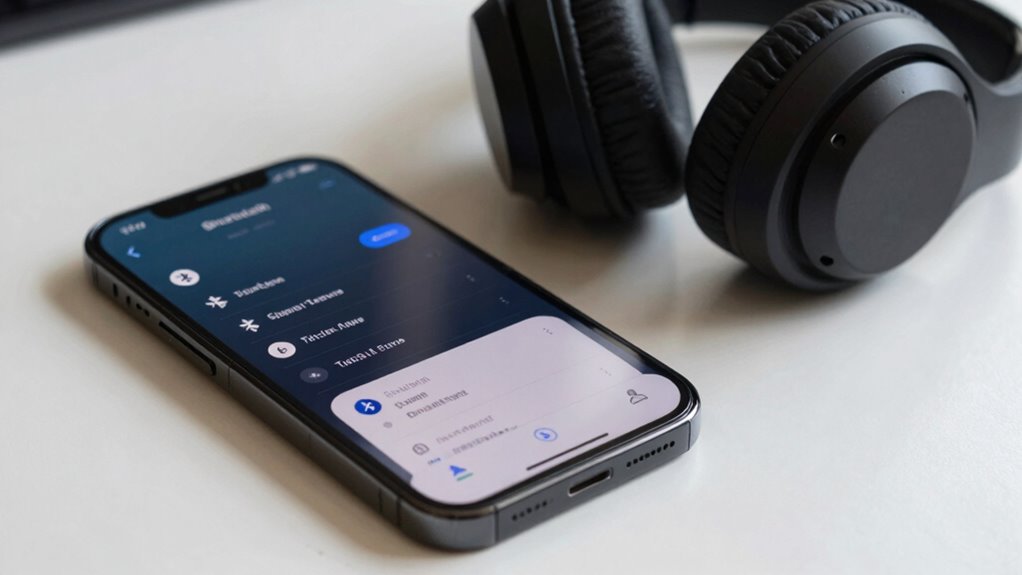
Sometimes, audio issues stem from configurations on your device or within the app you’re using, rather than the headphones themselves. Check your device’s audio enhancement features, as they can sometimes cause crackling. Adjust app-specific settings like volume levels or equalizer options to see if that improves sound quality. Also, make sure battery optimization isn’t restricting background activity, which can affect audio performance. Use the table below to review common settings:
| Setting | Impact on Audio | Recommended Action |
|---|---|---|
| Audio Enhancement | Can introduce noise or crackle | Disable or tweak if causing issues |
| Battery Optimization | May limit app functions | Turn off for music apps |
| Equalizer Settings | Affect sound clarity | Reset to default |
| App Permissions | Impact audio routing | Ensure proper permissions |
| Device Volume | Could cause distortion | Keep at moderate levels |
Additionally, checking audio routing settings can help ensure sound is directed correctly to your headphones. For optimal performance, ensure your device’s Bluetooth connection is stable and free from interference. Monitoring Bluetooth profiles can also improve audio quality by ensuring the correct profile is active for your headphones. Regularly updating your device’s firmware can also prevent connection issues that may cause crackling or dropouts. To further improve stability, consider turning off unnecessary wireless connections when using your headphones.
Update Firmware and Drivers to Fix Sound Issues

Updating your firmware and drivers is a crucial step in resolving crackling audio issues, as outdated software can cause compatibility problems and disrupt sound quality. Ensuring firmware compatibility between your headphones and device helps prevent signal interruptions. Similarly, driver updates keep your system optimized for current hardware, reducing audio glitches. Incorporating outdoor features like fire pits or landscaping can also enhance your overall setup, ensuring a more enjoyable listening environment. To do this:
- Check your headphone manufacturer’s website for firmware updates and follow their instructions.
- Visit your computer or device manufacturer’s support page to download the latest drivers.
- Use device management tools to verify the updates are installed correctly and restart your device. Regularly updating your firmware and drivers is essential for digital content and maintaining optimal audio performance. Staying informed about software compatibility can help prevent future issues and improve your overall user experience. Additionally, understanding life vest advisors can provide insights into managing cryptocurrency investments that may someday fund your tech upgrades.
Test With Different Devices and Connection Methods
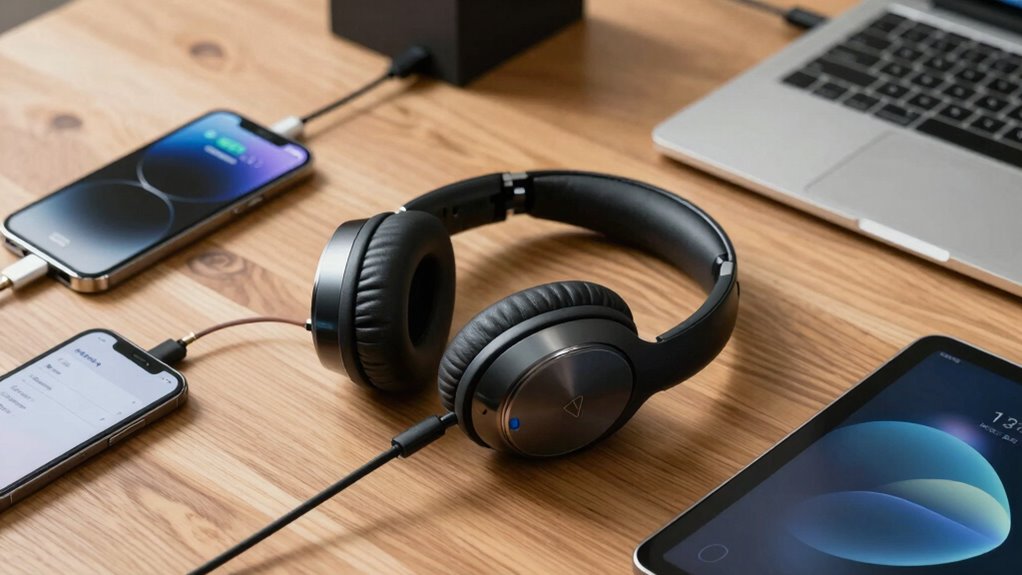
To identify whether the crackling audio issue is specific to a device or the headphones themselves, try connecting your headphones to different devices, such as another smartphone, tablet, or computer. This helps determine if the problem lies with the device, connection, or the headphones. Also, test with different connection methods, like switching from Bluetooth to an audio cable if possible. Pay attention to the headphone fit, as a loose fit can cause audio issues. If the crackling persists across devices, your headphones may need repair. If it only happens on one device, focus on that device’s Bluetooth settings or interference. Different devices and connection methods reveal where the problem originates. Additionally, consider regulatory and environmental considerations, as these can impact Bluetooth performance and audio quality. Ensuring that your environment is free from wireless interference can significantly improve connection stability and sound clarity. Being aware of Bluetooth specifications can help you understand compatibility and potential limitations. Checking for firmware updates on your headphones can also resolve known issues and improve overall performance. It’s also helpful to review device compatibility to ensure your headphones are fully supported by your devices.
Frequently Asked Questions
Can Software Conflicts Cause Bluetooth Audio Crackling?
Yes, software conflicts can cause Bluetooth audio crackling. When your device has outdated software updates, it might conflict with Bluetooth functions, leading to audio issues. Additionally, Bluetooth interference from other devices or wireless signals can worsen the crackling sound. To fix this, verify your device’s software is current, and minimize Bluetooth interference by turning off other wireless devices nearby. This helps improve connection stability and eliminates crackling.
How Does Battery Level Affect Audio Quality?
Low battery levels can cause your Bluetooth headphones to deliver poorer audio quality because they struggle with power maintenance and performance. As the battery drains, the headphones may reduce output or introduce noise, including crackling sounds. To prevent this, keep your device charged and enable power optimization features, which help maintain consistent audio quality by ensuring your headphones receive adequate power and reduce interference caused by low battery levels.
Do Bluetooth Codec Settings Impact Sound Clarity?
Yes, Bluetooth codec settings profoundly impact sound clarity. When you select a higher-quality codec like aptX or AAC, it allows better audio compression, resulting in clearer, richer sound. However, your device and headphones must be codec-compatible; otherwise, they’ll default to a lower-quality option, causing potential audio issues. Ensuring compatible codecs and choosing the best available setting can remarkably improve your listening experience by reducing compression artifacts.
Is Environmental Noise Affecting Headphone Performance?
Environmental noise can definitely affect your headphone performance like static in a radio. Background noise and external interference disrupt the Bluetooth connection, causing crackling or audio cutouts. To improve sound clarity, try reducing background noise, moving away from electronic devices, or resetting your headphones. Keeping your environment quiet helps maintain a stable connection, ensuring your listening experience stays smooth and your audio remains crystal clear.
Can Physical Damage to Headphones Cause Crackling?
Physical damage to your headphones can definitely cause crackling, affecting their durability and performance. If the internal components or wiring get damaged, it disrupts the audio signal, leading to crackling sounds. You might notice this after dropping or mishandling your headphones. To fix this, check for visible damage or loose parts. Repair or replace damaged components to restore sound quality and make sure your headphones’ durability.
Conclusion
Just as a skilled conductor guarantees harmony among musicians, taking these steps can restore the symphony of sound in your Bluetooth headphones. By minimizing interference, adjusting settings, updating firmware, and testing connections, you’re orchestrating a seamless listening experience. Remember, even in the most complex compositions, clarity emerges through patience and precision—so don’t despair. With a little effort, your audio world can return to its melodious, crackle-free glory, echoing the timeless pursuit of perfection.