If your Wi-Fi keeps disconnecting, the most common culprit is your device’s power saving mode. When enabled, it reduces Wi-Fi activity to conserve energy, causing drops in connection. Disable power saving mode in your device’s network settings for a more stable connection. Ensuring your router is properly configured and free from interference also helps. To discover more effective solutions and prevent future issues, take a closer look at the key settings involved.
Key Takeaways
- Disable power saving mode on your device to prevent Wi-Fi from reducing activity and disconnecting.
- Update your router firmware regularly to fix bugs that may cause disconnections.
- Change the Wi-Fi channel to reduce interference from neighboring networks and electronics.
- Ensure your device supports the current Wi-Fi standards used by your router.
- Properly configure security settings to prevent connection issues caused by misconfigured policies.

TP-Link AX1800 WiFi 6 Router (Archer AX21) – Dual Band Wireless Internet, Gigabit, Easy Mesh, Works with Alexa – A Certified for Humans Device, Free Expert Support
VPN SERVER: Archer AX21 Supports both Open VPN Server and PPTP VPN Server
As an affiliate, we earn on qualifying purchases.
As an affiliate, we earn on qualifying purchases.
Why Does My Wi‑Fi Keep Dropping?

Have you ever wondered why your Wi-Fi connection keeps dropping unexpectedly? One common reason is network security settings that block or limit devices, causing disconnections. If your router’s security protocols aren’t compatible with your device, it may struggle to stay connected. Device compatibility issues also play a role; older devices might not support the latest Wi-Fi standards, leading to frequent drops. Additionally, overly strict security settings can interfere with your connection, especially if they’re not configured correctly. Ensuring your router’s security is balanced between protection and accessibility helps maintain a stable connection. Compatibility problems can be resolved by updating device firmware or choosing a router that supports all your devices. Understanding these factors helps you troubleshoot why your Wi-Fi keeps disconnecting. Proper security settings impact overall network performance and can make a significant difference in maintaining a reliable connection. Paying attention to Wi-Fi standards support can also prevent compatibility issues and improve stability. Keeping your firmware updated is essential for maintaining network security and stability across devices, especially since outdated firmware can introduce security vulnerabilities that compromise your network.
TP-Link AX1800 WiFi 6 Router (Archer AX21) – Dual Band Wireless Internet, Gigabit, Easy Mesh, Works with Alexa – A Certified for Humans Device, Free Expert Support
VPN SERVER: Archer AX21 Supports both Open VPN Server and PPTP VPN Server
As an affiliate, we earn on qualifying purchases.
As an affiliate, we earn on qualifying purchases.
How Do I Find the Setting That Causes Disconnections?

To find the setting causing your Wi-Fi disconnections, start by accessing your router’s admin interface. Once logged in, look for options related to wireless settings or advanced configurations.
Access your router’s admin panel to troubleshoot Wi-Fi disconnection issues efficiently.
Here are three steps to identify the culprit:
- Check the channel settings—interference from nearby networks can cause disconnects, so try switching channels.
- Review bandwidth modes—ensure your router supports your device’s compatibility, like dual-band or AC standards.
- Inspect interference mitigation options—some routers have features to reduce network interference, which might be causing instability.
- Refer to essential DIY tools to ensure you have the right equipment on hand for troubleshooting and maintaining your network setup. Additionally, understanding digital concepts such as wireless signal optimization can help you better enhance network stability and improve overall performance.
Wi-Fi interference mitigation tools
As an affiliate, we earn on qualifying purchases.
As an affiliate, we earn on qualifying purchases.
How to Disable Power Saving Mode for a More Stable Wi‑Fi
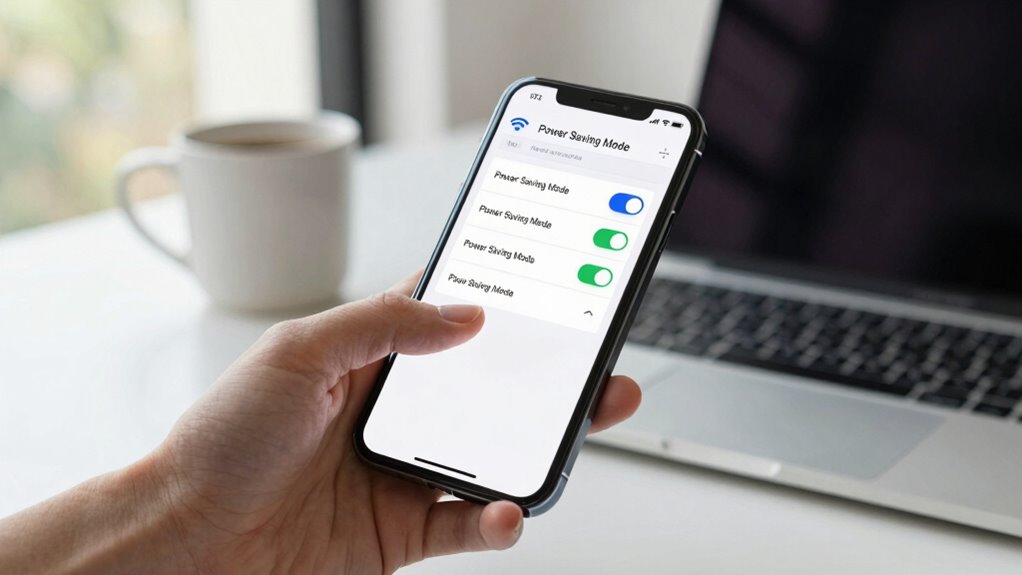
Wondering why your Wi-Fi connection keeps dropping even when your router seems fine? One common culprit is power saving mode. Devices often enable this setting to conserve battery, but it can reduce Wi-Fi performance and cause disconnections. To fix this, go into your device’s Wi-Fi or network settings and disable power saving mode. Keep in mind, device compatibility varies, so steps might differ slightly. Turning off this feature prevents your device from reducing Wi-Fi activity to save power, which can help stabilize your connection. Also, be aware of signal interference from other electronics or nearby networks, which can compound disconnection issues. Disabling power saving mode guarantees your device maintains a stronger, more consistent Wi-Fi connection, especially in environments with potential signal interference, which can be worsened by certain electronic devices. Additionally, understanding how Gold IRA markets operate can help you make better investment decisions if you’re considering diversifying your assets. A deeper understanding of network settings can also aid in troubleshooting persistent Wi-Fi problems.

5G WiFi Analyzer, 2.4G Signal Strength Meter, Network Analyzer with 2.4 Inch TFT Color Screen and Light Indication – Rechargeable Battery, Type C Charging, Ideal for WiFi Optimization
[Wifi Signal Strength Meter]: Easily identify crowded frequency points and switch to clearer channels to boost your Wi-Fi…
As an affiliate, we earn on qualifying purchases.
As an affiliate, we earn on qualifying purchases.
Tips to Improve Wi‑Fi Speed and Reliability
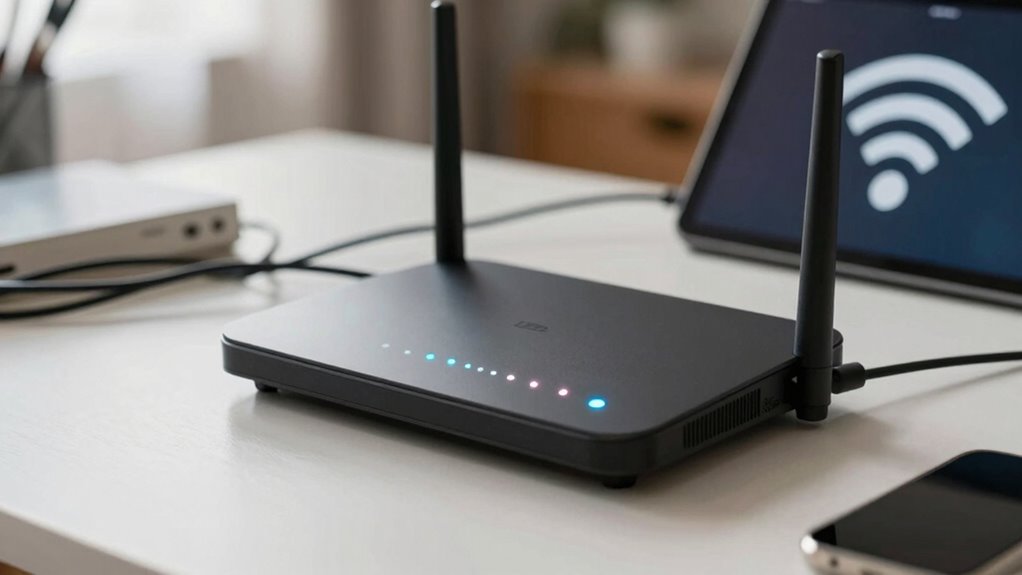
If you want a faster and more reliable Wi-Fi connection, there are several practical steps you can take. First, ensure your device is compatible with your router’s standards, like Wi-Fi 5 or Wi-Fi 6, for peak performance. Next, reduce signal interference by keeping your router away from thick walls, microwaves, or cordless phones that can disrupt the connection. Finally, position your router centrally in your home to maximize coverage. You can also update your router’s firmware regularly to improve speed and reliability. Using these tips, you’ll minimize compatibility issues and signal interference, resulting in a smoother Wi-Fi experience. Remember, a well-placed router and compatible devices are key to achieving faster speeds and consistent connectivity. Maintaining your network’s security through privacy policies can also help prevent unauthorized access that might slow down your connection.
Common Mistakes That Make Wi‑Fi Dropouts Worse

While optimizing your Wi-Fi setup can improve performance, certain common mistakes can actually worsen dropouts and connectivity issues. One mistake is ignoring interference sources, like microwaves, Bluetooth devices, or neighboring Wi-Fi networks, which compete for the same spectrum. Another is overlooking device compatibility; older devices may struggle with newer routers, causing frequent disconnections. Placing your router near thick walls or metal objects can also intensify interference, degrading signal strength. Ensuring your network is protected by proper privacy and security practices can also prevent disruptions caused by unauthorized access. Additionally, understanding Wi-Fi interference sources and how to minimize them can significantly enhance your connection stability. Being aware of electromagnetic interference from household appliances can further help prevent signal disruptions.
When Should I Upgrade My Router or Internet Plan?
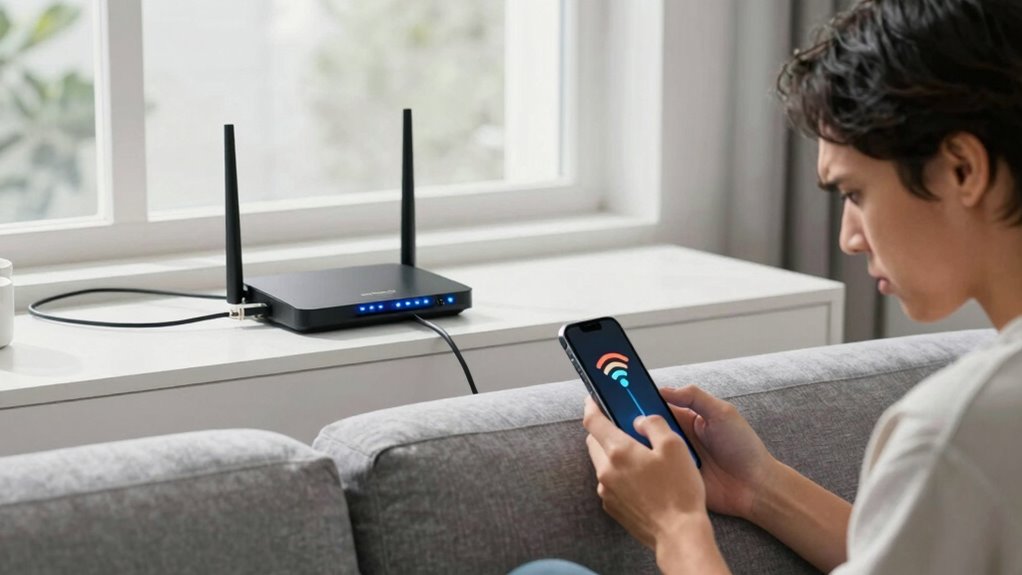
Knowing when to upgrade your router or internet plan can greatly improve your Wi-Fi experience. If you notice frequent disconnects, slow speeds during peak hours, or your devices struggle to stay connected, it’s probably time. Consider these signs:
- Your network experiences constant congestion during busy times, causing lag and drops.
- New devices can’t connect or work properly because your current router isn’t compatible or powerful enough.
- You’ve upgraded your devices but still face slow speeds or unreliable connections. Upgrading your equipment or plan can help address these issues.
- Staying informed about US tax law changes can help you plan your budget for these upgrades effectively. Additionally, understanding enterprise governance for AI agents can ensure your network security remains robust even as you make updates.
- Ensuring your network hardware is up-to-date can prevent many common connectivity problems and improve overall performance. Regularly updating your network firmware is essential to maintaining optimal security and compatibility. Being aware of network standards can help you choose the right equipment for your needs.
- Updating helps reduce network congestion and ensures your router supports the latest device standards. If your current plan no longer meets your household’s needs, increasing your bandwidth can also boost overall performance. Making these updates prevents Wi-Fi frustrations before they get worse.
Frequently Asked Questions
Can Interference From Other Devices Cause Wi-Fi Disconnections?
Certainly, electromagnetic interference from your neighbor’s microwave or that overenthusiastic Bluetooth speaker can sabotage your Wi-Fi. Device congestion, with too many gadgets vying for the same airwaves, turns your network into a chaotic dance floor. Yes, interference from other devices causes disconnections, forcing you to question your tech choices. To restore harmony, reduce congestion and keep interference at bay. Or, just blame the universe’s cruel sense of humor.
How Do I Update My Router’s Firmware for Better Stability?
To update your router’s firmware for better stability, first check the manufacturer’s website for the latest firmware that’s compatible with your router model. Then, access your router’s settings via its IP address, usually found in the manual. Make certain proper router placement away from interference sources, and confirm firmware compatibility before updating. A firmware update can improve performance and reduce disconnections, making your Wi-Fi more reliable.
Is Using a Wi-Fi Extender a Good Solution for Dropouts?
Using a Wi-Fi extender can be a good solution if you’re battling spotty signal strength, but it’s not a magic fix. Extenders boost coverage, helping you avoid dead zones, but they can also amplify network congestion, causing more dropouts if too many devices connect. To get steady connections, make certain your extender is placed correctly and that your network isn’t overwhelmed. Sometimes, upgrading your router or managing device load works even better.
What Security Settings Can Affect Wi-Fi Connection Stability?
Security settings like password complexity and network encryption can impact your Wi-Fi connection stability. If your password is too complex, devices may struggle to connect reliably. Similarly, outdated or incompatible encryption protocols, like WEP instead of WPA3, can cause frequent disconnects. Make sure your network uses strong but manageable passwords and up-to-date encryption standards to maintain a stable connection. Adjusting these settings helps prevent drops and keeps your Wi-Fi running smoothly.
How Do I Check if My Modem Is Causing Wi-Fi Issues?
Your modem might be the culprit behind your Wi-Fi woes, and checking it is simple. First, look for signs of network congestion—multiple devices hogging bandwidth can weaken your signal. Then, assess the signal strength by connecting a device nearby and testing the connection. If speeds are sluggish or drops happen often, consider restarting your modem or replacing it, as outdated hardware can cause persistent Wi-Fi issues.
Conclusion
So, next time your Wi-Fi stubbornly drops, remember it’s often just one setting holding you hostage. Tackle those power-saving modes and avoid common pitfalls, and your connection will thank you. Think of your Wi-Fi as a delicate dance—each step matters. With a little tweak here and there, you’ll have a smoother, more reliable connection. After all, in the world of Wi-Fi, stability isn’t just a goal—it’s the rhythm that keeps everything moving.