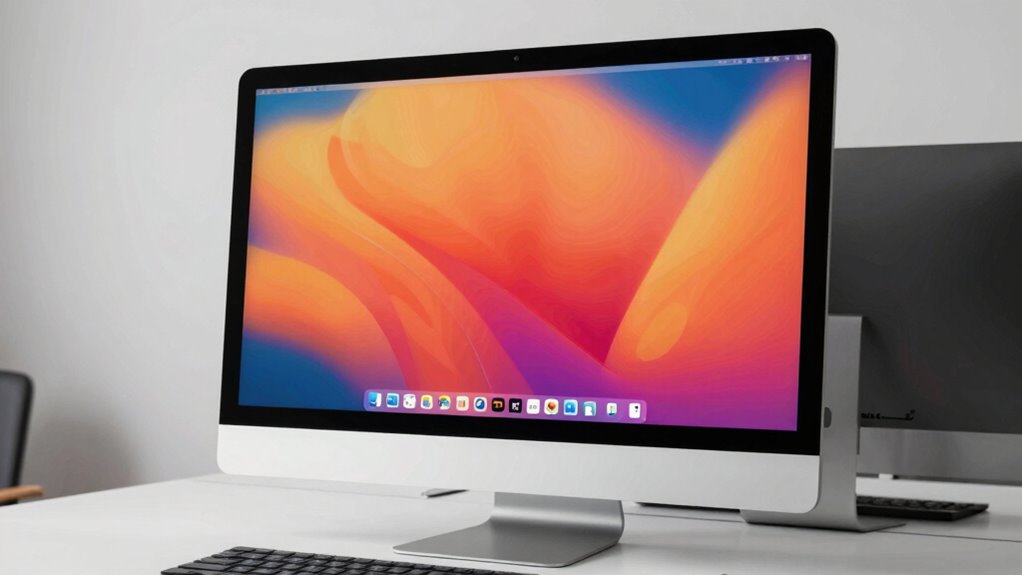

When you connect your Mac to an external monitor, scaling settings can cause text to look blurry or weird because macOS adjusts resolution and scaling to fit your display. If the resolution isn’t matched properly, or if scaling isn’t optimized for your hardware, images and text can become distorted or blurry. Choosing the right scaling option and calibrating your display can improve clarity. Keep exploring to learn how you can get sharp, natural-looking visuals.

Get the latest gadgets delivered free with Prime
- Fast, free delivery on millions of items
- Prime Video, Amazon Music and more included
- Member-only deals all year
Key Takeaways
- Incorrect scaling settings can cause text to appear blurry or pixelated on external monitors.
- Native resolution provides the clearest text, but improper scaling can soften or distort fonts.
- Non-Retina screens are more prone to blurry text due to lower pixel density and scaling artifacts.
- Mismatched display resolution and calibration issues can worsen text clarity problems.
- Adjusting macOS scaling options and ensuring hardware compatibility can improve text sharpness on external displays.
Mac external monitor calibration tools
As an affiliate, we earn on qualifying purchases.
As an affiliate, we earn on qualifying purchases.
How macOS Manages Display Scaling on External Monitors
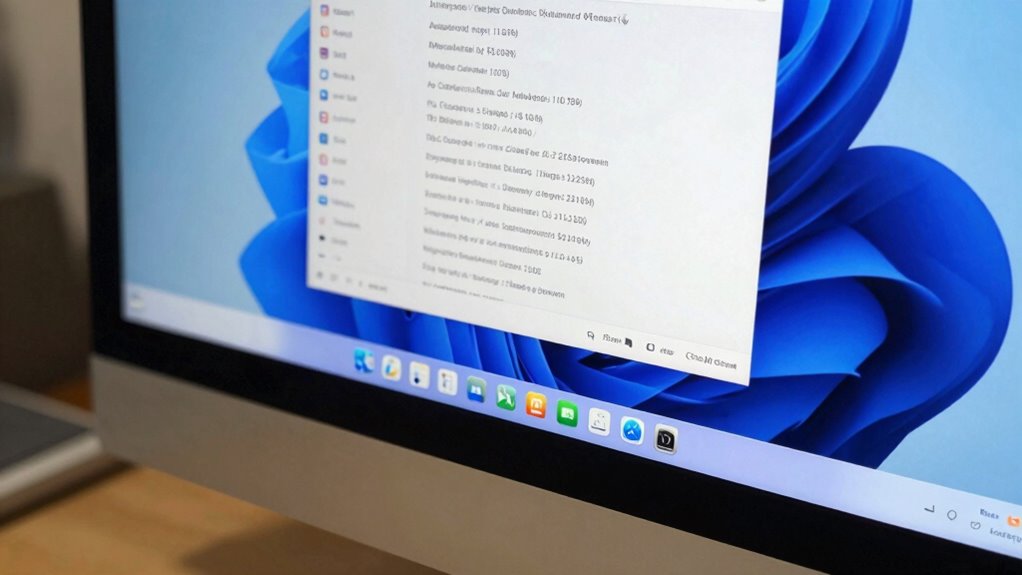
When you connect an external monitor to your Mac, macOS automatically detects the display and adjusts its settings to optimize your viewing experience. It manages display scaling by balancing clarity and readability, often choosing a resolution that suits the monitor’s native pixel count. You can customize this further by adjusting color calibration, ensuring accurate colors for your work or entertainment. Additionally, macOS considers the refresh rate to deliver smooth visuals, especially important for gaming or video editing. While the system handles most settings automatically, you can fine-tune scaling options to make text sharper or images more detailed. These adjustments help prevent weird-looking text or blurry images, giving you a seamless, high-quality display experience tailored to your external monitor’s capabilities. Understanding display scaling can help you troubleshoot and optimize your setup even further. Properly managing visual clarity ensures that your display remains sharp and comfortable for prolonged use. For example, adjusting the resolution settings can help accommodate different monitor types, such as those with higher or lower pixel densities. Being aware of color accuracy can significantly improve your viewing experience, especially when working with detailed visuals or color-sensitive tasks. Recognizing how macOS handles display settings affects the overall quality can help you achieve a more consistent and satisfying visual experience.
As an affiliate, we earn on qualifying purchases.
Native vs. Scaled Resolutions Explained
Using your external monitor’s native resolution provides the clearest image, ensuring sharp text and detailed visuals. When you choose scaled resolutions, you might see some loss of clarity but gain in interface size or readability. Knowing when to switch between native and scaled settings helps you balance image quality with usability based on your needs. Additionally, understanding display resolution can help you optimize your setup for both clarity and comfort. Awareness of pixel density can further assist in making the best choice for your viewing experience. Being mindful of your monitor’s resolution settings can also help you avoid common display issues and improve overall visual performance. Recognizing the impact of scaling algorithms can enhance your understanding of how images are rendered at different resolutions. Being aware of how hardware limitations affect scaling can also help you troubleshoot display problems more effectively.
Native Resolution Benefits
Have you ever noticed how a display looks sharper and more detailed at its native resolution? That’s because screens are optimized for that specific pixel count, providing the best clarity and accuracy. When you use the native resolution, color calibration is more precise, ensuring colors appear true to life without distortion. Additionally, the refresh rate syncs perfectly with the display’s hardware, resulting in smoother visuals and less flickering. This consistency helps reduce eye strain and provides a more comfortable viewing experience. Using your monitor at its native resolution also means you avoid scaling artifacts that can blur or distort images and text. scaling artifacts can sometimes introduce unwanted blurriness or pixelation, which native resolution helps to eliminate. Moreover, display scaling techniques can sometimes cause performance issues or visual inconsistencies if not properly managed. Understanding the importance of native resolution benefits and how they influence image quality can help you choose the best configuration for your needs. Proper calibration and monitor settings adjustments are essential for maximizing visual fidelity. Overall, sticking to the native resolution maximizes image clarity, color fidelity, and smooth performance, delivering the best visual quality your monitor can offer. Incorporating Display Optimization Techniques can further enhance your viewing experience.
Scaling Impact on Clarity
While native resolution delivers the sharpest images, scaling can affect clarity in noticeable ways. When you use scaled resolutions, images and text might appear slightly softer or less crisp because the display has to interpolate pixels to fit the scaled size. This process can cause a loss of fine detail, affecting overall clarity. Color calibration also plays a role; improper calibration can make scaled images look dull or washed out, further reducing perceived sharpness. Additionally, the refresh rate influences how smoothly scaled content appears—lower rates may cause flickering or motion blur, which impacts clarity during fast movements. Overall, native resolution maintains maximum clarity, but scaling introduces subtle compromises that can be noticeable depending on your display settings and usage.
When to Use Scaled
Choosing between native and scaled resolutions depends on your specific needs and how you use your external monitor. Use scaled resolution when you want larger text and icons, which can improve readability but may affect clarity. This setting is useful if you’re prioritizing comfort over pixel-perfect display, especially if your monitor’s color calibration isn’t ideal. Consider scaled mode if you need a higher refresh rate for smoother motion or want to fine-tune color accuracy. Keep in mind that scaling can sometimes cause text to look weird, especially at non-native resolutions. Evaluate whether your workflow benefits from sharper images or more accessible UI elements. Ultimately, your choice hinges on balancing visual clarity, refresh rate, and color calibration for the best experience.
As an affiliate, we earn on qualifying purchases.
Why Text Looks Blurry or Weird on External Displays
You might notice that text appears blurry or strange on your external display, especially if it’s non-Retina. This often happens because of how scaling settings affect rendering, making text less sharp or slightly distorted. Understanding the differences between Retina and non-Retina screens, along with how text is rendered, can help you improve clarity. Additionally, tax law updates can sometimes influence hardware and software features, indirectly impacting display performance and compatibility. Paying attention to watt-hours, capacity, selection when choosing a battery inverter generator can also ensure you have enough power to support your external monitor and prevent display issues caused by power inconsistencies. Recognizing the display resolution settings and their impact on scaling can further help optimize visual clarity on your external monitor. Being aware of display scaling options within your operating system can also significantly improve text sharpness and overall display quality. Moreover, understanding how software rendering interacts with different display types can further enhance visual output and prevent blurriness.
Retina vs. Non-Retina
When connecting a non-Retina external monitor to your Mac, you might notice that text appears blurry or oddly pixelated. Non-Retina displays have lower pixel densities, making crisp details harder to render. This affects how your Mac handles color calibration and refresh rate, impacting overall clarity. To improve text sharpness, verify your monitor’s settings align with your Mac’s native resolutions. Keep in mind:
- Non-Retina screens often lack the pixel density needed for smooth, clear text
- Color calibration differences can accentuate or reduce perceived blurriness
- Refresh rates influence how smoothly images and text update, affecting perception
- Scaling settings may not compensate effectively for lower pixel densities, leading to odd visual artifacts
- Additionally, microplastics in dust can settle on screens and affect visual clarity over time. Understanding display technology can help you better optimize your external display for clarity and performance, especially by exploring how pixel density impacts visual quality and how it relates to visual clarity.
Scaling Settings Impact
Scaling settings considerably influence how text appears on external displays, especially non-Retina screens. When scaling isn’t optimized, text can look blurry or pixelated, making it hard to read. The way your display handles color calibration and color profiles also impacts visual clarity. Incorrect profiles may cause color distortions, compounding the blurriness. To visualize, consider this table:
| Scaling Mode | Visual Effect | Best Use Case |
|---|---|---|
| Default | Accurate, but possible blurriness | Standard work, casual browsing |
| Scaled | Sharper text, potential color mismatch | Professional editing |
| Custom | Variable, depends on settings | Specific color calibration needs |
Adjusting these settings can help you find a balance between clarity and color accuracy, reducing weird text appearance. Additionally, understanding how visual clarity is affected by scaling can help optimize your display setup.
Text Rendering Differences
Have you ever noticed how text on an external display can appear blurry, pixelated, or oddly rendered even when everything seems properly configured? This issue often stems from differences in font rendering between macOS and the external monitor’s display calibration. Your Mac uses specific font smoothing techniques that may not translate well across different screens, causing text to look less sharp. Factors like resolution mismatch, improper display calibration, or suboptimal scaling settings can exacerbate this.
- Inconsistent pixel density affecting font smoothing
- Display calibration issues reducing clarity
- Scaling settings causing anti-aliasing problems
- Variations in font rendering algorithms across displays
Understanding these elements helps you troubleshoot and improve text clarity by adjusting display calibration or scaling options accordingly.
external monitor resolution enhancer
As an affiliate, we earn on qualifying purchases.
As an affiliate, we earn on qualifying purchases.
Troubleshooting Blurry or Unclear Text on Mac

If your Mac’s external monitor displays blurry or unclear text, it can be frustrating, but there are several troubleshooting steps you can take to resolve the issue. First, check your monitor’s color calibration to guarantee accurate color reproduction, which can affect text clarity. Adjusting the refresh rate might also improve sharpness; a higher refresh rate reduces flickering and enhances stability. Make sure your display settings are optimized for your specific monitor model, and verify that your cable connections are secure and compatible. Restart your Mac and monitor to reset temporary glitches. If text remains blurry, consider recalibrating the display or updating your graphics drivers. These steps can help sharpen text and improve overall display clarity.
How to Adjust Display Scaling for Better Clarity
Adjusting display scaling can considerably enhance the clarity of text and images on your external monitor. To enhance your display, start by fine-tuning the scaling options in System Preferences, selecting a setting that balances size and sharpness. Additionally, consider performing color calibration to ensure accurate hues, which improves overall clarity. Bezel correction can also help align the display edges, reducing distortion around the frame. Here are key steps:
Adjust display scaling and calibration for sharper, clearer visuals on your external monitor.
- Adjust scaling to reduce blurriness or pixelation
- Perform color calibration for sharper images
- Enable bezel correction to align display edges
- Experiment with different scaling options for maximum text clarity
These adjustments ensure your monitor displays crisp, clear visuals, minimizing weird text appearance and improving your overall viewing experience.
Choosing the Best Scaling Setting for Your Monitor
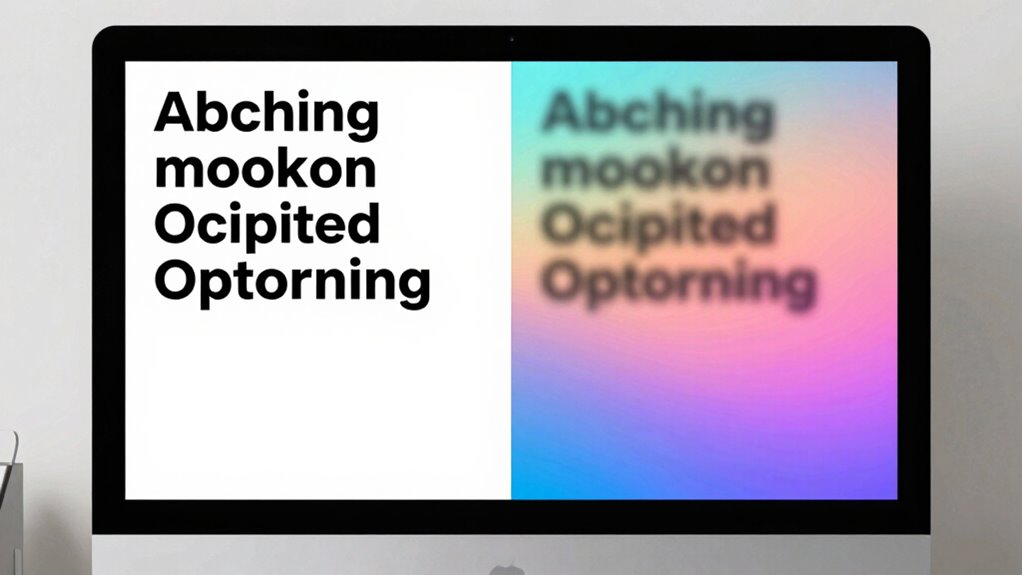
Choosing the best scaling setting for your monitor depends on finding the right balance between readability and screen real estate. To do this effectively, consider your color calibration needs, as proper calibration guarantees accurate colors and clearer text. Adjusting scaling can sometimes affect how colors appear, so test different settings to find what looks best. Additionally, pay attention to your monitor’s refresh rate; a higher refresh rate can improve visual stability, especially when scaling makes the screen appear sharper or more detailed. Experiment with different scaling options while monitoring how they impact color calibration and refresh rate performance. The goal is to enhance clarity without sacrificing color accuracy or smoothness, creating a comfortable viewing experience tailored to your preferences.
How Monitor Hardware and Resolution Affect macOS Scaling
Your monitor’s hardware and native resolution play a crucial role in how macOS scales content on your screen. A higher resolution provides sharper images but can make text appear smaller if scaling isn’t ideal. The hardware quality influences color calibration and refresh rate, affecting image clarity and fluidity. When your monitor has a low refresh rate, you may notice flickering or lag, impacting overall performance. Color calibration ensures that colors stay accurate, even after scaling adjustments. Keep in mind:
- Higher native resolution enhances sharpness but may require scaling for comfortable reading
- Poor hardware quality can cause inconsistent scaling and color inaccuracies
- Inadequate refresh rate impacts visual fluidity, especially during motion-heavy tasks
- Proper calibration ensures consistent color and brightness across different resolutions
Understanding these factors helps you tailor macOS scaling for a better display experience.
Tips to Keep Text Sharp and Readable on Any External Display

To keep text sharp and readable on any external display, you need to optimize your scaling settings and display configurations. Start by adjusting your display’s color calibration to ensure accurate color and contrast, which can reduce eye strain and improve clarity. Make sure your monitor’s resolution matches the recommended settings for your Mac to prevent blurriness or pixelation. An ergonomic setup also plays a vital role—position your monitor at eye level and at a comfortable distance to minimize fatigue. Additionally, consider using macOS’s display scaling options to find a balance between size and sharpness. Proper calibration and setup help maintain crisp text, making reading easier and reducing the visual anomalies caused by improper scaling or poor display quality.
Frequently Asked Questions
Can I Set Different Scaling Options for Multiple External Monitors?
Yes, you can set different scaling options for multiple external monitors on your Mac. Each monitor can have its own calibration and display color settings, allowing you to optimize text clarity and color accuracy individually. To do this, go to System Preferences > Displays, select each monitor, and customize resolution and scaling options. This way, you guarantee each screen looks perfect for your workflow, with tailored display calibration and color settings.
Does Using Third-Party Software Improve Scaling Quality on External Displays?
Using third-party software can improve scaling quality on external displays by offering better control over resolution and display settings. It can enhance color accuracy and optimize the refresh rate, resulting in sharper text and smoother visuals. You’ll notice less blurriness and more consistent display performance. However, verify the software is compatible with your Mac and monitor to avoid potential issues. Proper adjustments can considerably enhance your overall viewing experience.
How Does Resolution Affect Power Consumption on External Monitors?
When you change the resolution on your external monitor, it can impact power consumption—lower resolutions often use less energy because the display processes fewer pixels. However, factors like color calibration and refresh rate also play a role; a higher refresh rate can increase power use, while better color calibration doesn’t considerably affect energy. Adjusting resolution thoughtfully helps balance visual quality and power efficiency on your external display.
Is There a Way to Permanently Fix Blurry Text on My External Monitor?
Did you know that poor display calibration can cause up to 20% of visual discomfort? To fix blurry text permanently, you should calibrate your external monitor regularly and adjust display settings for maximum color accuracy. Use built-in calibration tools or third-party software to fine-tune sharpness and clarity. This guarantees text appears crisp and clear, reducing eye strain and improving your overall viewing experience on your Mac.
Do Newer Mac Models Handle External Monitor Scaling Better?
Yes, newer Mac models handle external monitor scaling better, thanks to improved macOS compatibility and advanced display calibration features. You’ll notice sharper text and more accurate scaling, especially with high-resolution displays. Apple updates these capabilities regularly, ensuring smoother performance and fewer scaling issues. To optimize your experience, keep your macOS up to date and calibrate your display settings correctly, which helps maintain clarity and consistent text appearance across your external monitor.
Conclusion
So, there you have it—your quick guide to making sense of external monitor scaling on your Mac. No more squinting or blurry text ruining your day. Just tweak those settings, pick what feels right, and revel in crisp, clear visuals. After all, who needs eye strain or pixelated chaos when you can have sharp text and smooth displays? Now go on, master your monitor, and bask in the glory of perfectly scaled pixels!
Fall Picks
fall essentials
As an affiliate, we earn on qualifying purchases.