To reduce your Mac’s fan noise without losing performance, start by checking which apps use the most resources through Activity Monitor and close unnecessary ones. Keep your system updated and reset the SMC to recalibrate fans. Regularly clean vents and fans to prevent dust buildup and guarantee good airflow. Using external cooling pads can help, too. If you want more tips on keeping your Mac quiet while staying powerful, continue exploring effective solutions.
Key Takeaways
- Regularly clean vents and fans to remove dust and debris, improving airflow without impacting performance.
- Use Activity Monitor to identify and close unnecessary resource-heavy applications, reducing heat generation.
- Keep macOS updated and reset the SMC periodically to optimize fan control and thermal management.
- Upgrade hardware components like RAM or switch to SSDs to lessen system strain and heat output.
- Employ external cooling solutions or elevate your Mac to enhance airflow without sacrificing performance.

TECKNET Laptop Cooling Pad, Portable Slim Quiet USB Powered Laptop Notebook Cooler Cooling Pad Stand Chill Mat with 3 Blue LED Fans, Fits 12-17 Inches (Black)
👍【Triple Efficient Fans】TECKNET laptop cooling pad with 3 powerful fans works at 1200 RPM to pull in cool…
As an affiliate, we earn on qualifying purchases.
As an affiliate, we earn on qualifying purchases.
How Do Mac Fans Generate Noise and Why Does It Matter?

Mac fans generate noise when they spin faster to cool down your Mac’s internal components. This noise occurs because the fan blades cut through air more rapidly, creating vibrations and sound. Poor fan lubrication can increase friction, making the fan work harder and louder. Additionally, inadequate hardware insulation allows vibrations to transfer more easily to the case, amplifying noise. Proper maintenance can help ensure the fan runs smoothly and quietly. When your Mac’s internal temperature rises, the system triggers the fan to maintain safe operating levels, but if the fan or insulation isn’t ideal, you’ll notice increased noise. Proper fan lubrication ensures smooth operation, while better hardware insulation minimizes vibrations and sound. Both steps are essential to keeping your Mac quiet without sacrificing cooling efficiency. Effective cooling solutions can also help manage fan noise by optimizing airflow and reducing the need for the fan to run at higher speeds, especially if your Mac’s hardware is designed with noise-reduction features. Regular fan inspection and cleaning can further prevent dust buildup that contributes to noise and overheating.

Keyboard Cleaning Kit Laptop Cleaner, All-in-1 Computer Screen Cleaning Brush Tool, Multi-Function PC Accessories Electronic Cleaner Kit Spray for iPhone iPad Macbook Earbud Camera Monitor with Patent
【UPGRADED LAPTOP CLEANING KIT 】 The macbook cleaning kit computer screen cleaner comes with a number of accessories…
As an affiliate, we earn on qualifying purchases.
As an affiliate, we earn on qualifying purchases.
How to Spot and Stop Processes That Make Your Mac Fan Loud

When your Mac’s fans are loud, it’s often because certain processes are pushing the system’s resources harder than usual. To identify these, open Activity Monitor (found in Applications > Utilities). Look for processes consuming high CPU or RAM, which can cause the fans to spin faster. Stopping or quitting unnecessary processes can reduce noise without affecting performance. Regular hardware maintenance, like cleaning vents, also helps prevent overheating. Use the table below to recognize common resource hogs:
| Process Name | Resource Usage | Action Needed |
|---|---|---|
| Safari | High CPU | Close tabs or restart |
| Dropbox | Excessive RAM | Quit or disable sync |
| Background Apps | High CPU/RAM | Remove or update software |
Additionally, monitoring system resource usage can help you proactively manage processes before they cause excessive noise. Ensuring proper hardware upkeep can improve overall device efficiency and prevent issues that lead to increased fan activity. Proper software optimization and hardware upkeep keep noise down effectively, similar to how security/office gear ensures safe and efficient environments.

Repair Tool Kit for Apple Macbook,MINGFIX Macbook Pro/Air Screwdriver Set with P2 P5 P6 Pentalobe,T3 T4 T5 T6 T8 Torx,Ph000 Ph00 Ph0 Phillips & Y0 Screwdrivers for Teardown,Opening,Screen Replacement
Design and Thought – This brand-new kit is specially designed with precision screwdrivers and interchangeable bits. These MUST-HAVE,…
As an affiliate, we earn on qualifying purchases.
As an affiliate, we earn on qualifying purchases.
Troubleshoot Fan Noise Without Sacrificing Performance
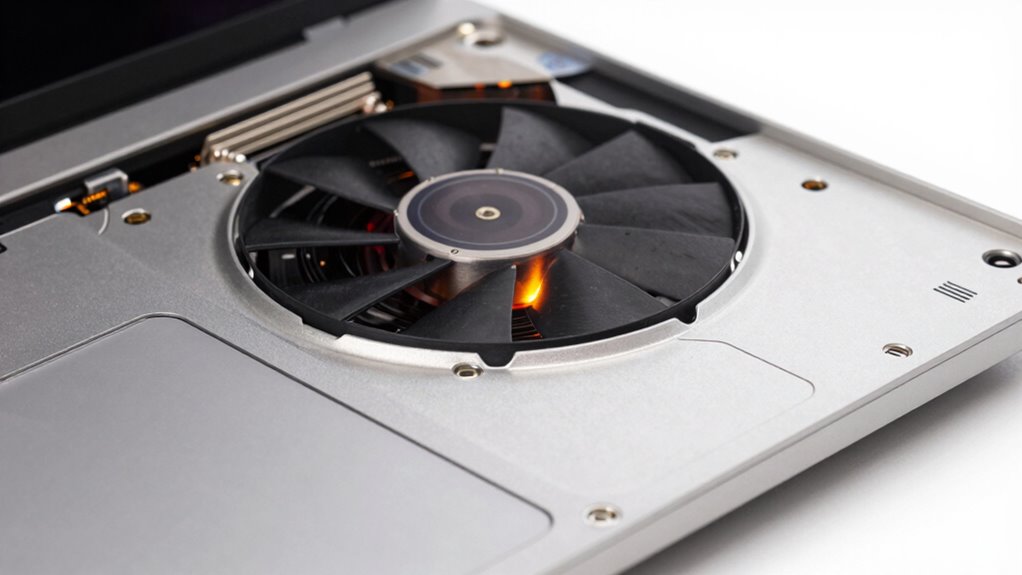
To troubleshoot fan noise without sacrificing performance, start by monitoring your system’s temperature and resource usage regularly. High temperatures or heavy CPU activity can cause fans to run louder. If you notice persistent overheating, consider hardware upgrades like adding more RAM or replacing an aging thermal paste to improve cooling efficiency. External solutions, such as using a cooling pad or external fans, can also help lower temperatures without taxing your Mac’s internal components. Managing background processes or closing resource-intensive apps can reduce workload, minimizing fan activity. Keep an eye on system metrics through activity monitors to identify culprits. These steps help lower fan noise while maintaining performance, avoiding the need to disable fans or compromise your Mac’s capabilities. Additionally, understanding the regulatory landscape around hardware modifications can help ensure your troubleshooting methods align with warranty policies and safety standards. Being aware of hardware modification regulations can prevent unintended warranty violations and ensure your solutions remain compliant. To further optimize cooling, consider thermal management techniques and proper airflow setup within your workspace. Implementing system monitoring tools can provide real-time insights into temperature fluctuations, aiding in proactive troubleshooting.

Laptop Cooling Pad with 3 Quiet Fans, 5-Level Height Adjustable Ergonomic Stand, 2 USB Ports & Phone Holder, Fits 12-17 Inch Laptops, Family-Friendly for Gaming/Work/Online Class,
👪 【3 Powerful Cooling Fans 】 – This laptop cooling pad is a must-have computer accessory for the…
As an affiliate, we earn on qualifying purchases.
As an affiliate, we earn on qualifying purchases.
Using Built-in Tools to Reduce Mac Fan Noise

Utilizing the built-in tools on your Mac can effectively help reduce fan noise without the need for third-party software. Start by checking for software updates, as Apple often releases improvements that enhance system performance and fan management. Keeping your macOS current ensures your system runs efficiently, reducing unnecessary heat and fan activity. Additionally, consider hardware upgrades like increasing RAM or swapping to a solid-state drive (SSD), which can lessen the workload on your CPU and lower heat generation. Use Activity Monitor to identify apps consuming excessive resources, and close or limit them to prevent overheating. Regularly resetting the System Management Controller (SMC) also helps recalibrate fans, restoring peak performance and noise levels without sacrificing device performance. Understanding U.S. tax law updates, such as changes to income deferral strategies, can also help optimize your overall financial health, reducing stress that might indirectly cause you to overlook hardware maintenance. Moreover, monitoring system thermal management settings can provide insights into how your Mac controls heat and fan activity, further aiding noise reduction efforts. Additionally, staying aware of power management settings can help optimize energy use and minimize unnecessary fan activity. Checking for and managing background processes can also ensure that your Mac isn’t working harder than needed, contributing to quieter operation. Incorporating proper ventilation practices can further assist in maintaining optimal operating temperatures and reducing fan noise.
Prevent Future Mac Fan Noise: Tips for a Quieter Mac
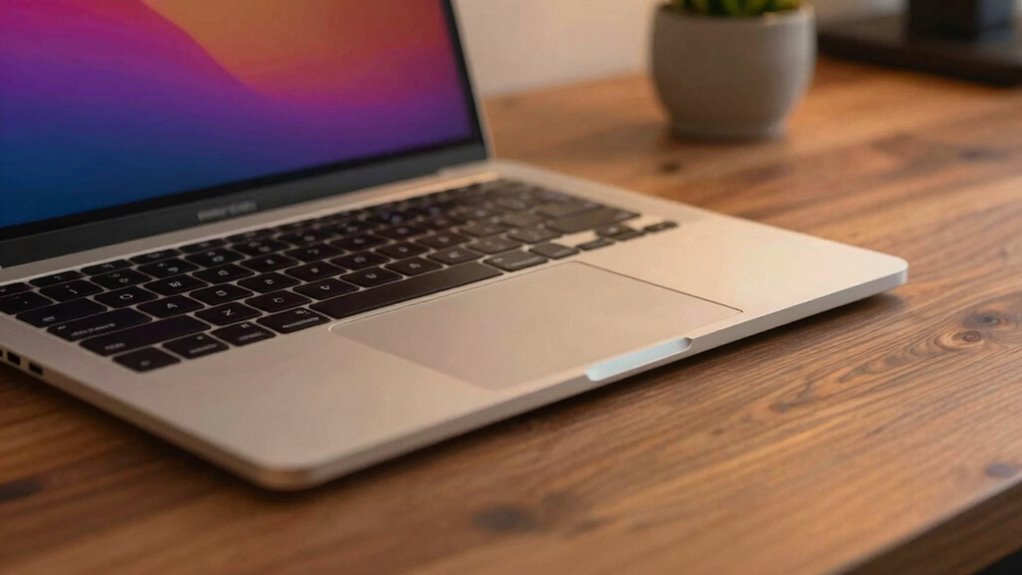
Preventing future Mac fan noise requires proactive habits and regular maintenance to keep your system running smoothly. Start by considering hardware upgrades, such as adding more RAM or switching to a solid-state drive, which can reduce strain and heat generation. Implement external cooling solutions like laptop stands with built-in fans or cooling pads to improve airflow and lower internal temperatures. Keep vents and fans clean by regularly removing dust and debris, preventing overheating that triggers loud fan activity. Monitoring system performance using activity monitors to identify heavy applications that cause heat buildup can also help manage system cooling more effectively. Additionally, staying mindful of sound healing science practices can help maintain optimal operating temperatures. Regularly checking for software updates ensures your system runs efficiently and reduces unnecessary load that can contribute to noise. Understanding how thermal management influences system behavior can further help in maintaining a quieter Mac. Incorporating preventive maintenance routines can significantly reduce the chances of unexpected overheating and noise issues. By combining these practices, you’ll maintain a quieter Mac, extend its lifespan, and guarantee ideal performance without unnecessary noise disruptions.
Frequently Asked Questions
Can External Factors Like Ambient Temperature Affect Mac Fan Noise?
Yes, ambient temperature can affect your Mac’s fan noise. When the surrounding temperature is high, your Mac’s cooling system works harder to maintain ideal performance, increasing fan activity and noise. To minimize this, guarantee good airflow enhancement around your device, avoid placing it in hot environments, and keep vents clear. Managing ambient temperature effectively helps your Mac run cooler and quieter without compromising performance.
Are Third-Party Apps Safe for Controlling Mac Fan Speeds?
Sure, third-party apps are totally safe for controlling Mac fan speeds—said no one ever! While fan calibration tools can help optimize performance, app safety varies. Always check reviews and developer credibility before installing. Ironically, some apps promise to quiet your noise but might cause overheating or damage. To stay safe, stick to trusted sources, and consider system defaults or official tools first. Your Mac will thank you!
How Often Should I Clean My Mac to Reduce Fan Noise?
You should clean your Mac every 3 to 6 months to keep dust buildup at bay. A regular cleaning schedule prevents dust from accumulating inside, which can cause your fans to work harder and increase noise. Use compressed air to blow out vents and fans carefully. If your Mac runs hot or noisy sooner, consider cleaning more often. Consistent maintenance helps keep your device cool and quiet, ensuring peak performance.
Does Upgrading Hardware Reduce Mac Fan Noise?
Upgrading hardware can reduce Mac fan noise if you improve components like RAM or storage, which lessen the CPU and GPU workload. However, some upgrades might impact performance negatively if incompatible or poorly installed. You should assess your specific hardware needs and compatibility before upgrading. Keep in mind that not all hardware upgrades lead to quieter operation, so consider other cooling solutions alongside potential performance impacts.
Can Software Updates Impact Mac Fan Noise Levels?
Yes, software updates can impact Mac fan noise levels. When you install new updates, they often include improved software compatibility and firmware updates that optimize system performance and thermal management. These updates can help your Mac run more efficiently, reducing the need for the fans to work as hard. Keep your system up to date, and you’ll likely notice quieter operation and better overall performance.
Conclusion
Now that you know how to identify and reduce your Mac’s fan noise, imagine what’s next. Could a simple tweak or two keep your workspace peaceful? Or might there be a hidden setting that reveals even greater silence? Don’t stop here—your quieter Mac awaits, but only if you’re willing to explore further. The secret to a tranquility-filled experience is within your reach. Are you ready to uncover it?